Image Sharpening Missing in Nvidia Control Panel? Bring it Back!
In this guide, we will show you the steps to bring back the missing Image Sharpening feature in Nvidia Control Panel. The graphics driver giant’s handy Control Panel provides a uniform platform that allows you to easily control, edit and manage various graphics driver settings. One among them was the ability to tweak the Image Sharpening, on a per-game basis, or globally for all supported titles. However, after the latest update, this feature is nowhere to be found.
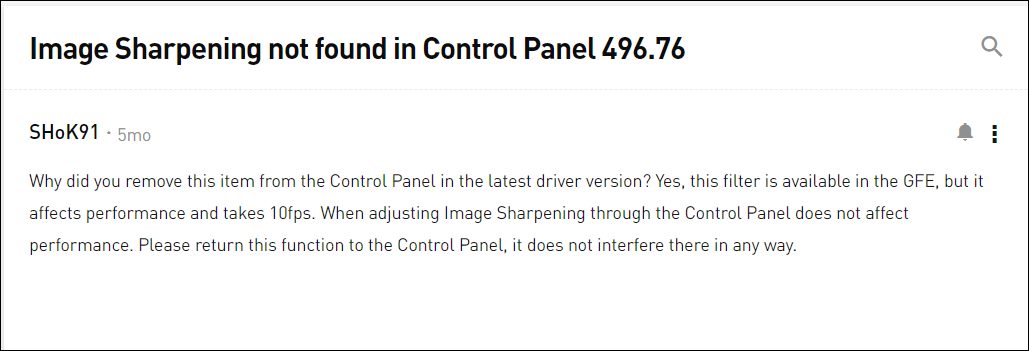
So what exactly happened? Well, Nvidia has removed the Image Sharpening feature from its Control Panel version 496.76 and above and has shifted this feature to the GeForce Experience app. Instead, you will now get the Image Scaling option in the control panel. So what’s the fuss all about, couldn’t we still easily access Image Sharpening from the Experience app? Well, you could but it would come at a cost.
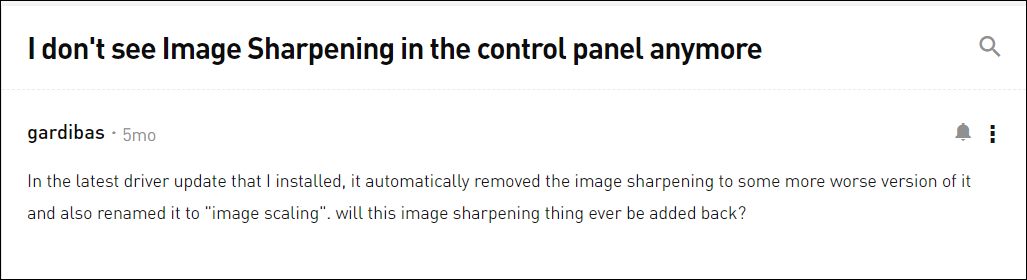
And that is at the cost of performance degradation as well as a 10-15 FPS drop. Moreover, if you try to access the Image Scaling option, then the display would scale to aspect ratio instead of fullscreen. All that wasn’t the case earlier when you could access the feature from Control Panel. With that said, there does exist a nifty method through which you could bring back the missing Image Sharpening feature in Nvidia Control Panel. So without any further ado, let’s check it out.

How to Bring Back the Missing Image Sharpening in Nvidia Control Panel
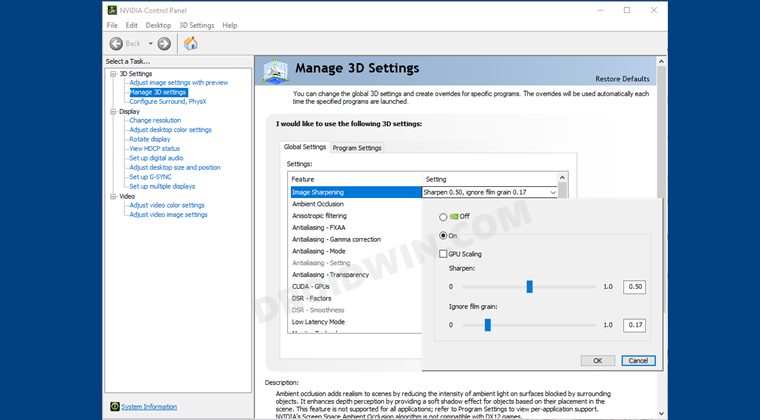
To carry out this task, we will be tweaking a registry value, hence it is recommended to take a registry backup beforehand. Once that is done, you may then proceed with the below instructions.
- Head over to the start menu, search Registry Editor, and open it.
- Then copy-paste the below location in its address bar and hit Enter Computer\HKEY_LOCAL_MACHINE\SYSTEM\CurrentControlSet\Services\nvlddmkm\FTS
- Now open the EnableGR535 file from the right-hand side.
- Change its Value Data to 0 and hit OK to save it.
- Finally, restart your PC for the changes to take place.
That’s it. It will bring back the missing Image Sharpening feature in Nvidia Control Panel. Although Nvidia hasn’t yet commented on this matter, it still seems to be an intentional change rather than a bug. And if that’s the case, then the aforementioned workaround is your best bet, atleast until Nvidia ends up patching it.
- Nvidia Control Panel Not Opening In Windows 11: How to Fix
- Nvidia RTX 3050 GPU Drivers Crashing/Freezing PC [Fixed]
- How to Downgrade/Rollback Nvidia GPU Drivers on Windows 11
- Nvidia GeForce Experience not working in Windows 11 [Fixed]

- Churka Madi 3 years ago Reply I was about to rollback to older version. found your tutorial and got it fixed. Thanks Hassan!
- Alex 3 years ago Reply Thanks a lot ))) very useful !!!!
- Andrés 3 years ago Reply Thanks! I wasn´t updating drivers just to keep this option enabled.
- Zibet 3 years ago Reply yea nice it work how did you mange to found this in registry 😀
- Adam 3 years ago Reply Yaay! 🙂 It worked for me as well. Cheers! Sadique Hassan 3 years ago Reply Glad that it helped you out Adam.
- Chris 4 years ago Reply Thank you!! It worked!
(Cancel Reply)
Δ
