Install a Third-Party Custom Launcher on Nvidia Shield TV
In this guide, we will show you the steps to install a third-party custom launcher on Nvidia Shield TV. The Google TV Launcher is the default launcher app on Android TVs. And up until now, everything seems to be going along the right track for it. However, the SiliconValley giants decided to make some underlying changes to the user interface by introducing the Discover UI. The update is now rolling out and most of you might have already got hold of the same. And it seems to have caught a few eyebrows.
Fix An error has occurred DP-4040: Fire TV Live Stream
How to Cast Hotstar on TV without Chromecast
How to Fix YouTube TV App not working on Roku
How to Install Third-Party Custom Launcher on Nvidia Shield TV Disable Google Launcher and Install Custom Launcher on Nvidia Shield TV
Concluding Remarks
How to Install Third-Party Custom Launcher on Nvidia Shield TV
There are two different methods to carry out the said task. The first one requires you to manually execute the ADB Commands whereas, in the second one, the app will do all that on your behalf. Needless to say, the first method is the shorter and easier of the two. So in this guide, we will be proceeding ahead with the second method itself.
Moreover, even after switching from Google Launcher to a third-party one, Google Assistant will still work as before, that is, by pressing the microphone button on your Shield remote. Likewise, the menu button on your Shield remote will also follow the same behavior as before. Both of them wouldn’t be affected by installing a third-party custom launcher on your Nvidia Shield TV.
Disable Google Launcher and Install Custom Launcher on Nvidia Shield TV
- To begin with, head over to the Settings > About section on your TV.
- Scroll to Build Number and tap on it 7 times. You should be notified that the Developer Options has been enabled.
- So press the Back key once and then go to Developer Options and enable Network Debugging.
- After that, go to Play Store and download the Downloader App.
- Once installed, open it, and type in the following URL: androidfilehost.com/user/?w=settings-dev-files&flid=326769
- Once you reach that page, you should see a few APKs. First off, download and install the Launcher Manager APK File: TDUK_LauncherManager-ATV_1.0.3.apk. However, if you are on Chromecast, then you should instead download Launcher Manager Chromecast Google TV.
- Once you have installed Launcher Manager, now install Wolf Custom Launcher: TDUK_WolfLauncher_0.1.8-Wolf.Apk
- Now open Launcher Manager and select Enable Custom Launcher.
- It will now run a couple of ADB commands in the background to disable the stock launcher.
- Once done, press the home key on your remote. You will now get a prompt to Use Wolf Launcher as Home. Select Always and the task stands complete.
Concluding Remarks
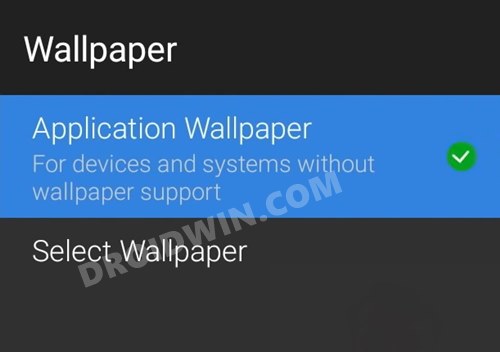
The Wolf Launcher, by default, is quite simple and minimalistic. However, if you want, you may now customize it as per your requirement. To do so, press and hold the Select key on your remote. Then go to Launcher Settings > Wallpapers > Enable Application Wallpaper > Go to Select Wallpaper and choose the wallpaper of your choice. Likewise, you may also customize other elements such as widgets, etc.

(Cancel Reply)
Δ
