Install Android 15/14 Custom ROMs on Redmi Note 12 4G/5G
In this guide, we will show you the steps to install various Android 15/14 Custom ROMs on your Redmi Note 12 4G/5G. The newest addition to the Note series has grabbed the attention of the masses, not just for generic users but even for tech enthusiasts alike. This is because the Redmi series has always been known to be among the most active players in custom development and its twelfth iteration is no different either.
However, for some users, the underlying OS skin is not in sync with their requirements, mainly due to the fact that it’s bloated with tons of unnecessary preinstalled apps. Well, if you are of the same opinion as well, then this guide will give you a perfect platform to break free from the shackles of the stock MIUI ecosystem and welcome numerous AOSP-based ROMs that offer a clean, stock, fast, and stable usage experience. So without further ado, let’s get started.
- Prerequisites to Installing Android 15/14 Custom ROMs on Redmi Note 12 4G/5G STEP 1: Install Android SDK STEP 2: Enable USB Debugging and OEM Unlocking STEP 3: Unlock Bootloader on Redmi Note 12 4G/5G STEP 4: Download Android 15/14 Custom ROMs for Redmi Note 12 4G/5G STEP 5: Boot to Fastboot Mode
- How to Install LineageOS 22 Android 15 on Redmi Note 12 5G/Poco X5
- Flash crDroid Android 15 on Redmi Note 12 5G/Poco X5
- Install Evolution X Android 15 on Redmi Note 12 5G/Poco X5
- Flash ProjectStyx Modified Android 15 on Redmi Note 12 5G/Poco X5
- Flash PixelOS Android 14 on Redmi Note 12 5G/Poco X5
- Flash CherishOS Android 14 on Redmi Note 12 5G/Poco X5
- Flash PixelStar Android 14 on Redmi Note 12 5G/Poco X5
- Flash crDroid Android 15 on Redmi Note 12 4G
- Flash LineageOS Android 14 on Redmi Note 12 4G
- Flash AlphaDroid Android 14 on Redmi Note 12 4G
- Flash HorizonDroid Android 14 on Redmi Note 12 4G
Prerequisites to Installing Android 15/14 Custom ROMs on Redmi Note 12 4G/5G

Installing any of the below-listed ROMs will wipe off all the data from your device, so please take a backup beforehand. Droidwin and its members wouldn’t be held responsible in case of a thermonuclear war, your alarm doesn’t wake you up, or if anything happens to your device and data by performing the below steps.
STEP 1: Install Android SDK

First and foremost, you will have to install the Android SDK Platform Tools on your PC. This is the official ADB and Fastboot binary provided by Google and is the only recommended one. So download it and then extract it to any convenient location on your PC. Doing so will give you the platform-tools folder, which will be used throughout this guide to install the ROM on the Redmi Note 12 4G/5G.
STEP 2: Enable USB Debugging and OEM Unlocking
Next up, you will also have to enable USB Debugging and OEM Unlocking on your device. The former will make your device recognizable by the PC in ADB mode. This will then allow you to boot your device to Fastboot Mode. On the other hand, OEM Unlocking is required to carry out the bootloader unlocking.
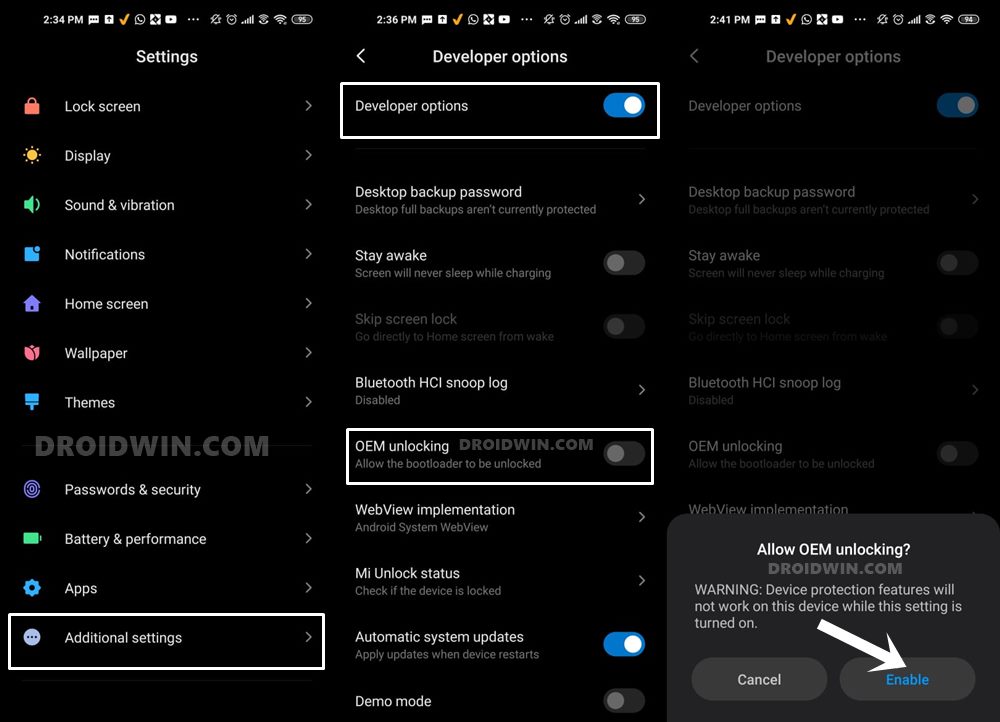
So head over to Settings > About Phone > Tap on Build Number 7 times > Go back to Settings > System > Advanced > Developer Options > Enable USB Debugging and OEM Unlocking.
STEP 3: Unlock Bootloader on Redmi Note 12 4G/5G
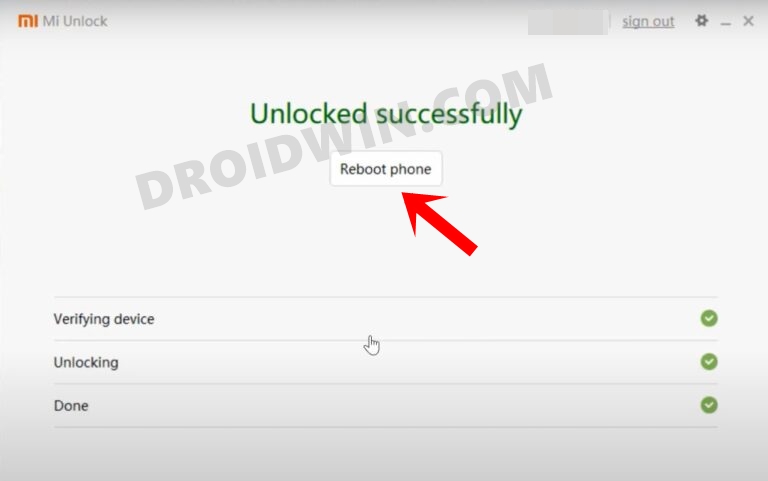
Next up, you will also have to unlock the device’s bootloader. Do keep in mind that doing so will wipe off all the data from your device and could nullify its warranty as well. So if that’s all well and good, then please refer to our detailed guide on How to Unlock Bootloader on any Xiaomi Device .
STEP 4: Download Android 15/14 Custom ROMs for Redmi Note 12 4G/5G
You may get hold of your preferred ROM from below.
- NOTE 1: Place all the files [ROM, GApps, etc] inside the platform-tools folder.
- NOTE 2: Rename ROM to rom.zip and GApps to gapps.zip.
Redmi Note 12 5G/Poco X5 ROMs
LineageOS 22: ROM | Boot.img

crDroid Android 15: ROM | Boot.img

Evolution X Android 15: ROM | Boot.img

StyxProject Android 15: ROM

PixelOS Android 14: ROM

CherishOS Android 14: ROM

Project PixelStar Android 14: ROM


Redmi Note 12 5G Firmware: Download

Redmi Note 12 5G TWRP: Download & Install

GApps: Android 15 | Android 14
Redmi Note 12 4G ROMs
crDroid Android 15: ROM

AlphaDroid Android 14: ROM

LineageOS 21 Android 14: ROM

HorizonDroid Android 14: ROM


Redmi Note 12 4G Firmware: Download

Redmi Note 12 4G TWRP: Download & Install

Redmi Note 12 4G OrangeFox: Download & Install

GApps: Android 15 | Android 14
STEP 5: Boot to Fastboot Mode
- Connect your device to the PC via a USB cable. Make sure USB Debugging is enabled.
- Then head over to the platform-tools folder, type in CMD in the address bar, and hit Enter. This will launch the Command Prompt.
- Type in the following command in the CMD window to boot your device to Fastboot Mode adb reboot bootloader
- To verify the Fastboot connection, type in the below command and you should get back the device ID. fastboot devices
- If you are not getting any serial ID, then please install the Fastboot Drivers on your PC.
How to Install LineageOS 22 Android 15 on Redmi Note 12 5G/Poco X5
- First off, flash the boot.img via the below command: fastboot flash boot boot.img
- Then reboot to recovery via the below command: fastboot reboot recovery
- Now, do a Format data / Factory Reset.
- Then select Apply Update -> Apply from ADB.
- Now type in the below command to sideload the ROM: adb sideload rom.zip
- Once done, tap on Reboot System Now to boot to the OS.
Flash crDroid Android 15 on Redmi Note 12 5G/Poco X5
- First off, flash the boot.img via the below command: fastboot flash boot boot.img
- Then reboot to recovery via the below command: fastboot reboot recovery
- Now, do a Format data / Factory Reset.
- Then select Apply Update -> Apply from ADB.
- Now type in the below command to sideload the ROM: adb sideload rom.zip
- To flash GApps, reboot to recovery and type the below command: adb sideload gapps.zip
- Once done, tap on Reboot System Now to boot to the OS.
Install Evolution X Android 15 on Redmi Note 12 5G/Poco X5
- First off, flash the boot.img via the below command: fastboot flash boot boot.img
- Then reboot to recovery via the below command: fastboot reboot recovery
- Now, do a Format data / Factory Reset.
- Then select Apply Update -> Apply from ADB.
- Now type in the below command to sideload the ROM: adb sideload rom.zip
- Once done, tap on Reboot System Now to boot to the OS.
Flash ProjectStyx Modified Android 15 on Redmi Note 12 5G/Poco X5
- To begin with, install TWRP Recovery on your device.
- Then boot your device to the recovery via the below command: adb reboot recovery
- Now go to Wipe > Format Data > Type YES > hit the checkmark
- Then go to Wipe > Advanced Wipe > Wipe Dalvik, Cache, System, Vendor.
- Now transfer the ROM and firmware ZIP to your device.
- Then go to Install, select firmware ZIP, and flash it.
- Again, go to Install, select ROM ZIP, and flash it.
- To flash GApps, transfer it to your device and flash it from the Install section.
- Finally, go to Reboot and select System to boot to the OS.
Flash PixelOS Android 14 on Redmi Note 12 5G/Poco X5
- To begin with, install TWRP Recovery on your device.
- Then boot your device to the recovery via the below command: adb reboot recovery
- Now go to Wipe > Format Data > Type YES > hit the checkmark
- Then go to Wipe > Advanced Wipe > Wipe Dalvik, Cache, System, Vendor.
- Now transfer the ROM and firmware ZIP to your device.
- Then go to Install, select firmware ZIP, and flash it.
- Again, go to Install, select ROM ZIP, and flash it.
- Finally, go to Reboot and select System to boot to the OS.
Flash CherishOS Android 14 on Redmi Note 12 5G/Poco X5
- To begin with, install TWRP Recovery on your device.
- Then boot your device to the recovery via the below command: adb reboot recovery
- Now go to Wipe > Format Data > Type YES > hit the checkmark
- Then go to Wipe > Advanced Wipe > Wipe Dalvik, Cache, System, Vendor.
- Now transfer the ROM and firmware ZIP to your device.
- Then go to Install, select firmware ZIP, and flash it.
- Again, go to Install, select ROM ZIP, and flash it.
- To flash GApps, transfer it to your device and flash it from the Install section.
- Finally, go to Reboot and select System to boot to the OS.
Flash PixelStar Android 14 on Redmi Note 12 5G/Poco X5
- To begin with, install TWRP Recovery on your device.
- Then boot your device to the recovery via the below command: adb reboot recovery
- Now go to Wipe > Format Data > Type YES > hit the checkmark
- Then go to Wipe > Advanced Wipe > Wipe Dalvik, Cache, System, Vendor.
- Now transfer the ROM and firmware ZIP to your device.
- Then go to Install, select firmware ZIP, and flash it.
- Again, go to Install, select ROM ZIP, and flash it.
- To flash GApps, transfer it to your device and flash it from the Install section.
- Finally, go to Reboot and select System to boot to the OS.
Flash crDroid Android 15 on Redmi Note 12 4G
- To begin with, install TWRP Recovery on your device.
- Then boot your device to the recovery via the below command: adb reboot recovery
- Now go to Wipe > Format Data > Type YES > hit the checkmark
- Then go to Wipe > Advanced Wipe > Wipe Dalvik, Cache, System, Vendor.
- Now transfer the ROM and firmware ZIP to your device.
- Then go to Install, select firmware ZIP, and flash it.
- Next up, go to Install, select ROM ZIP, and flash it.
- Then, go to Wipe and wipe Cache and MetaData.
- Now go to Wipe and do Format Data once again.
- Then reflash the recovery on your device: If you are using Orange Fox, find the “Flash сurrent OrangeFox” in the Advanced Settings. After that, boot back to Orange Fox via fastboot reboot recovery. If you are using TWRP, then go to Reboot > Bootloader and flash the recovery using this guide . After that, boot back to TWRP via fastboot reboot recovery.
- To flash GApps, first flash RO2RW and then reboot to recovery.
- Once done, you may now flash GApps ZIP from the Install section.
- Finally, go to Reboot and select System to boot to the OS.
Flash LineageOS Android 14 on Redmi Note 12 4G
- To begin with, install TWRP Recovery on your device.
- Then boot your device to the recovery via the below command: adb reboot recovery
- Now go to Wipe > Format Data > Type YES > hit the checkmark
- Then go to Wipe > Advanced Wipe > Wipe Dalvik, Cache, System, Vendor.
- Now transfer the ROM and firmware ZIP to your device.
- Then go to Install, select firmware ZIP, and flash it.
- Next up, go to Install, select ROM ZIP, and flash it.
- Then, go to Wipe and wipe Cache and MetaData.
- Now go to Wipe and do Format Data once again.
- Then reflash the recovery on your device: If you are using Orange Fox, find the “Flash сurrent OrangeFox” in the Advanced Settings. After that, boot back to Orange Fox via fastboot reboot recovery. If you are using TWRP, then go to Reboot > Bootloader and flash the recovery using this guide . After that, boot back to TWRP via fastboot reboot recovery.
- To flash GApps, first flash RO2RW and then reboot to recovery.
- Once done, you may now flash GApps ZIP from the Install section.
- Finally, go to Reboot and select System to boot to the new OS.
Flash AlphaDroid Android 14 on Redmi Note 12 4G
- To begin with, install TWRP Recovery on your device.
- Then boot your device to the recovery via the below command: adb reboot recovery
- Now go to Wipe > Format Data > Type YES > hit the checkmark
- Then go to Wipe > Advanced Wipe > Wipe Dalvik, Cache, System, Vendor.
- Now transfer the ROM and firmware ZIP to your device.
- Then go to Install, select firmware ZIP, and flash it.
- Next up, go to Install, select ROM ZIP, and flash it.
- Then, go to Wipe and wipe Cache and MetaData.
- Now go to Wipe and do Format Data once again.
- Then reflash the recovery on your device: If you are using Orange Fox, find the “Flash сurrent OrangeFox” in the Advanced Settings. After that, boot back to Orange Fox via fastboot reboot recovery. If you are using TWRP, then go to Reboot > Bootloader and flash the recovery using this guide . After that, boot back to TWRP via fastboot reboot recovery.
- To flash GApps, first flash RO2RW and then reboot to recovery.
- Once done, you may now flash GApps ZIP from the Install section.
- Finally, go to Reboot and select System to boot to the new OS.
Flash HorizonDroid Android 14 on Redmi Note 12 4G
- To begin with, install TWRP Recovery on your device.
- Then boot your device to the recovery via the below command: adb reboot recovery
- Now go to Wipe > Format Data > Type YES > hit the checkmark
- Then go to Wipe > Advanced Wipe > Wipe Dalvik, Cache, System, Vendor.
- Now transfer the ROM and firmware ZIP to your device.
- Then go to Install, select firmware ZIP, and flash it.
- Next up, go to Install, select ROM ZIP, and flash it.
- Then, go to Wipe and wipe Cache and MetaData.
- Now go to Wipe and do Format Data once again.
- Then reflash the recovery on your device: If you are using Orange Fox, find the “Flash сurrent OrangeFox” in the Advanced Settings. After that, boot back to Orange Fox via fastboot reboot recovery. If you are using TWRP, then go to Reboot > Bootloader and flash the recovery using this guide . After that, boot back to TWRP via fastboot reboot recovery.
- Finally, go to Reboot and select System to boot to the new OS.
- How to Pass SafetyNet on Rooted Redmi Note 12 Pro/Pro+ 5G
- How to Root Redmi Note 12 Pro/Pro+ 5G via Magisk
- Unbrick Redmi Note 12 Pro/Pro+ 5G via Fastboot Commands
- How to Flash Indian ROM on Redmi Note 12 Pro/Pro+ 5G

- Forester 2 years ago Reply This Custom has gotten thread lock under xda forums moderator after asking for missing kernel source link.
(Cancel Reply)
Δ
