Install Google Assistant in Galaxy Watch 4 in Unsupported Countries
In this guide, we will show you the steps to install Google Assistant in Galaxy Watch 4 in unsupported countries. When it comes to the smartwatch domain, then there’s no denying the fact that the offering from the South Korean giants is right there at the top. While its initial variant had a few occasional hiccups on the software side, the fourth iteration comes with WearOS 3 which is based on Android.
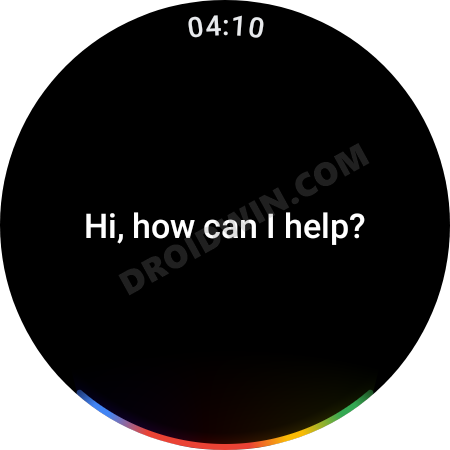
And that perhaps checkmarks most of the prerequisites that one could have asked for. However, if you would allow us to nitpick certain aspects, then one of the glaring issues of this watch was the non-availability of some of the most important Android apps. Out of which, it was Google’s Virtual Assistant that was at the top of the priority queue for many users.
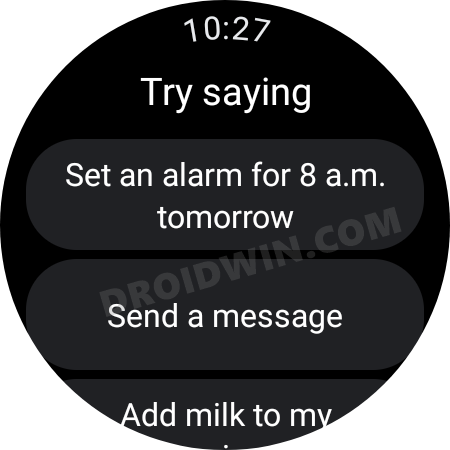
There do exist some nifty workarounds through which you could have sideloaded the app onto your watch, but the steps were slightly technical and not for everyday users. Well, you don’t have to deal with these technical jargons any longer as Google has officially released the Assistant app for the latest Galaxy watch. And in this guide, we will show you how you could welcome it abode. So without further ado, let’s get started with the steps to install Google Assistant in Galaxy Watch 4 in unsupported countries.
- Install Google Assistant in Galaxy Watch 4 in Unsupported Countries [Official Method]
- Google Assistant in Galaxy Watch 4: Supported Countries and Languages Supported Countries List Supported Languages List
- How to Install Google Assistant in Galaxy Watch 4 via ADB Commands STEP 1: Install Android SDK STEP 2: Enable ADB Debugging in Galaxy Wach 4 STEP 3: Connect Galaxy Watch 4 to PC via ADB Command STEP 4: Install Google Assistant via ADB Commands in Galaxy Watch 4
Install Google Assistant in Galaxy Watch 4 in Unsupported Countries [Official Method]
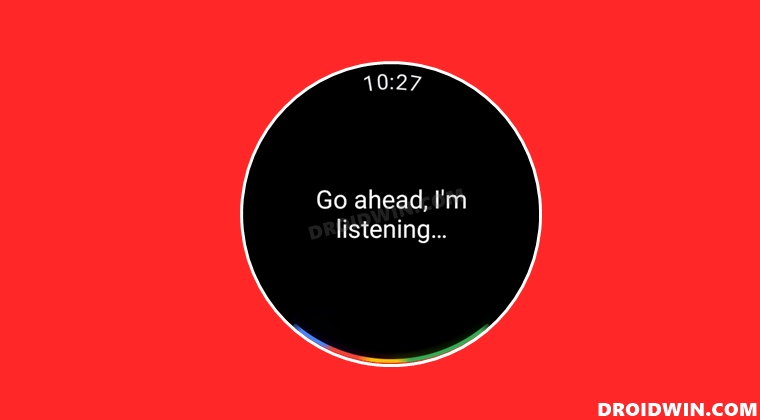
For the unaware, Google Assistant in Galaxy Watch 4 is only supported in 10 countries and supports 12 languages [SEE NEXT SECTION]. While there is every chance that this list will be further expanded and new countries/languages will be added in the near future, but what should we, the users, do to bring this app the official way onto our watch right away?
Well, all that you need to do is just change the Google Assistant language to English [US] or any other supported one [which are listed in the next section] on your smartphone, and the app will be available n your watch right away. So proceed with the below steps to implement this fix right away and hence install Google Assistant in Galaxy Watch 4 in unsupported countries.
- Launch the Google app on your device, tap on your profile, and select Settings.
- After that, choose Google Assistant and scroll to Languages.
- Then tap on your language and change it to English [United States].
- You may also select any other language from the 12 supported ones.
- Once done, launch Play Store on your Galaxy Watch 4 and go to My Apps.
- There will be an update to the Assitant, download and install it right away.
- Once done, open it and then tap on Open on phone to active.
- Now proceed with the on-screen instructions on your device to complete the setup.
- Once done, you should now see the Assistant icon in the watch’s app drawer. Open it and start using it right away!
- You may now replace Bixby and set Google Assistant as the default virtual assistant on your Galaxy Watch 4 as well.
Google Assistant in Galaxy Watch 4: Supported Countries and Languages
As is the rule in the tech ecosystem, every good news comes with a pinch of salt, and that is the case with this one as well. As of now, Google Assistant in Galaxy Watch 4 is only supported in the following 10 countries and supports the following 12 languages-
Supported Countries List
- Australia
- Canada
- France
- Germany
- Ireland
- Japan
- Ireland
- Taiwan
- Korea
- UK
- USA
Supported Languages List
- Danish
- English [American]
- English [Canadian]
- English [United Kingdom]
- English [Australian]
- English [Irish]
- Japanese
- Korean
- Spanish
- French [Canadian]
- French [France]
- Taiwanese
How to Install Google Assistant in Galaxy Watch 4 via ADB Commands
If you are facing any issues in installing Google Assistant in unsupported countries using the aforementioned method, then you could also try sideloading it via ADB Commands. Here’s how-
STEP 1: Install Android SDK
First and foremost, you will have to install the Android SDK Platform Tools on your PC. This is the official ADB and Fastboot binary provided by Google and is the only recommended one. So download it and then extract it to any convenient location on your PC. Doing so will give you the platform-tools folder, which will be used throughout this guide.

STEP 2: Enable ADB Debugging in Galaxy Wach 4
- Head over to the Settings > About Watch > Software and tap Software Version 7 times.
- Then go to Developer Options and enable the toggle next to ADB Debugging.
- After that, scroll down a little bit and enable the toggle next to Debug over WiFi.
- It will now bring up the IP Address, note it down somewhere [do not include the port number, i.e. values after the colon].
- For example, if the entire value is 192.168.1.3:5555, then your IP will be 192.168.1.3.
STEP 3: Connect Galaxy Watch 4 to PC via ADB Command
- Head over to the platform-tools folder, type in CMD in its address bar, and hit Enter. This will launch Command Prompt.
- Now type in the below command in this CMD window [make sure to replace IP accordingly]. adb connect IP
- You will now get a prompt on your watch, tap OK or Always Allow from this computer.
- Finally, execute the below command to verify the ADB Connection between your watch and PC adb devices
- You will now get your IP Address and port number, followed by the ‘device’ keyword. This signifies that the connection has been successfully established.
STEP 4: Install Google Assistant via ADB Commands in Galaxy Watch 4
- Download the Google Assistant Go APK file and transfer it to the platform-tools folder on your PC.
- Next up, rename it to ga.apk so that it becomes easier to type in the command window.
- Then open CMD inside this platform-tools folder and execute the below command [make sure to replace IP accordingly]. adb -s IP install ga.apk
- That’s it. The Google Assistant will now be installed on your watch which you could access from the app drawer.
- Launch it and proceed with the on-screen instructions to set it up.
- Install Discord on Samsung Galaxy Watch 4 via ADB Sideload
- Cannot Add Cards in Google Pay in Galaxy Watch 4: How to Fix
- Watch Face and AOD not working in Galaxy Watch 4 after update
- Samsung Health app not working on Galaxy Watch 4: How to Fix

- AP 3 years ago Reply It Worked on galaxy watch 5 man thank you so much
- Nontas 4 years ago Reply When i press the button “open on phone” to activate and i get the prompt to continue on phone… nothing shows up on the phone. I have the other settings as you describe in the article.
- Bjornar 4 years ago Reply This worked Choose Google Assistant and scroll to Languages. Tap on your language and change it to English [United States]. After that, launch Play Store on your Galaxy Watch 4 and go to My Apps.
- are 4 years ago Reply dont work
- jimmy 4 years ago Reply Tried to change my language settings. Even deleted my Norwegian settings so that I left just English. It now allowed me to open assistant on the watch, but during setup I just contunue to receive “Your region’s language is not yet supported on Galaxy Watch 4” Tried to restart both the watch and phone. Both are showing US settings. Seems weird that Google would block this. Bjornar 4 years ago Reply Same here, not supported Sadique Hassan 4 years ago Reply Please try selecting any of the other five supported English languages [based on regions] and then test out the results. If you have already done so, then verify if you are using the latest version of the Galaxy Wearable app. If you are on the latest version, then as a last resort, please delete the Google App data and then retry the setup [uninstall Assistant from your watch first].
(Cancel Reply)
Δ
