Install LineageOS 19 [Android 12] on OnePlus 9 Pro
In this guide, we will show you the steps to install LineageOS 19 based on Android 12 onto your OnePlus 9 Pro. While the ninth iteration of the devices from OnePlus was the first in the lineup to get a taste of ColorOS. While the plan for the unification of the codebase is currently halted, but even then the traces of the Oppo’s underlying OS skin is quite visible under the OxygenOS.
And we don’t need to shed light on the fact that this change wasn’t welcomed with open hands by many users. As a result of which, a plethora of users straightaway unlocked the device’s bootloader and made a jump over to one of the custom ROMs. In this regard, we are already seeing an ocean of ROMs available for this device, which is definitely a boon for tech enthusiasts.
However, they are currently stuck in a rather good dilemma- which custom ROM should they ultimately settle for. Well, if the question is a ROM that provides an equilibrium between feature set and performance stability, then Lineage might just be the right answer. So on that note, let’s get started with the steps to install LineageOS 19 based on Android 12 onto your OnePlus 9 Pro.
- Install LineageOS 19 [Android 12] on OnePlus 9 Pro STEP 1: Install Android SDK STEP 2: Download LineageOS 19 [Android 12] ROM STEP 3: Enable USB Debugging and OEM Unlocking STEP 4: Unlock Bootloader on OnePlus 9 Pro STEP 5: Boot to Fastboot Mode STEP 6: Flash dtbo and vendor boot STEP 7: Install LineageOS Recovery on OnePlus 9 Pro STEP 7: Copy Contents of Slot A to B STEP 8: Install LineageOS 19 ROM on OnePlus 9 Pro STEP 9: Install GApps on OnePlus 9 Pro
Install LineageOS 19 [Android 12] on OnePlus 9 Pro
Before starting, make sure that you are on the latest Android 12 firmware [READ- Flash Android 12 on OnePlus 9 Pro via Fastboot Commands ]. Moreover, take a data backup beforehand as the process will reset your device. Droidwin and its members wouldn’t be held responsible in case of a thermonuclear war, your alarm doesn’t wake you up, or if anything happens to your device and data by performing the below steps.
SUPPORTED DEVICES

LE2120

LE2121

LE2123

LE2125
STEP 1: Install Android SDK
First and foremost, you will have to install the Android SDK Platform Tools on your PC. This is the official ADB and Fastboot binary provided by Google and is the only recommended one. So download it and then extract it to any convenient location on your PC. Doing so will give you the platform-tools folder, which will be used throughout this guide.

STEP 2: Download LineageOS 19 [Android 12] ROM
Next up, get hold of the ROM for your device from below. Along with that, make sure to download its associated recovery file as well. Moreover, if you want Google apps and services, then download the GApps as well. Regarding which, there are many different GApps providers, as for this guide, we are using the NikGApps, you are free to use the one that you prefer.
OnePlus 9 Pro [lemonadep]: ROM + RECOVERY

GApps: NikGApps
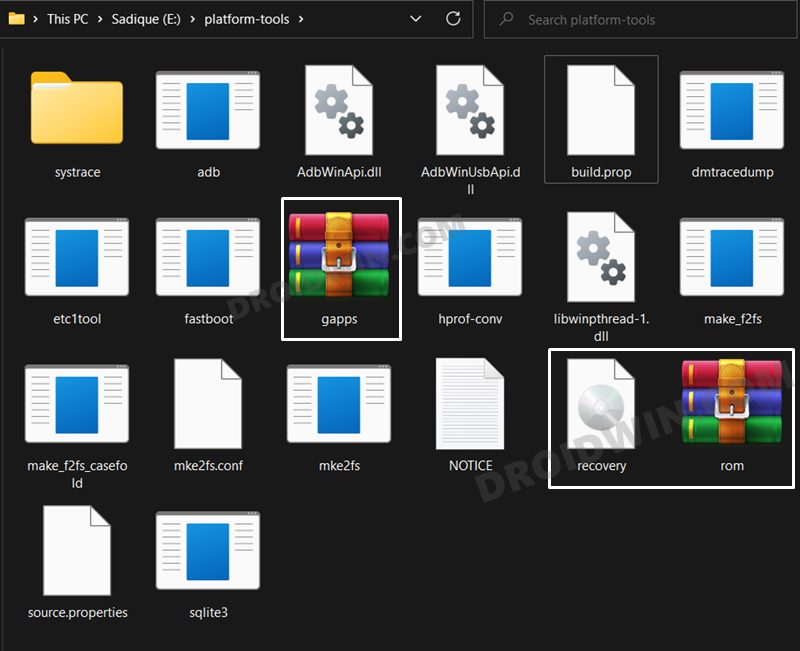
Once you have downloaded all the three files [ROM, recovery, and GApp], transfer them to the platform-tools folder on your PC. Likewise, rename the LineageOS 19 ROM to rom.zip, the LineageOS recovery file to recovery.img, and the GApps package to gapps.zip.
STEP 3: Enable USB Debugging and OEM Unlocking
Next up, you will have to enable USB Debugging and OEM Unlocking on your device. The former will make your device recognizable by the PC in ADB mode. This will then allow you to boot your device to Fastboot Mode. On the other hand, OEM Unlocking is required to carry out the bootloader unlocking process.
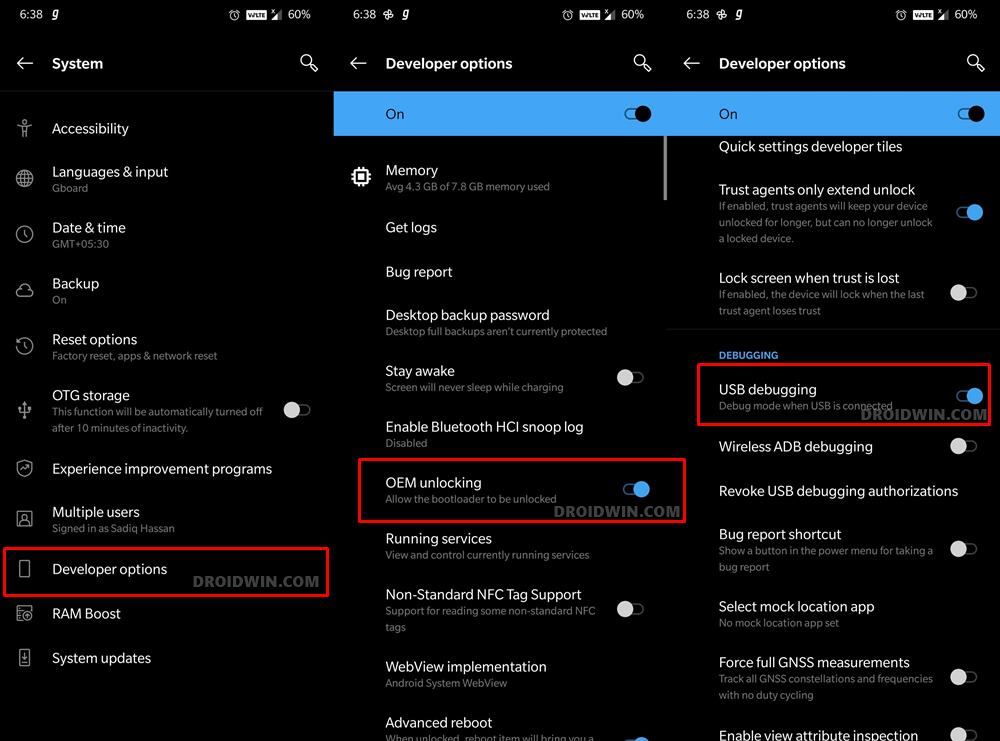
So head over to Settings > About Phone > Tap on Build Number 7 times > Go back to Settings > System > Advanced > Developer Options > Enable USB Debugging and OEM Unlocking.
STEP 4: Unlock Bootloader on OnePlus 9 Pro
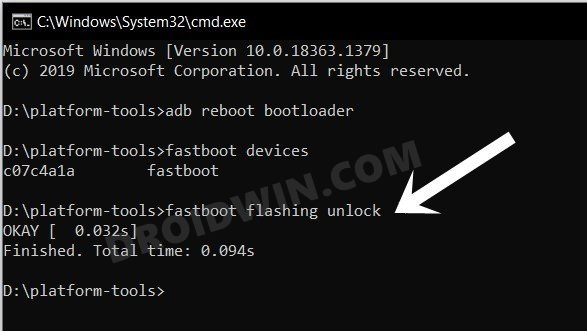
Next up, you will also have to unlock the device’s bootloader. Do keep in mind that doing so will wipe off all the data from your device and could nullify its warranty as well. So if that’s all well and good, then please refer to our detailed guide on How to Unlock Bootloader on OnePlus 9 Pro
STEP 5: Boot to Fastboot Mode
- Connect your device to the PC via USB cable. Make sure USB Debugging is enabled.
- Then head over to the platform-tools folder, type in CMD in the address bar, and hit Enter. This will launch the Command Prompt.
- After that, type in the following command in the CMD window to boot your device to Fastboot Mode adb reboot bootloader
- To verify the Fastboot connection, type in the below command and you should get back the device ID. fastboot devices
STEP 6: Flash dtbo and vendor boot
- To begin with, download dtbo.img and vendor_boot.img
- Then transfer both these files to the platform-tools folder on your PC.
- Now launch CMD inside this platform-tools folder
- Then execute the below two commands to flash both the files fastboot flash dtbo dtbo.img fastboot flash vendor_boot vendor_boot.img
STEP 7: Install LineageOS Recovery on OnePlus 9 Pro
- Execute the below command in the CMD window to flash the LineageOS 19 Recovery fastboot flash boot recovery.img
- Now use the Volume keys to bring up the Recovery option and hit the Power key to confirm it.
- Your device will now boot to the LineageOS Recovery.
STEP 7: Copy Contents of Slot A to B
in order to maintain consistency of the firmware versions between the two partitions on your device, we will now be copying all the contents of Slot A to Slot B.
- So download the copy-partitions.zip file and transfer it to the platform-tools folder [rename the file to copy-partitions.zip].
- After that, select Apply Update > Apply from ADB from the recovery’s main menu.
- Then open Command Prompt inside the platform-tools folder and execute the below command adb sideload copy-partitions.zip
- Once done, you will have to reboot to recovery by going to Advanced > Reboot to Recovery.
STEP 8: Install LineageOS 19 ROM on OnePlus 9 Pro
- To begin with, go to Factory Reset > Format Data/Factory Reset > Format Data.
- Your device will now undergo a reset. Once done, you will get the Data Wipe complete message.
- Now go to the recovery’s home page and select Apply Update > Apply from ADB.
- After that, execute the below command that is opened inside the platform-tools folder. adb sideload rom.zip
- The ROM will now be flashed. Once done, you will get the Total xfer: 1.00x message.
NOTE: In some cases, the process will stop at 47% and report adb: failed to read command: Success. Likewise, it could also report adb: failed to read command: No error or adb: failed to read command: Undefined error: 0. All these messages signify that the flashing has been successfully completed.
STEP 9: Install GApps on OnePlus 9 Pro
If you want to Google apps and services, then you will have to flash GApps right now, you cannot do so at a later stage. So refer to the below instructions to flash it.
- From the LineageOS recovery, go to Advanced > Reboot to Recovery.
- Once your device reboots to recovery, go to Apply Update > Apply from ADB.
- After that, execute the below command to flash the GApps package adb sideload gapps.zip
- You might get a signature verification failed message, reply YES [any file that hasn’t been signed by Lineage will throw this error, it is completely normal].
- Once the flashing is complete, go to the recovery home page and select Reboot System Now. Your device will now boot to the newly installed OS.
- How to Root LineageOS ROM via Magisk Boot.img
- Root LineageOS ROM using TWRP Recovery
- How to Hide Root from Apps via Magisk DenyList [Android 12]
- How to Remove Navigation Bar Gesture Pill on Android 12 Without Root

(Cancel Reply)
Δ
