Install Stock Firmware on Moto G5 via Fastboot Commands
And the Motorola Moto G5 was no different either. The octa-core Qualcomm Snapdragon 430 chipset coupled with Adreno 505 was worth the appreciation during the time it was released. Then with up to 32GB storage and 3GB RAM, a 13MP rear camera and 5MP front-facing camera were quite decent as well. It came with a 2800mAH battery which three-four years back might have been just sufficient to last an entire day on normal usage.
- How to Fix TWRP 0MB Internal Memory Issue
- How to Fix TWRP Error 70 [With Screenshots]
- Fix TWRP Error 7 (While Flashing Custom ROM via TWRP)
- How to Fix TWRP Error 20 GApps after flashing LineageOS
Along the same lines, the device was also quite an active player in custom development. From the ability to flash custom binaries to installing a custom recovery like TWRP, the possibilities stand endless. Along the same lines, you could also root your device via Magisk. This will then allow you to flash Magisk Modules, Substratum Themes, Xposed Framework, and the likes. However, all these tweaks came with an uninvited guest in the form of Risk.
If you end up flashing an incorrect binary or messes up with the instructions, and there stood every possibility of the device going soft-bricked or in a bootloop. Well, in that regard, there is the LMSA Tool, which in my case failed to unbrick or restore my device to normal working condition. As a result, I came out with this tutorial. Here we would be doing the exact same thing that the LMSA Tool does, but manually. So without further ado, let’s start off with the guide to install the stock firmware on your Moto G5 device via Fastboot Commands.
Disable DM-Verity or Android Verified Boot without TWRP
Root Android 11 via Magisk Patched boot.img (without TWRP)
How to Update Magisk ZIP and Magisk Manager (without TWRP)
Fix Magisk Module Bootloop without TWRP Recovery
Prerequisites
Download Moto G5 Stock Firmware
How to Install Stock Firmware on Motorola G5 via Fastboot
What are the Files to be Flashed
Fastboot Commands to Flash Stock Firmware on Moto G5
Prerequisites
- To begin with, if you are doing cross-flash (flashing the firmware of any other build), then you need an unlocked bootloader. For that, you may refer to our guide on How to Unlock Bootloader on any Motorola Device .
- Likewise, enable USB Debugging on your device. This will make your device recognizable by your device in ADB Mode. So head over to Settings > About Phone > Tap on Build Number 7 times > Go back to Settings > System > Advanced > Developer Options > Enable USB Debugging.
- Next up, download and install the Android SDK Platform Tools on your PC. This will provide you with the necessary ADB and Fastboot files.
That’s it. These were all the requirements, You may now proceed with the steps to install the stock firmware on your Moto G5 device via Fastboot Commands.
Download Moto G5 Stock Firmware
First and foremost, get hold of the stock firmware file for your Moto G5 device. Make sure to download the correct region’s firmware file:
- Download: Motorola Moto G5 Cedric Stock Firmware Collection
How to Install Stock Firmware on Motorola G5 via Fastboot
With the firmware now downloaded, here are the steps to Install Stock Firmware on Motorola G5 via Fastboot commands.
- Extract the downloaded stock firmware inside the platform-tools folder on your PC.
- Connect your device to PC via USB Cable. Make sure USB Debugging has been enabled.
- Now boot your device to Fastboot Mode. For that, use the hardware key combinations or inside the platform tool folder, type cmd in the address bar. This should open Command Prompt.
- Then enter the below command to boot Motorola G5 to fastboot: adb reboot bootloader Fastboot Mode in Motorola
- Once your device boots to fastboot/bootloader mode, enter the commands given in the next section in the CMD window (make sure to open it from the platform-tools folder only). Also, make sure to enter each command individually. That is, copy-paste one command, hit Enter, copy-paste the second one, and so on. Here are the required fastboot commands to flash stock firmware on Motorola G5.
- Furthermore, the below fastboot erase userdata command wipes your data device’s data. If you want to, you could skip the said command, but it is always recommended for a fresh install. Hence make a backup beforehand and let the erase userdata command do its job.
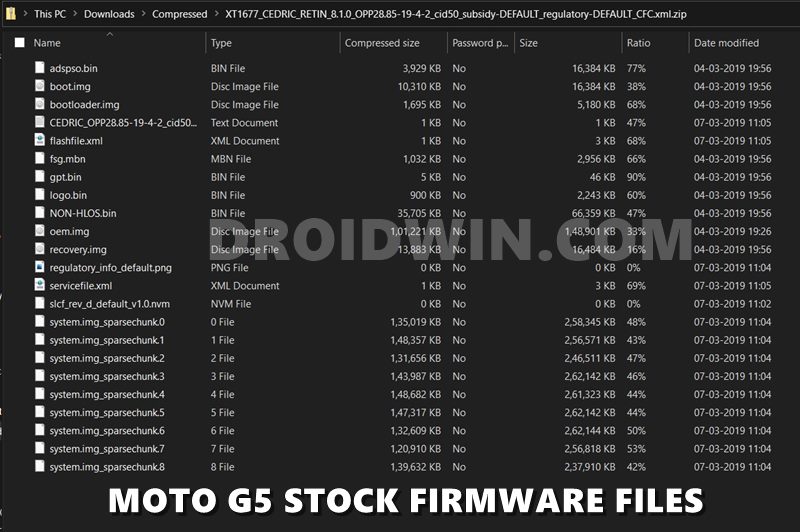
What are the Files to be Flashed
Except for the NVM file, XML files, a text file, and a PNG file, all the other files will be installed or flashed on your Moto G5 device via fastboot commands.
- How to fix ADB Device not found [List of Devices Attached is blank]
- Detailed Steps to Fix adb is not recognized Error
- How to Fix Unauthorized Device with ADB Commands [3 methods]
- How to Fix Android Device stuck in Fastboot Mode
Fastboot Commands to Flash Stock Firmware on Moto G5
Just paste the below fastboot command on the CMD window that you have opened in the platform-tools folder. Make sure to execute one command at a time, rather than copy-pasting and executing all the commands at one go. Also copy paste these commands in the exact same order as mentioned. The below commands are for Moto G5 codenamed CEDRIC and should not be used on any other device.
fastboot flash partition gpt.bin fastboot flash bootloader bootloader.img fastboot flash modem NON-HLOS.bin fastboot flash fsg fsg.mbn fastboot erase modemst1 fastboot erase modemst2 fastboot flash dsp adspso.bin fastboot flash logo logo.bin fastboot flash boot boot.img fastboot flash recovery recovery.img fastboot flash system system.img_sparsechunk.0 fastboot flash system system.img_sparsechunk.1 fastboot flash system system.img_sparsechunk.2 fastboot flash system system.img_sparsechunk.3 fastboot flash system system.img_sparsechunk.4 fastboot flash system system.img_sparsechunk.5 fastboot flash system system.img_sparsechunk.6 fastboot flash system system.img_sparsechunk.7 fastboot flash system system.img_sparsechunk.8 fastboot flash oem oem.img fastboot erase cache fastboot erase userdata fastboot erase DDR fastboot reboot bootloader
The entire flashing shouldn’t take more than 5-6 minutes. Only the sparse chunk files take some time to flash. Furthermore, once all the commands are executed, your device will be booted to fastboot. To boot it to Android OS, either do so via the power key or use the fastboot reboot command.
- How to Run ADB Fastboot Commands directly on Android without Root
- How to fix FAILED (status read failed (Too many links))
- Use ADB and Fastboot Commands on Rooted Android Without PC
- Fix error boot prepare- device stuck in fastboot

(Cancel Reply)
Δ
