Install Stock Firmware on Motorola One Macro via Fastboot Commands
In this guide, we will be showing you how to install or flash stock firmware on Motorola One acro via Fastboot Commands.
Announced in October 2019, this is yet another addition to the long list of Android One devices by Motorola. Running Android 9.0 out of the box, the device is supported by an octa-core chipset. Furthermore, the triple rear camera 13 MP, 2 MP, 2 MP clicks some decent pictures. Apart from that, the device has a 4000mah battery but unfortunately, it is supported by a standard 10W charger.
Now, if you ever wish to flash stock firmware on your Motorola One acro via Fastboot Commands, you could do so quite easily. But why will you do so in the first place? Well, there are many reasons for the same. For example, suppose you got a new OTA update from the manufacturer, but the device has started performing not as expected. in those cases, you could easily flash the previous build on your device to get back the device to as it was before.
- Don’t Miss: How to Root Android Devices Without TWRP Recovery
Furthermore, in case you have flashed a custom ROM and want to get back to stock, this method will come in handy. Likewise, the tech geeks usually brick their device or more often than not and then they have to taste bootloop. In all those cases, the best way to get back your device is quite simple- just flash the stock firmware. And in this guide, we will be listing the instructions for just that.
You could now easily install or flash stock firmware on Motorola One Macro via Fastboot Commands. Follow along.
- Requirements
- Motorola One Macro Stock Firmware Collection
- How to Install Stock Firmware on Motorola One Macro via Fastboot Commands
- What are the Files to be Flashed
- Fastboot commands to flash stock firmware on Motorola One Macro
- Other Motorola Stock Firmwares and their Fastboot Commands to Flash Them
Requirements
- You will require an Unlocked Bootloader if you are flashing some other region’s firmware.
- Also, download and install Android SDK and Platform-Tools on your PC.
- Furthermore, make sure to enable Developer Option and henceforth USB Debugging on your device. Enable USB Debugging Complete Backup of your Moto device. Finally, download the firmware for Moto One Macro for your region from below.
Motorola One Macro Stock Firmware Collection
- TIMBR TEFBR RETLA RETIN RETGB RETEU_RS RETEU RETCL RETBR RETAR RETAPAC RETAIL OPENPE OPENMX OPENLA OPENCL EEGB
How to Install Stock Firmware on Motorola One Macro via Fastboot Commands
- Extract the downloaded stock firmware inside the platform-tools folder on your PC.
- Connect your device to PC via USB Cable. Make sure USB Debugging has been enabled.
- Now boot your device to Fastboot Mode. For that, use the hardware key combinations or inside the platform tool folder, type cmd in the address bar. This should open Command Prompt. Enter the below command to boot Motorola One Macro to fastboot: adb reboot bootloader Fastboot Mode in Motorola
- Once your device boots to fastboot/bootloader mode, enter the below commands in the CMD window (make sure to open it from the platform-tools folder only) Also, make sure to enter each command individually. That is, copy-paste one command, hit Enter, copy-paste the second one and so on. Here are the required fastboot commands to flash stock firmware on Motorola One Macro.
- Furthermore, the below fastboot erase userdata command wipes your data device’s data. If you want to, you could skip the said command, but it is always recommended for a fresh install. Hence make a backup beforehand and let the erase userdata command do its job
What are the Files to be Flashed
Except for the XML, TXT, PNG, and ATC, all the other files will be flashed on your Motorola One Macro via fastboot commands.
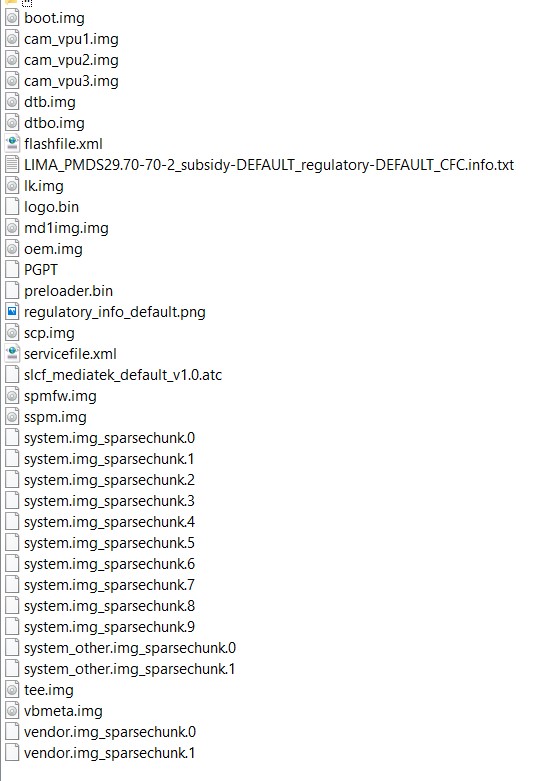
Motorola One Macro Stock Firmware Files
Fastboot commands to flash stock firmware on Motorola One Macro
fastboot flash gpt PGPT fastboot flash preloader preloader.bin fastboot flash lk_a lk.img fastboot flash tee_a tee.img fastboot flash md1img_a md1img.img fastboot erase nvdata fastboot flash spmfw_a spmfw.img fastboot flash scp_a scp.img fastboot flash sspm_a sspm.img fastboot flash cam_vpu1_a cam_vpu1.img fastboot flash cam_vpu2_a cam_vpu2.img fastboot flash cam_vpu3_a cam_vpu3.img fastboot flash vbmeta_a vbmeta.img fastboot flash oem_a oem.img fastboot flash logo_a logo.bin fastboot flash boot_a boot.img fastboot flash dtb_a dtb.img fastboot flash dtbo_a dtbo.img fastboot flash system_a system.img_sparsechunk.0 fastboot flash system_a system.img_sparsechunk.1 fastboot flash system_a system.img_sparsechunk.2 fastboot flash system_a system.img_sparsechunk.3 fastboot flash system_a system.img_sparsechunk.4 fastboot flash system_a system.img_sparsechunk.5 fastboot flash system_a system.img_sparsechunk.6 fastboot flash system_a system.img_sparsechunk.7 fastboot flash system_a system.img_sparsechunk.8 fastboot flash system_a system.img_sparsechunk.9 fastboot flash system_b system_other.img_sparsechunk.0 fastboot flash system_b system_other.img_sparsechunk.1 fastboot flash vendor_a vendor.img_sparsechunk.0 fastboot flash vendor_a vendor.img_sparsechunk.1 fastboot erase metadata fastboot reboot bootloader
The entire flashing shouldn’t take more than 5-6 minutes. Only the sparse chunk files take some time to flash. Furthermore, once all the commands are executed, your device will be booted to fastboot. To boot it to Android OS, either do so via the power key or use the fastboot reboot command.

- Read next: Best Magisk Modules of 2020 [PART-1]
Other Motorola Stock Firmwares and their Fastboot Commands to Flash Them
Now you have got acquainted with the steps to install stock firmware on Motorola One Macro via Fastboot commands. Here are some other Motorola device’s stock firmware files and their associated fastboot commands. if anyone of your friends (or even you) are having any of the below-mentioned devices and get stuck in a bootloop or soft-brick, take help from the below guides.
- How to Flash or Install Stock Firmware on Motorola One Hyper via Fastboot Commands
- How to Install Stock Firmware on Motorola One Vision via Fastboot Commands
- How to Install Stock Firmware via Fastboot Commands on Motorola One Action
- Install Stock Firmware on Motorola One Zoom via Fastboot Commands
- More will be added soon, stay tuned! Read next: How to Scan NFC Tags without Unlocking your Android Device

- endroid 3 years ago Reply Hi, very nice description that helped me recovering stock firmware at my motorola one macro. My region code is reteu. Downloaded Android 10 verison and did the additional flashing of system.img_sparsechunk.10. Everything worked fine. Thank you very much. You saved my sunday.
- Gerardo 3 years ago Reply is this still active? my motorola one macro gets stucked in the boot image and reboots. I’ve tried some tutorials to stock flash the device but they didn’t work, plus now i have a text saying “device corrupt” can you give me some advice to avoid goint to tech service?
- Luis 5 years ago Reply hi how are you, when will the commands for android 10 come up? Sadique Hassan 5 years ago Reply Hi Luis, just give me a day, will definitely upload it. [EDIT 1]: I Downloaded the Retin build [India region] of One Macro Android 10 and the only difference that I found from Android Pie 9.0 is the inclusion of one more sparsechunk file i.e. system.img_sparsechunk.10 . Hence after you flash the ninth sparsechunk file via the fastboot flash system_a system.img_sparsechunk.9 you should execute this command fastboot flash system_a system.img_sparsechunk.10 Then carry on with the other commands: fastboot flash system_b system_other.img_sparsechunk.0 and so on. Just to be double sure, could you let me know your region code as well (corresponding to the firmware). I will download it and re-verify the same, Luis 5 years ago Reply Reteu
- Luis 5 years ago Reply After updating it I am absolutely dead I can not open or fast boot mode helps :C Sadique Hassan 5 years ago Reply Hi Luis, you may refer to this guide: Unbrick Motorola and Fix Start-Up Failed without using Lenovo Motorola Smart Assistant
- Marcelo 5 years ago Reply hello friend after installing the stock room i did everything right as in the tutorial but now it is in a boot loop help me please thanks Sadique Hassan 5 years ago Reply Hi Marcelo, it could be because your device is booting to the inactive slot, so make sure you switch over to the active slot where all the partition files have been flashed. Everything is explained in this guide: How to Check and Change Current Active Slot on Android .If you still have queries, let me know in the comments
(Cancel Reply)
Δ
