Install Stock Firmware on Motorola One Zoom via Fastboot Commands
Today, we will be sharing with you all how to flash or install Stock Firmware on Motorola One Zoom via Fastboot Commands.
Well, first off, why do you need to flash the stock firmware? The scenarios could be many. But two of the most used cases are when you either want to unbrick your device or when you want to get back to the stock from a Custom ROM . Or in some extreme cases, the device might release an official OTA on your device that might result in your device performing unstable or buggy. In those cases also, the best bet is to revert back to the earlier build. But how this could be done? Its pretty simple: just flash the stock firmware.
And in this guide, we will be sharing the steps for just that. Using the given instructions, you could install Stock Firmware on Motorola One Zoom via Fastboot Commands. Do note that, at the time of writing, Android 10 hasn’t been released for this device. So the below mentioned fastboot commands are for Android 9.0 Pie only. With that said, as and when the newer Android build gets live for the device, we would be updating the commands too.
On that note, here are the steps to install Stock Firmware on Motorola One Zoom via Fastboot Commands. Follow along.
- Requirements
- Motorola One Zoom Stock Firmware Collection
- How to Install Stock Firmware on Motorola One Zoom via Fastboot Commands
- What Are the Files to be Flashed?
- Fastboot commands to flash stock firmware on Motorola One Zoom
- Other Motorola Stock Firmwares and their Fastboot Commands to Flash Them
Requirements
- You will require an Unlocked Bootloader if you are flashing some other region’s firmware.
- Also, download and install Android SDK and Platform-Tools on your PC.
- Furthermore, make sure to enable Developer Option and henceforth USB Debugging on your device. Enable USB Debugging Complete Backup of your Moto device. Finally, download the firmware for Moto One Zoom for your region from below.
Motorola One Zoom Stock Firmware Collection
- TIMBR TEFBR RETUS RETLA RETEU_DE RETEU RETBR RETAR RETAIL OPENMX ATTMX AMZEU AMXMX AMXCO
How to Install Stock Firmware on Motorola One Zoom via Fastboot Commands
- Extract the downloaded stock firmware inside the platform-tools folder on your PC.
- Connect your device to PC via USB Cable. Make sure USB Debugging has been enabled.
- Now boot your device to Fastboot Mode. For that, use the hardware key combinations or inside the platform tool folder, type cmd in the address bar. This should open Command Prompt. Enter the below command to boot Motorola One Zoom to fastboot: adb reboot bootloader Fastboot Mode in Motorola
- Once your device boots to fastboot/bootloader mode, enter the below commands in the CMD window (make sure to open it from the platform-tools folder only) Also, make sure to enter each command individually. That is, copy-paste one command, hit Enter, copy-paste the second one and so on. Here are the required fastboot commands to flash stock firmware on Motorola One Zoom.
- Furthermore, the below fastboot erase userdata command wipes your data device’s data. If you want to, you could skip the said command, but it is always recommended for a fresh install. Hence make a backup beforehand and let the erase userdata command do its job
- Don’t Miss: [3 METHODS] Unroot any Android Device-Uninstall Magisk
What Are the Files to be Flashed?
Here are the files of the stock firmware of Motorola One Zoom. Do note that, some of the files are just for internal testing purpose and doesn’t need to be installed on your device. These include two of the XML files one PNG, one text and one NVM file. Apart from that, rest all the files will be flashed.
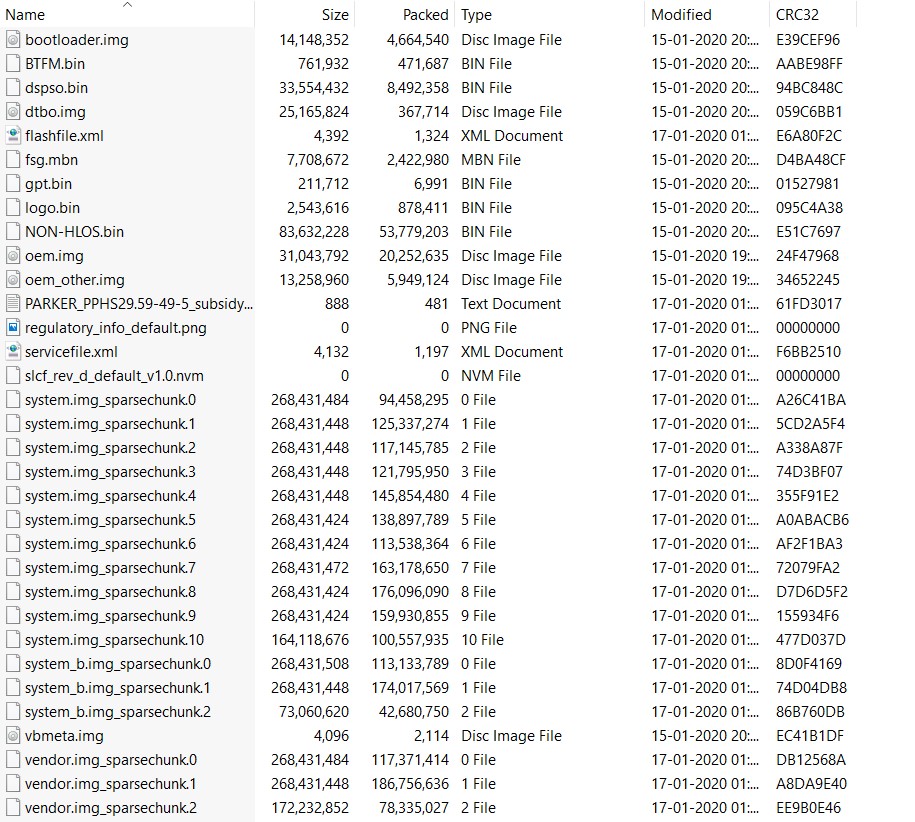
Files in Stock Firmware of Motorola One Zoom
Fastboot commands to flash stock firmware on Motorola One Zoom
Now just paste the below fastboot command on the CMD window that you have opened in the platform-tools folder. Make sure to execute one command at a time, rather than copy-pasting all the command at one go.
fastboot flash partition gpt.bin fastboot flash bootloader bootloader.img fastboot flash vbmeta vbmeta.img fastboot flash modem NON-HLOS.bin fastboot flash fsg fsg.mbn fastboot erase modemst1 fastboot erase modemst2 fastboot flash bluetooth BTFM.bin fastboot flash dsp dspso.bin fastboot flash logo logo.bin fastboot flash boot boot.img fastboot flash dtbo dtbo.img fastboot flash system system.img_sparsechunk.0 fastboot flash system system.img_sparsechunk.1 fastboot flash system system.img_sparsechunk.2 fastboot flash system system.img_sparsechunk.3 fastboot flash system system.img_sparsechunk.4 fastboot flash system system.img_sparsechunk.5 fastboot flash system system.img_sparsechunk.6 fastboot flash system system.img_sparsechunk.7 fastboot flash system system.img_sparsechunk.8 fastboot flash system system.img_sparsechunk.9 fastboot flash system system.img_sparsechunk.10 fastboot flash system_b system_b.img_sparsechunk.0 fastboot flash system_b system_b.img_sparsechunk.1 fastboot flash system_b system_b.img_sparsechunk.2 fastboot flash oem oem.img fastboot flash oem_b oem_other.img fastboot flash vendor vendor.img_sparsechunk.0 fastboot flash vendor vendor.img_sparsechunk.1 fastboot flash vendor vendor.img_sparsechunk.2 fastboot erase carrier fastboot erase userdata fastboot erase ddr fastboot reboot bootloader
The entire flashing shouldn’t take more than 5-6 minutes. Only the sparse chunk files take some time to flash. Furthermore, once all the commands are executed, your device will be booted to fastboot. To boot it to Android OS, either do so via the power key or use the fastboot reboot command.

Other Motorola Stock Firmwares and their Fastboot Commands to Flash Them
Now you have got acquainted with the steps to install stock firmware on Motorola One Zoom via Fastboot commands. Here are some other Motorola device’s stock firmware files and their associated fastboot commands. if anyone of your friends (or even you) are having any of the below mentioned devices and get stuck in a bootloop or soft-brick, take help from the below guides.
- How to Flash or Install Stock Firmware on Motorola One Hyper via Fastboot Commands
- How to Install Stock Firmware on Motorola One Vision via Fastboot Commands
- How to Install Stock Firmware via Fastboot Commands on Motorola One Action
More will be added soon, stay tuned!

(Cancel Reply)
Δ
