Install TWRP Recovery and Root Galaxy S23 Ultra
This guide will show you the steps to install the TWRP Recovery on the Galaxy S23 Ultra. It isn’t usually talked about enough, but when it comes to custom development, then the flagships from Samsung are among the most active players. There could be no better way to justify this statement than by having a sneak peek at the custom recovery domain. For the unaware, from Android 12 onwards, it has become quite a challenging task to develop or porting custom recovery.
But here we are, just days from the launch of the S23 series, and its Ultra variant already boasts a working custom recovery! From flashing custom binaries to taking a backup of various device partitions or even gaining administrative access via Magisk, all this is just a tap away. So without any further delay, let’s make you aware of the steps to install the TWRP Recovery on Galaxy S23 Ultra.
- Perks and Risks of TWRP and Root
- Install TWRP on Galaxy S23 Ultra via AIO Script [Recommended]
- How to Install TWRP and Root Samsung Galaxy S23 Ultra STEP 1: Unlock the Bootloader on Galaxy S23 Ultra STEP 2: Boot Samsung Galaxy Galaxy S23 Ultra to Download Mode STEP 3: Install Odin STEP 4: Disable Android Verified Boot on Samsung Galaxy S23 Ultra STEP 5: Download Magisk App STEP 6: Download TWRP Recovery for Samsung Galaxy S23 Ultra STEP 7: Install TWRP Recovery on Samsung Galaxy S23 Ultra STEP 8: Disable Encryption on Galaxy S23 Ultra via TWRP STEP 9: Format Galaxy S23 Ultra STEP 10: Root Samsung Galaxy S23 Ultra via Magisk
- How to Install TWRP Recovery on Galaxy S23/Plus/Ultra [NEW] STEP 1: Unlock the Bootloader on Galaxy S23 Ultra STEP 2: Boot Samsung Galaxy Galaxy S23 Ultra to Download Mode STEP 3: Install Odin STEP 4: Disable Android Verified Boot on Samsung Galaxy S23 Ultra STEP 6: Download TWRP Recovery for Samsung Galaxy S23 Ultra STEP 7: Install TWRP Recovery on Samsung Galaxy S23 Ultra STEP 8: Format Galaxy S23 Ultra STEP 9: Fix Stock Recovery Restoration
Perks and Risks of TWRP and Root
Once you have installed the TWRP Recovery, you could then flash a plethora of mods and ZIPs onto your device. Along the same lines, you could also take a backup of all the partitions on your devices via the Nandroid Backup feature. Then if you root your device via Magisk, you would have gained access to the system partition. Consequently, you could try out a plentitude of mods, including the likes of Magisk Modules , Viper4Android, Xposed Framework , and Substratum Themes among others.
However, these tweaks come with a few risks as well. First off, the process requires an unlocked bootloader. Doing so will wipe off all the data and could nullify the warranty as well. Likewise, Knox will also be tripped which will result in the inability to use banking apps. Likewise, Netflix WideVine L1 will be degraded to L3 , hence Full HD resolution might not be supported. If all this is well and good, then let’s proceed ahead with the steps to install TWRP Recovery on Galaxy S23 Ultra.
Install TWRP on Galaxy S23 Ultra via AIO Script [Recommended]
NOTE: You can use the same steps to flash OrangeFox Recovery as well
The below instructions are listed under separate sections for ease of understanding. Make sure to follow the same sequence as mentioned. Droidwin and its members wouldn’t be held responsible in case of a thermonuclear war, your alarm doesn’t wake you up, or if anything happens to your device and data by performing the below steps.
- First, unlock the bootloader on your device.
- Now download & extract the stock firmware .
- Then, boot your device to Download Mode .
- After that, get the Odin Tool from here .
- Next up, download the files for your device S23 BL_S9110_UI_7_KEEP_OEM_UNLOCK_UI_8.tar.7z – For Chinese Model. Use in place of the stock BL file to keep OEM unlock BL_S911B_UI_7_KEEP_OEM_UNLOCK_UI_8.tar.7z – Use in place of stock BL file to keep OEM unlock USERDATA_AIO_S911B_MANUAL_CHOOSE_TWRP_2025_V3 – Contains both the no wipe and force wipe versions. S23+ BL_S9160_UI_7_KEEP_OEM_UNLOCK_UI_8.tar.7z – For Chinese Model. Use in place of the stock BL file to keep OEM unlock BL_S916B_UI_7_KEEP_OEM_UNLOCK_UI_8.tar.7z – Use in place of stock BL file to keep OEM unlock USERDATA_AIO_S916B_MANUAL_CHOOSE_TWRP_2025_V3 – Contains A no wipe and force wipe versions. S23 Ultra BL_S9180_UI_7_KEEP_OEM_UNLOCK_UI_8.tar.7z – For Chinese Model. Use in place of the stock BL file to keep OEM unlock BL_S918B_UI_7_KEEP_OEM_UNLOCK_UI_8.tar.7z – Use in place of stock BL file to keep OEM unlock USERDATA_AIO_S918B_MANUAL_CHOOSE_TWRP_2025_V3 – Contains A no wipe and force wipe versions.
- Open Odin and load the files as follows: BL- load the file from above AP- load the file from firmware CP- load the file from the firmware CSC- load the file from above USERDATA- load the file from above Regular CSC must use a USERDATA_AIO_FORCE_WIPE HOME_CSC must use a USERDATA_AIO_NO_WIPE.
- Once done, hit Start. The flashing will now start and could take a while.
- Once done, the phone will reboot automatically to TWRP 2 times.
- To root, go to Advanced and select Install Magisk. That’s it.
How to Install TWRP and Root Samsung Galaxy S23 Ultra
The below instructions are listed under separate sections for ease of understanding. Make sure to follow the same sequence as mentioned. Droidwin and its members wouldn’t be held responsible in case of a thermonuclear war, your alarm doesn’t wake you up, or if anything happens to your device and data by performing the below steps.
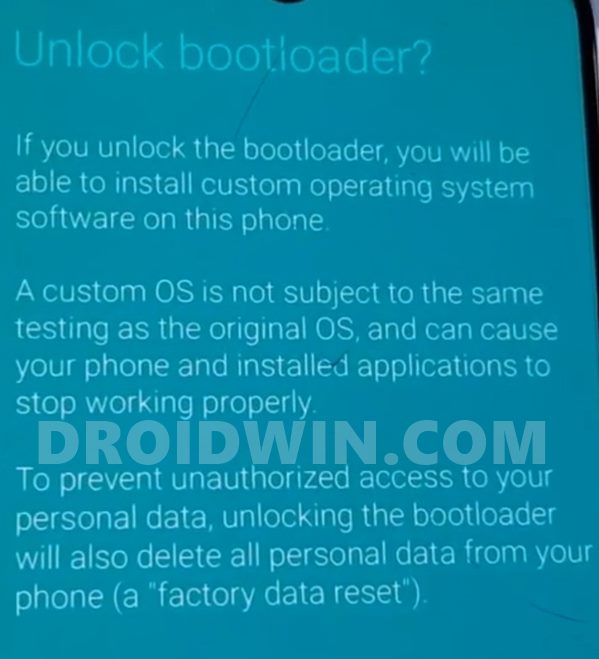
STEP 1: Unlock the Bootloader on Galaxy S23 Ultra
First and foremost, you will have to unlock the bootloader on your device. For that, you may refer to our comprehensive guide on How to Unlock Bootloader on Galaxy S23/Plus/Ultra . Once the process is complete and your device boots up, don’t restore the data yet, as your device will again have to go for a wipe in the subsequent step.
STEP 2: Boot Samsung Galaxy Galaxy S23 Ultra to Download Mode
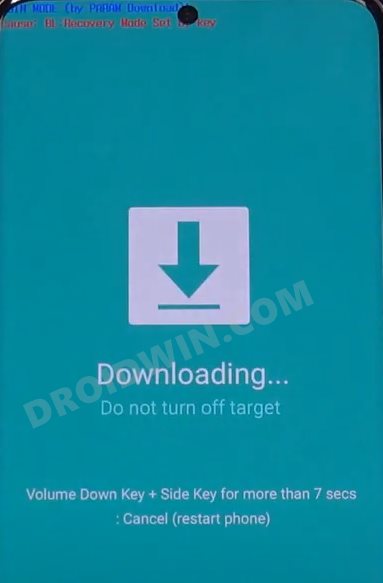
You will have to boot your device to Download Mode so that you are able to flash the required mods. So either refer to our detailed guide on How to Boot Galaxy S23/Plus/Ultra to Download Mode [3 Methods] or refer to the below shorter instructions:
- To begin with, power off your device.
- Then press and hold the Power and Volume Up keys and your device will be booted to Stock Recovery.
- Now highlight the Reboot to Bootloader option using the Volume keys and then press the Power key to confirm it.
- Your device should now boot to the Download Mode.
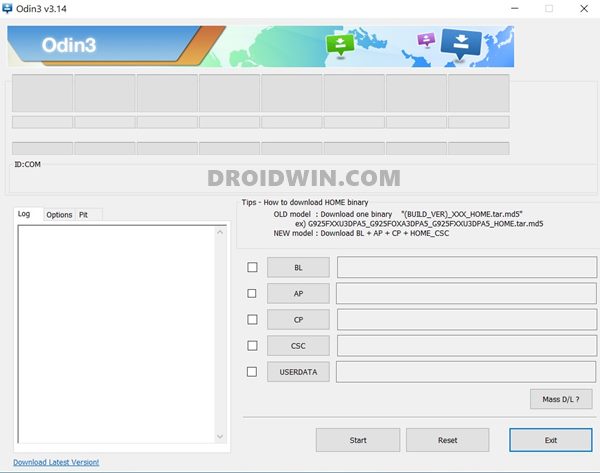
STEP 3: Install Odin
STEP 4: Disable Android Verified Boot on Samsung Galaxy S23 Ultra
Next up, you will have to disable AVB on your device which would then allow you to flash the desired custom binary (in this case, TWRP and Magisk).
- So start off by downloading the vbmeta_disabled.tar file onto your PC.
- Now connect your device to the PC via USB cable (make sure that it is booted to Download Mode)
- Then launch the Odin Tool and click on the Userdata button.
- Navigate to the vbmeta_disabled.tar file, select it, and click Open.
- Finally, click on the Start button. You shall now get a prompt on your device, stating that “You have to reset your device to factory settings”.
- So use the Volume Keys to select the reset option and hit the Power key to confirm it.
Your device will now undergo a reset and then, the AVB stands disabled. You may now proceed ahead to install the TWRP Recovery on your Samsung Galaxy S23 Ultra.
STEP 5: Download Magisk App
Next up, download the Magisk APK file. This will be used to root your Samsung Galaxy S23 Ultra device. So download it from the below link and then rename the APK to ZIP (i.e change the file extension from APK to ZIP). This will make the file TWRP flashable.
Download Magisk: Latest Magisk APK
STEP 6: Download TWRP Recovery for Samsung Galaxy S23 Ultra
You could now grab the latest custom recovery for your device from the below link [Credits: XDA Senior Member afaneh92]
TWRP Recovery for Galaxy S23 Ultra: DOWNLOAD LINK
STEP 7: Install TWRP Recovery on Samsung Galaxy S23 Ultra
- Launch the Odin Tool on your PC and click on the AP button.
- Navigate to the downloaded TWRP.tar file, select it and click Open.
- Finally, uncheck Auto Reboot and hit the Start button to flash TWRP.
- As soon as the flashing is complete, hold the Volume Down and Power buttons until the screen goes black.
- Once that happens, immediately switch to holding the Volume Up and Power buttons to reboot into TWRP.
STEP 8: Disable Encryption on Galaxy S23 Ultra via TWRP
- Once your device boots to TWRP, go to Advanced > Terminal.
- Then type in the below command and hit Enter multidisabler
- Your device will now resize the vendor and will ask you to run multidisabler again.
- So again execute the below command and this time, you should get the Finish message. multidisabler
STEP 9: Format Galaxy S23 Ultra
- Once you have disabled encryption, you’ll have to format it. So go to Wipe and select Format Data.
- Then type in YES in the space provided and tap on the checkmark situated at the bottom right.
- Once the format is complete, you will have to reboot the device to TWRP. So go to Reboot and select Recovery.
STEP 10: Root Samsung Galaxy S23 Ultra via Magisk
- It’s now time to flash Magisk and root your device. So go to Install, select the Magisk ZIP and perform a right swipe to flash it.
- Once Magisk has been flashed, you may reboot the device to the OS. So go to Reboot and select System.
- That’s it. Your device will now boot up to the rooted OS with TWRP permanently installed.
How to Install TWRP Recovery on Galaxy S23/Plus/Ultra [NEW]
As before, please take a backup of all the data on your device, just to be on the safer side. Droidwin and its members wouldn’t be held responsible in case of a thermonuclear war, your alarm doesn’t wake you up, or if anything happens to your device and data by performing the below steps.
STEP 1: Unlock the Bootloader on Galaxy S23 Ultra
First and foremost, you will have to unlock the bootloader on your device. For that, you may refer to our comprehensive guide on How to Unlock Bootloader on Galaxy S23/Plus/Ultra . Once the process is complete and your device boots up, don’t restore the data yet, as your device will again have to go for a wipe in the subsequent step.
STEP 2: Boot Samsung Galaxy Galaxy S23 Ultra to Download Mode
You will have to boot your device to Download Mode so that you are able to flash the required mods. So either refer to our detailed guide on How to Boot Galaxy S23/Plus/Ultra to Download Mode [3 Methods] or refer to the below shorter instructions:
- To begin with, power off your device.
- Then press and hold the Power and Volume Up keys and your device will be booted to Stock Recovery.
- Now highlight the Reboot to Bootloader option using the Volume keys and then press the Power key to confirm it.
- Your device should now boot to the Download Mode.
STEP 3: Install Odin
STEP 4: Disable Android Verified Boot on Samsung Galaxy S23 Ultra
Next up, you will have to disable AVB on your device which would then allow you to flash the desired custom binary (in this case, TWRP and Magisk).
- So start off by downloading the vbmeta_disabled.tar file onto your PC.
- Now connect your device to the PC via USB cable (make sure that it is booted to Download Mode)
- Then launch the Odin Tool and click on the Userdata button.
- Navigate to the vbmeta_disabled.tar file, select it, and click Open.
- Finally, click on the Start button. You shall now get a prompt on your device, stating that “You have to reset your device to factory settings”.
- So use the Volume Keys to select the reset option and hit the Power key to confirm it.
Your device will now undergo a reset and then, the AVB stands disabled. You may now proceed ahead to install the TWRP Recovery on your Samsung Galaxy S23 Ultra.
STEP 6: Download TWRP Recovery for Samsung Galaxy S23 Ultra
You can now grab the latest custom recovery for your device from the below link [Credits: XDA Senior Member afaneh92]
TWRP for Galaxy S23 Series [Snapdragon]: DOWNLOAD LINK
STEP 7: Install TWRP Recovery on Samsung Galaxy S23 Ultra
- Launch the Odin Tool on your PC and click on the AP button.
- Navigate to the downloaded TWRP.tar file, select it and click Open.
- Finally, uncheck Auto Reboot and hit the Start button to flash TWRP.
- As soon as the flashing is complete, hold the Volume Down and Power buttons until the screen goes black.
- Once that happens, immediately switch to holding the Volume Up and Power buttons to reboot into TWRP
STEP 8: Format Galaxy S23 Ultra
- From TWRP, go to Wipe and select Format Data.
- Then type in YES in the space provided and tap on the checkmark situated at the bottom right.
- Once the format is complete, you will have to reboot the device to TWRP. So go to Reboot and select Recovery.
STEP 9: Fix Stock Recovery Restoration
- To begin with, transfer the repack.zip file to your device.
- Then go to Install, select the repack.zip file, and flash it.
- Finally, go to Reboot and select System to boot to the OS.
- Galaxy S22/S23 has a secret Pause USB Power Delivery feature!
- Enable Call Recording on Galaxy S23/Plus/Ultra [No Root]
- How to Force 120Hz Refresh Rate on Galaxy S23/Plus/Ultra
- How to Pass SafetyNet on Rooted Galaxy S23/Plus/Ultra

(Cancel Reply)
Δ
