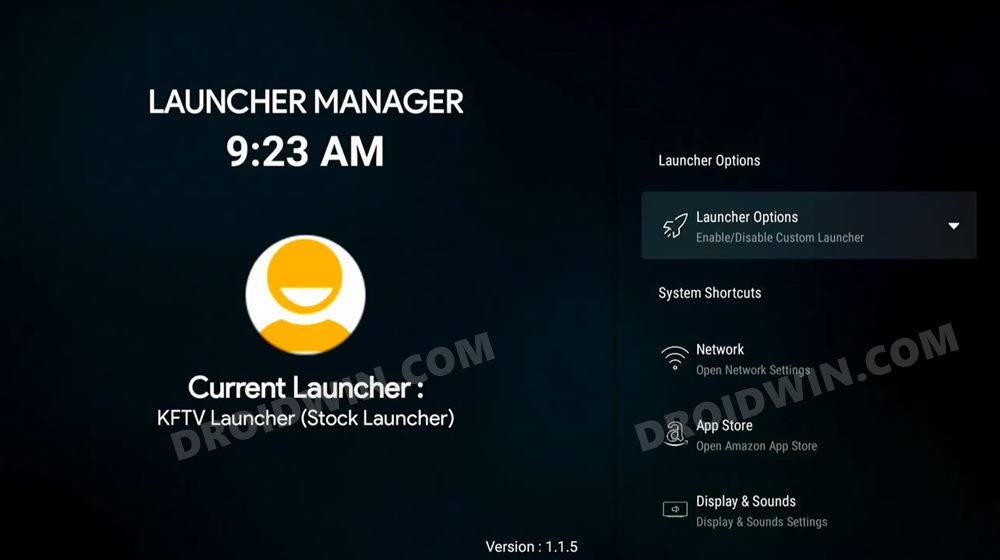
Default KFTV Launcher in Fire TV
- Install Wolf Launcher or any other Custom Launcher on Amazon Fire TV STEP 1: Enable Installation from Unknown Source STEP 2: Choose the Sideload Method STEP 3: Install Launcher Manager STEP 4: Install a Custom Launcher STEP 5: Set Wolf Launcher as Default on Amazon Fire TV
- Fix Connection Failed Error when setting Wolf Launcher as Default
- How to Disable Custom Launcher on Fire TV
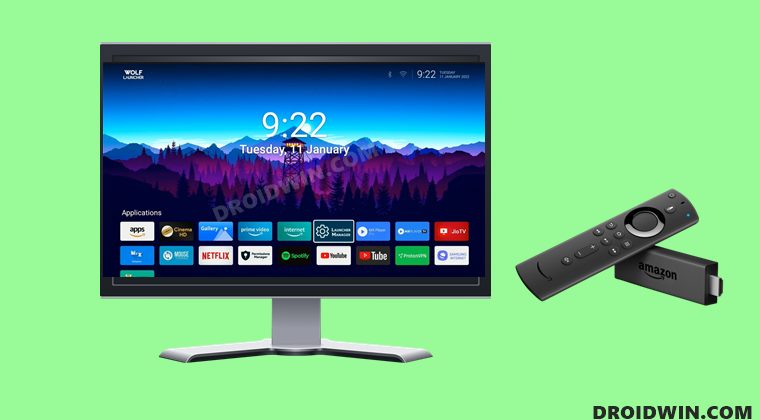
The below instructions are listed under separate sections for ease of understanding. Make sure to follow in the same sequence as mentioned.
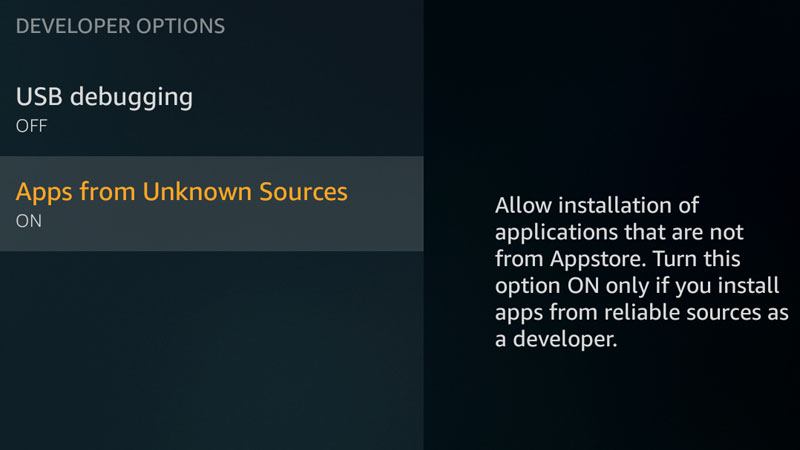
STEP 1: Enable Installation from Unknown Source
STEP 2: Choose the Sideload Method
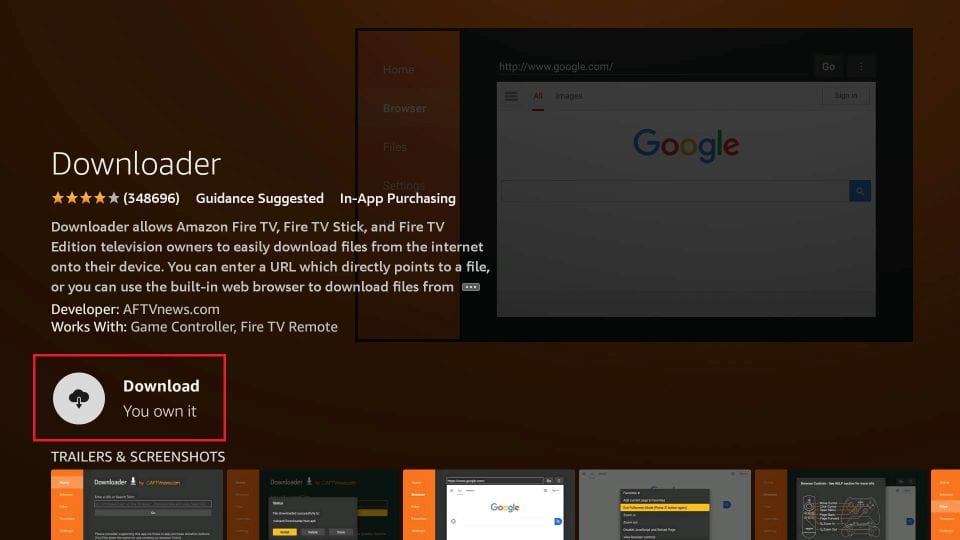
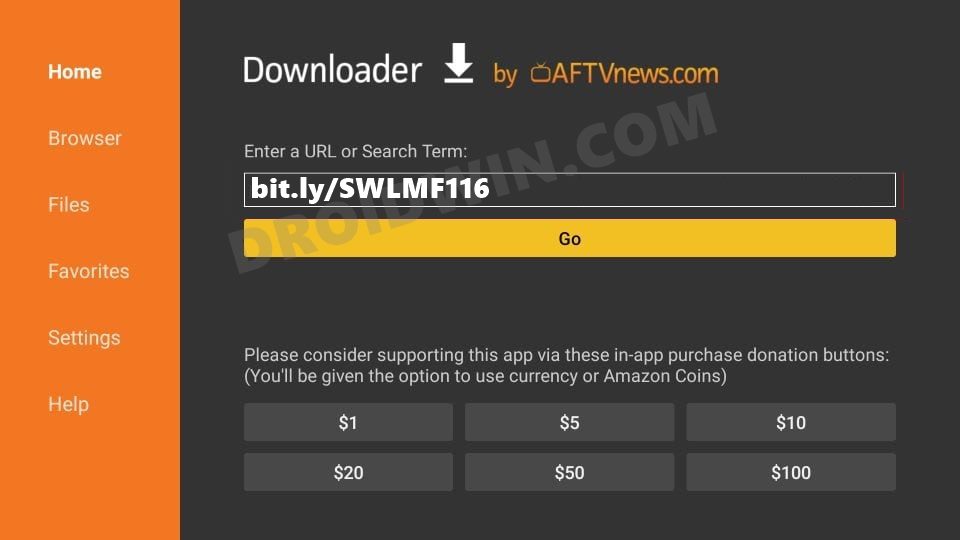
Next up, you will have to choose the sideload method through which you could download and install the app onto your TV. In general, there exist three different approaches- using an Android device, via Browser, and using a cloud-storage service. As of now, we will be opting for the browser method, as it is the easiest to execute. So go to your Fire TV home page, search for the Downloader app and install it.
STEP 3: Install Launcher Manager
https://bit.ly/SWLMF116
STEP 4: Install a Custom Launcher
Next up, you will have to download and install a custom launcher of your choice. As for this guide, we will be going ahead with the Wolf Launcher (if you want to download any other launcher, let me know its name, I will shorten its URL and provide the download link).
So launch the Downloader App and then type in the below URL shorturl.at/kswJ8
Wolf Launcher will now be downloaded.
Hit the Install button and it will be subsequently be installed on your TV.
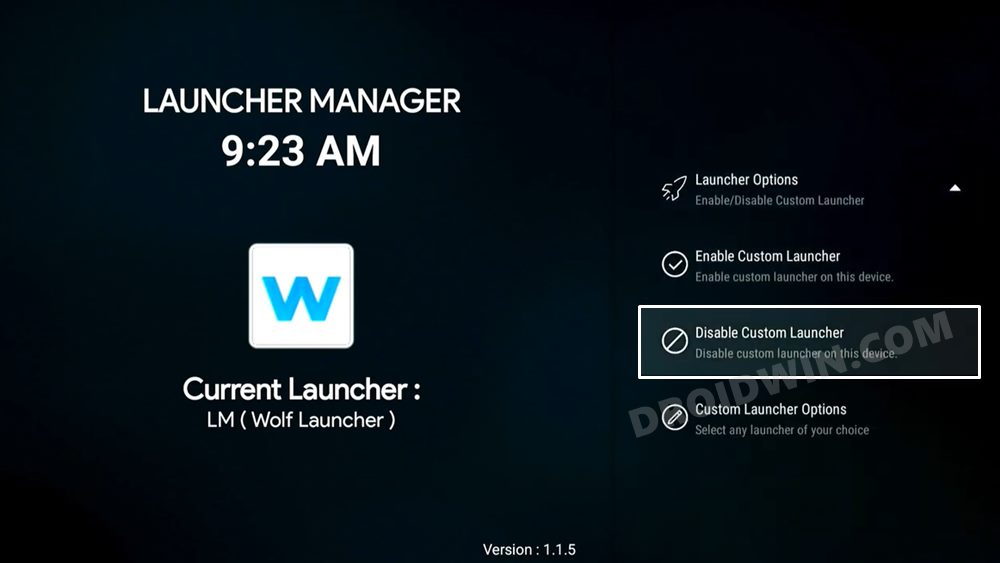
Open Launcher Manager, go to Launcher Options > Enable Custom Launcher.
Then go to Custom Launcher Options and select LM Handler Status to change its Status to Active.
Then click on Active Launcher and select your custom launcher (Wolf) from the list.
Now press the Home key, select your Custom Launcher, and hit Always. That’s it.
These were the steps to install a custom launcher such as Wolf Launcher on your Amazon Fire TV.
Fix Connection Failed Error when setting Wolf Launcher as Default
- First off, restart your device. To do so, long-press the SELECT + PLAY/PAUSE button and then check out the results.
- Likewise, you should also enable ADB Debugging. For that, go to Open ADB Settings > Enable ADB Debugging > press the Back button.
How to Disable Custom Launcher on Fire TV
If you wish to revert the change and switch back to your TV’s default launcher (KFTV), then open Launcher Manager > go to Launcher Options and select > Disable Custom Launcher. That’s it.
- Fire TV Stick Stuck on Downloading the latest software [Fixed]
- YouTube videos on Amazon Fire TV Stick stuck on thumbnail [Fixed]
- How to Remove Lock Screen Ads From Amazon Fire Tablets
- Cannot Enable Unknown Sources in Chromecast with Google TV [Fixed]

- Honk 4 years ago Reply Sounds good. Does not work. (lame amazon)
(Cancel Reply)
Δ
