iOS 16 Slow Spotlight Search: How to Fix
In this guide, we will show you various methods to fix the slow Spotlight search issue in iOS 16. The sixteenth iteration of the OS hs just been rolled out in the stable build. And with that, there are a plethora of new and intriguing features that you are about to welcome onto your device. The Lock Screen, Display, and iMessage have all been the beneficiaries of this new OS update.
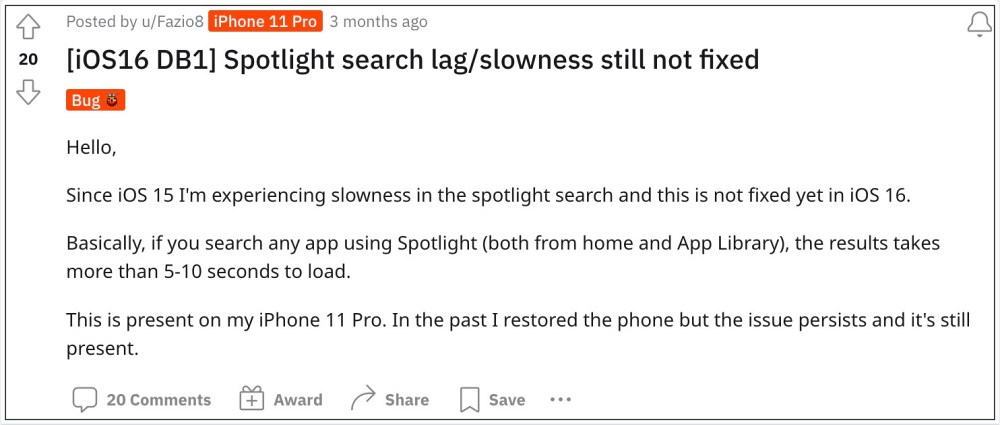
However, on the flip side, it isn’t free from its fair share of issues either. Battery drain, ghost touches , issues with Perspective Zoom , Assistive Touch not working , and missing default wallpapers are just some of the noteworthy bugs. And there has now been another unfortunate entry to this list. Numerous users have voiced their concern that the Spotlight Search has become extremely slow on their iPhones ever since updating it to iOS 16.
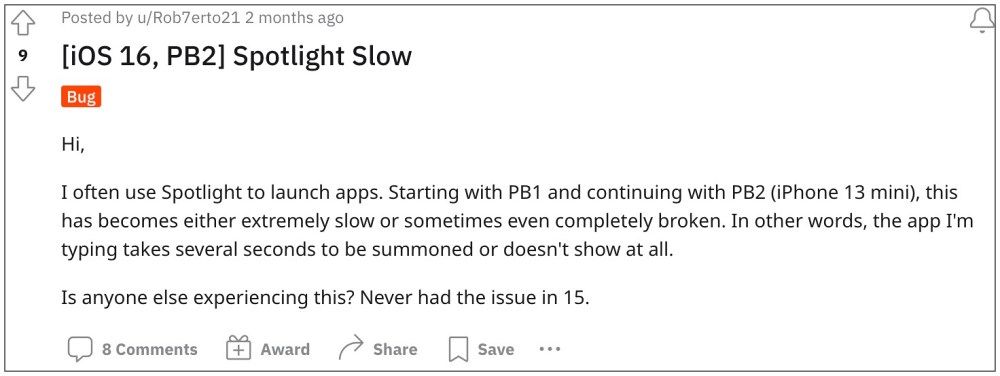
In some instances, it could take up to 10 seconds to bring up the search results, which is definitely quite an infuriating user experience, to say the least. With that said, there do exist a few nifty workarounds that shall help you resolve this issue. So without further ado, let’s check them out.
- How to Fix iOS 16 Slow Spotlight Search FIX 1: Wait for Indexing to Complete FIX 2: Reset All Settings FIX 3: Toggle “Show content in search”
How to Fix iOS 16 Slow Spotlight Search
It is recommended that you try out each of the below-mentioned workarounds and then see which one spells out success for you. So with that in mind, let’s get started.
FIX 1:Wait for Indexing to Complete
As obvious as it may sound, but indexing and building the search database does take time. So if you have recently restored the data from iCloud, then wait for an hour for the data to rebuild and then retry the Spotlight search. However, if you have already given it enough time and it’s still not working, then move over to the next fix.
FIX 2:Reset All Settings
This fix comes with the maximum success rate and it spelled out succes for nearabout every user who tried it out. So on that optimistic note, let’s give it a try and check out the results. [Note: While your data will not be deleted, however, it will revert all the settings back to their defalt state].
- To begin with, head over to Settings > General.
- After that, go to Transfer or Reset iPhone.
- Now tap on Reset followed by Reset all Settings.
- Check if it fixes the slow Spotlight search issue in iOS 16.
FIX 3: Toggle “Show content in search”
Some users were able to resolve this issue after disabling and then re-enabling the “S how Content in Search” feature for all the installed apps. By doing so we will be manually rebuilding the search database. On the flip side though, this workaround requires quite a lot of manual efforts as well as your time. So if that’s well and good, then refer to the below steps to try out this fix right away.
- To begin with, head over to the Settings menu on your device.
- Then go to Siri & Search and select the desired app from the list.
- After that, disable the toggle next to Show Content in Search.
- Do so for all the apps. Then wait for a few minutes and re-enable it for all the apps.
- This should speedup the Spotlight search on your iPhone.
- Cannot iMessage Myself in iOS 16: How to Fix
- iOS 16 Battery Drain Issue: How to Fix [13 Methods]
- You cannot move iOS 16 Lock Screen notifications to the top!
- Allow Paste in iOS 16/iPadOS 16: Does it even makes sense?

(Cancel Reply)
Δ
