iOS 17 Standby Mode Time and Location is Always Cupertino!
The seventeenth iteration of the OS has just been released by the Cupertino giant and users are looking forward to getting their hands on a slew of interesting features. Some of the noteworthy ones include updates to Messages, Phone, and FaceTime, Interactive widgets, no need to say Hey while invoking Siri, and Standby Mode.
If we talk about the latter one, then it’s a lock screen mode that gets activated automatically when the device is charging and is placed in landscape mode. It allows the addition of numerous types of widgets through which you get information at a glance [adding more to its charm, the mode adopts a red tone at night].
iOS 17 Standby Mode Time and Location is Always Cupertino!
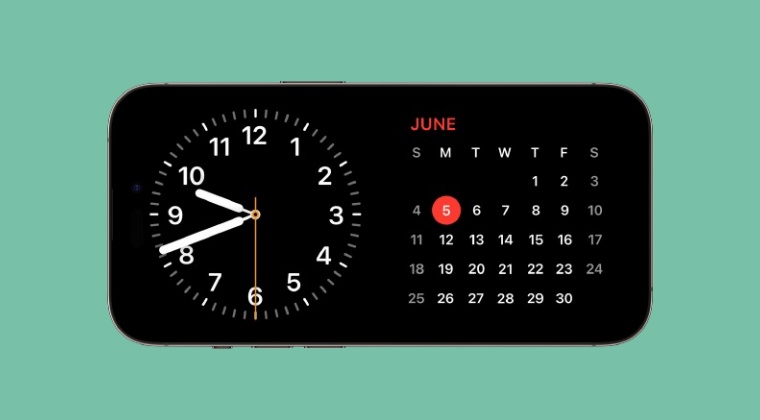
Talking about widgets, it’s the various clock styles that have been the go-to choice for the masses as it helps them to easily view the current time. However, before you use that Standby Mode widget for the first time on your iOS 17 device, you’ll have to keep in mind its time and location will be set to Cupertino by default! As a result of this, the time being shown might not actually be the correct time, if you live outside the said region.
Many users ended up missing this minute detail and hence ended up missing important deadlines. So it is highly recommended that as soon as you add the clock widget, tap on it once or long press on it, scroll down a couple of widgets and you’ll see the other clock which has the current time. You may then choose from one of those clocks and the issue stands rectified.
- Users Cannot Toggle Settings from Spotlight on iOS 17
- How to Turn Off Show Stickers in iPhone Keyboard on iOS 17
- Profile Picture missing in App Store after iOS 17 update
- How to Change iOS 17 Default Message Tone
- Next Backup Size Larger Bug in iOS 17? You’re not alone!

(Cancel Reply)
Δ
Next Backup Size Larger Bug in iOS 17? You’re not alone!
Many users have voiced their concern that the next backup size is going to be significantly larger than their previous one in iOS 17. At the time of writing, Apple is testing out the second Public Beta and the fifth Developer Preview. Since both of them are currently in the testing phase, it’s near about along the obvious lines that the OS is bound to get bugged with a few bugs and issues [which has indeed been the case ].
Next Backup Size Larger Bug in iOS 17
However, the latest one seems to have left quite a few users stumped. Many of them have reported that the Next Backup feature on their iPhone is showing up to 20-30GB larger than their previous one. Upon further digging up the files that it might back up, well, they are even seeing the likes of Google Drive, One Drive, Dropbox, and offline YouTube videos [serioulsy, we are not joking!].
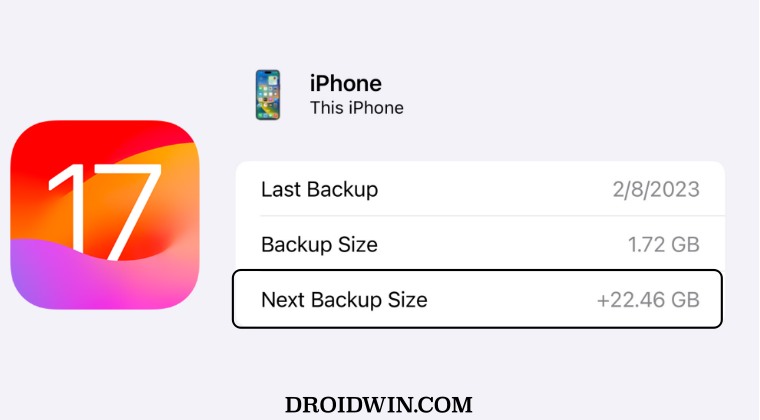
They could verify the same by heading over to S ettings > iCloud > Manage storage > backups > tap my iPhone, and checking out all the data that’s going to be in the next backup. As of now, there doesn’t seem to be any workaround that seems to be addressing this issue. While we are waiting for the third public beta to arrive [which could be here in a day or two], it’s recommended that you file a bug report using the Feedback app installed on your device at the earliest.
As far as the official stance on this matter is concerned, the developers are yet to acknowledge this issue, let alone give out any ETA for the rollout of a fix. As and when any of these two things happen, we will update this guide accordingly. In the meantime, the aforementioned workarounds are your best bet.
- iOS 17 Unable to Check for Update [Workaround]
- Fix iPhone Screen Time not working/Incorrect Data on iOS 17
- Fix Apps not showing Notification Badge on iOS 17
- How to Fix CarPlay not working on iOS 17
- AdGuard not working on Safari on iOS 17: How to Fix
(Cancel Reply)
Δ
