iPhone 15 Pro/Max Screen Dimming Issue: How to Fix
In this guide, we will show you various methods to fix the screen dimming issue on your iPhone 15 Pro/Max device. The newest addition to the iPhone family brings a slew of noteworthy goodies to the fore, including the likes of improved camera, A17 Bionic chip, and USB C Ports, among others. However, it tends to hit a few roadblocks as well in its otherwise great journey.
For instance, as of now, numerous users have voiced their concern about the screen dimming issue on their iPhone 15 Pro/Max devices. As a result of this, their screen appears dark, greyish, or low in contrast. While this is a general phenomenon when auto brightness is enabled or the device is in direct contact with sunlight, but surprisingly, both these cases aren’t being checkmarked, and even then users are getting bugged by this issue. If you are also in the same boat, then this guide will help you out. Follow along.
- Fix iPhone 15 Pro/Max Screen Dimming Issue FIX 1: Force Reboot FIX 2: Turn Off True Tone FIX 3: Reduce White Point FIX 4: Turn off Auto Brightness
Fix iPhone 15 Pro/Max Screen Dimming Issue
It is recommended that you try out each of the below-mentioned workarounds and then see which one spells out success. So with that in mind, let’s get started.
FIX 1: Force Reboot
Your first course of action should be to force reboot your iPhone and then check out the results. Here’s how it could be done:
- First off, press and release the Volume Up button.
- Then press and release the Volume Down button.
- Now press and hold the Power button until the Apple logo appears.
- Once that happens, release the Power key. The forced reboot is complete.
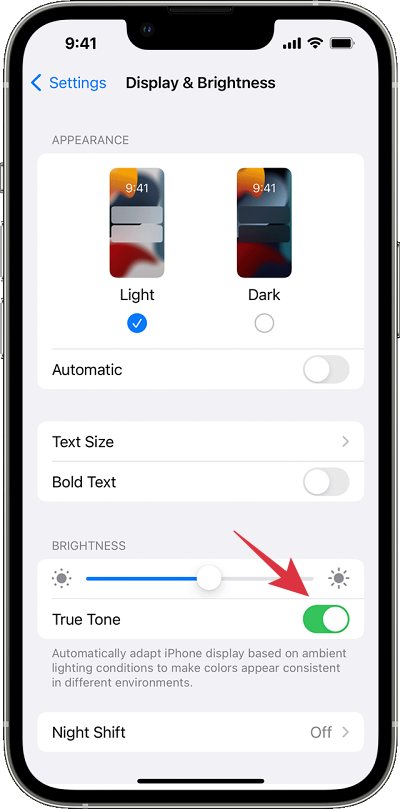
FIX 2: Turn Off True Tone
The True Tone feature automatically adjusts the color and intensity of your display to match the ambient light, so that images appear more natural. However, in some instances, it might be better to preserve the color and intensity of the device constant, which could be done by disabling this feature. So head over to Settings > Display & Brightness > turn off True Tone and check out the results.
FIX 3: Reduce White Point
As is evident from its name, this feature will reduce the intensity of bright colors to make the screen insipid. So consider enabling it via the below-listed steps and check if it fixes the screen dimming issue on your iPhone 15 Pro/Max.
- Go to Settings > Accessibility.
- Then go to Display & Text Size.
- Now enable Reduce White Point.
FIX 4: Turn off Auto Brightness
Auto Brightness tends to auto-adjust the brightness of your display based on the surrounding lighting condition. However, in some cases, this dynamic lightning adjustment could result in a few issues as well. Therefore, you should consider turning off this feature and see if it works out in your favor.
- Go to Settings > Accessibility.
- Then go to Display & Text Size.
- Now disable Auto Brightness.
- iPhone 15 Pro/Max Black Screen While Charging: How to Fix
- Apple Pay not working on iPhone 15 Pro/Max: How to Fix
- iPhone 15 Pro Not Charging: How to Fix
- iPhone 15 Pro No Call Audio on iOS 17: How to Fix

- Armin 2 years ago Reply Thank you, for me the reduce white point was enabled, although I never did this myself. Now with it DISabled the screen is at its peak brightness again
(Cancel Reply)
Δ
