iPhone Music App not working on iOS 17: How to Fix
In this guide, we will show you a couple of nifty workarounds to fix the issue of the iPhone Music App not working on iOS 17. The seventeenth iteration of the OS brings a slew of intriguing goodies to the fore. However, on the flip side, the update is still in the beta stage, so a few bugs and issues are along the expected lines and that has indeed been the case, as is evident by our c omprehensive coverage on this topic ].
The latest one to make its way is the fact that the Music App is not working along the expected lines on iPhones running the latest iOS 17. The issue first came to light after installing the latest Beta 6 and has resulted in the inability of the users to even play downloaded songs. If you are also getting bugged by this issue, then this guide is here to help you out. Follow along for the fix.
- Fix iPhone Music App not working on iOS 17 FIX 1: Toggle Language FIX 2: Re-Login to Apple ID FIX 4: Delete Cache of Apple Music FIX 5: Leave the Beta Program
Fix iPhone Music App not working on iOS 17
It is recommended that you try out each of the below-mentioned workarounds and then see which one spells out success. So with that in mind, let’s get started.
FIX 1: Toggle Language
As strange as it may sound but temporary switching over to any other language before switching back to your default one seems to have done the job for many. So let’s give it a try and check out the results:
- Head over to Settings > General > Language and Region.
- Then tap on Add Language and select any random language.
- In the prompt that appears, select the newly added language.
- Wait for a few seconds and then go to Language and Region.
- Now select your original language and check out the result.
FIX 2: Re-Login to Apple ID
Your next course of action should be to log out and then re-login to your Apple ID and then check if it fixes the issue of the iPhone Music App not working on iOS 17. Here’s how it could be done:
- Head over to Settings > Sign out > Type in your Apple ID and password.
- Then tap on Turn Off > Sign Out > Sign Out. Then go to the Settings menu.
- Now type in your Apple ID and you’ll be logged in. Then check out the results.
FIX 4: Delete Cache of Apple Music
If a lot of temporary data gets accrued over the course of time or if the stored data gets corrupted, then it might conflict with the proper functioning of the app. Therefore, you should consider deleting those cached data, as shown below:
- Head over to Settings > General > iPhone Storage.
- Then select Apple Music and tap on Offload App.
- Check if iPhone Apple Music is working on iOS 17. Reference Image
FIX 5: Leave the Beta Program
If none of the aforementioned methods spelled out success, then your last course of action should be to leave the beta program and roll back to the stable version [take a data backup before you do so]. Here’s how it could be done:
- Head over to Apple Beta Unenroll your Device page.
- Then scroll to “How do I leave the Apple Beta Software Program”.
- Now sign in to your Apple ID and click on the Leave Program link.
- Then restart your device and wait for a few hours. You’ll be taken to the stable build.
That’s it. These were the five different methods that should help you fix the issue of the iPhone Music App not working on iOS 17. As far as the official stance on this matter is concerned, the developers are yet to acknowledge this issue, let alone give out any ETA for the rollout of a fix. As and when any of these two things happen, we will update this guide accordingly. In the meantime, the aforementioned workarounds are your best bet.
- iOS 17: contact poster using a nickname instead of first & last name!
- Next Backup Size Larger Bug in iOS 17? You’re not alone!
- iOS 17 Unable to Check for Update [Workaround]
- Fix iPhone Screen Time not working/Incorrect Data on iOS 17

(Cancel Reply)
Δ
Next Backup Size Larger Bug in iOS 17? You’re not alone!
Many users have voiced their concern that the next backup size is going to be significantly larger than their previous one in iOS 17. At the time of writing, Apple is testing out the second Public Beta and the fifth Developer Preview. Since both of them are currently in the testing phase, it’s near about along the obvious lines that the OS is bound to get bugged with a few bugs and issues [which has indeed been the case ].
Next Backup Size Larger Bug in iOS 17
However, the latest one seems to have left quite a few users stumped. Many of them have reported that the Next Backup feature on their iPhone is showing up to 20-30GB larger than their previous one. Upon further digging up the files that it might back up, well, they are even seeing the likes of Google Drive, One Drive, Dropbox, and offline YouTube videos [serioulsy, we are not joking!].
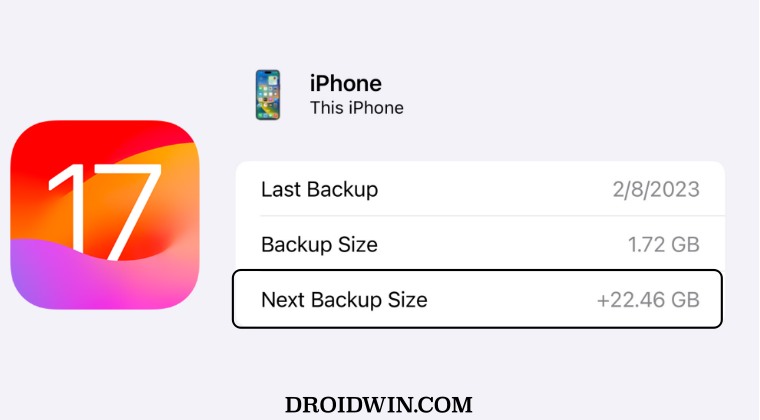
They could verify the same by heading over to S ettings > iCloud > Manage storage > backups > tap my iPhone, and checking out all the data that’s going to be in the next backup. As of now, there doesn’t seem to be any workaround that seems to be addressing this issue. While we are waiting for the third public beta to arrive [which could be here in a day or two], it’s recommended that you file a bug report using the Feedback app installed on your device at the earliest.
As far as the official stance on this matter is concerned, the developers are yet to acknowledge this issue, let alone give out any ETA for the rollout of a fix. As and when any of these two things happen, we will update this guide accordingly. In the meantime, the aforementioned workarounds are your best bet.
- iOS 17 Unable to Check for Update [Workaround]
- Fix iPhone Screen Time not working/Incorrect Data on iOS 17
- Fix Apps not showing Notification Badge on iOS 17
- How to Fix CarPlay not working on iOS 17
- AdGuard not working on Safari on iOS 17: How to Fix
(Cancel Reply)
Δ
