iPhone VIP Emails not working on iOS 17: How to Fix
In this guide, we will show you a couple of methods to fix the issue of VIP Emails not working on iPhones running iOS 17. The Apple Mail app allows you to specify certain people as VIPs so that you. could easily keep track of messages they send. They will have a star icon next to their name so that their emails are easily distinguishable from the plethora of ones that would already be there in your inbox. However, as of late, this feature is giving a tough time to many.
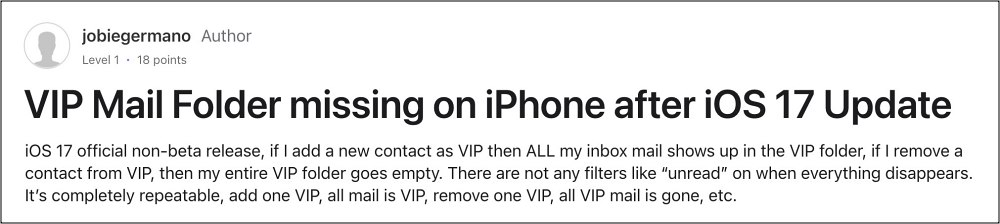
Numerous users have voiced their concern that VIP Emails are not working along the expected lines on their iPhones running the latest iOS 17. If they add a new contact as VIP then all their inbox mail shows up in the VIP folder. Likewise, if they remove a contact from VIP, then their entire VIP folder goes empty. If you are also facing this issue, then this guide will make you aware of a couple of nifty workarounds to resolve this bug. Follow along.
- Fix iPhone VIP Emails not working on iOS 17 FIX 1: Re-Add Gmail Account FIX 2: Sign out and Reset Network
Fix iPhone VIP Emails not working on iOS 17
It is recommended that you try out each of the below-mentioned workarounds and then see which one spells out success. So with that in mind, let’s get started.
FIX 1: Re-Add Gmail Account
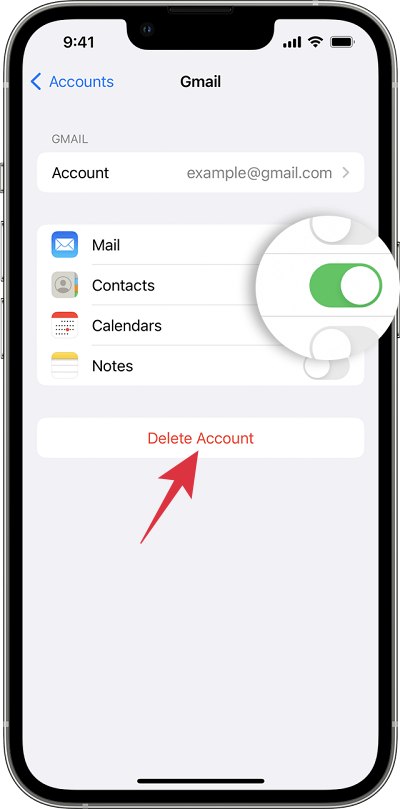
Many users managed to rectify this issue after deleting their mail account and then re-adding it. Once that is done, simply restart your device and the issue should be rectified. Talking about re-adding accounts, simply doing so for Gmail should be enough, there’s no need to touch your iCloud, Yahoo, and Outlook accounts.
FIX 2: Sign out and Reset Network
A bunch of users were able to fix this issue of VIP Emails not working on their iPhones running iOS 17 by signing out of all their accounts, resetting the network, and then signing back in only to their iCloud account. So let’s give it a try using the below-listed steps and check out the results [this might not translate to be the best fix for those who have different iCloud and purchases accounts].
- Sign out of all your email accounts, iCloud and purchases account.
- Then go to Settings > General > Reset iPhone > Reset.
- Then select Reset Network Settings.
- Once done, re-connect to your WiFi network.
- Now connect only via your iCloud account and VIP should work now.
- AirPrint Printer not working on iOS 17: How to Fix
- iOS 17 Wallpaper Blur Issue: How to Fix
- iOS 17 Keyboard Sound Issue: What’s Going On?
- iPhone Microphone not working on iOS 17: How to Fix
- Calendar Search not working on iOS 17: How to Fix

(Cancel Reply)
Δ
AirPrint Printer not working on iOS 17: How to Fix
In this guide, we will show you a couple of methods to fix the issue of the AirPrint Printer feature not working after installing iOS 17 on your iPhone. This Apple technology helps you create full-quality printed output directly from your Mac, iPhone, or iPad without the need to download or install drivers. Most of the popular printer manufacturers have also embedded this feature into their products. However, as of late, it seems to be going through a rough patch.
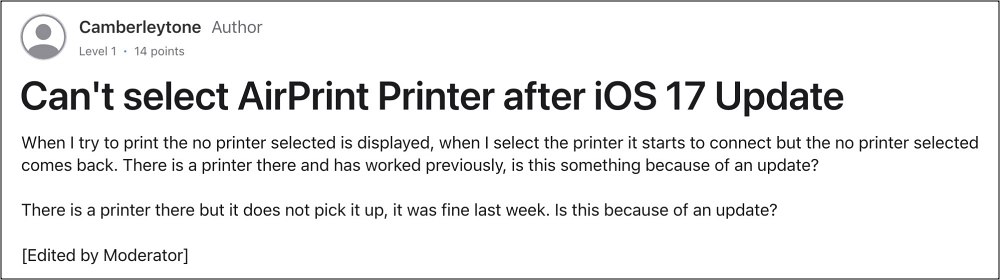
Numerous users have voiced their concern that the AirPrint Printer feature is no longer working on their iPhones after installing the latest iOS 17 build. It’s working with other iPhone devices running iOS 16 or older versions, so the culprit is definitely the OS. Moreover, some of the printers majorly affected by this issue are Brother, Canon, and Dell, among others.
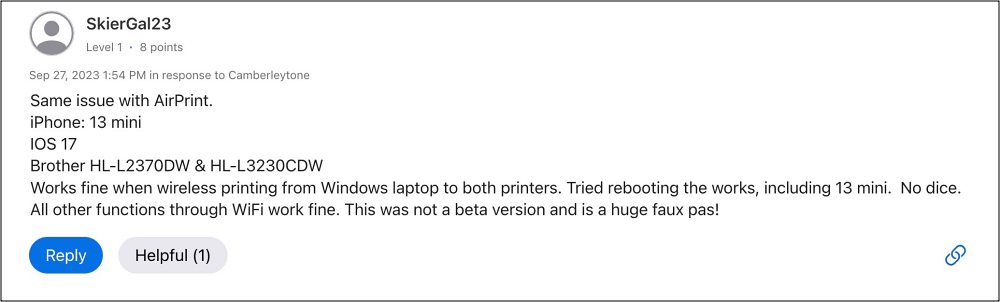
Since you cannot downgrade the OS [well, at least not via the traditional route, and for the iPhone 15 series even that is impossible], so what else could be done? Well, there does exist a couple of nifty workarounds that should help you rectify this issue. So without further ado, let’s check them out.
- Fix AirPrint Printer not working on iOS 17
- FIX 1: Turn off VPN FIX 2: Update Printer Firmware FIX 3: Reset Network Settings
Fix AirPrint Printer not working on iOS 17
It is recommended that you try out each of the below-mentioned workarounds and then see which one spells out success. So with that in mind, let’s get started.
FIX 1: Turn off VPN
One of the most common culprits behind this issue is VPN being enabled on the iPhone [especially the Norton VPN]. Therefore, it is recommended that you turn off the VPN using the below-listed steps and then check out the results:
- Head over to Settings > General > VPN & Device Management.
- Now just turn off the toggle next to your VPN.
- Once done, restart your device [important] and check out the result.
FIX 2: Update Printer Firmware
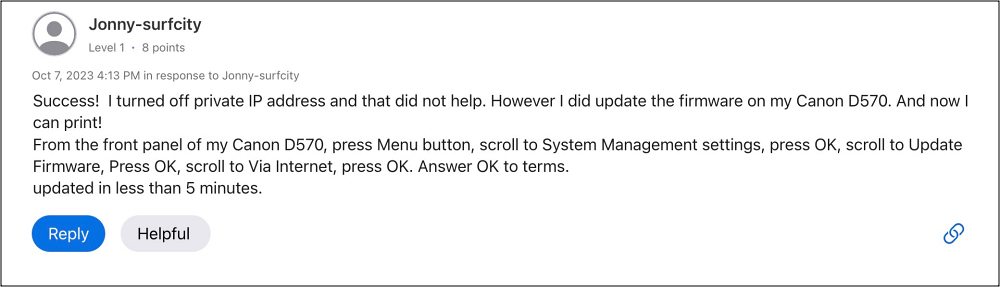
For some users, updating the printer drivers to the latest version did the job. So head over to your printer manufacturer’s support page, grab hold of the latest build of these drivers, and install them onto your PC right away. Once done, check if AirPrint Printer is now working on iOS 17 or not.
FIX 3: Reset Network Settings
If none of the aforementioned methods worked out in your favor, then your last course of action should be to reset the network settings on your iPhone. Do keep in mind that doing so will erase all the saved WiFi networks, passwords, cellular settings, and VPN and APN settings, so make sure that they are synced with your Apple account.
- To begin with, head over to Settings > General.
- Then go to Transfer or Reset iPhone > Reset.
- After that, tap on Reset Network Settings.
- Now re-connect to your WiFi network and check the results.
That’s it. These were the various methods to fix the issue of the AirPrint Printer feature not working after installing iOS 17 on your iPhone. As far as the official stance on this matter is concerned, the developers are yet to acknowledge this issue, let alone give out any ETA for the rollout of a fix. As and when any of these two things happen, we will update this guide accordingly. In the meantime, the aforementioned workarounds are your best bet.
- iOS 17 Wallpaper Blur Issue: How to Fix
- iOS 17 Keyboard Sound Issue: What’s Going On?
- iPhone Microphone not working on iOS 17: How to Fix
- Calendar Search not working on iOS 17: How to Fix
(Cancel Reply)
Δ
