Let Google Assistant Read and Reply to Messages from WhatsApp,Telegram and more
Google Assistant now allows reading and subsequently sending of messages from WhatsApp, Telegram and many other such apps. Read the detailed article below to know more.
Google Assistant is probably one of the most useful utility app (or the most useful app?) for any Android Device. From setting up alarms, to casual chatting to even letting her tell you jokes at 3:00 AM in the morning, it can do it all. And now, it seems it has added another useful functionality in its arsenal.
- What Is This New Feature All About
- How to Enable This Feature
- How to Read and Send Messages via Google Assistant
- How is Google Assistant Able to Read My WhatsApp Messages
- Final Thoughts
What Is This New Feature All About
The feature of replying to text messages was present before as well, but this time Google went a step further and allowed third part integration into its functionality. These include WhatsApp, Telegram, the default Messaging App and many more chatting applications. Now you could just instruct the Assistant to read out messages from your desired apps. But that’s not all. She could even reply to all of these messages, as directed by you.
How to Enable This Feature
The steps are simple. Whether you are using for the first time or you have used it before, it doesn’t matter. Just say OK GOOGLE from your Home Screen . You may also long-press the Home button or the Gesture Pill (for Android Pie and above).
- For the first time users: A dialog box will pop up which says “Allow your Assistant to read your notifications to you”. Tap on OK. You will be taken to the Notification Access menu, enable the toggle next to Google. You could also do it manually by going to Settings > Apps and Notifications > Advanced > Special app access > Notification access > Toggle on the switch next to Google . That’s it.
- For the users who have already set up Google Assistant: Just say “ OK GOOGLE “or “ HI GOOGLE” and head over to the next section.
How to Read and Send Messages via Google Assistant
- Say “ OK GOOGLE ” or “ HI GOOGLE” (or long-press the home button/gesture pill. see below image).
- Google Assistant will pop up. The red arrow is next to a Gesture Pill in Android 9.0. Long Press this and the Google Assistant will pop up
- Say “ Read My Messages “, “ Read My WhatsApp Messages “, “ Read My Telegram Messages “, etc as per your choice.
- Now, suppose you got 4 new WhatsApp messages (from Mom, X, Y, and Z). Then she will read the sender name of all the four messages and then read the contents.
- In the above, scenario, she will say “You have got a new message from Mom, X, Y, and Z. The first message from Mom is Hey Hey”.
- It will then ask whether you want to reply to this message. Say YES . She will then ask for the message (“OK, what’s the message”).
- Then you would be asked to speak up your messages. As soon as you finish speaking, the said message will automatically be sent.
- Then she would move on to the next message. Follow the same procedure or close the Assistant if you no longer wish to reply.
How is Google Assistant Able to Read My WhatsApp Messages
Google Assistant does not go inside the app and then read your messages. Rather, it performs the entire function of reading and replying to the unread messages from the Notification Panel itself. You may even cross-check this using a simple trick. Whenever a new message arrives, just right swipe it from the notification bar to dismiss it. Now if you ask Google to read new messages, it would simply say “There aren’t any new messages”.
Final Thoughts
So the next time you are busy with the kitchen chores, driving or have both of your hands full, then definitely give this a try. This feature even works if you have Fingerprint enabled, so no need to turn it off. With that, we come to the end of the guide on How to Let Google Assistant Read and Reply to Messages from WhatsApp, Telegram and other such applications. if you have any queries with respect to any part of this guide, do let me know. I will definitely get back to you.
Want to Have Fun with Your Google Assistant? Ask your friend to send three-four smiling emojis (as in the above screenshot) and let Assistant do the talking!

(Cancel Reply)
Δ
WhatsApp to Finally Launch the Much Awaited Feature [APK Available]
Whenever one thinks of contacting their near and dear ones, probably the only app that comes to their mind is WhatsApp. It is not that the messaging sector is bereft of any competition. The point is, such has been WhatsApp stronghold that the word ‘chatting’ seems to be the new synonym of WhatsApp.
And now, it seems that the communication giants have finally paid heads to one of the most widely requested features. As you might be aware that unlike other social apps, WhatsApp isn’t known to be among the first to launch any new feature. Whether it was the sticker pack, voice calls or video calls, it always took its fair share of time. And this is where it manages to score above its competitor.
It never wants to have a first-mover advantage. Rather, it first tests the app within its developer’s community. These are the members known as Alpha-Testers. Then it moves on to a selected few groups of users (known as beta testers). Finally, if everything is well and good, the app is released for the general public on the Play Store.
And here is one such feature released by WhatsApp which might finally be a cause of concern for its various competitors. Being one of the WhatsApp testers, I have been able to get my hands on this APK with the said feature enabled. But what is this feature all about? Read on further to know more.
[ More Interesting WhatsApp news: Read Here ]
- What Is This Latest WhatsApp Feature All About?
- Steps to Enable the FingerPrint Unlock Feature on WhatsApp
- Does This Hide Everything?
- Could I Hide Messages From the Notification Panel?
- How to Turn off WhatsApp Notifications?
- Will My FingerPrint Data be Misused by WhatsApp?
- Final Thoughts FAQs
What Is This Latest WhatsApp Feature All About?
One reason why some people still go for the Telegram App for communicating is the Safe and secure platform that it provides. By introducing various security mechanisms, such as the 2-Factor Authentication, WhatsApp is surely catching up with the former. And now it has added another important feature in its arsenal. But what explicitly is this feature?
WhatsApp now has added the Fingerprint Lock Feature in its app. Previously called the Screen Lock or Authentication feature, the name probably speaks for itself. Applicable in Android 6.0 and later, every time you open the app, it needs to be unlocked via your fingerprint. But that’s not all.

You could also modify the time period after which you want the said feature to get active. For some, it might be quite annoying to authenticate every time he/she opens his app. But for others who consider privacy as their top concern, they want it to be enabled all the time. Taking this into consideration, the following time span is available to enable the “use fingerprint to unlock” option:
- Immediately
- After 1 minute
- After 30 minutes
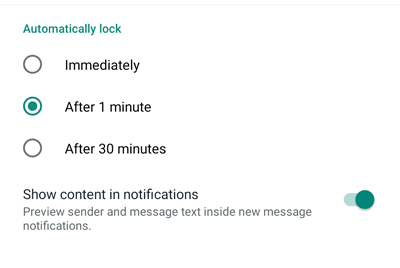
For example, if you chose the ‘Immediately’ option, WhatsApp will enable this feature at that instance. Hence, every time you open the messaging app, you need to unlock it via your fingerprint.
Steps to Enable the FingerPrint Unlock Feature on WhatsApp
It is extremely important to get your hands on the latest beta version of WhatsApp in order for the said feature to work. But being a member of WhatsApp beta tester, I was able to get my hands on the test version of WhatsApp. Download it here:
- Download: WhatsApp for Android v2.19.222 (beta version)
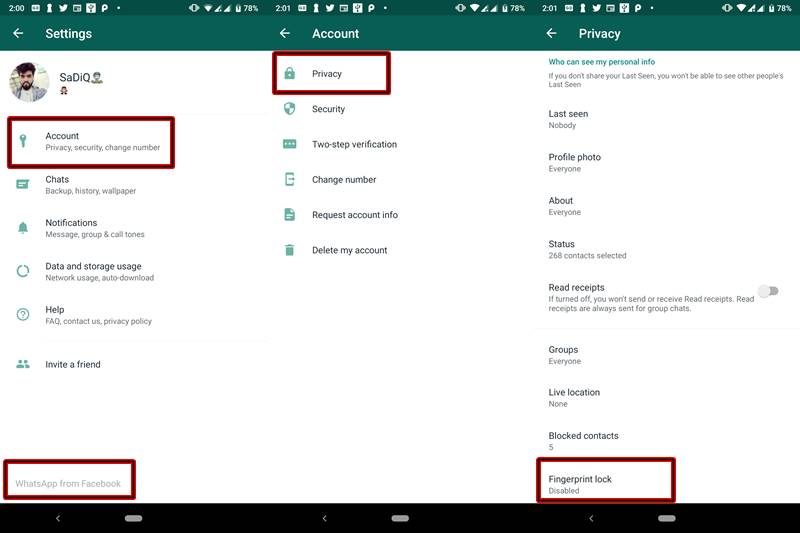
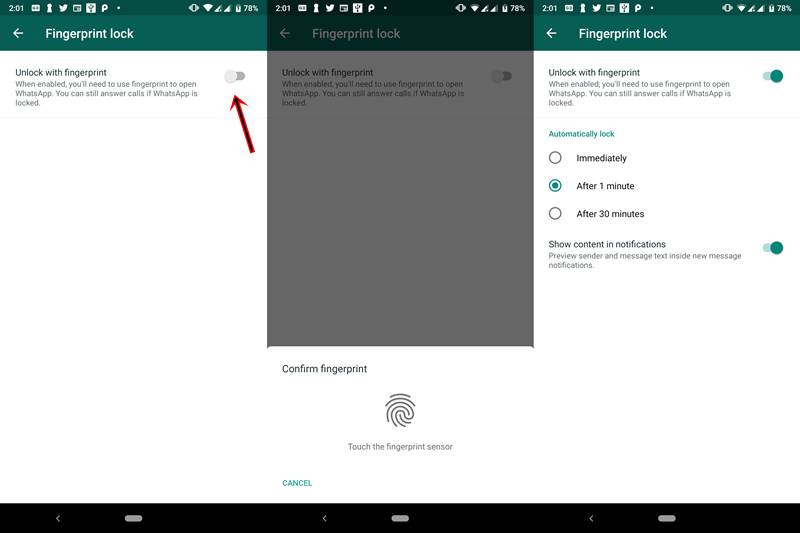
Once downloaded, install it on your device. Then open the app and head over to Settings > Account > Privacy . Under the Privacy Option, you will see a new feature called Fingerprint Lock . Enable the switch next to Unlock with fingerprint to activate this feature on your WhatsApp.
Does This Hide Everything?
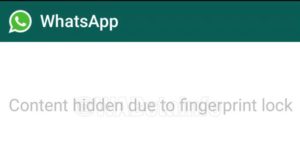
The answer is both Yes and No. Inside the app, everything gets hidden . You will be greeted with a blank screen and a text that says “Content hidden due to fingerprint lock” (see below screenshot). So until you authenticate the app with your fingerprint, you wouldn’t be able to see any messages. That was the obvious part. Now let’s discuss the less obvious one.
Source:WhatsAppBetaInfo
Even after you enable the fingerprint option, you will be in a position to view WhatsApp Messages, the sender info and the message date and time. All this could be viewed from the Notifications panel of your device. But isn’t it a security flaw on the part of WhatsApp? No, it isn’t.
This is because a third-party app has no control over your device’s system menu. Being an external app, WhatsApp can modify whatever it likes with its app, but outside the app, its functionality is limited. The device’s Notification Panel is handled by Andriod System. Hence it is the sole discretion of the System (or to be precise- the users) to show/hide these notifications.
Could I Hide Messages From the Notification Panel?
Although you could easily hide the messages from the notification panel , I would recommend not doing so. this is because WhatsApp is no longer used for casual chit chats. Many important and formal conversations are taking place nowadays on this messaging platform. Turning the notification off will make you completely unaware of the messages being sent to you. You may, therefore, miss out on important events. However, if you still prefer to turn off the notifications, follow the below method.
How to Turn off WhatsApp Notifications?
Given below are two methods to completely turn off Whatsapp notifications. Proceed at your own peril. You could try any of the two given methods. The first method, although short and simple, may work only on the latest Android version. If it doesn’t work for you, try the second alternative. That is the universal method and will work on all the devices.
METHOD 1: Turn off WhatsApp Notifications from the Notification Panel
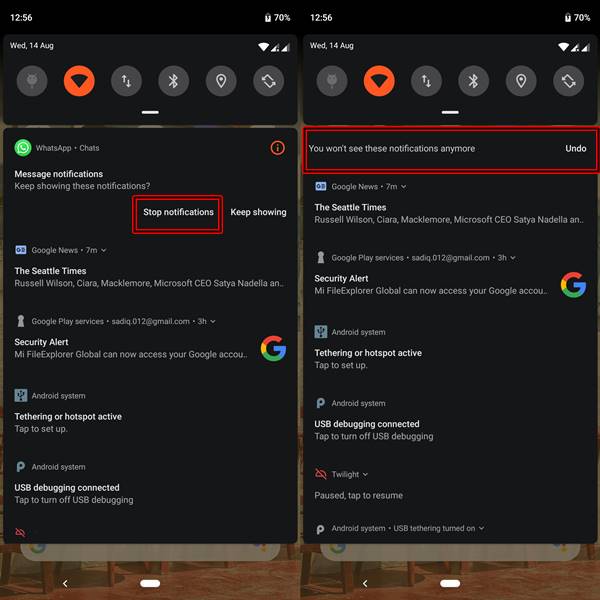
- Long press on the WhatsApp Notification on the Notification Panel.
- You will be greeted with two options: Stop Notifications and Keep Showing.
- Tap on Stop notifications . that’s it. You will no longer be notified about any WhatsApp activity on your device.
METHOD 2: Turn off WhatsApp Notifications from the App’s Setting Menu
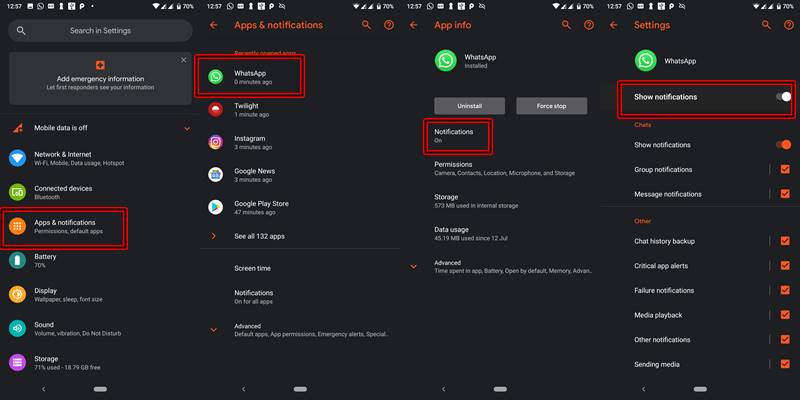
- Go to the Settings menu of your device.
- Navigate to Apps & Notifications or Notifications , whatever option is present on your device.
- Scroll down to WhatsApp and tap on it.
- [On Android 9.0 Pie] Tap on Notifications.
- Disable the toggle which says Show notifications or Block All.
Will My FingerPrint Data be Misused by WhatsApp?

Just like any other Android app, Whatsapp will not be able to access, store, transfer or modify any of your fingerprint or biometrics data. Rest assured, your data is completely safe and will only be stored in your Android System. Once you format your device, the data would also be erased.
Final Thoughts
This is indeed a welcome move by the world’s most popular messaging service. Any act which makes the app more safe and secure will be equally liked by everyone. Hence adding the fingerprint feature to the WhatsApp is a step in the right direction. What do you think? Feel free to voice your thoughts, views, and reactions to this news in the comment section below.
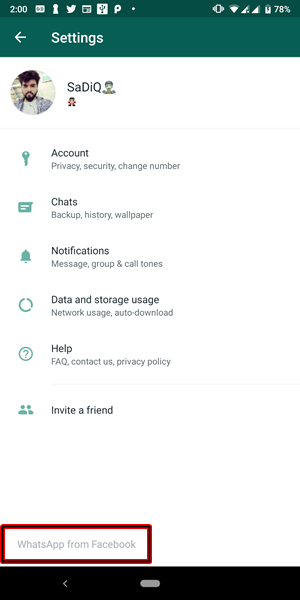
BONUS: In the Latest Version of WhatsApp (v2.19.222), Facebook has also renamed the app name from “WhatsApp” to “WhatsApp from Facebook”. Have a look at the below screenshot.
Q1) Will my pre-installed version of WhatsApp get this update?
No, in order to get the Fingerprint Lock feature, you must be using the WhatsApp Beta v2.19.222. Get it from the Download Section of this post.
Q2) After installing the said version, I am not able to see the Fingerprint feature in my WhatsApp.
If you have installed the version 2.19.222 of WhatsApp but still didn’t got this feature, then head over to Settings > Chats > Chat backup and make a backup of your chat. Then uninstall WhatsApp and re-install it. You should get this feature now.
Q3) Again, no success?
Even after that, if you aren’t able to receive the FingerPrint Lock feature of WhatsApp, then probably wait for the next beta release of WhatsApp. This post will be automatically updated once a new version is released.
(Cancel Reply)
Δ
