Local Install Greyed Out in OnePlus: How to Fix
In this guide, we will show you the steps to fix the issue of Local Install being greyed out on your OnePlus device. There exist quite a few ways of installing updates on your OnePlus. While Over The Air is still the preferred choice for the masses, however, in some instances, you might have to take an alternate route. There have been many instances where users wherein users can get hold of the update ZIP package even though the OTA update for the same is yet to arrive.
Well, even third-party apps like Oxygen Updater can pull the updates from the OnePlus servers faster than OnePlus themselves. So if you have got hold of the update ZIP file, then your next course of action should be to sideload it onto your device. In this regard, as opposed to other OEMs, OnePlus doesn’t have the ADB Sideload option in its stock recovery.
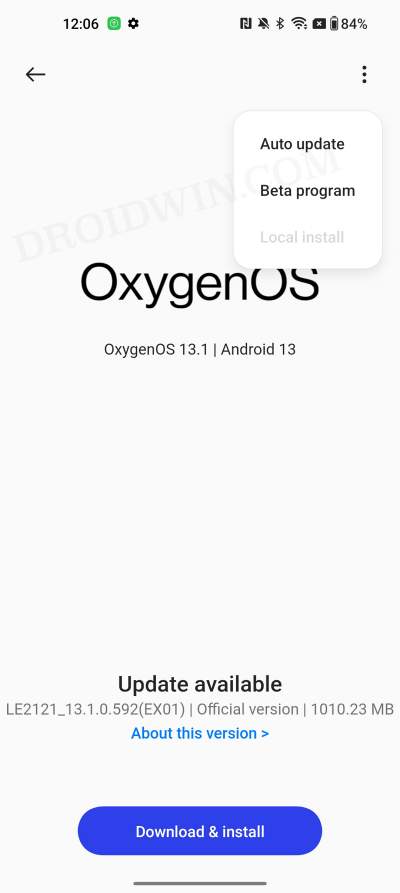
Instead, it beholds the Local Install/Local Upgrade option which is infact a much easier way of getting the job done in comparison with Sideload. With that said, some users have voiced their concern that the Local Install option is greyed out on their OnePlus devices. If you are also affected by this issue, then this guide will help you out. Follow along for the fix.
Fix Local Install Greyed Out in OnePlus

- To begin with, turn off WiFi and carrier data on your device.
- Now go to Settings > About Device > Version > Tap on Build Number 7 times.
- Then go to Additional Settings and the Developer Options should be there.
- Now head over to Settings > Apps > App Management.
- Then go to Software Update > Storage Usage.
- Now tap on Clear Data > Delete in the prompt.
- Once done, go to Settings > About Device > tap on OxygenOS.
- Then tap on the overflow icon and you can now select Local Install.
- Cannot Install Local Update App in OnePlus
- How to Enable Local Install in OnePlus 10 Pro
- Local Install Option Missing in Oppo: How to Fix
- How to Enable 5G in OnePlus Phones [2 Methods]

- Praveen 2 years ago Reply I have unlock bootloader and rooted OnePlus 12 . Now I want to local update and keep rooted my phone. So I follow your step but when I select ROM zip file in local update an error occurred it says The dm-verity is disable. Please check fastboot unlock status. And verification failed. How to fix this issue.
(Cancel Reply)
Δ
