macOS 14 Sonoma Bugs, Issues, and Their Fixes
In this guide, we will make you aware of all the bugs, issues, and their fixes in the latest macOS 14 Sonoma. In the recently concluded Worldwide Developer Conference, Apple opened the gateway to the slew of updates for its numerous OS. One among them is aimed for their Macs which brings in a plethora of new and intriguing features. Some of the noteworthy ones include the likes of the new lock screen, desktop widgets, FaceTime, and iMessage enhancements.
Likewise, there’s a new Game Mode, web app support, a new emoji stickers interface, and new tools for editing PDFs. However, this is just one side of the coin. Every OS has its fair share of bugs and issues and the latest offering from the Cupertino giant is no different either. But fret not, this guide has got you covered! In this tutorial, we will make you aware of all the bugs, issues, and their fixes in the latest macOS 14 Sonoma. So without further ado, let’s get started.
- macOS 14 Sonoma Bugs, Issues, and Their Fixes Cannot Install macOS 14 Sonoma Cannot Install MacOS Sonoma In External Disk Cannot Downgrade macOS Sonoma Safari Browser Profiles Not Working On MacOS Sonoma Remove System Events Background Items Added In MacOS Sonoma Google Chrome is sharing your screen in macOS Sonoma Widgets not working in macOS 14 Sonoma Beta 4 Fix Black Screen after Installing macOS Sonoma Beta 4 Fix Network Interface not working in macOS Sonoma Beta 4 Time Machine Backup Not Working in macOS Sonoma Bluetooth Not Working with Open Core Legacy Patcher in macOS Sonoma Ethernet not working in macOS Sonoma Cannot Mount External Drives in macOS Sonoma The Printer is out of Paper Error in macOS Sonoma Keyboard Latency/Delay in macOS Sonoma
macOS 14 Sonoma Bugs, Issues, and Their Fixes
This article follows a chronological timeline and new updates, issues, and their fixes are being added to the bottom of this guide.
Cannot Install macOS 14 Sonoma
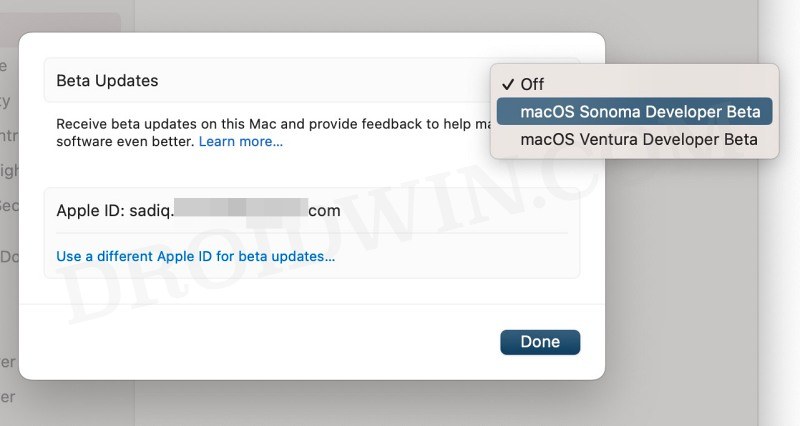
Many users are unable to install the fourteenth iteration of the OS. If that is the case with you as well, then refer to the guidelines listed below:
How To Download & Install MacOS Sonoma On Your Mac Right Away
Cannot Install MacOS Sonoma In External Disk
Some users have voiced their concern that they are unable to install the latest OS on an external disk. If that is the case with you as well, then refer to the instructions given in the below guide:
Cannot Install MacOS Sonoma In External Disk
Cannot Downgrade macOS Sonoma
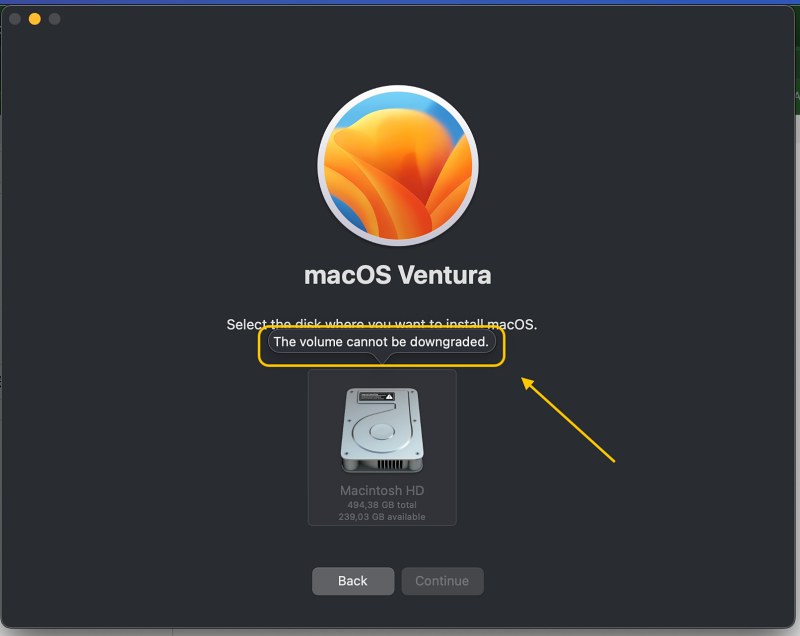
Some users are reportedly unable to downgrade their Mac from macOS 14 Sonoma to macOS 13 Ventura. If you are also in the same boat, then do check out our below-linked guide for the fix:
How To Downgrade MacOS 14 Sonoma To MacOS 13 Ventura
Safari Browser Profiles Not Working On MacOS Sonoma
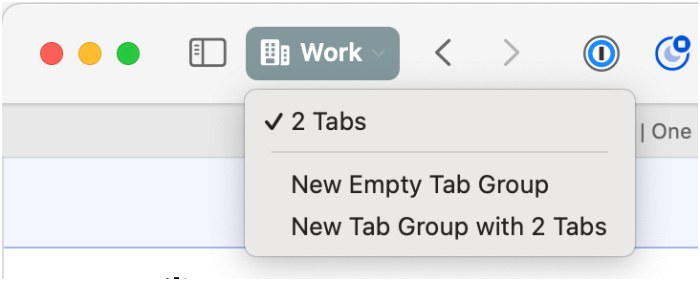
One of the major talking points of the latest OS update is the ability to create different profiles in the Safari browser. Unfortunately, as of now, it isn’t working along the expected lines. But the good news is that it could easily be rectified via the instructions given in the below guide:
Fix Safari Browser Profiles Not Working On MacOS Sonoma
Remove System Events Background Items Added In MacOS Sonoma
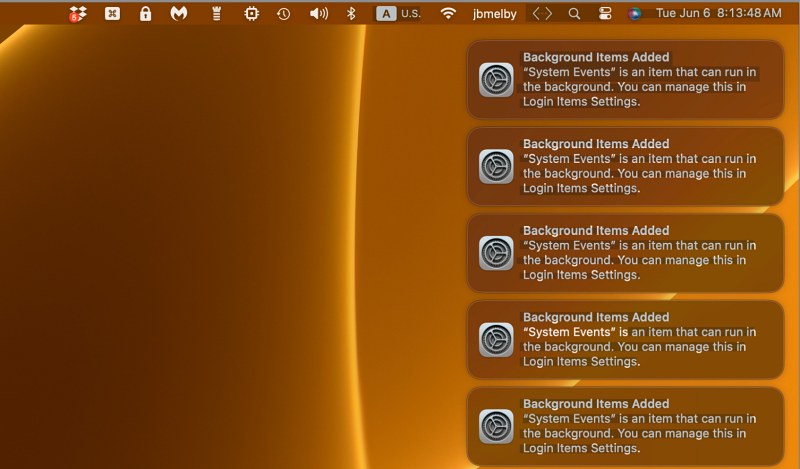
A couple of users are getting constantly bugged with the Remove System Events Background Items Added notifications in the latest OS build. If that is the case with you as well, then the below-linked guide is all that you would need to put this bug to rest:
How to Remove System Events Background Items Added In MacOS Sonoma
Google Chrome is sharing your screen in macOS Sonoma
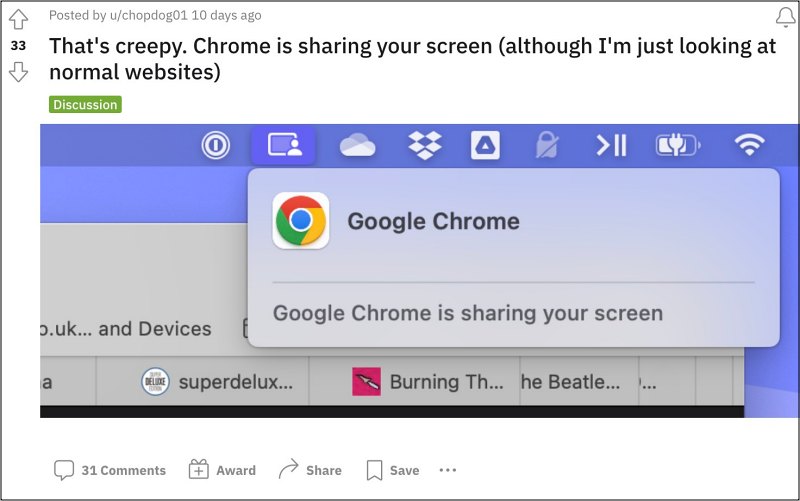
Many users have voiced their concern that they are constantly getting the Google Chrome is sharing your screen prompt on their macOS Sonoma even though the browser has never been granted permission to do so. If you are also facing this issue, then check out the below guide for the fix:
Fix macOS Sonoma Google Chrome is sharing your screen
Widgets not working in macOS 14 Sonoma Beta 4
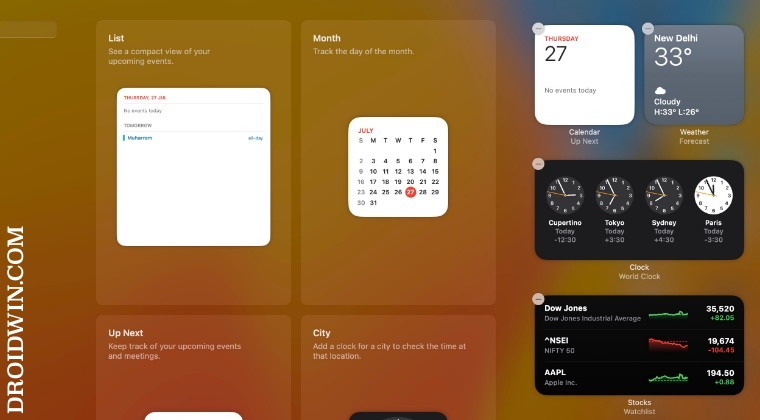
With the rollout of the fourth beta build, the widgets are not working or loading in macOS Sonoma. Fortunately, Apple has already acknowledged this bug and has shared the official workaround to resolve this issue. Refer to the below guide and get hold of the fix right away:
Fix Widgets not working in macOS 14 Sonoma
Fix Black Screen after Installing macOS Sonoma Beta 4
Many users are reportedly getting a black screen right after installing the latest macOS Sonoma Beta 4. If you are also in the same boat, then check out our below guide for the fix.
Fix Black Screen Issue on macOS 14 Sonoma Beta 4
Fix Network Interface not working in macOS Sonoma Beta 4
Along with the black screen issue listed above, macOS Sonoma Beta 4 also seems to have created quite a few issues with Network Interface [both WiFi and Ethernet]. Users were only able to rectify this issue by deleting the interfaces and then re-adding them in the Network section of System Settings.
Time Machine Backup Not Working in macOS Sonoma
Fix Time Machine Backup not working in Sonoma
Bluetooth Not Working with Open Core Legacy Patcher in macOS Sonoma
Fix Bluetooth not working on Sonoma Open Core Legacy Patcher
Ethernet not working in macOS Sonoma
Ethernet not working on macOS Sonoma: How to Fix
Cannot Mount External Drives in macOS Sonoma
Cannot Mount External Drive on macOS Sonoma: How to Fix
The Printer is out of Paper Error in macOS Sonoma
Fix macOS 14 Sonoma 'The Printer is out of paper' error!
Keyboard Latency/Delay in macOS Sonoma
Keyboard Latency/Delay in macOS Sonoma: How to Fix
- macOS Ventura 13.4 H264 codec 120FPS not working [Fix]
- Cannot Unenroll from macOS Ventura Public Beta: How to Fix
- How to Change Text Size in macOS without changing resolution
- How to Change Lock Screen Wallpaper on macOS

(Cancel Reply)
Δ
Fix macOS 14 Sonoma “The Printer is out of paper” error!
In this guide, we will show you various methods to fix “The Printer is out of paper” error in macOS 14 Sonoma. The Cupertino giant has just rolled out the fourteenth iteration of the OS. This time around, there are a few intriguing features and UI teaks to look forward to. Some of the noteworthy ones encompass the likes of Screen Savers, Widgets, Video Conferencing, Safari, Messages, Privacy, and Accessibility settings.
On the flip side though, a few bugs managed to have crept in as well. In this regard, we recently talked about the Ethernet issues plaguing numerous users. And now, there are issues with the printers. A slew of complaints are lined up across numerous forums wherein macOS 14 Sonoma users have voiced their concern that they are getting the “The Printer is out of paper” error message even though that is not the case.
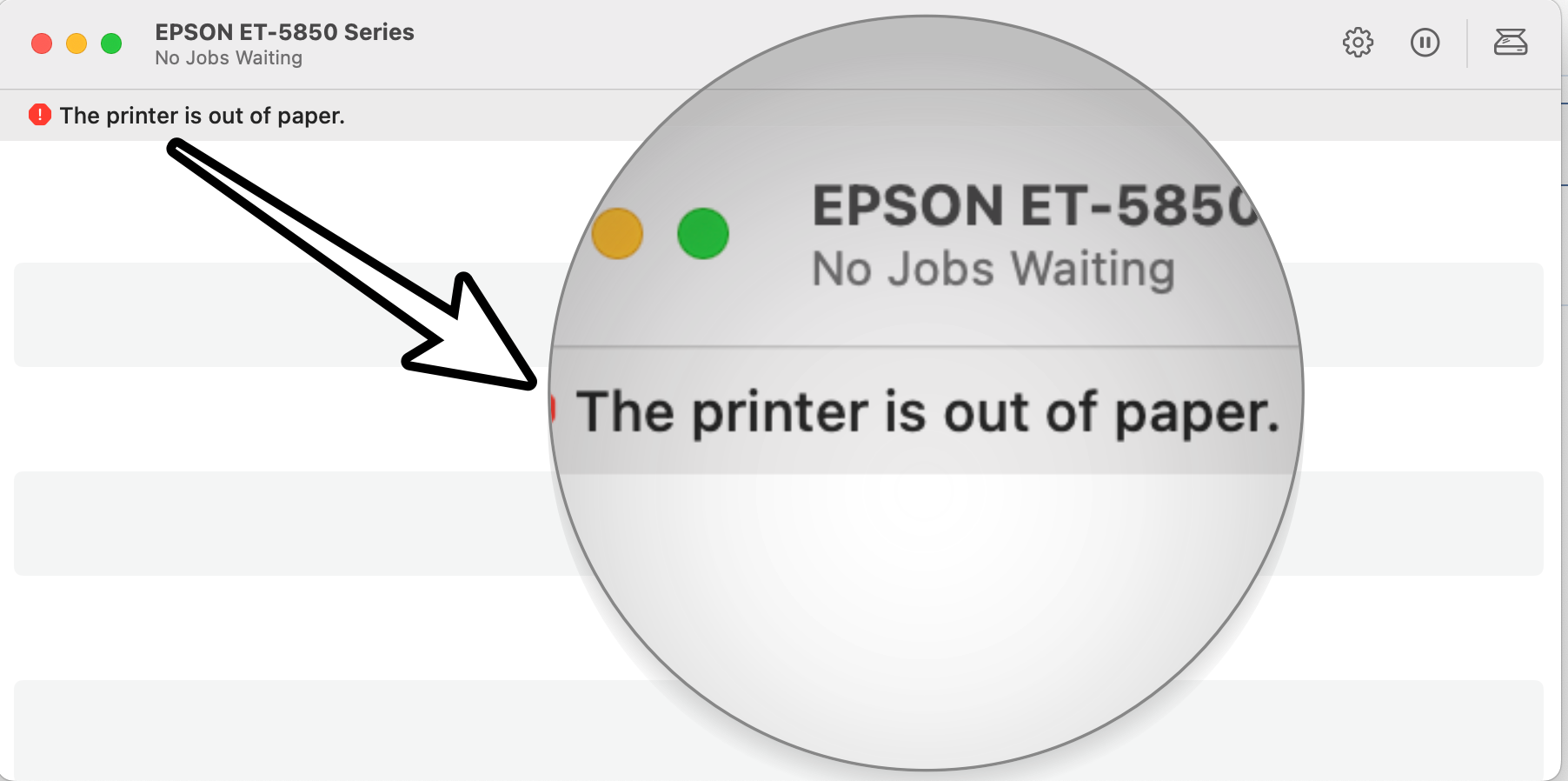
The printer queue window tends to display a red symbol next to the error prompt. Moreover, the issue isn’t limited to any particular printer brand, the likes of EPSON and Ricoh, among others all are part of the affected list. If you are also getting bugged by this issue, then this guide will make you aware of numerous workarounds that could help you rectify it. Follow along.
- Fix macOS 14 Sonoma “The Printer is out of paper” error FIX 1: Try Basic Workarounds FIX 2: Update Printer Drivers FIX 3: Reinstall Printer Drivers FIX 4: Disable Antivirus/Firewall FIX 5: For HP Printers FIX 6: For Lexmark Printers FIX 7: Reset Printer System
Fix macOS 14 Sonoma “The Printer is out of paper” error
It is recommended that you try out each of the below-mentioned workarounds and then see which one spells out success. So with that in mind, let’s get started.
FIX 1: Try Basic Workarounds
First off, you should try out the following three basic workarounds tweaks:
- Restart your Mac: Click on the Apple logo at the top left and select Restart.
- Restart your printer
- Remove the paper as well as the paper tray (if applicable), and reinsert it.
FIX 2: Update Printer Drivers
- To begin with, go to System Settings > Printers and Scanners.
- Select your printer from the list and hit the minus sign next to it to remove it.
- Then click on Delete Printer in the confirmation dialog box.
- Once done click on the plus icon and select Add Printer or Scanner.
- After that, select the printer type: USB, Wireless, or Ethernet connection.
- Then select your printer under the “Use or Print Using” drop-down list and click on Add.
- Now click on the Apple logo and select App Store.
- Then go to the Updates tab and download and install the available printer update.
- Check if it fixes “The Printer is out of paper” error in macOS 14 Sonoma.
FIX 3: Reinstall Printer Drivers
Next up, you should consider removing and then re-adding the printers on your Mac. Doing so will refresh its underlying settings and could well rectify the issue that we are currently dealing with. So give it a try using the below given steps ad then check out the results.
- Power off your printers and go to System Settings > Printers and Scanners.
- Select your printer from the list and hit the minus sign next to it to remove it.
- Then click on Delete Printer in the confirmation dialog box.
- Now open Finder and go to Library > Printers. Then delete the folder named after your printer.
- After that, go to Library > Printers> PPD > Contents > Resources and delete the file named after your printer.
- Then go to Library > Cache and delete the folder named after your printer.
- Now restart your Mac and power on the printer.
- Go to your printer’s Download site and grab the latest drivers, corresponding to your product’s model number.
- Then launch the driver setup file and proceed with the on-screen instructions to complete the process.
- Check if it fixes “The Printer is out of paper” error in macOS 14 Sonoma.
FIX 4:Disable Antivirus/Firewall
In some instances, a firewall or antivirus might also conflict with the printer. Therefore, you should consider temporarily disabling it using the below-listed instructions and then check out the results.
- Open System Settings and select Network from the left-hand side.
- Then go to Firewall and disable the toggle next to it.
- Check if it fixes “The Printer is out of paper” error in macOS 14 Sonoma.
FIX 5: For HP Printers
In case there are any issues with the HP Smart app on your Mac, then its repercussions are bound to be faced by the printer. Therefore, you should consider uninstalling it and removing its data and then reinstalling its fresh instance from scratch. Here’s how it could be done:
- Launch Finder, go to Application, and drag and drop the HP Smart app into the trash.
- Then go to the Users/Username/Library/Application Support folder and delete the files from there, if any.
- Now download and install the latest version of the HP Smart app from the App Store.
- Check if it fixes the “The Printer is out of paper” error in macOS 14 Sonoma.
FIX 6: ForLexmark Printers
When installing the Lexmark drivers, then instead of selecting the Lexmark driver, you should select AirPrint and then check if it works out in your favor. [Verify from here whether your printer supports AirLink or not]
FIX 7: Reset Printer System
If none of the aforementioned methods managed to spell out success, then your last course of action should be to reset the printer settings back to their factory default state. Here’s how it could be done:
- To begin with, go to System Settings > Printers and Scanners.
- Then right-click the blank space in the Printers list and select “Reset printing system”.
- After that, click on Reset in the confirmation dialog box.
- Wait for the process to complete [until there are no printers on the list].
- Once done, restart your Mac and go to System Preferences > Printers and scanners.
- Then click on the plus icon, select your printer from the list, and click Add.
- Now click “Print Using…” and then select your printer from the list. That’s it.
- Click on Desktop Hides All Apps on Mac Sonoma [Fixed]
- Menu Bar Icons missing in macOS Sonoma: How to Fix
- macOS 14 Sonoma: Cannot Backup using Time Machine
- Fix Black Screen Issue on macOS 14 Sonoma
(Cancel Reply)
Δ
