Magic Eraser missing in Pixel 7/Pro: How to Fix
In this guide, we will show you the steps to fix the issue of the Magic Eraser missing from Pixel 7/Pro. It’s no hidden secret that the camera is one the major reasons why users are inclined toward the offering from the Silicon Valley giant [apart from clean stock OS experience and timely updates]. Adding more charm to its camera, Google tends to add a few nifty goodies to its camera app. This time around, you would come across three new camera modes- Motion, Cinematic, and Auto Focus Modes [and a new Unblur feature].
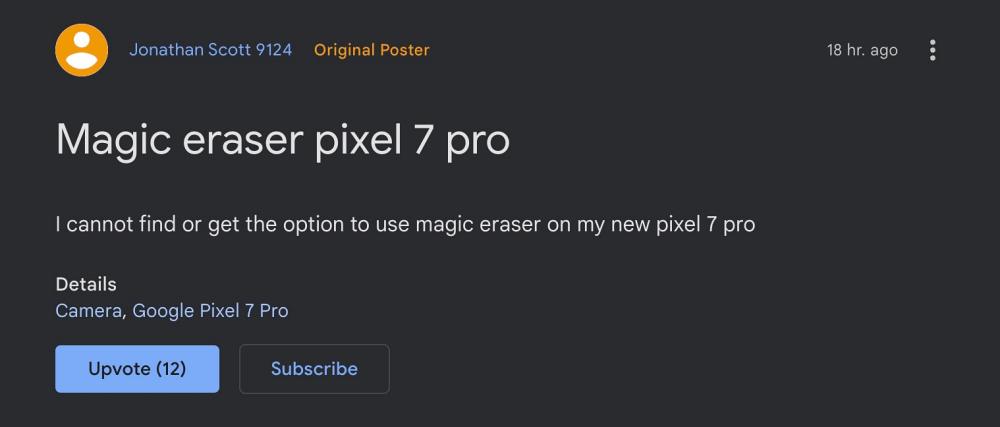
Apart from that, it also carried over a few camera features from the last iteration of the Pixel devices, including the popular Magic Eraser which tends to remove unwanted objects from the background of your image. However, users are surprised to find out that the Magic Eraser feature is missing from their Pixel 7/Pro. If you are also in the same boat, then this guide shall help you out. Follow along for the fix.
How to Fix Magic Eraser missing in Pixel 7/Pro
FIX 1: Downgrade Google Photos
First and foremost, let’s address the elephant in the room- Magic Eraser has not been removed from Pixel 7/Pro. It is still present there but has been hidden due to a bug in the Google Photos app. To rectify this issue, you just need to remove the latest buggy update from the Google Photos app and roll back to its earlier stable build. Here’s how it could be done:
- Head over to Settings > Apps > See All Apps and select Google Photos from the list.
- Then tap on the overflow icon situated at the top right and select Uninstall Updates > OK.
- Once done, open the Play Store and search Google Photos . You should see a pending update.
- So hit Update and wait for it to be downloaded and installed.
- Now launch Google Photos, select an image, and tap Edit.
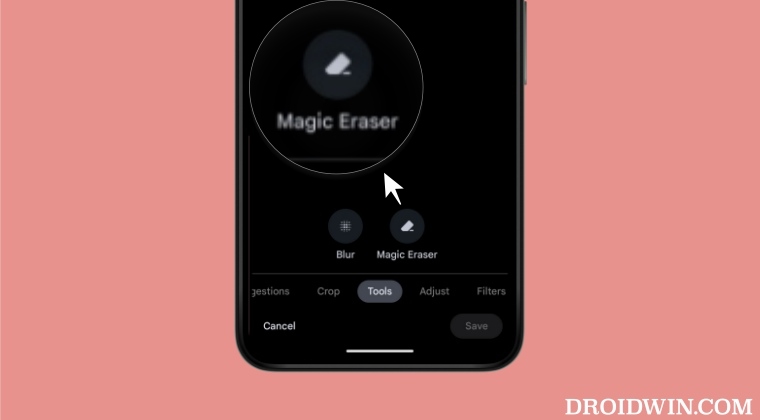
- Then go to the Tools tab and you should now see the Magic Eraser option.
- Pixel 7 Pro Network Drop/No Service issue: How to Fix
- How to Enable 5G in Google Pixel 7/Pro [2 Methods]
- Cannot Sideload Third-Party Apps in Pixel 7/Pro: How to Fix
- Bring Back WiFi and Cellular Data Toggle in Quick Settings in Pixel 7/Pro

- Mark 3 years ago Reply Will I lose my photos if I uninstall updates? Thanks
- Frank 3 years ago Reply we have uninstalled updates of Google Photos and then updated the Google Photos app from there… like you said… still no magic eraser. What now?
- Amber 3 years ago Reply That didn’t bring up the magic eraser for me. Any other suggestions? Sadique Hassan 3 years ago Reply Hi Amber, once you uninstall updates of Google Photos, go to Play Store and update the Google Photos app from there [I have updated the guide to reflect the same]. Please let me know if it worked for you or not.
- ANNABELLE 3 years ago Reply So, I did what you stated and I still dont have the magic eraser. The only thing that consistently shows up is blur. Q Sadique Hassan 3 years ago Reply Hi Annabelle, once you uninstall updates of Google Photos, go to Play Store and update the Google Photos app from there [I have updated the guide to reflect the same]. Please let me know if it worked for you or not.
- Efrain 3 years ago Reply I tried everything according to your instructions and the magic eraser still missing, Stephen 3 years ago Reply Thanks Worked a treat . It was missing and now it’s back and working well. Sadique Hassan 3 years ago Reply Hi Efrain, once you uninstall updates of Google Photos, go to Play Store and update the Google Photos app from there [I have updated the guide to reflect the same]. Please let me know if it worked for you or not.
(Cancel Reply)
Δ
