Make Chrome right-click ‘Search Google for’ open in new tab
In this guide, we will show you the steps to make Chrome right-click “Search Google For” open in a new tab instead of the right-side panel. This browser from the Silicon Valley giant comes embedded with Google search in the context menu. You just need to select the desired word by double-clicking on it, then right-click on it and select “Search Google For”. It will search that highlighted keyword and open the results in a new tab. Or atleast this is what used to happen.
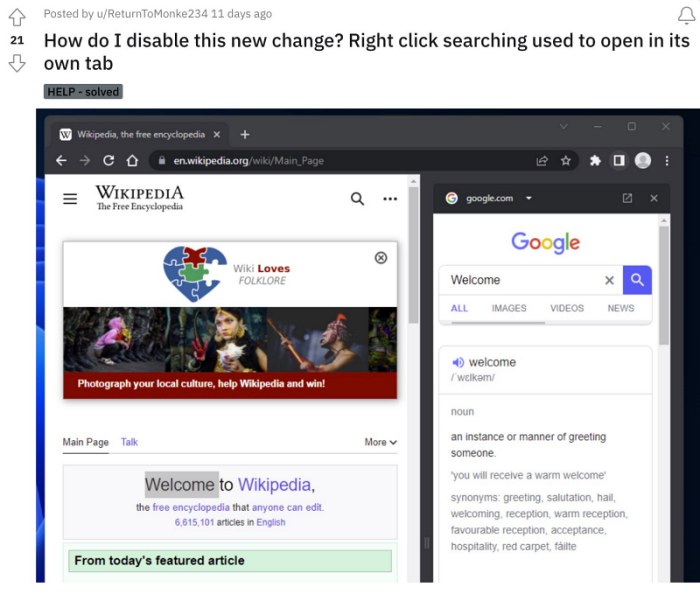
With the latest update, the “Search Google For” functionality now brings up the search results in the side panel instead of a new tab, thereby cluttering the current window and giving us less space to work upon. Likewise, interacting with the search results in such a small space is quite challenging. Fortunately, there does exist a nifty workaround through which you could undo the change and make the browser bring up the result in a new tab- as it was before. Here’s how:
Make Chrome right-click ‘Search Google for’ open in new tab

In order to revert the change, you’ll have to interact with Chrome flags. These are hidden experimental features that are mostly used for testing and debugging features. Making use of the same, we will disable this new change so that the browser goes back to the old style. Here’s how it could be done:
- Launch Chrome and go to the below location chrome://flags
- Then head over to the search box and type in: search web in side panel
- Now change its state from Default to Disabled.
- Once done, again go to the search box and type in: side search
- Change its state from Default to Disabled as well.
- Finally, hit Relaunch and your browser will restart.
- How to Go Forward in Chrome Browser on Android
- Chrome Tabs Icon UI Blurry & Pixelated: How to Fix
- Chrome Blank Screen ABOUT:BLANK error: How to Fix
- Chrome HTML Print Preview not working: Blank pages added [Fix]

- Rick Blyth 2 years ago Reply Or I’ve created a free Chrome Extension to restore the old behaviour if you want to check it out at https://chrome.google.com/webstore/detail/right-click-search-google/ppcfblmpdleopbnmicipapljlogolife
(Cancel Reply)
Δ
Chrome HTML Print Preview not working: Blank pages added [Fix]
In this guide, we will show you a couple of methods that should help you fix the issue of HTML Print Preview not working in Chrome. The browser from the Silicon Valley giant is usually the go-to choice for numerous users. So in case, it gets bugged with an issue or two, then its consequences are far and wide-reaching as well. Unfortunately, this is exactly what is happening right now.
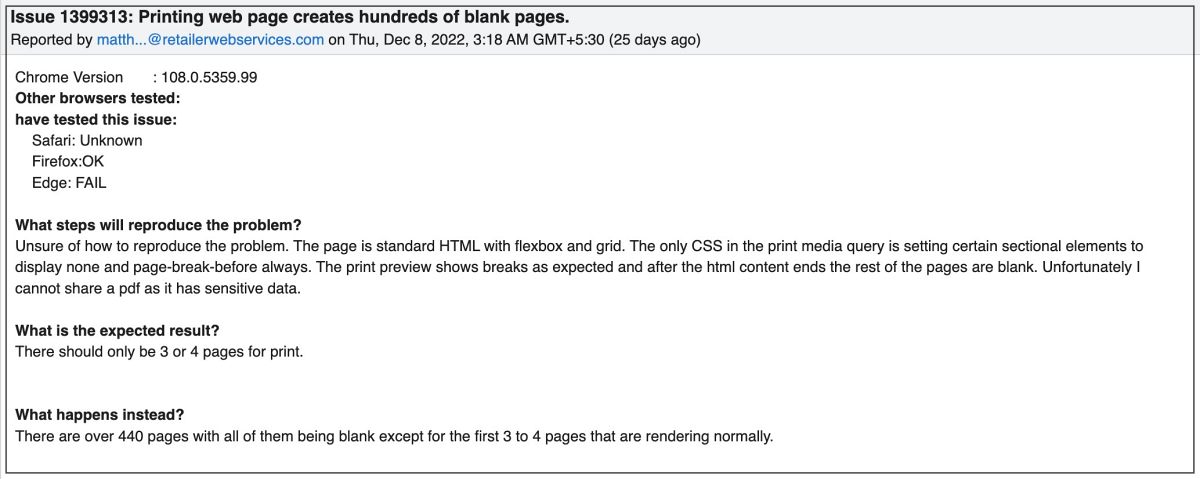
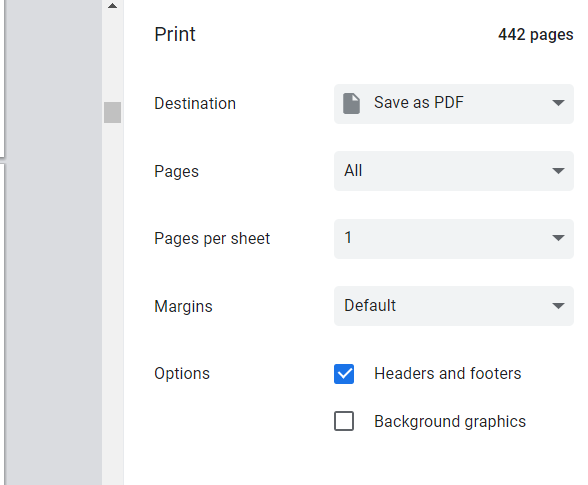
Numerous users have voiced their concern that the HTML Print Preview option is not working along the expected lines in Chrome. The preview window tends to show a disproportionate preview of the actual page and in some instances, it even ends up adding hundreds of blank pages. The issue tends to be more apparent in documents that consist of GUI elements like charts and graphs.
Moreover, Chrome isn’t the only affected party, other Chromium browsers like Edge and Brave are also part of this list. As far as the plausible culprit is concerned, well it is the latest version 108 update, which seems to have broken the JavaScript window.print() function. With that said, there does exist a couple of nifty workarounds that should help you rectify this bug. So without further ado, let’s check them out.
- Fix Chrome HTML Print Preview not working FIX 1: Tweak the CSS Property FIX 2: Downgrade Chrome
Fix Chrome HTML Print Preview not working
It is recommended that you try out each of the below-mentioned workarounds and then see which one spells out success for you. So with that in mind, let’s get started.
FIX 1: Tweak the CSS Property
The issue tends to appear while printing those pages that have their CSS property “position” set to “absolute”. So you should consider changing it to “relative” or “fixed” and then check out the results. Here’s how it could be done:
- Open the HTML document that you want to print in Chrome.
- Then click on the overflow icon and select More Tools > Developer Tools.
- Now bring up the Find box via Ctrl+F and search position: absolute
- Then change all the instances of it to either position: fixed or position: relative.
- Once done, close Developer Tools and now try printing the HTML Document.
FIX 2: Downgrade Chrome
Since the culprit is the latest version 108, you could consider downgrading it to the earlier stable version 107 which was free from this bug. To do so, please check out our guide on How to Downgrade Google Chrome on Windows 11 .
That’s it. These were the two different methods that should help you fix the issue of HTML Print Preview not working in Chrome. As far as the official stance on this matter is concerned, the developers might be aware of this issue, but they haven’t given out any ETA for the rollout of a fix. As and when that happens, we will update this guide accordingly. In the meantime, the aforementioned workarounds are your best bet.
- Disable To get future Google Chrome update prompt on Windows
- USB Audio Routing on Chromecast with Google TV Removed?!
- How to Take Screenshot in Chrome Incognito Mode
- Chrome playing YouTube audio in the background [Fix]
(Cancel Reply)
Δ
