Microsoft GameInput Application Reconfiguration Crash Fix
In this guide, we will show you the steps to fix the Microsoft GameInput Application Reconfiguration Crashing issue in Windows 10/11. Numerous users have voiced their concern that their PC tends to crash when launching a game. Upon debugging the log files, the culprit comes out to be “Successful application reconfiguration” of Microsoft GameInput with the complete error message stating that:
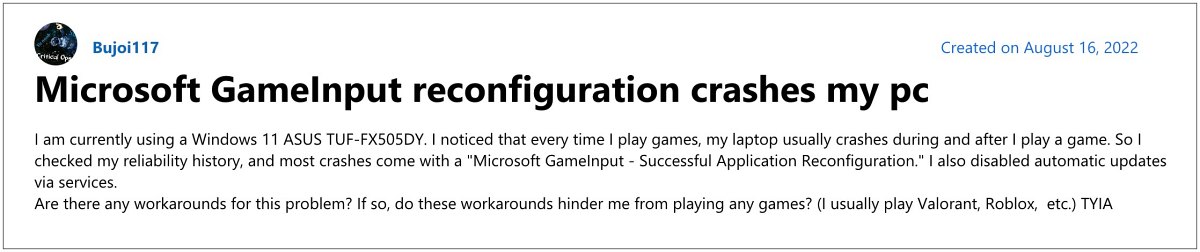
“Description: Windows Installer reconfigured the product. Product Name: Microsoft GameInput. Product Version: 10.1.22621.1011. Product Language: 1033. Manufacturer: Microsoft Corporation. Reconfiguration success or error status: 0.”. As of now countless Microsoft Support Forums are currently filled with this issue [ 1 , 2 , 3 , 4 , 5 , 6 , 7 ]. If you are also in the same boat, then this guide will help you out. Follow along for the fixes.
Fix Microsoft GameInput Application Reconfiguration Crash
- Launch File Explorer and head over to the below location: C:\Program Files\WindowsApps
- If you cannot WindowsApps folder, then make sure to take ownership of this folder .
- There you will find the following two folders [the version numbers might vary]: Microsoft.GamingServices_4.66.2001.0_neutral_~_8wekyb3d8bbwe Microsoft.GamingServices_4.66.2001.0_x64__8wekyb3d8bbwe
- Just rename both these folders to something else [for example, attach ‘a’ before their name].
- As a result, the OS will no longer refer to these folders and this should rectify the crashing issue.
- How to Remove Clipchamp from Windows 11 Right Click menu
- How to Enable Screen Recording in Snipping Tool on Windows 11
- Enable Task Manager in Taskbar context menu in Windows 11
- Block an App from accessing Internet in Windows 11 [via Firewall Outbound Rules]

(Cancel Reply)
Δ
