Microsoft InTune Missing Certificate on Android 12: How to Fix
In this guide, we will show you the steps to fix the missing certificate issue in Microsoft InTune on Android 12 devices. This cloud-based management tool for mobile devices is a part of Microsoft’s Endpoint Manager and has become the go-to tool for corporates when it comes to the endpoint management system. However, it seems to be having a tough time with the latest iteration of the OS.

The devices that are enrolled in a work profile and running Android 12 are losing access to certificates for email clients and VPN apps as and when a user tries to access them. As far as the reason behind this issue is concerned, it could be due to Google removing the ability for apps to access hardware identifiers (such as serial number, IMEI, and MEID) on personally-owned work profile devices.
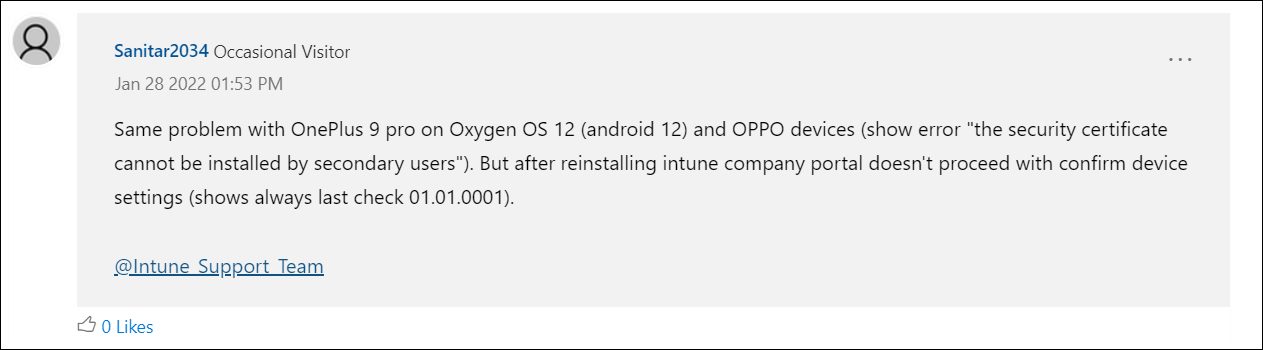
And its impact will surely be far and wide-reaching. For example, these identifiers will no longer be visible in the Endpoint Manager admin center nor could they be used to identify devices as corporate. Likewise, certificates will also fail to be deployed if you use these identifiers. Not to mention the fact that Network Access Control with certain NAC providers and third-party VPN providers will be affected as well.
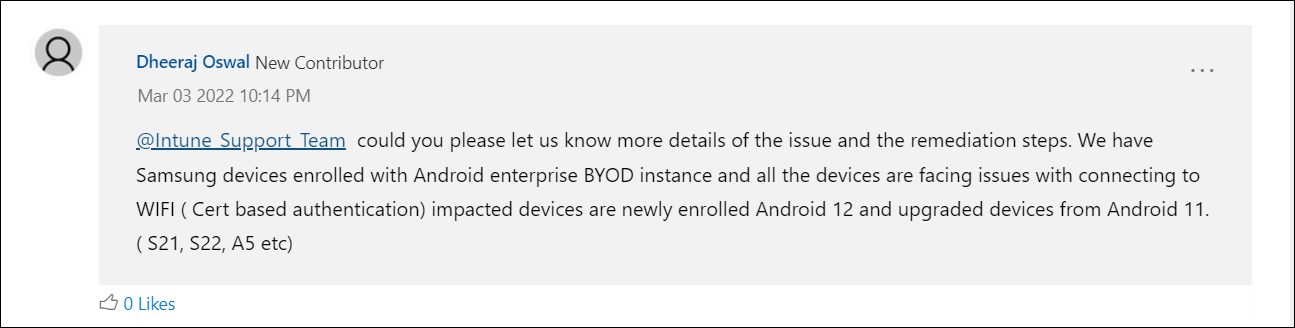
As of now, Any Connect VPN and Gmail are two such apps that have been affected by this issue. Likewise, OnePlus, Oppo, and Samsung running Android 12 are the three most common devices that are getting bugged with this problem. With that said, there does exist a workaround that shall help you fix the missing certificate issue in Microsoft InTune on Android 12 devices. So without any further ado, let’s check them out.
- How to Fix Microsoft InTune Missing Certificate on Android 12 Fix AnyConnect Certificate Issue on Android 12 Fix Gmail Certificate Issue on Android 12
How to Fix Microsoft InTune Missing Certificate on Android 12
As far as the AnyConnect VPN is concerned, users are getting a notification that the client certificate needed to make the connection could not be found and a valid certificate should be chosen. Likewise, in Gmail, users are requested to select a valid certificate, and when they do select that certificate, they are instead being greeted with the “Can’t reach server” error message. Fortunately, there does exist a fix for both these issues, which we have listed below. You could refer to the one that is in sync with your requirement.
Fix AnyConnect Certificate Issue on Android 12
- To begin with, head over to the Settings menu on your device.
- Then go to Apps > See All Apps and select AnyConnect from the list.
- After that, go to its Storage and Cache section and tap on Clear Cache.
- The temporary files will now be deleted. And this will end up resolving the underlying issue as well.
Fix Gmail Certificate Issue on Android 12
- Open the Company Portal app, go to Menu, and tap on Remove Company Portal.
- After that, go to Play Store, search Intune Company Portal and tap Uninstall.
- Once done, hit the Install button to reinstall that app from Play Store [ direct link ].
- Now open the app and sign in to the portal. This should rectify the underlying issue.
- Fix Chrome: Your connection is not private ERR_CERT_DATE_INVALID
- VPN Not Working in Windows 11: How to Fix
- How to Repair IMEI, MEID, TEE Data and Google certificate on Umidigi Devices
- How to Fix Gmail Delayed or No Email Notifications

(Cancel Reply)
Δ
