Microsoft Teams Camera Feed not working: How to Fix
In this guide, we will show you various methods to fix the issue of the Camera Feed not working in Microsoft Teams. During the last couple of years when work from home became the new normal, users flocked over to the video conferencing apps. In this regard, there was a slew of options to choose from, however, many were still inclined toward the offering from the Redmond giant.
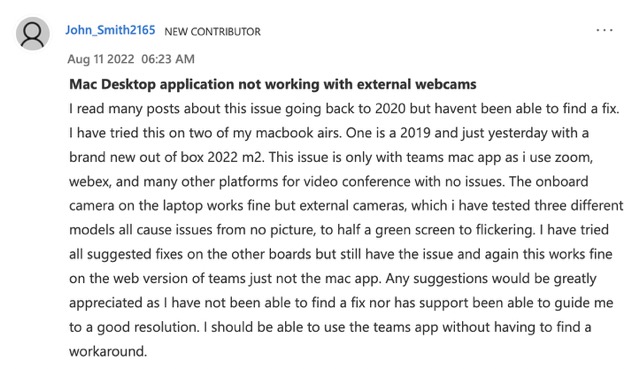
Beholding a plethora of nifty features, it managed to checkmarked nearly all the prerequisites that one could have asked for. However, in spite of all the goodies attached, it isn’t free from its fair share of issues either. As of now, various users have voiced their concern the camera feed is no longer working in the Microsoft Teams app. As a result of which, they only see a black screen as soon as someone enters a meeting.
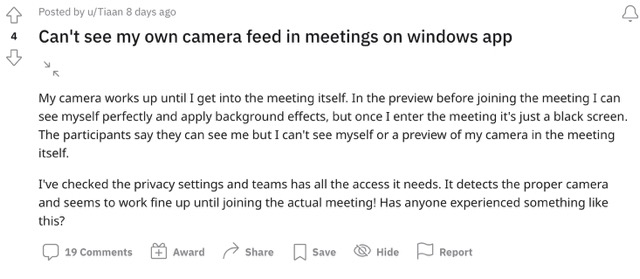
Moreover, users have also reported that the issue seems to be more prominent with an external web camera as opposed to the built-in one. Furthermore, both the Windows and Mac apps are currently bugged with this issue. If you are also on the same page, then this guide shall help you out. Follow along for the fixes.
- Fix Microsoft Teams Camera Feed not working FIX 1: Use ‘Pin for Me’ in Microsoft Teams FIX 2: Disable GPU Hardware Acceleration in Teams FIX 3: Toggle Microsoft Teams Camera Permission FIX 4: Delete Microsoft Teams Cache FIX 5: Repair Microsoft Teams FIX 6: Reinstall Microsoft Teams
Fix Microsoft Teams Camera Feed not working

It is recommended that you try out each of the below-mentioned workarounds and then see which one spells out success for you. So with that in mind, let’s get started.
FIX 1: Use ‘Pin for Me’ in Microsoft Teams
You could consider using the Pin for Me feature or spotlight the video feed and this will give you a temporary respite from the issue. The only drawback is that you would no longer be able to screen share while the spotlight is active.
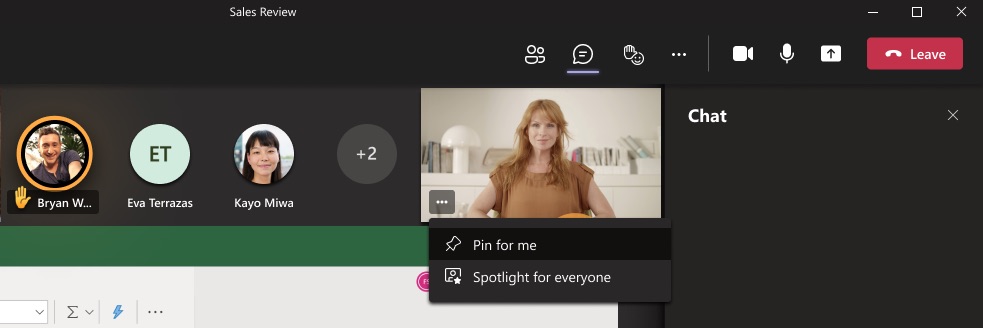
Credits: Microsoft
FIX 2: Disable GPU Hardware Acceleration in Teams
When this feature is enabled, your CPU might shift some o the workload over to the GPU so that it has some additional resources in hand for other applications. However, in some instances, the GPU isn’t able to handle this workload efficiently and ends up doing more harm than good. Therefore, you should consider disabling this functionality , using the instruction given below-
- Launch Teams and go to its Settings menu.
- Then select General from the left menu bar.
- Now check Disable GPU hardware acceleration.
- Finally, restart Microsoft Teams and check if it fixes the Camera Feed not working issue.
FIX 3: Toggle Microsoft Teams Camera Permission
If you are unable to access the camera while using the Meet app, then the issue might be related to the app’s camera-related permission. To rectify it, you will have to refresh its permission, by disabling and then re-enabling it. Here’s how it could be done:
- Launch the Settings menu via the Windows+I shortcut.
- Then go to Apps > Apps and Features > Microsoft Teams.
- Now click on the overflow icon next to it and select Advanced Options.
- Then scroll to App Permission and disable the toggle next to Camera.
- Now restart Microsoft Teams and check if it fixes the Camera Feed not working issue.
FIX 4: Delete Microsoft Teams Cache
If a lot of temporary data gets accumulated over the due course of time, then not only will it slow down the system, but could also conflict with the normal functioning of the PC. Therefore, you should consider deleting these cache files right away, using the instructions listed below:
- Bring up Run via Windows R and input the below command %appdata%\Microsoft
- Now select the Teams folder and hit Delete.
- Check if it fixes the Microsoft Teams camera feed not working issue.
FIX 5: Repair Microsoft Teams
Few Microsoft apps [including Teams] come with a built-in repair feature that helps in ironing out the underlying bugs. So let’s put this feature to the test and check out the results.
- Launch the Settings menu via the Windows+I shortcut.
- Then go to Apps > Apps and Features > Microsoft Teams.
- Now click on the overflow icon next to it and select Advanced Options.
- Then scroll to the Reset section and click on Repair. Wait for the process to complete.
- Once done, check if it fixes the Microsoft Teams camera feed not working issue.
FIX 6: Reinstall Microsoft Teams
If none of the aforementioned methods managed to spell out success, then your last course of action should be to uninstall the app and then reinstall its latest version from the official site. [Before uninstalling, make sure to take a backup of all the data and files beforehand].
- Launch the Settings menu via the Windows+I shortcut.
- Then go to Apps > Apps and Features > Microsoft Teams.
- Now click on the overflow icon next to it and select Advanced Options.
- Then scroll to the Reset section and click on Uninstall.
- Now proceed with the on-screen instructions to complete the process.
- Once done, head over to Team’s official site and download its latest version.
- Then open the setup file and complete the installation.
- Once done, launch the app and the underlying issue would have been rectified.
That’s it. These were the various methods that shall help you fix the issue of the Microsoft Teams camera feed not working. As far as the official stance on this matter is concerned, the developers are aware of this issue, and the fix might be rolled out by the end of August. As and when that happens, we will update this guide accordingly. In the meantime, the aforementioned workarounds are your best bet.
- Microsoft Teams not working in Windows 11 [11 Fixes]
- How to Stop Microsoft Teams from Opening Automatically in Windows 11
- Microsoft Teams Left and Right Arrow Keys Not Working [Fixed]
- Use Microsoft Intune Company Portal in Rooted Android Device

(Cancel Reply)
Δ
