MS Outlook 365 Search not working on Mac [Fixed]
In this guide, we will show you various methods to fix the issue of the MS Outlook 365 Search function not working on Mac. This personal information manager software system from the Redmond giant recently underwent a major overhaul and with that, it seems to have broken quite a few functionalities as well. However, none of them seems to be as troublesome and infuriating as the inability to search for emails and contents within them.
One speculation as to why this could be happening is due to the fact that this new Outlook uses a different search system [that is built into Outlook] as opposed to the older one that relied on the Mac’s Spotlight search. Moreover, this issue first came to light with macOS 12 Ventura and has even carried over to macOS 13 Ventura as well.
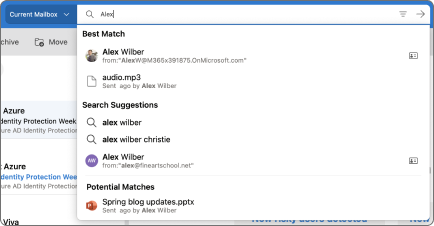
Credits: Microsoft
If only Microsoft stuck to the popular saying that “if it ain’t broke don’t fix it”, then we wouldn’t have to be dealing with this fiasco. On a serious note though, there does exist a few nifty workarounds that might help you fix the MS Outlook 365 Search function not working issue on your Mac. So without further ado, let’s check them out.
- Fix MS Outlook 365 Search function not working on Mac FIX 1: Rebuild Spotlight Index for Outlook FIX 2: Rebuild Spotlight Index for Macintosh HD FIX 3: Rebuild Spotlight Index via Terminal FIX 4: Switch to New Outlook/Use Outlook Web
Fix MS Outlook 365 Search function not working on Mac

It is recommended that you try out each of the below-mentioned workarounds and then see which one spells out success for you. So with that in mind, let’s get started.
FIX 1:Rebuild Spotlight Index for Outlook
- Click on the Apple logo, select System Preferences, and then choose Spotlight.
- Then go to its Privacy tab and click on the plus icon.
- Now add the following path to it: /Users/UserName/Library/Group Containers/UBF8T346G9.Office/Outlook
- Once you have added the path, close System Preferences. Then relaunch it.
- Now select the added Outlook path and click on the minus icon to remove it.
- The Outlook directory will undergo a re-indexing and could take a few minutes.
- Once done, check if it fixes MS Outlook 365 Search not working on Mac.
FIX 2:Rebuild Spotlight Index forMacintosh HD
- Click on the Apple logo, select System Preferences, and then choose Spotlight.
- Then go to its Privacy tab and click on the plus icon.
- Now select Macintosh HD and hit Add.
- Once you have added the path, close System Preferences. Then relaunch it.
- Now select the added Macintosh HD and click on the minus icon to remove it.
- The entire Mac hard disk will undergo a re-indexing, which could take up to an hour.
- Once done, check if it fixes MS Outlook 365 Search not working on Mac.
FIX 3: Rebuild Spotlight Index via Terminal
- Open Launchpad, go to the Others folder, and launch Terminal.
- Then execute the below command to load the com.apple.metadata.mds.plist service sudo launchctl load -w /System/Library/LaunchDaemons/com.apple.metadata.mds.plist
- It will also ask for your password, so type it in to proceed ahead.
- Once the service is loaded, restart your Mac and then execute the below command to d isable Spotlight indexing sudo mdutil -Eai off
- As before, it will also ask for your password, so type it in to proceed ahead.
- Finally, e xecute the two commands to re-enable Indexing in /System/Volumes/Data: sudo mdutil -Eai on mdutil -as
- Once done, check if it fixes MS Outlook 365 Search not working on Mac.
FIX 4: Switch to New Outlook/Use Outlook Web
If none of the aforementioned methods work in your favor, then your last course of action is to switch over to the new Outlook UI. However, if that isn’t in sync with your requirement, then consider using the web version of Outlook for the time being.

Credits: Microsoft
That’s it. These were the four different methods that shall help you fix the issue of the MS Outlook 365 Search function not working on Mac. As far as the official stance on this matter is concerned, the developers are yet to acknowledge this issue, let alone give out any ETA for the rollout of a fix. As and when any of these two things happen, we will update this guide accordingly. In the meantime, the aforementioned workarounds are your best bet.
- Cannot Publish Calendar in MS Outlook: How to Fix
- MS Outlook Signature Missing on Mac: How to Fix
- MS Outlook Unusual Activity Detected from Microsoft IP Address [Fixed]
- Outlook Web Next & Previous [Up and Down] arrows missing [Fixed]

(Cancel Reply)
Δ
Outlook Web ‘Next’ & ‘Previous’ [Up and Down] arrows missing [Fixed]
In this guide, we will show you the steps to mitigate the issue of ‘Next’ & ‘Previous’ [Up and Down] arrows missing in Outlook Web. This personal information manager web app from Redmond giant beholds a plethora of useful features up its sleeves. These include the likes of web-based email client, a calendar tool, a contact manager, and a task manager. Apart from that, there are some nifty integration as well, such as Skype on the web. However, in spite of all the goodies attached, it isn’t free from its fair share of issues either.
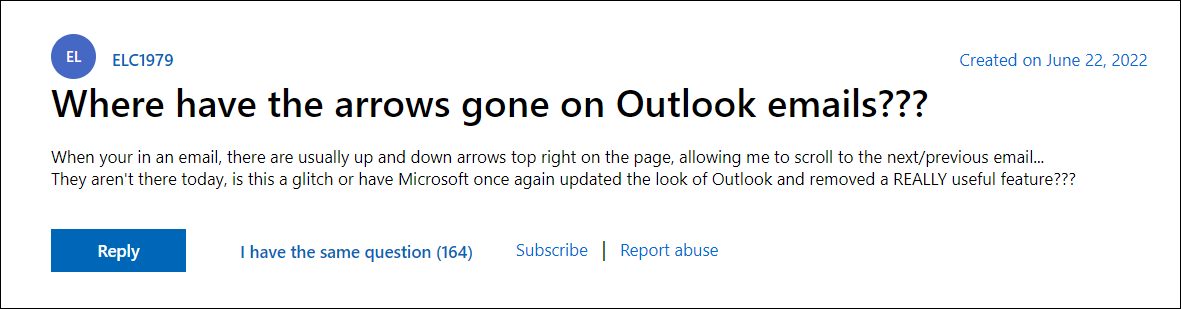
As of now, various users have voiced their concern that the Next’ & ‘Previous’ [Up and Down] arrows are missing from the Outlook Web. For the unaware, you could use these arrows to access your next and previous emails in just a single click. However, that is no longer possible now and users have to go back to their inbox to access those emails.
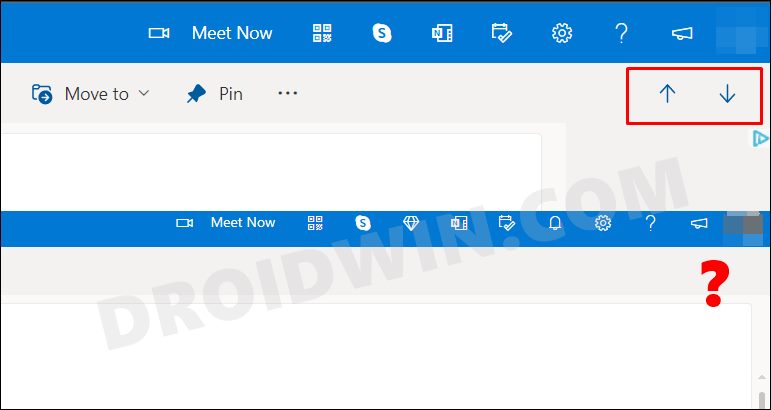
This is proving to be of great inconvenience and is leading to value time being lost as well. Moreover, the issue only started happening after Outlook welcomed its web’s new layout, which includes the new options ribbon. So is there a way out? Well, there does exist a nifty workaround that might come in handy. Without any further ado, let’s check it out.
Outlook Web Next & Previous [Up and Down] arrows missing [Fixed]

In order to resolve this issue, you could make use of a nifty shortcut key combination that is embedded directly into Outlook Web.
Windows: Ctrl + . [Press and hold "Control" and "Period" shortcut keys together]

macOS: Command + . [Press and hold "Command" and "Period" shortcut keys together]
That’s it. As of now, this is the sole workaround that shall help you bypass the issue of ‘Next’ & ‘Previous’ [Up and Down] arrows missing in Outlook Web. As far as the official stance on this matter is concerned, the developers are aware of this issue, but they haven’t given out any ETA for the rollout of a fix. As and when that happens, we will update this guide accordingly. In the meantime, the aforementioned workarounds are your best bet.
- Outlook search not working: Can’t find recent emails in Windows 11 [Fixed]
- How to Shift Outlook Quick Actions Buttons to the Left
- Remove Arrow from Shortcut File Icons in Windows 11
- Microsoft Teams Left and Right Arrow Keys Not Working [Fixed]
(Cancel Reply)
Δ
