MS Outlook Signature Missing on Mac: How to Fix
In this guide, we will show you a couple of methods to fix the issue of missing signature in MS Outlook on Mac. This email client from the Redmond giant beholds a slew of nifty features up its sleeves. Some of its most noteworthy ones include the likes of calendaring, task managing, contact managing, note-taking, journal logging, and web browsing.
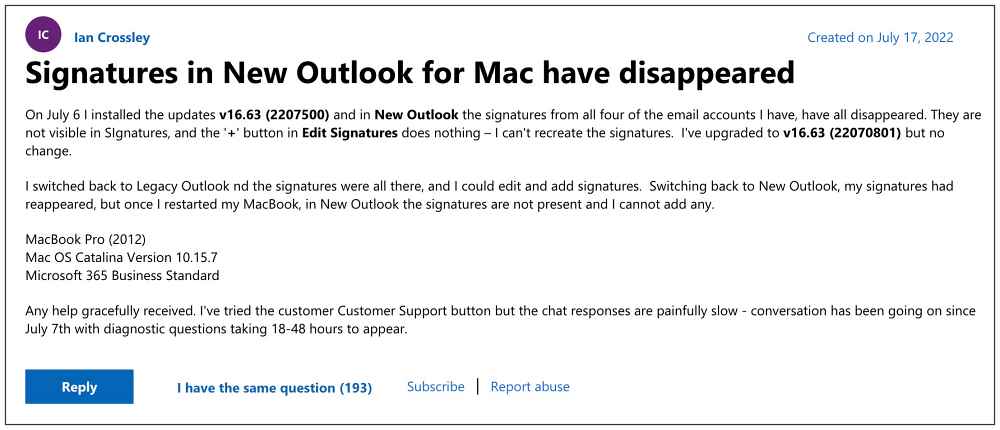
However, in spite of all the goodies attached, it isn’t free from its fair share of issues either. As of now, various users have voiced their concern that the signatures are missing in MS Outlook on their Mac. If they head over to the “Settings -> Compose and Reply” section, then there is no option for the email signature. Likewise, even the Preferences > Signature shows a blank list. Moreover, clicking on the plus icon to add new signatures isn’t working either.
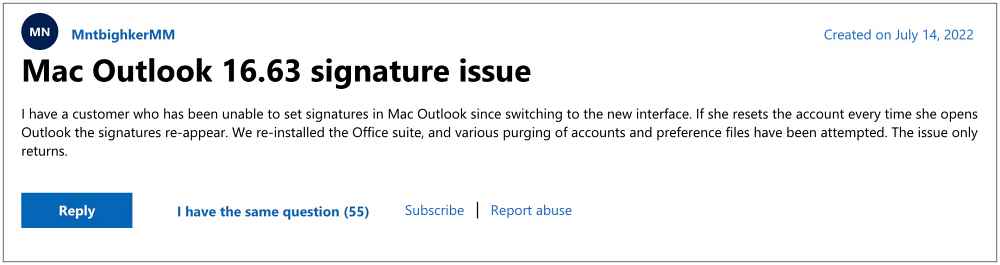
The issue seems to have started with version v16.63 build number 2207500 and hasn’t been fixed with build number 22070801 either. if you are also getting bugged with this issue, then this guide shall make you aware of some nifty workarounds to resolve it. Follow along.
- Fix MS Outlook Signature Missing on Mac FIX 1: Switch to Legacy Outlook FIX 2: Manage Signature Tweak
Fix MS Outlook Signature Missing on Mac

It is recommended that you try out each of the below-mentioned workarounds and then see which one spells out success for you. So with that in mind, let’s get started.
FIX 1: Switch to Legacy Outlook
Many users were able to rectify this issue after switching from the new Outlook to the older legacy version. So let’s give it a try and check out the results.
- Click on Outlook from the top left menu bar and uncheck New Outlook.
- Outlook will now restart with the legacy UI.
- Check if it fixes the missing signature in MS Outlook on Mac.
However, do note that upon restarting your Mac, the issue will re-appear. So you will have to again perform the aforementioned steps.
FIX 2:Manage Signature Tweak
- To begin with, log into your account via the website and create a new signature.
- Then instead of using the All Accounts to reply to an email, you should go to the specific account.
- After that, go to “Reply” > “Signature” > “Manage Signatures”.
- It will bring up a list of numerous signatures, most of which will be named Untitled.
- Delete all these Untitled signatures so that only the original signs are left. That’s it.
These were the two different methods to fix the issue of missing signature in MS Outlook on Mac. As far as the official stance on this matter is concerned, the developers are aware of this issue , but they haven’t given out any ETA for the rollout of a fix. As and when that happens, we will update this guide accordingly. In the meantime, the aforementioned workarounds are your best bet.
- Outlook search not working: Can’t find recent emails in Windows 11 [Fixed]
- Gmail not working in Outlook: Cannot Send/Receive Emails
- How to Shift Outlook Quick Actions Buttons to the Left
- Outlook Web ‘Next’ & ‘Previous’ [Up and Down] arrows missing [Fixed]

(Cancel Reply)
Δ
Outlook Web ‘Next’ & ‘Previous’ [Up and Down] arrows missing [Fixed]
In this guide, we will show you the steps to mitigate the issue of ‘Next’ & ‘Previous’ [Up and Down] arrows missing in Outlook Web. This personal information manager web app from Redmond giant beholds a plethora of useful features up its sleeves. These include the likes of web-based email client, a calendar tool, a contact manager, and a task manager. Apart from that, there are some nifty integration as well, such as Skype on the web. However, in spite of all the goodies attached, it isn’t free from its fair share of issues either.
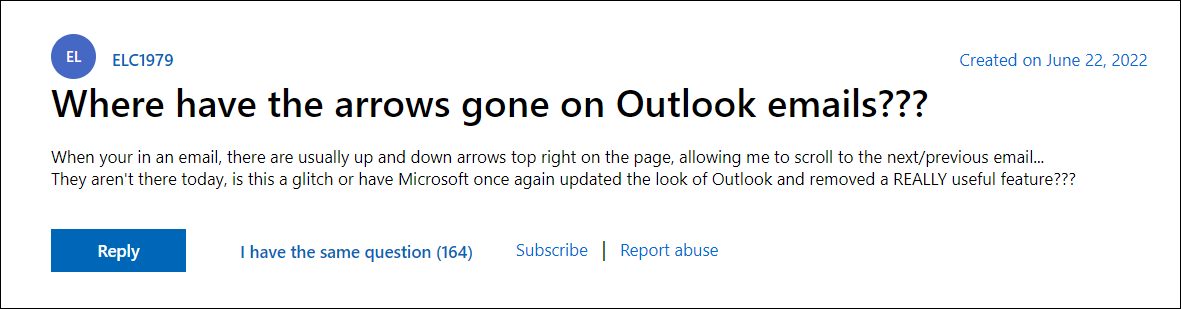
As of now, various users have voiced their concern that the Next’ & ‘Previous’ [Up and Down] arrows are missing from the Outlook Web. For the unaware, you could use these arrows to access your next and previous emails in just a single click. However, that is no longer possible now and users have to go back to their inbox to access those emails.
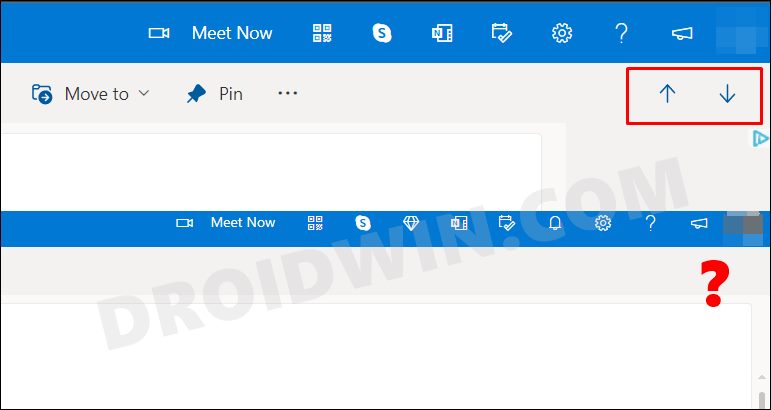
This is proving to be of great inconvenience and is leading to value time being lost as well. Moreover, the issue only started happening after Outlook welcomed its web’s new layout, which includes the new options ribbon. So is there a way out? Well, there does exist a nifty workaround that might come in handy. Without any further ado, let’s check it out.
Outlook Web Next & Previous [Up and Down] arrows missing [Fixed]

In order to resolve this issue, you could make use of a nifty shortcut key combination that is embedded directly into Outlook Web.
Windows: Ctrl + . [Press and hold "Control" and "Period" shortcut keys together]

macOS: Command + . [Press and hold "Command" and "Period" shortcut keys together]
That’s it. As of now, this is the sole workaround that shall help you bypass the issue of ‘Next’ & ‘Previous’ [Up and Down] arrows missing in Outlook Web. As far as the official stance on this matter is concerned, the developers are aware of this issue, but they haven’t given out any ETA for the rollout of a fix. As and when that happens, we will update this guide accordingly. In the meantime, the aforementioned workarounds are your best bet.
- Outlook search not working: Can’t find recent emails in Windows 11 [Fixed]
- How to Shift Outlook Quick Actions Buttons to the Left
- Remove Arrow from Shortcut File Icons in Windows 11
- Microsoft Teams Left and Right Arrow Keys Not Working [Fixed]
(Cancel Reply)
Δ
