Netbiosd High CPU Usage on Mac: How to Fix
In this guide, we will show you the steps to fix the Netbiosd High CPU usage issue on your Mac. Recently many users have voiced their concern that Netbiosd is consuming an astronomical amount of system resources, sometimes reaching up to 133%. This issue first came to light after users got themselves enrolled as beta testers for the Monterey 12.3 Beta version.
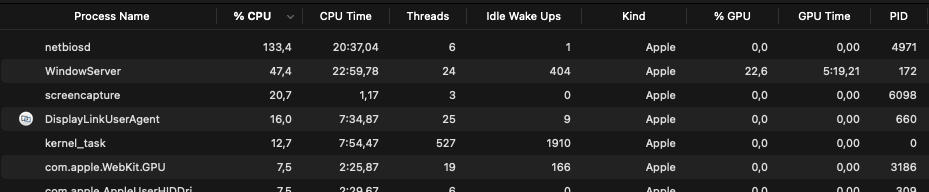
It is along the expected lines that you would come across a few bugs and issues as long as you’re trying out a testing build. But that doesn’t take away anything from the fact that this is still quite a concerning issue and needs to be addressed at the earliest. And in this guide, we will help you with just that. So without further ado, let’s get started with the methods to fix the Netbiosd High CPU usage issue on your Mac.
- How to Fix Netbiosd High CPU Usage on Mac FIX 1: Disable NetBIOS FIX 2: Opt Out of Beta
How to Fix Netbiosd High CPU Usage on Mac

There exists two different methods that shall help you resolve this issue. Both have their perks and caveats that we have listed along with the fixes. So go through them once and then try out the one that is in sync with your requirement.
FIX 1: Disable NetBIOS
While this fix might be slightly technical for the newcomers, but it comes with a higher success rate in comparison with its counterpart. So on that note, let’s give it a try right away.
- Launch Terminal and execute the below command to create the nsmb.conf file. sudo touch /etc/nsmb.conf
- Then open Finder and click on Command+Shift+. shortcut keys to view hidden folders.
- After that, press ⌘ + ⇧ + G, type in /etc and hit Enter. This will take you to the etc folder.
- Now open the nsmb.conf file and type in the below command to disable NetBIOS . port445=no_netbios
- Once done, save the file and then restart your Mac. That’s it. This should fix the Netbiosd High CPU usage issue on your Mac.
FIX 2: Opt Out of Beta
Well, you all saw that coming, didn’t you? As is evident from the title, you just need to get yourself unregistered as a beta tester and the underlying issue would be resolved. While you would be missing on getting blessed with the latest features before the general users, but at least there will be a stable OS on the cards. So it’s a worthy trade-off, isn’t it?
- Open System Preferences and go to Software Update.
- Then click on Details next to ‘This Mac is enrolled in the Apple Beta Software Program.’
- After that, click on the Restore Defaults button.
- The next update that you will receive will be a stable one.
- Upon installing it, the underlying issue would be resolved.
- Fix: Quick Look Preview with spacebar not working in macOS Monterey
- SMB Samba Share not working in macOS Monterey: How to Fix
- Missing Icon Preview for EPS files in macOS Monterey: How to Fix
- Cannot Upload Files via Chrome in macOS: How to Fix

(Cancel Reply)
Δ
