Network not available when setting up Chromebook: How to Fix
In this guide, we will show you how to fix the Network not available issue when setting up Chromebook. This offering from the Silicon Valley giant runs on the Linux-based Chrome OS and is able to checkmark most of the prerequisites with ease. With the ability to run Android and Linux apps and a lightweight OS that only comes with the necessary Google apps installed, there’s a lot to look forward to in them. Moreover, purchasing this device is a major step forward in becoming a part of the Android ecosystem.
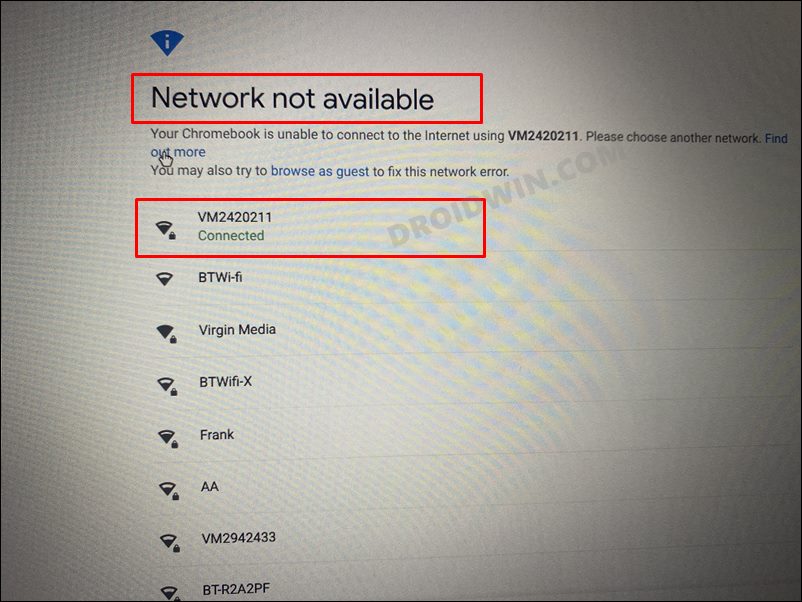
However, there is a weird bug for the past couple of months that is preventing users from even setting up the device in the first place. During the setup process, you are required to connect your Chromebook to the network. In this regard, users enter their WiFi password and it even shows the Connected message next to the WiFi name. However, the OS just refuses to acknowledge this connection and instead throws up the Network Not Available error.
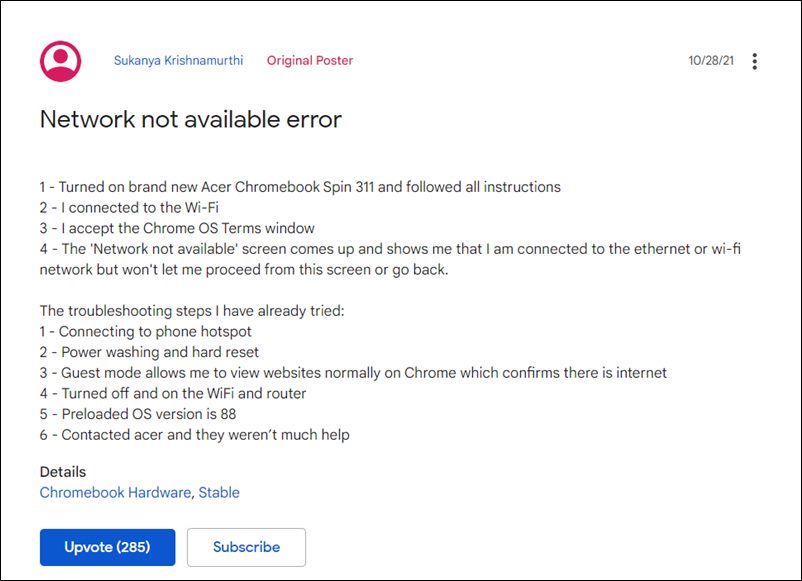
At first, this issue was aimed at a faulty network adapter for that particular device. But then reports started pouring in from a plethora of users, each of whom were having a different Chromebook (such as Lenovo Flex 5, Thinkpad C13, Lenovo Duet). So it is an OS issue after all and needs to be rectified at the earliest. So without any further ado, let’s check out how you could fix the Network not available issue when setting up your Chromebook.
- Fix Network Not Available when setting up Chromebook UPDATE 1: Issue Fixed by Google UPDATE 2: Users Still Facing Network Issues UPDATE 3: Try this Command Prompt Tweak UPDATE 4: Use this Crosh Command
Fix Network Not Available when setting up Chromebook
As of now, Google is aware of this issue but they haven’t given out any ETA as to when they would release a fix for the same. So in the meantime, the only workaround that we have at our disposal is to use the Chromebook in the guest mode. Yes, you wouldn’t face any network issues while using your device in the said mode. This is because you wouldn’t have to type in your Google ID and Password during setting up your device and hence you would have bypassed the sole screen that has network-related issues.
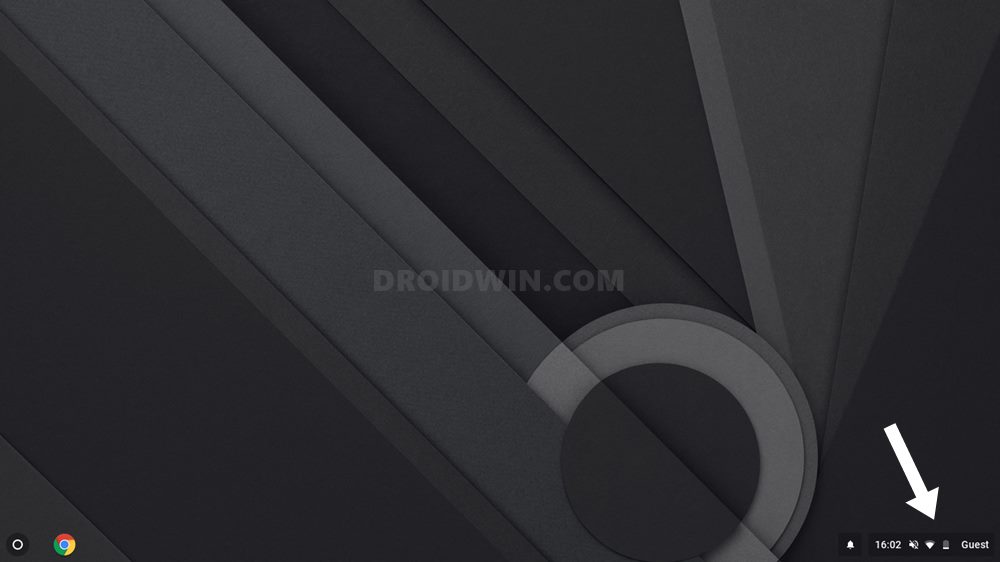
Moreover, once you are booted to OS, there will be no network-related issues whatsoever. However, using the Guest Mode has its own drawback as well. It is just a temporary Chrome OS account and you might only be able to access a few built-in apps. So log into your device as a guest and that should fix the Network not available issue when setting up your Chromebook.

UPDATE 1: Issue Fixed by Google
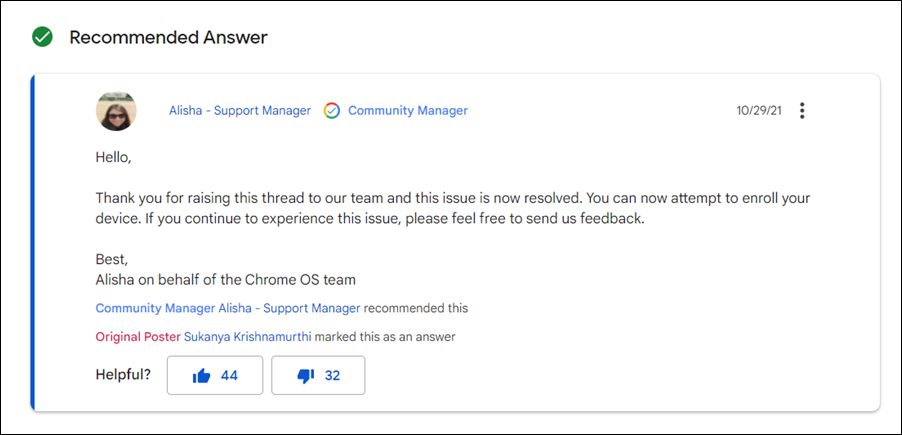
[2nd November 2021] According to the ChromeOS Support Manager, the issue has now been rectified. So retry setting up your Chromebook and you should no longer get the Network not available error.
UPDATE 2: Users Still Facing Network Issues
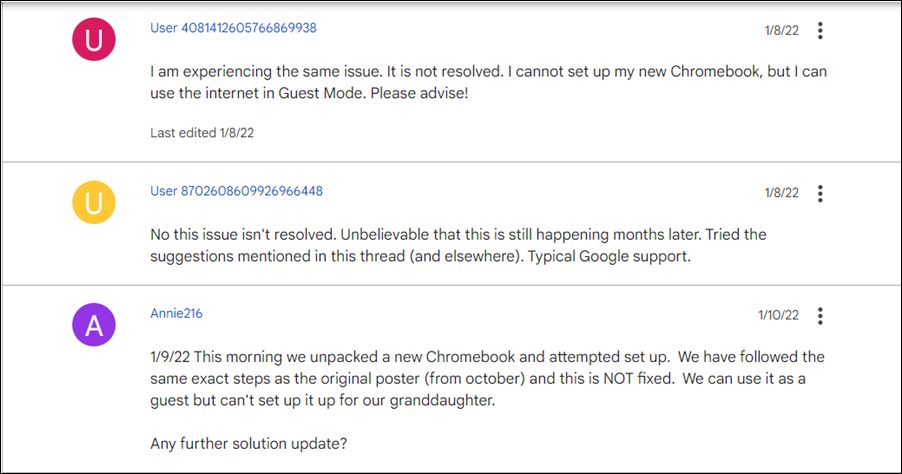
[15th January 2022] While Google claimed to fix this issue as of November 2, 2021, there are still a plethora of reports pouring in from various users that the issue still exists, as is evident from the Support Forum. So it seems the issue is still prevalent and the Search Engine giants might need to address sit at the earliest.
UPDATE 3: Try this Command Prompt Tweak
[20th January 2022] While Google is yet to roll out an updater patch, some users did manage to rectify the Network not available error on their Chromebook via this nifty workaround [Thanks Redditor lastsilverking !].
However, do note that you will get a warning that “This may update to an untested version of Chrome OS which was never intended for end-users!”. So there might be a few stability issues, though nothing as such has been reported to date. But still, try it at your own risk.
- Go to the setup screen where you are getting the Network not available error.
- Then click on “Continue as Guest” and then quickly hit the Ctrl+Alt+T shortcut keys.
- This shall open the Command Prompt. Type in the below command and hit Enter: autest
- The update process will now start. Now go to Settings and click on “About Chrome OS”.
- It will also display the message that the device is updating.
- Once the update is complete, click on the Restart button that appears in the Settings menu.
- Your Chromebook will now restart and you could now set it up normally without any network issues!
As of now, this seems to be the only workaround that is able to fix the Chromebook Network not available error. Moreover, since Google has already marked this issue as fixed, we might not see any official update in the near future from them.
UPDATE 4: Use this Crosh Command
[28th January 2022] Some users were able to rectify this issue after executing the below command in the Command Shell/Chrome Shell/Crosh environment. Here’s how. [Thanks Redittor Yostarone !]
- To begin with, switch to the Developer Mode.
- Then use the Ctrl+Alt+T shortcut to open the Crosh window
- Now type in the below command to open the shell environment: shell
- If you get a confirmation pop-up, click Confirm.
- Then execute the below command and hit Enter: update_engine_client –channel=beta-channel -update
- Now, wait for the update to be downloaded and installed.
- Once done, restart your Chromebook, and that’s it, the issue stands rectified.
- Phone Hub Not Working: Cannot Connect Android to Chromebook [Fixed]
- How to Fix Amazon Prime Video Error 7235 on Chromebook
- Chromecast disconnected when casting YouTube videos [Fixed]
- Google Drive Local Search Indexing Not Working in Stream Mode [Fixed]

- lee 2 years ago Reply bought new acer chromebook 315 taken out of box to be presented with these issues, its a disgrace that this is sold with issues, tried the above and does not seem to work. will not be buying another one and will return to amazon
- khadher 3 years ago Reply Ni “autest” ni la mise à jour forcée en mode développeur ne fonctionnent pour r114 avec brunch 114
- JD 3 years ago Reply June 2023 – nothing has worked, feeling a little fed up.
- michi 3 years ago Reply Neither “autest” nor developer mode-forced update is working as on 31/03/2023. Help!
- R 3 years ago Reply none of the above suggestions work October 2022
- Chromeboy 4 years ago Reply Update 3 “autest” worked for me. Thanks !
(Cancel Reply)
Δ
