Notifications not working on Android 14: How to Fix
In this guide, we will show you various methods to fix the notification not working issue on your Android 14 device. The fourteenth iteration of the OS has bought a slew of intriguing goodies to the fore. Some of the noteworthy ones include the likes of Restricting Photo and Video Access, Regional Preferences, Predictive Back Gestures, App Cloning, and Improved Share Options.
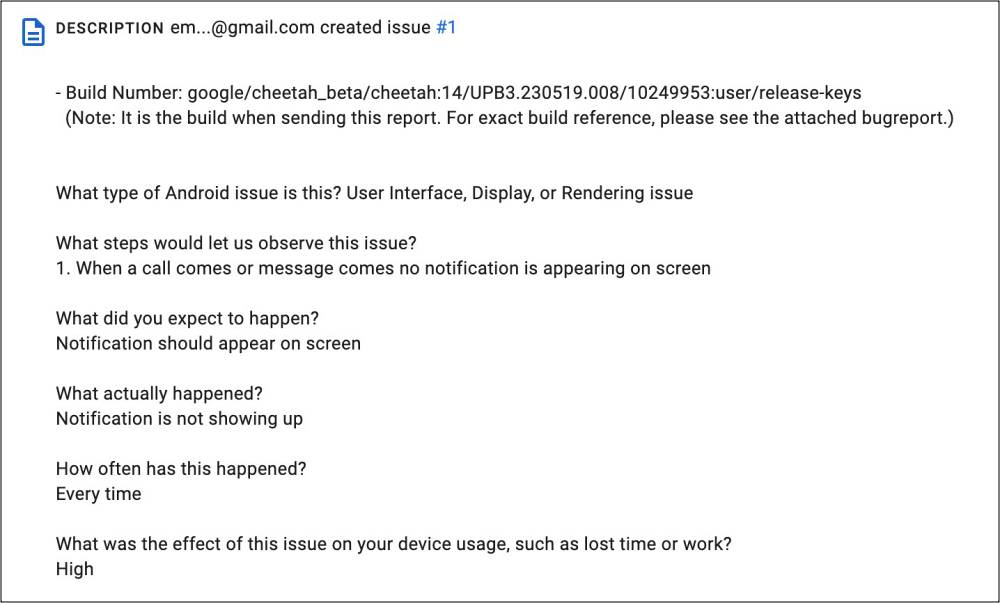
On the flip side though, there are still a few rough edges that needs polished. At the time of writing, the OS has reached the performance stability stage, but it is still in the beta phase. So a few bugs and issues are along the expected lines [well, you might even come across these bugs in the stable state as well!]. In this regard, numerous users have voiced their concern that the notifications are not working on their devices running Android 14.
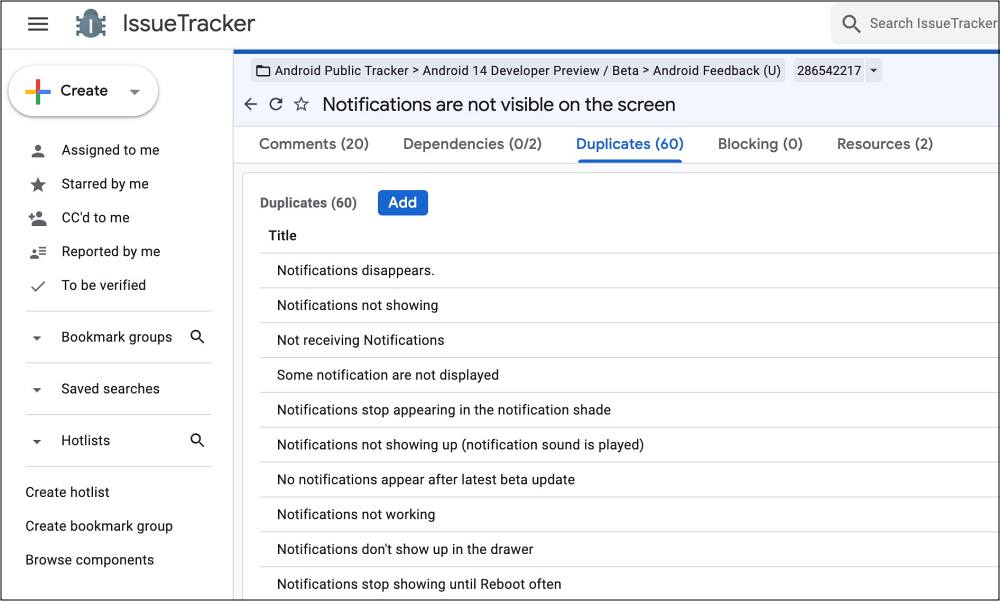
For many, the alerts do appear but they aren’t notified of the same. It’s as if the Do Not Disturb Mode [which is obviously not the case]. Even on the Google Issue Tracker page, we have seen over 60 reports of the same, which speaks volumes in itself. So if you are also getting bugged by this issue, then this guide will make you aware of numerous workarounds to rectify this bug. Follow along.
- Fix Notifications not working on Android 14 FIX 1: For Android 14 Beta 3 Users FIX 2: Restart Device FIX 3: Boot to Safe Mode FIX 4: Toggle Notifications FIX 5: Unpause App Activity of Threads FIX 6: Turn off Battery Saver FIX 7: Delete App Data FIX 8: Downgrade App FIX 9: Downgrade to Android 13
Fix Notifications not working on Android 14
It is recommended that you try out each of the below-mentioned workarounds and then see which one spells out success. So with that in mind, let’s get started.
FIX 1: For Android 14 Beta 3 Users
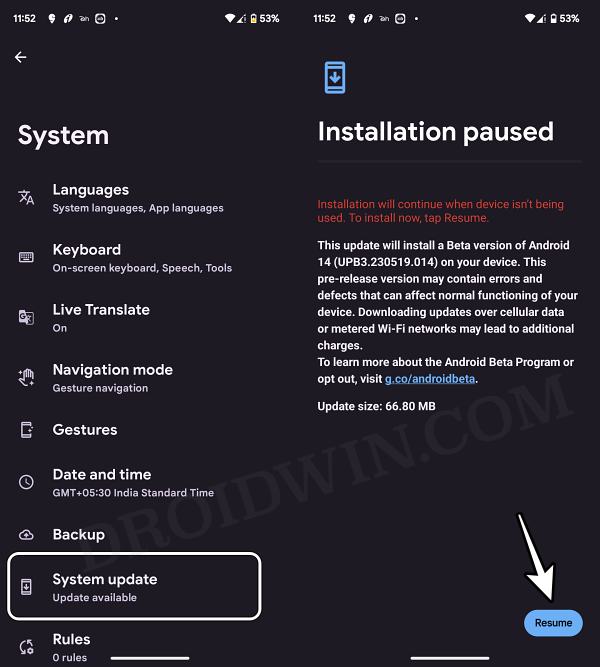
If you are currently on the Android 14 Beta 3 UPB3.230519.008, then Google has recently rolled out a new update UPB3.230519.014 which comes with an underlying patch for this issue. So head over to Settings > System > System Update and download the latest update right away.
FIX 2: Restart Device
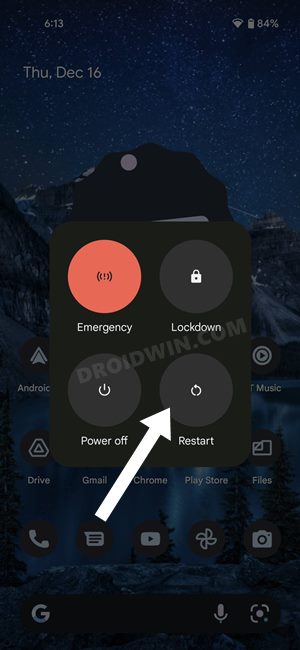
In most cases, a simple restart is all that is needed to rectify the issue [though the relief might prove to be temporary in some cases]. So do give this a try and check if it fixes the notification not working issue on your Android 14 device.
FIX 3: Boot to Safe Mode
In some cases, a third-party app or service might conflict with the proper functioning of the OS. To verify the same, your first course of action is to boot your device to Safe Mode. Doing so will disable all the third-party apps and if this rectifies the underlying issue then the culprit is definitely a third-party app that needs to be disabled at the earliest. Here’s how it could be done:
- Long press the power button to bring up the Power menu. Then press and hold the Reboot option.
- This will bring up the Safe Mode prompt, tap OK. Your device will now boot to Safe Mode.
- Now wait for a notification to arrive from a system app.
- If they do come up normally, then reboot your device back to normal mode.
- Now uninstall each third-party app, one at a time, until the issue no longer re-appears.
FIX 4: Toggle Notifications
Next up. consider disabling and then re-enabling the notifications on your device using the below-listed steps. This will refresh the underlying notifications settings and could well rectify the issue that we are currently dealing with.
- Head over to Settings > Apps > All Apps > Choose the desired app.
- After that, go to its Notifications and turn off All ‘Apps’ Notifications.
- Wait for a few seconds and then re-enable All ‘Apps’ Notifications.
- Check if it fixes the notification not working on your Android 14 device.
FIX 5: Unpause App Activity of Threads
If the app hasn’t been used for quite some time, then the OS will automatically delete its temporary file, stop notifications, and even remove all its permission. And it goes without saying that it could have an adverse impact on the app. So to stop that from happening, you should consider turning off this feature, using the instructions given below.
- Head over to Settings > Apps > All Apps > Threads.
- Then disable the toggle next to Pause App Activity if unused.
- Check if it fixes the notification not working on your Android 14 device.
FIX 6: Turn off Battery Saver
If you have put any battery restrictive measures in place, then it might conflict with some background-related tasks, including incoming notification alerts. Therefore, you should consider removing all these restrictions and then check if it spells out success for you or not. Here’s how it could be done:
- Head over to Settings > Battery > Battery Saver.
- Now disable the toggle next to Use Battery Saver.
- Check if it fixes Android 14 notification not working.
FIX 7: Delete App Data
If the app data gets corrupted, then its repercussions are bound to be faced by numerous functionalities of the app, including notifications. Therefore, you should delete its data and let it repopulate a fresh instance of the same from scratch. Here’s how it could be done
- Head over to Settings > Apps > All Apps > Choose the desired app.
- Then go to Storage and Cache and tap on Clear Storage > Delete.
- Now relaunch the app and set it up from scratch.
- Check if it fixes the notification not working issue on Android 14.
FIX 8: Downgrade App
The issue might also arise if the developer rolls out a buggy update. While the devs would address the issue in the coming weeks, but that might prove to be quite a long wait time. Therefore, during that time frame, your best course of action should be to downgrade the app to its earlier stable version. Here’s how it could be done.
- Head over to Settings > Apps > All Apps > Choose the app.
- Then tap on Uninstall > OK in the confirmation prompt.
- Now download an older version of the app from APK Mirror.
- Then install it. Now go to the Play Store and search for that app.
- Then tap on the overflow icon and uncheck Enable Auto Update.
FIX 9: Downgrade to Android 13
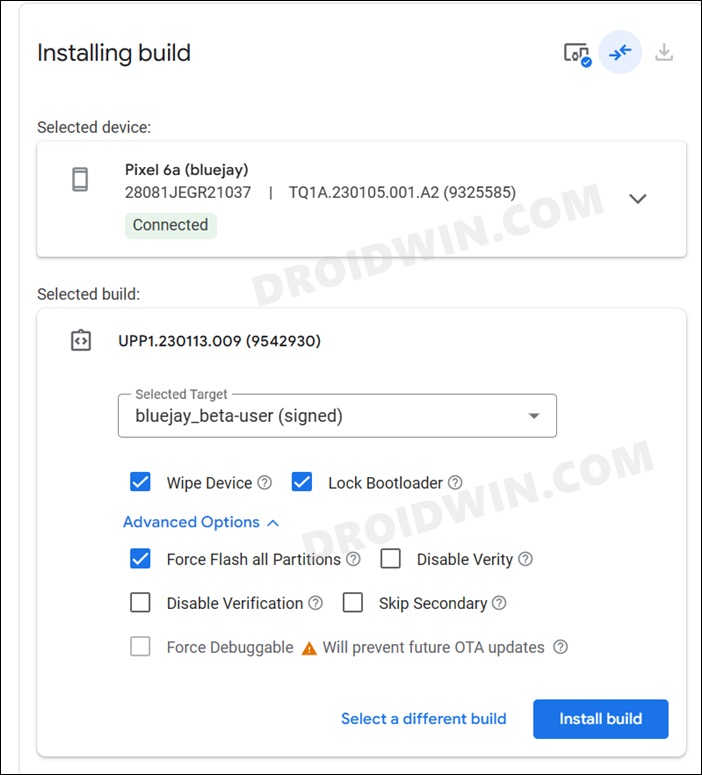
If you are currently in the Android 14 Beta build and downloading the latest update [as instructed in FIX 1] didn’t work out for you, then your last course of action is to leave the beta channel and downgrade to the earlier stable Android 13 build via Android Flash Tool . However, do note that doing so will reset your device, so take a backup of all the data beforehand.
- Stuck on Copy Apps & Data after Downgrade from Android 14 [Fix]
- How to Enable New Lock Screen Clock Styles on Android 14 Beta 3
- Fix Fingerprint not working/missing on Android 14 Beta 3
- How to Check Battery Health on Android 14

(Cancel Reply)
Δ
Fix Fingerprint not working/missing on Android
In this guide, we will show you a couple of methods to fix the fingerprint not working/missing issue on your Android device. Out of all the lock screen methods, it’s the fingerprint that has been the most preferable one for the masses. Therefore, it is along the obvious lines that users are bound to have scary and infuriated feelings in equal measures when this lock type suddenly goes missing or stops functioning along the expected lines.
As far as the reasoning is concerned, it could either be a hardware failure [for instance if your device fell off then it could lead to internal damage] or a software bug. So we will first off perform a test to determine the root cause of this issue and then address it accordingly. Without any further ado, let’s get started.
- Fix Fingerprint not working/missing on Android FIX 1: Check for Hardware Failure FIX 2: Delete Fingerprint App Data
- UPDATE: Fingerprint not working on Android 14 Beta 3 How to Fix It? FIX 1: Recalibrate Fingerprint FIX 2: Downgrade OS
Fix Fingerprint not working/missing on Android

It is recommended that you try out each of the below-mentioned workarounds and then see which one spells out success. So with that in mind, let’s get started. Droidwin and its members wouldn’t be held responsible in case of a thermonuclear war, your alarm doesn’t wake you up, or if anything happens to your device and data by performing the below steps.
TIP: Make sure that you have a PIN/Pattern/Password set up beforehand or else the Fingerprint option will not be there on your device.
FIX 1: Check for Hardware Failure
First off, let’s verify whether it is a hardware issue or simply a software one. Here’s how it can be done [before starting, make sure to remove the lock screen password/PIN/pattern].
- Head over to Settings > About Phone > Tap on Kernel Version 7 times.
- This will open the CIT Test menu. Go to the Fingerprint Sensor Check.
- If you get All Success message, then hit Pass or else Fail and proceed to the next test.
- Once done, go to Fingerprint Input Test, hit Enrol, and tap anywhere on the screen.
- If it registers your taps, then the in-display fingerprint hardware is working fine.
- But if you are getting a Failed message in either of the two tests, then unfortunately, it points to a hardware failure and you’ll have to take your device to the service center and get it repaired. But before that, you can still give a shot at the below software fixes, maybe the stars are lined up in your favor and the issue might get rectified using the below tweak itself!
FIX 2: Delete Fingerprint App Data
The issue of fingerprint missing/not working on your Android device might also occur if the fingerprint system app’s data is corrupted. Therefore, you should delete the data and let the OS repopulate a fresh instance of the same from scratch. Here’s how it can be done:
- Go to Settings > Apps > All Apps > Tap on the overflow icon > Select Show System Apps.
- Then select the Fingerprint app from the list and head over to its Storage and Cache section.
- Now tap on Delete Data > Delete and restart your device. Check if the issue is fixed or not.
UPDATE: Fingerprint not working on Android 14 Beta 3
The Silicon Valley giant has just released the third iteration, which according to the rollout plan is the first performance stability stage. However, no matter how many stability-related keywords you end up adding to these builds, the fact that they are still in the beta stage should be enough to be tagged as a testing build.
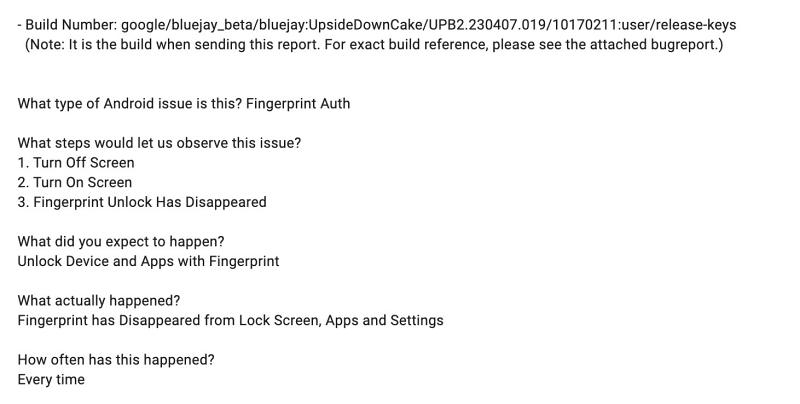
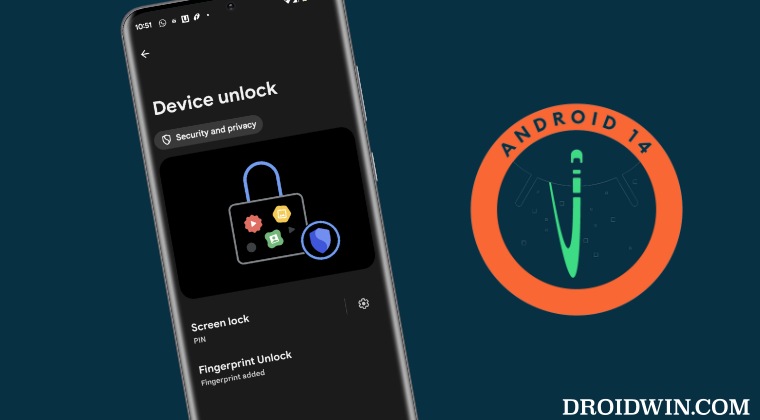
In other words, you will still come across a few bugs and issues. And that has indeed been the case. Numerous users who had installed the Android 14 Beta 3 have reported the fingerprint is either not working on their Pixel device or has completely gone missing. As far as the latter case is concerned, all the settings related to fingerprint are missing, leaving PIN/password/pattern as the only available option to unlock the device.
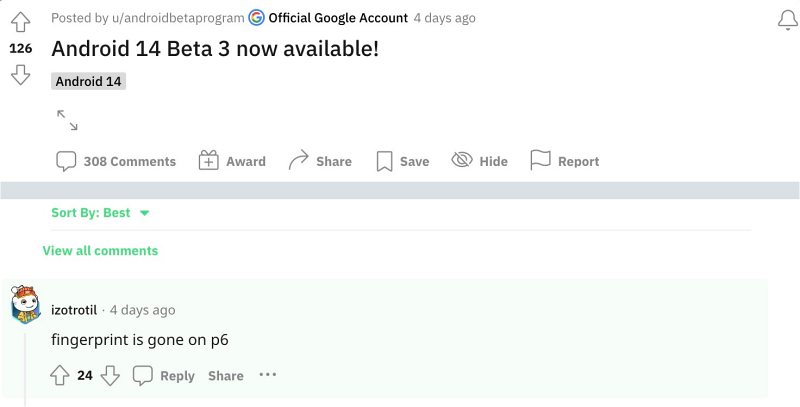
Moreover, the issue is only reported across the Pixel 6 series as the 7th series is free from this bug. If you are also getting bugged by this problem, then this guide will make you aware of a couple of nifty workarounds that should help you rectify this problem. Follow along.
How to Fix It?
It is recommended that you try out each of the below-mentioned workarounds and then see which one spells out success. So with that in mind, let’s get started.
FIX 1: Recalibrate Fingerprint
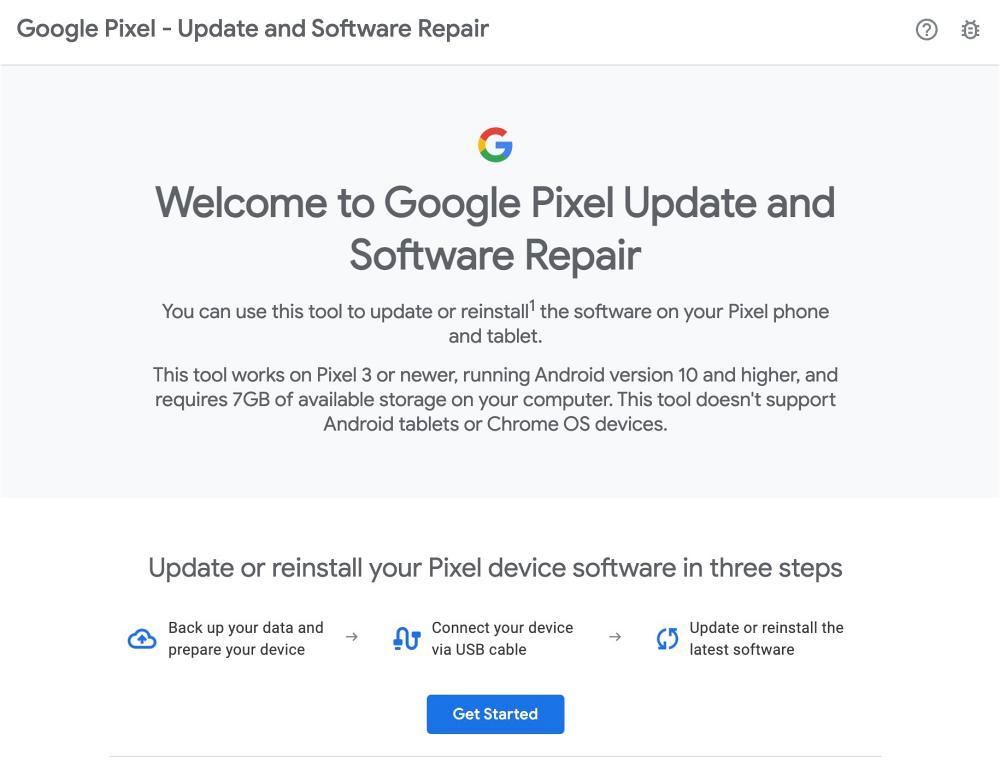
Your first course of action should be to install the fingerprint calibration software from pixelrepair.withgoogle.com . However, according to some users, this fix only lasts until the next reboot after which they have to reperform the calibration.
FIX 2: Downgrade OS
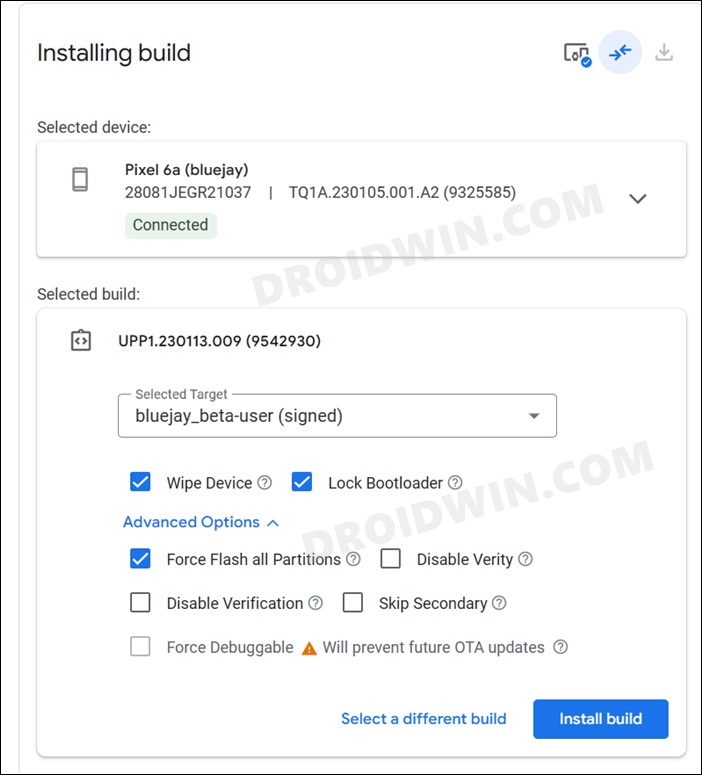
Next up, you should consider downgrading to the earlier stable Android 13 build. While this is a permanent fix, but it requires an unlocked bootloader and will wipe off all the data from your device. So if that’s well and good, then do check out our guide on Downgrade Pixel from Android 14 to Android 13 [2 Methods] [Video] .
That’s it. These were the two different methods that fix the fingerprint not working/missing issue on Android 14 Beta 3. As far as the official stance on this matter is concerned, the developers are aware of this issue, but they haven’t given out any ETA for the rollout of a fix. As and when that happens, we will update this guide accordingly. In the meantime, the aforementioned workarounds are your best bet.
- How to Enable New Lock Screen Clock Styles on Android 14 Beta 3
- Pixel Battery Charging Issue on Android 14: How to Fix
- How to Check Battery Health on Android 14
- Stuck on Copy Apps & Data after Downgrade from Android 14 [Fix]
(Cancel Reply)
Δ
