OBS Audio Buffering/Out of Sync Issue: How to Fix
In this guide, we will make you aware of a few potential workarounds that should help you fix the audio buffering/out of sync issues in OBS. One of the most popular open-source, and cross-platform screencasting and streaming apps, OBS is being used by many users across the globe, most noticeable YouTube content creators and streamers. However, as of late, it is giving out a tough time to a particular set of users.
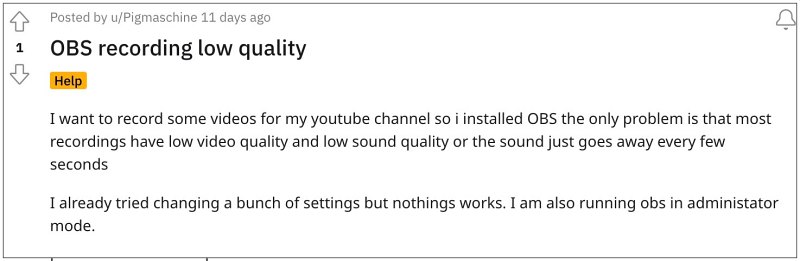
A few users have voiced their concern that they are facing excessive audio buffering as well as audio out of sync issues in OBS. As. result of which, the audio either gets distorted or doesn’t remain in sync with the video. In some cases, it tends to suddenly stops recording audio in the backend without any prior prompts as such. If you are also getting bugged by these issues, then this guide will help rectify them. Follow along.
Fix OBS Audio Buffering/Out of Sync Issue

- Launch OBS and click on the Settings icon at the bottom right.
- Then select Audio from the left-hand side and go to General.
- Now change Channels to 5.1 and hit OK to save it.
- Then go to Output and select Encoder as Software (x264 Low CPU Usage preset).
- Finally, restart OBS for the changes to take effect.
- Pixel 6/Pro: How to Update Google Camera to version 8.8
- How to get screen to display small size content in S23 Ultra
- Elgato HD60 X Audio Recording/Streaming issues [Fix]
- Dual SIM Color Bug in Google Phone App on Pixel [Fix]

(Cancel Reply)
Δ
