OEM Unlock Option Greyed Out in Motorola: How to Fix
In this guide, we will show you the steps to fix the issue of the OEM Unlock option being greyed out in Motorola devices. The devices from this OEM have always been quite popular in custom development. Be it for flashing custom ROMs or installing a custom recovery like TWRP, there’s a lot to try out. Along the same lines, you could also gain administrative access by rooting your device via Magisk. This in turn will allow you to get your hands on a plethora of mods and tweaks.
These include the likes of Magisk Modules , Xposed Frameworks , Substratum Themes , Viper4Android , among others. However, before you could actually carry out any of these tweaks, there’s an important prerequisite that you need to tick mark off the requirement list. And that is an unlocked bootloader. For that, your first step is to enable the OEM toggle under Developer Options. After that, you may get the unlock token code from Motorola and then use it in the Fastboot Commands to complete the unlock process.
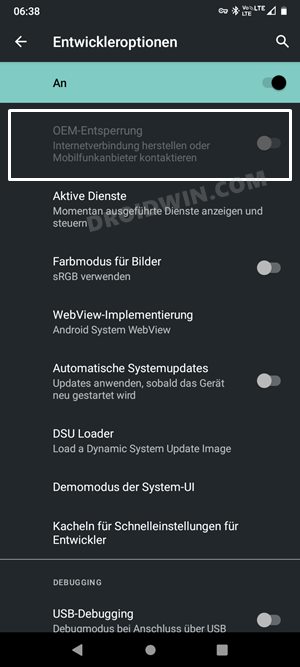
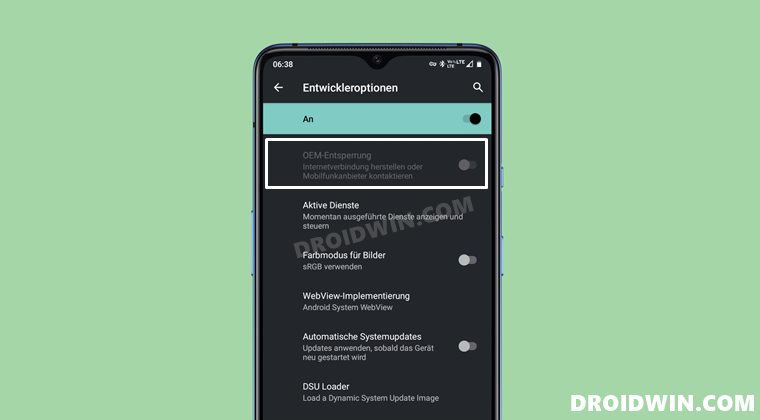
However, that is proving to be easier said than done as most of the users are stuck in the first step itself. According to them, the OEM unlock toggle is greyed out in their Motorola device and hence they are unable to enable this functionality. This would then translate to their inability to proceed to the next step in the unlocking process. If you are also facing the same issue, then this guide shall help you out. In this tutorial, we will show you the detailed steps to fix the issue of the OEM Unlock option being greyed out in Motorola devices.
- How to Fix OEM Unlock Option Greyed Out in Motorola STEP 1: Install Android SDK Platform Tools STEP 2: Enable USB Debugging STEP 3: Boot to Fastboot Mode STEP 4: Unlock the Bootloader
- How to Verify if Bootloader is Unlocked
How to Fix OEM Unlock Option Greyed Out in Motorola
While this method was successfully tried on Moto G20, but it should be universally applicable across all the Moto devices whose bootloader could be unlocked just by the Fastboot Commands. On that note, do keep in mind that unlocking the bootloader will wipe off all the data from your device and could nullify its warranty as well. Droidwin and its members wouldn’t be held responsible in case of a thermonuclear war, your alarm doesn’t wake you up, or if anything happens to your device and data by performing the below steps.
STEP 1: Install Android SDK Platform Tools
First and foremost, you will have to install the Android SDK Platform Tools on your PC. This is the official ADB and Fastboot binary provided by Google and is the only recommended one. So download it and then extract it to any convenient location on your PC. Doing so will give you the platform-tools folder, which will be used throughout this guide.

STEP 2: Enable USB Debugging
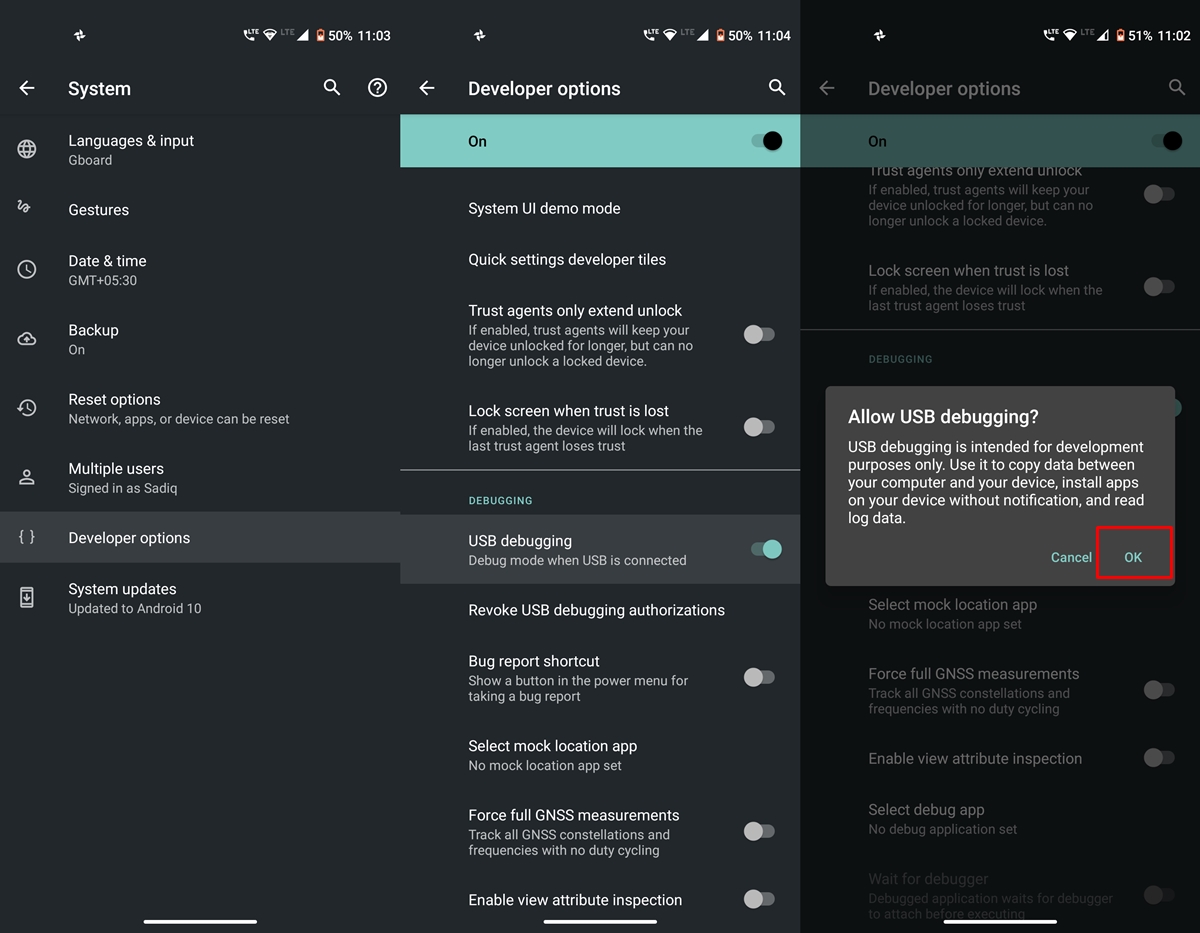
Next up, you will have to enable USB Debugging so that your device is recognizable by the PC in ADB mode. This will then allow you to boot your device to Fastboot Mode. So head over to Settings > About Phone > Tap on Build Number 7 times > Go back to Settings > System > Advanced > Developer Options > Enable USB Debugging.
STEP 3: Boot to Fastboot Mode
- To begin with, connect your device to the PC via USB cable. Make sure USB Debugging is enabled.
- Then head over to the platform-tools folder, type in CMD in the address bar, and hit Enter. This will launch the Command Prompt.
- Type in the following command in the CMD window to boot your device to Fastboot Mode adb reboot bootloader
- To verify the Fastboot connection, type in the below command and you should get back the device ID. fastboot devices
STEP 4: Unlock the Bootloader
But we haven’t yet enabled the OEM Unlock so how could we straightaways unlock the device’s bootloader? Well, this greying out of OEM Unlock toggle on Motorola devices is more of a UI glitch than a technical error. To verify this claim, various users who had their OEM Unlock toggle greyed out and disabled were still able to successfully unlock the device’s bootloader. So let’s put it to test right away (note: all your data will be erased now):
- Start off by executing the below command in the CMD window: fastboot flashing unlock
- You will now get a confirmation in the upper left corner of the screen. Press the Power key to confirm the unlock.
- The device will undergo a reset and subsequently, the bootloader shall be unlocked.
That’s it. These were the steps to fix the issue of the OEM Unlock option being greyed out in Motorola devices and hence unlock the bootloader. Let’s now verify if the process spelled put success for us or not.
How to Verify if Bootloader is Unlocked
- First off, as soon as you boot up your device, you should see the Bootloader unlock status at the top left of your screen. It should be something along the lines of LOCK FLAG IS UNLOCK. This signifies that the bootloader has been successfully unlocked.
- The next method is to boot your device to Fastbot Mode and then refer to the line after the Battery State. It should be something like unlocked/flashing_unlocked which means that the bootloader is unlocked.
- If you wish to take a more technical approach, then boot your device to Fastboot and execute the below command. If the output is Unlocked, then the bootloader unlock process was successful. fastboot getvar securestate

- Hew 2 years ago Reply This is not working and this is why: “this is a typical situation for newly purchased or reset devices. In order to activate this feature, your device needs to have uninterrupted internet access for a week, either through wifi or mobile data. This will ensure that your phone is properly configured and the required settings are activated. We appreciate your patience and understanding regarding this matter. We have moved your post to the Android Developer community as you originally posted in the Moto Edge+ (2023) community. Regards, Rizza Motorola Support” More information here: https://forums.lenovo.com/t5/motorola-edge-2023/OEM-unlocking-greyed-out/m-p/5229993
- chanju 2 years ago Reply did not work Microsoft Windows [Version 10.0.19045.3208] (c) Microsoft Corporation. All rights reserved. C:\cmdline-tools>adb reboot bootloader C:\cmdline-tools>fastboot devices ZD222GPVXC fastboot C:\cmdline-tools>fastboot flashing unlock usage: fastboot [ ] commands: update reflash device from update.zip flashall flash boot, system, vendor and if found, recovery flash [ ] write a file to a flash partition erase erase a flash partition format[:[][:[]] format a flash partition. Can override the fs type and/or size the bootloader reports. getvar display a bootloader variable boot [ [ ] ] download and boot kernel flash:raw boot [ [ ] ] create bootimage and flash it devices list all connected devices continue continue with autoboot reboot reboot device normally reboot-bootloader reboot device into bootloader help show this help message options: -w erase userdata and cache (and format if supported by partition type) -u do not first erase partition before formatting -s specify device serial number or path to device port -l with “devices”, lists device paths -p specify product name -c override kernel commandline -i specify a custom USB vendor id -b specify a custom kernel base address. default: 0x10000000 -n specify the nand page size. default: 2048 -S [K|M|G] automatically sparse files greater than size. 0 to disable C:\cmdline-tools>
- Floppydisk 2 years ago Reply Same for me. Moto G52. Did not work, getting same error as Yuri
- Yuri 3 years ago Reply I have the Moto G53 5G. My OEM is grayed out too. I used the above method but it didn’t work unfortunately. C:\Utility\platform-tools>fastboot flashing unlock (bootloader) Check ‘OEM unlocking’ in Android Settings > Developer (bootloader) Options FAILED (remote: ”) fastboot: error: Command failed
- Keahi 3 years ago Reply That ain’t worked for me. My strange issue that I’m facing here is: For some reason, I have no wifi or mobile data. I can only get networking connection by theter or usb.
- peter 3 years ago Reply since i came to this place for finding out why this option was greyed out ( and i really couldn’t unlock the bootloader because the option was greyed out in dev options) , I continued searching because it didn’t reveal the reason to me but I do know the answer now: I bought a moto edge 30 neo , and straight out of the box oem unlocking was greyed out, and there seemed nothing to be done beside waiting. After keeping it on for 4 days and a reboot every day, now on the 5th day / reboot the option suddenly came available. so if you want the option available and you just bought it, which sounds logical to me since with every new phone i do boot loader unlocking….. just sit tight and wait a few days. It does annoy me a bit …. but waiting some extra days does not really hurt …
(Cancel Reply)
Δ
