Pass Device, Basic, Strong Integrity via Play Integrity Fix
[UPDATE: You can now pass the Strong Integrity Test as well!] In this guide, we will show you the steps to pass the “Meets Device Integrity” and Meets Basic Integrity” tests on your rooted device via the Play Integrity Fix module. Gaining administrative privileges by rooting your device via Magisk opens the floodgates to a plethora of customizations. But on the flip side, it does pave the way for the entry of a few issues as well, the primary among which is the tripping of SafetyNet.
Once that happens, you wouldn’t be able to use banking and payments, and even the likes of Uber and McDonald’s! So to rectify it, we already have got ourselves covered with a comprehensive guide on how you could pass the SafetyNet Test. After carrying out all the steps listed there, you’ll be able to easily use all the aforementioned listed apps. So this then begs an important question- why is there a need to pass the “Meets Device Integrity” and Meets Basic Integrity” tests? Let’s find out.
- What is Play Integrity?
- What is the Difference between Play Integrity and SafetyTest
- How to Pass Basic, Device, and Strong Play Integrity [Legacy and Android 13+][NEW]
- How to Pass Strong Integrity using Revoked/Banned Keybox File
- How to Pass ‘Meets Device and Basic Integrity’ Tests [Not Strong]
- How to Pass Basic and Device Play Integrity [Old]
- Using Custom Fingerprints/Build.Prop JSON File to Pass Play Integrity
- How to Pass Play Integrity on Rooted Android Without PC! Via FP Downloader Via AutoPIF-Next
- Using Custom Fingerprint/Build.prop to Pass SafetyNet
- How to Pass Play Integrity when Rooted via KernelSU
- How to Pass Play Integrity via APatch
- How to Pass Play Integrity via Magisk Kitsune
- How to Check if my Device is passing Play Integrity Test Via Play Store Using Third-Party Apps
- My Device is Failing MEETS_STRONG_INTEGRITY
- My Device is Passing SafetyNet but I Cannot Use Banking Apps
- How to Pass Play Integrity Test on Xiaomi EU ROM
What is Play Integrity?
Play Integrity is an API that is used by numerous applications to determine the device’s compatibility and security state. At the time of writing, many apps still use the SafetyTest, but many apps are ditching this tool and moving towards Play Integrity, with January 2025 being the deadline set by Google.
Once that time frame is reached and apps haven’t yet adopted Play Integrity, then there wouldn’t be any impact on your side [infact you will be the beneficiary as apps wouldn’t be able to check if your device is rooted or not, hence you’ll be able to use banking apps even on a rooted device!].
What is the Difference between Play Integrity and SafetyTest
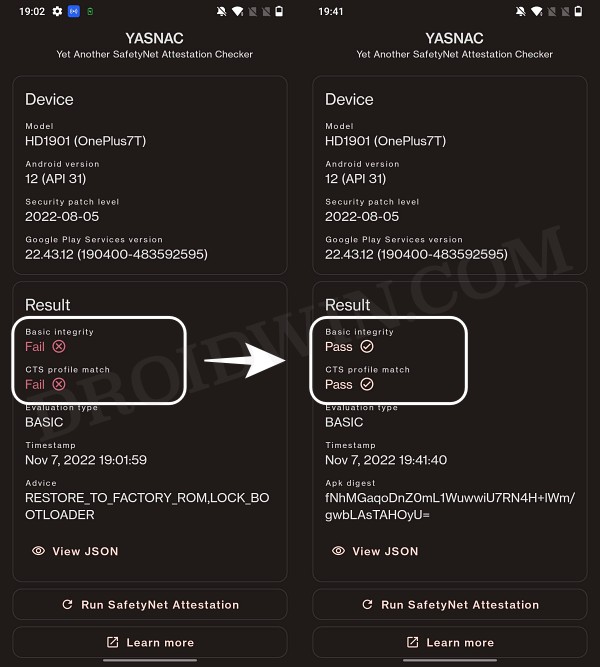
Most of the underlying aspects of both the Play Integrity and SafetyNet are near about similar, it’s just the responses that have been made a bit simpler in the former. But the major differences arise in the types of tests being conducted and more importantly, the results that you would be obtaining. As far as the SafetyNet tests are concerned, there exists the Basic Integrity and CTS Profile Match, and your device should pass both of these tests.
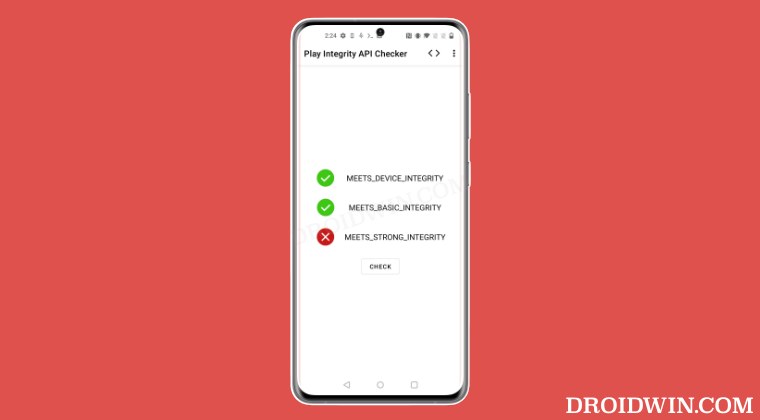
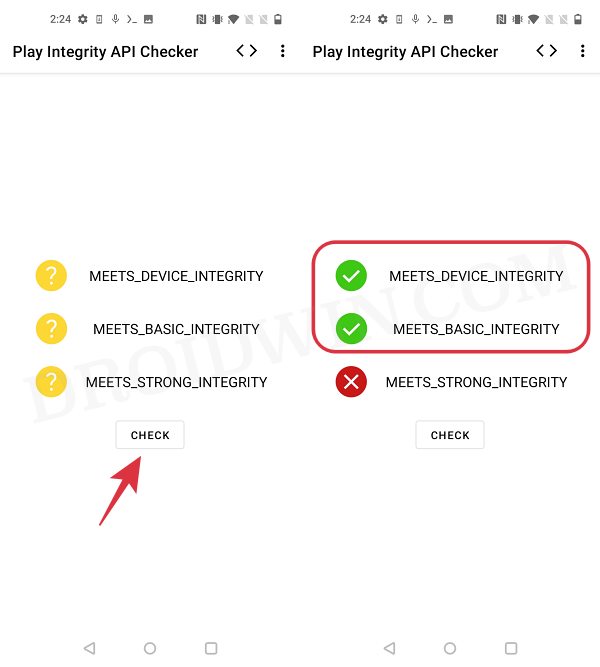
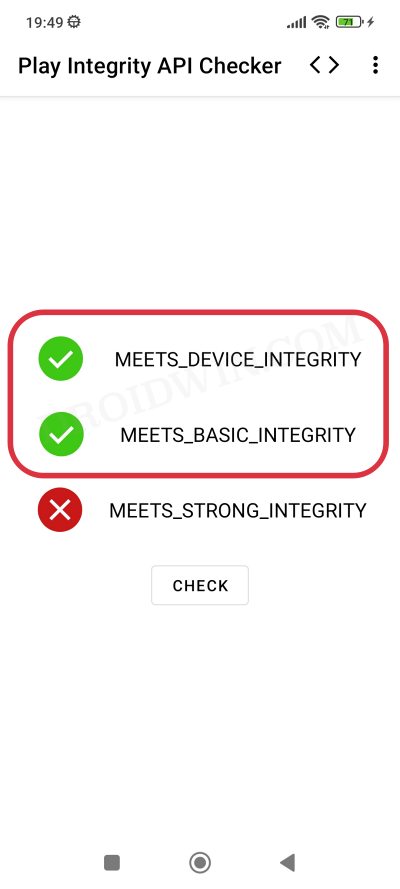
However, things aren’t the same on the other side of the fence. In Play Integrity, there are three tests performed- MEETS_DEVICE_INTEGRITY, MEETS_BASIC_INTEGRITY, and MEETS_STRONG_INTEGRITY, out of which your device should pass the MEETS_DEVICE_INTEGRITY and MEETS_BASIC_INTEGRITY. But why not the Strong Integrity?
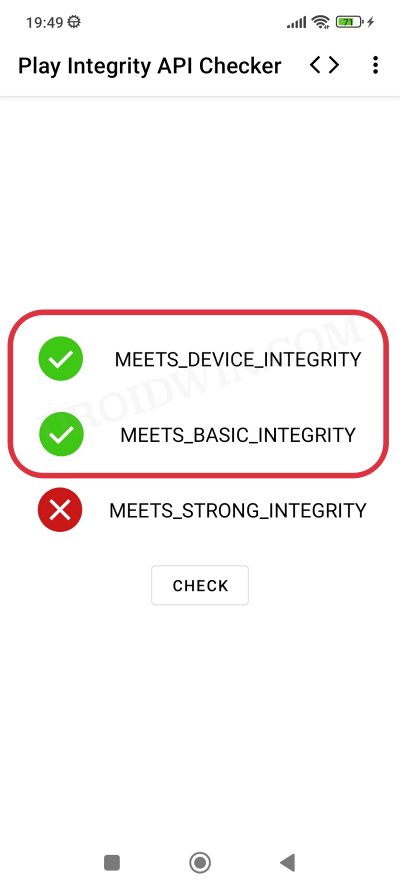
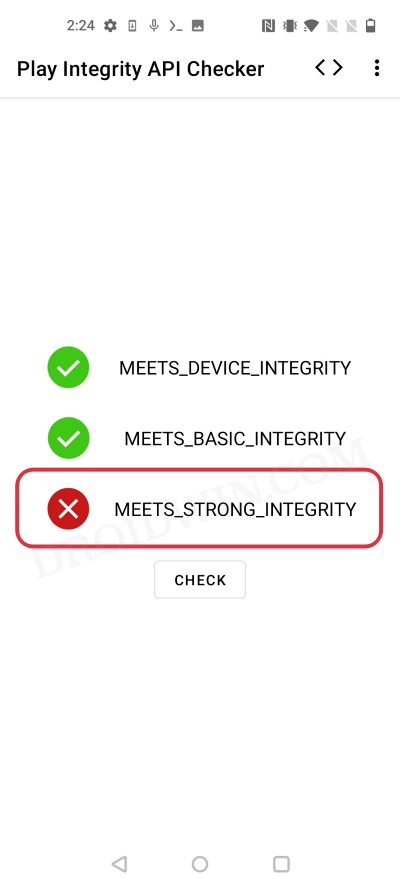
Well, your device will not be able to pass the MEETS_STRONG_INTEGRITY until and unless the device’s bootloader is locked. Since that is not a possibility [because you cannot lock the bootloader on a rooted device], this test will always fail on your rooted device. However, do note that this wouldn’t conflict with your ability to use banking and payment apps on rooted devices as they only require you to pass the “Meets Device Integrity” and Meets Basic Integrity” tests.
How to Pass Basic, Device, and Strong Play Integrity [Legacy and Android 13+][NEW]
Earlier, we could only pass the basic and device integrity. But now, we can even pass the Strong Integrity as well. While most of the banking apps still don’t require you to pass this third test, but there have been a few that do. Moreover, it is only a matter of time before this Strong Integrity becomes a requirement as well. So let’s pass it right away and be on the safer side. For that, do check out our guide on
How to Pass Strong Integrity on an Unlocked Bootloader Rooted Device!
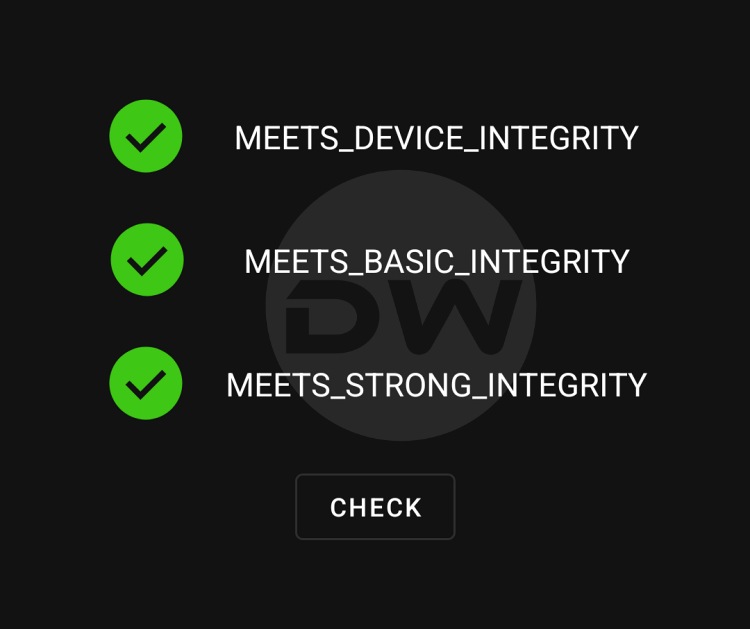
Finally, the victory is ours!
UPDATE: There have been some changes to this rule with the introduction of Android 13+ Play Integrity Checks. Read this guide to know more on the same: What is New A13+ Play Integrity Check and How to Pass It
How to Pass Strong Integrity using Revoked/Banned Keybox File
Yes, that is very much possible. You can easily pass Strong Integrity using a revoked or banned keybox file. Just refer to the steps below and get the job done:
How to Pass Strong Integrity Using Revoked/Banned Keybox File
How to Pass ‘Meets Device and Basic Integrity’ Tests [Not Strong]

NOTE: Not every banking and payment app requires Strong Integrity. So if you are only passing Basic and Device and failing Strong, it might not be a cause of major concern.
Let’s now get started with the most important part of this guide- the steps to pass the “Meets Device Integrity” and Meets Basic Integrity” tests on your rooted device. Before starting, please take a backup of all the data on your device, just to be on the safer side. Droidwin and its members wouldn’t be held responsible in case of a thermonuclear war, your alarm doesn’t wake you up, or if anything happens to your device and data by performing the below steps.
NOTE: Apart from failing in the rooted stock ROM, the Play Integrity might also fail if you are using a non-rooted Custom ROM. In that case, you can either use the built-in keybox uploader and load an unrevoked keybox file or root your custom ROM and then use the keybox file. While rooting might create some additional issues with banking apps, but we will deal with that later on in this guide, let’s first pass the Play Integrity Test. So root your ROM and only then proceed with the below steps.
How to Pass Basic and Device Play Integrity [Old]
The below steps are for those devices that are rooted via Magisk. If your is rooted via KernelSU, then scroll further down the guide and head over to the “Pass Play Integrity when Rooted via KernelSU” section.
- Launch the Magisk App and tap on the settings icon situated at the top right.
- Then tap on Hide the Magisk App > Enable the toggle next to Allow apps from this source.
- Assign a new random name to this Magisk app and hit OK.
- It will now ask for a home-screen shortcut, tap OK [recommended].
- Then enable the toggle next to Enforce Denylist. Now tap on Configure Denylist.
- Then expand the following apps and checkmark all its services Google Play Service Google Play Store Google Service Framework Google Play Protect Service [if present]
- Likewise, do the same for the banking/payment apps of your choice.
- Once done, again go to Magisk’s settings menu and enable Zygisk.
- Now download the “latest version” [extremely important] of the Play Integrity Fix Module from GitHub.
- Then flash the module via Magisk and restart your device.
- Now delete the data of the Google Services Framework, Play Store, Play Service, and Play Protect Service [if present].
- Finally, delete the data of the banking/payment app of your choice.
- Once done, restart your device [compulsory] and then check out the result.
That’s it. Your rooted device should now pass both the “Meets Device Integrity” and Meets Basic Integrity” tests and you may verify the same via the steps given below. If you are still failing the test, then it means that the custom fingerprint that the module is using has been patched by Google. In that case, you should head over to our next section below. [Credits for this module: XDA Senior Member chiteroman].
Using Custom Fingerprints/Build.Prop JSON File to Pass Play Integrity
Google has picked up the pace and is quickly patching the fingerprints for many devices. While the developer is doing his best to update his module with a newer one, but there doesn’t seem to be any end to this cat-and-mouse game the module is also open source, so Google is able to easily view the fingerprint that is being used and it ends up patching it!].
Use Custom Fingerprint/Build.Prop to Pass Play Integrity Test
If you pick up a less popular & old device’s fingerprint and create a custom JSON file, you could then easily pass the Play Integrity test, though it requires a few hit-and-trial approaches, but it will be worthy of an effort. Moreover, if you take this approach, then the chances of Google patching that fingerprint are quite low. So if the aforementioned module isn’t giving out the desired results, then you may try out our above guide and create your own fingerprint.
How to Pass Play Integrity on Rooted Android Without PC!
Thanks to a new fork of the Play Integrity module by Chiteroman, you might be able to pass the Play Integrity Test even without using a PC, just via a single APK file! You just have to launch the app once and it will auto-generate a new fingerprint, implement it onto your device, and delete the data of GMS. Once that happens, you have to restart your device and check if you pass this test [explained in the next section].
If you don’t, then simply relaunch the app- it will again generate a new fingerprint and implement it on your device. You’ll have to keep on doing so until you can pass the test. So with that in mind, here’s how to use this app:
Via FP Downloader
- To begin with, enable Zygisk from the Magisk’s settings menu.
- Then download the playcurl.zip and Play Integrity Fix modules.
- After that, launch Magisk, go to Modules, and tap on Install from Storage.
- Now select the playcurl.zip mod and hit OK in the confirmation prompt.
- The module will be flashed. Now flash the Play Integrity Fix module.
- Once done, restart your device. Now, go to Settings > Apps > See All Apps.
- Then select Fp Downloader > Notifications and enable all the notifications.
- Now launch Fp Downloader and you’ll get a Magisk prompt, tap on Grant.
- Likewise, you’ll also get a notification that the new pif.json is implemented.
- Once that happens, check if your device is passing the Play Integrity or not.
- If it isn’t, then once again open the Fp Downloader and check out the result.
Note: You may also launch the app via a slightly more technical method, i.e. using Terminal. Here’s how:
- Download and install the Termux app from the Play Store.
- Then type in the below command and hit Grant in the SuperUser request. su
- Now just type in the below command to invoke the module. fp
- The module will now run and change the device’s fingerprint.
- Once that happens, check if you are passing the test or not.
- If you’re not, then again type in fp. Do so until you pass the test.
Via AutoPIF-Next
It also works on the same principle as the aforementioned one. When the Fingerprint is banned, you will only need to open the AutoPIF app and then check for Play Integrity Attestation, the app will download the new PIF.json on /data/adb/pif.json.
- To begin with, enable Zygisk from the Magisk’s settings menu.
- Then download the playcurl.zip and Play Integrity Fix modules.
- After that, launch Magisk, go to Modules, and tap on Install from Storage.
- Now select the playcurl.zip mod and hit OK in the confirmation prompt.
- The module will be flashed. Now flash the Play Integrity Fix module.
- Once done, restart your device and install the AutoPIF-Next app .
- Then go to Settings > Apps > All Apps > AutoPIF-Next > Notifications and enable all the notifications.
- Now launch AutoPIF-Next and you’ll get a Magisk prompt, tap on Grant.
- Likewise, you’ll also get a notification that the new pif.json is implemented.
- Once that happens, check if your device is passing the Play Integrity or not.
- If it isn’t, then once again open AutoPIF-Next and check out the result.
Using Custom Fingerprint/Build.prop to Pass SafetyNet
if the aforementioned method didn’t spell out success, then it could be attributed to the fact that Google has patched that fingerprint/build.prop. In such cases, you will have to get hold of the fingerprint/build.prop from a less popular device+firmware version that hasn’t been used by many [a few Chinese phones out there in the market might checkmark this requirement].
Use Custom Fingerprint/Build.Prop to Pass Play Integrity Test
In this regard, there are three different methods of getting this job done- one click, automatic, and manual. Go through each of them once listed in the above guide and then try out the one that is in sync with your requirement.
How to Pass Play Integrity when Rooted via KernelSU

If you have rooted your device via KernelSU instead of Magisk, then passing the Play Integrity Test involves a slightly different approach. This is because enabling Zygisk is one of the paramount prerequisites of the Play Integrity Fix module but since KernelSU doesn’t have it built-in, we will have to take the help of a module to get this job done. Follow along:
- First off, download the Zygisk Next module from its GitHub page.
- Then launch KernelSU, go to Modules, and hit the Install button.
- Select the Zygisk Next module and it will be flashed on your device.
- Now, download the Play Integrity Fix module from its GitHub page .
- Similarly, flash this module as well and after that restart your device.
- Now, delete the data from the following Google Apps [it’s compulsory] Google Play Store Google Play Service Google Play Protect Service Google Services Framework [if present]
- Finally, restart your device once again and then check out the results.
How to Pass Play Integrity via APatch

If you have obtained root via APatch, then the process to pass the Play Integrity test will be somewhat different when compared with Magisk [because as opposed to the latter, the former does not have a built-in Zygisk]. On the flip side, both the KernelSU and APatch follow the same approach to pass this test [as they both have the same kernel approach for rooting and neither of them comes with a built-in Zygisk]
- First off, download the Zygisk Next module from its GitHub page.
- Then launch APatch, go to Modules, and tap on the Load button.
- Select the Zygisk Next module and it will be flashed on your device.
- Now, download the Play Integrity Fix module from its GitHub page .
- Similarly, flash this module as well and then restart your device.
- Now, delete the data from the following Google Apps [it’s compulsory] Google Play Store Google Play Service Google Services Framework Google Play Protect Service [if present]
- Finally, restart your device once again and then check out the results.
How to Pass Play Integrity via Magisk Kitsune

Magisk Kitsune is an unofficial fork that beholds a few additional tweaks when compared with its official counterpart. Some of the noteworthy ones include the likes of MagiskHide, SuList, and the new Zygisk loading mechanism. So if you have obtained root via Kitsune and are looking to pass the Play Integrity/SafetyNet test, then the steps are slightly different from the official Magisk app and hence we have decided to compile it separately. Follow along.
- Launch the Magisk Kitsune App and tap on the settings icon situated at the top right.
- Then tap on Hide the Magisk App > Enable the toggle next to Allow apps from this source.
- Assign a new random name to this Magisk app and hit OK.
- It will now ask for a home-screen shortcut, tap OK [recommended].
- Now enable the toggle next to MagiskHide and go to Configure MagiskHide.
- Then checkmark the following apps [and all their associated services too] Google Play Store Google Play Service Google Play Protect Service Google Services Framework [if present] Banking/Payment Apps of your choice
- Now download the Play Integrity Fix Module from GitHub and flash it via Kitsune.
- Then delete the data of the following apps: Google Play Store Google Play Service Google Play Protect Service Google Services Framework [if present] Banking/Payment Apps of your choice
- Finally, restart your device [compulsory] and then check out the result.
- You should now pass both the Play Integrity as well as SafetyNet tests.
How to Check if my Device is passing Play Integrity Test
There are two different methods of checking if your device is passing the Play Integrity Test or not- via Play Store and using a third-party app. Let’s make you aware of both these approaches:
Via Play Store
- Launch Play Store > tap on your profile at the top right > Settings > About.
- Now tap on Play Store version 8 times. This will enable Developer Options.
- Then go to Settings > General > Developer options > tap on Check integrity.
Using Third-Party Apps
You could also get this job done via third-party apps like Play Integrity API Checker [which only checks for Play Integrity] and TB Checker [which would additionally check for traces of rooted apps present on your device].
My Device is Failing MEETS_STRONG_INTEGRITY
As mentioned before, as long as your device’s bootloader is unlocked, it will fail the MEETS_STRONG_INTEGRITY check. That is not a cause of any concern as you’ll still be able to use the banking apps without any issues. But if for some reason, you wish to pass this test, then your only course of action is to remove all modules, unroot your device, and then relock the bootloader. you’ll have to get this job done using an unrevoked keybox XML file .
My Device is Passing SafetyNet but I Cannot Use Banking Apps
If your device is passing SafetyNet and you still cannot use a banking or payment app, then this is happening because that app has already ditched this test and moved over to Play Integrity. So you’ll now have to pass the Play Integrity test to be able to use the app again.
How to Pass Play Integrity Test on Xiaomi EU ROM
Passing the Play Integrity Test on your Xiaomi EU ROM might be a tad bit different. So do refer to our below-linked guide [with video instructions] to get this job done:
Google Pay not working in Xiaomi EU ROM: Play Integrity Fix
- Pass SafetyNet on Rooted Android 12/13/14
- Fix SafetyNet Device Integrity Failing, Wallet not working
- How to Pass SafetyNet on any Rooted Custom ROM
- How to Pass SafetyNet on Rooted Xiaomi EU ROM [Video]
- Pass Safetynet on Rooted LineageOS ROM [Video]

- James 4 months ago Reply Hello can you send me the xml file? Thank you.
- felipe 4 months ago Reply Could you please send me a keybox?
- KRISHAN 7 months ago Reply Please send me the keybox file.
- MORGON 7 months ago Reply Please send me the keybox file….
- Sam 8 months ago Reply Please send me the keybox file
- greg 9 months ago Reply can i have a unbanned, unrevoked keybox file please
- Seans 9 months ago Reply send me keybox god bless 😊
- Sean 9 months ago Reply send me keybox god bless 😊
- Divyanshu 9 months ago Reply Please share the keybox file
- sajad hussain 11 months ago Reply Hellk sir, please send me that keybox.xml file… Its a request
- khan inayat 11 months ago Reply plz share the keybox
- Sandeep 1 year ago Reply Kindly share keybox file for my Redmi note 8 Lineage OS installed and rooted with magisk canary
- Mukesh 1 year ago Reply I appreciate man this is one of the best site and YouTube also thanks
- Sachin 1 year ago Reply Play integrity fix for ROOT
- SURAJ RAM DAS 1 year ago Reply Please Send me the keybox xml
- Sintu 1 year ago Reply Thanks for strong integrity pass. Share keybox.xml file Saim kaushal 9 months ago Reply Plz send me strong integity pass send keybox. xml file
- Sahil 1 year ago Reply Keybox give me plzzz help sir
- picses 1 year ago Reply Thank you for the guide. Does this method work on LineageOS 21? I am planning to install it on my OnePlus 6T.
- JJ 1 year ago Reply Thanks so much!! As at 16 August 2024 my rooted S22 Ultra suddenly stopped working with Google Pay. I checked with Play Integrity API Checker and it was failing Device Integrity. I simply followed these steps 5-13 and now Play Integrity API Checker is showing a pass for the top two. It’s annoying that it doesn’t pass ‘strong integrity’ but it seems it doesn’t need that for anything I do… How does one get it to pass strong integrity? Sadique Hassan 1 year ago Reply There’s this open source Tricky Store module that will let you pass even the Strong Integrity and spoof the Bootloader as locked. However, it requires an Unrevoked hardware keybox or a leaked one, both of which is proving to be quite difficult to find as of now. But as soon as I get hold of them, I’ll update this post and add a new video on the same as well.
- Aziz çifçi 2 years ago Reply Hello, the bootloader is unlocked on my phone. I want to use the Uberdriver application, but I cannot use it. Can you help me with this? How can I hide the bootloader lock from this application? I am using a fake location program. Can you please help me with the uber driver application?
- Just install PlutoTV instead of peacock. ASFAIK PTV now has the same chans content and VOD streams 2 years ago Reply mmee
- DWP 2 years ago Reply Hello and thanks for this helpful post… I am, however, still a little stuck… This is on a rooted, Android 9 LG V40 – if that makes any difference. I went the the process and the Integrity Checker app now shows it meets basic. But the other two still fail. If I understand the strong should NOT pass due to unlocked boot loader. But the Device should pass. The YASNAC app says it passes both Basic and CTS profile (where previously it pass neither). So I feel I am doing something wrong here but I am not sure what that might be. My basic problem here is not really banking apps. But I have found that, increasingly, Play Store is showing that apps are “not compatible” when trying to install on a rooted device. This, for example, is the case with the Peacock TV app. And I really need to get around this. So any suggestions you might have are greatly appreciated. Thanks again!
(Cancel Reply)
Δ
Pass Device, Basic, Strong Integrity via Play Integrity Fix
[UPDATE: You can now pass the Strong Integrity Test as well!] In this guide, we will show you the steps to pass the “Meets Device Integrity” and Meets Basic Integrity” tests on your rooted device via the Play Integrity Fix module. Gaining administrative privileges by rooting your device via Magisk opens the floodgates to a plethora of customizations. But on the flip side, it does pave the way for the entry of a few issues as well, the primary among which is the tripping of SafetyNet.
Once that happens, you wouldn’t be able to use banking and payments, and even the likes of Uber and McDonald’s! So to rectify it, we already have got ourselves covered with a comprehensive guide on how you could pass the SafetyNet Test. After carrying out all the steps listed there, you’ll be able to easily use all the aforementioned listed apps. So this then begs an important question- why is there a need to pass the “Meets Device Integrity” and Meets Basic Integrity” tests? Let’s find out.
- What is Play Integrity?
- What is the Difference between Play Integrity and SafetyTest
- How to Pass Basic, Device, and Strong Play Integrity [Legacy and Android 13+][NEW]
- How to Pass Strong Integrity using Revoked/Banned Keybox File
- How to Pass ‘Meets Device and Basic Integrity’ Tests [Not Strong]
- How to Pass Basic and Device Play Integrity [Old]
- Using Custom Fingerprints/Build.Prop JSON File to Pass Play Integrity
- How to Pass Play Integrity on Rooted Android Without PC! Via FP Downloader Via AutoPIF-Next
- Using Custom Fingerprint/Build.prop to Pass SafetyNet
- How to Pass Play Integrity when Rooted via KernelSU
- How to Pass Play Integrity via APatch
- How to Pass Play Integrity via Magisk Kitsune
- How to Check if my Device is passing Play Integrity Test Via Play Store Using Third-Party Apps
- My Device is Failing MEETS_STRONG_INTEGRITY
- My Device is Passing SafetyNet but I Cannot Use Banking Apps
- How to Pass Play Integrity Test on Xiaomi EU ROM
What is Play Integrity?
Play Integrity is an API that is used by numerous applications to determine the device’s compatibility and security state. At the time of writing, many apps still use the SafetyTest, but many apps are ditching this tool and moving towards Play Integrity, with January 2025 being the deadline set by Google.
Once that time frame is reached and apps haven’t yet adopted Play Integrity, then there wouldn’t be any impact on your side [infact you will be the beneficiary as apps wouldn’t be able to check if your device is rooted or not, hence you’ll be able to use banking apps even on a rooted device!].
What is the Difference between Play Integrity and SafetyTest
Most of the underlying aspects of both the Play Integrity and SafetyNet are near about similar, it’s just the responses that have been made a bit simpler in the former. But the major differences arise in the types of tests being conducted and more importantly, the results that you would be obtaining. As far as the SafetyNet tests are concerned, there exists the Basic Integrity and CTS Profile Match, and your device should pass both of these tests.
However, things aren’t the same on the other side of the fence. In Play Integrity, there are three tests performed- MEETS_DEVICE_INTEGRITY, MEETS_BASIC_INTEGRITY, and MEETS_STRONG_INTEGRITY, out of which your device should pass the MEETS_DEVICE_INTEGRITY and MEETS_BASIC_INTEGRITY. But why not the Strong Integrity?
Well, your device will not be able to pass the MEETS_STRONG_INTEGRITY until and unless the device’s bootloader is locked. Since that is not a possibility [because you cannot lock the bootloader on a rooted device], this test will always fail on your rooted device. However, do note that this wouldn’t conflict with your ability to use banking and payment apps on rooted devices as they only require you to pass the “Meets Device Integrity” and Meets Basic Integrity” tests.
How to Pass Basic, Device, and Strong Play Integrity [Legacy and Android 13+][NEW]
Earlier, we could only pass the basic and device integrity. But now, we can even pass the Strong Integrity as well. While most of the banking apps still don’t require you to pass this third test, but there have been a few that do. Moreover, it is only a matter of time before this Strong Integrity becomes a requirement as well. So let’s pass it right away and be on the safer side. For that, do check out our guide on
How to Pass Strong Integrity on an Unlocked Bootloader Rooted Device!
Finally, the victory is ours!
UPDATE: There have been some changes to this rule with the introduction of Android 13+ Play Integrity Checks. Read this guide to know more on the same: What is New A13+ Play Integrity Check and How to Pass It
How to Pass Strong Integrity using Revoked/Banned Keybox File
Yes, that is very much possible. You can easily pass Strong Integrity using a revoked or banned keybox file. Just refer to the steps below and get the job done:
How to Pass Strong Integrity Using Revoked/Banned Keybox File
How to Pass ‘Meets Device and Basic Integrity’ Tests [Not Strong]
NOTE: Not every banking and payment app requires Strong Integrity. So if you are only passing Basic and Device and failing Strong, it might not be a cause of major concern.
Let’s now get started with the most important part of this guide- the steps to pass the “Meets Device Integrity” and Meets Basic Integrity” tests on your rooted device. Before starting, please take a backup of all the data on your device, just to be on the safer side. Droidwin and its members wouldn’t be held responsible in case of a thermonuclear war, your alarm doesn’t wake you up, or if anything happens to your device and data by performing the below steps.
NOTE: Apart from failing in the rooted stock ROM, the Play Integrity might also fail if you are using a non-rooted Custom ROM. In that case, you can either use the built-in keybox uploader and load an unrevoked keybox file or root your custom ROM and then use the keybox file. While rooting might create some additional issues with banking apps, but we will deal with that later on in this guide, let’s first pass the Play Integrity Test. So root your ROM and only then proceed with the below steps.
How to Pass Basic and Device Play Integrity [Old]
The below steps are for those devices that are rooted via Magisk. If your is rooted via KernelSU, then scroll further down the guide and head over to the “Pass Play Integrity when Rooted via KernelSU” section.
- Launch the Magisk App and tap on the settings icon situated at the top right.
- Then tap on Hide the Magisk App > Enable the toggle next to Allow apps from this source.
- Assign a new random name to this Magisk app and hit OK.
- It will now ask for a home-screen shortcut, tap OK [recommended].
- Then enable the toggle next to Enforce Denylist. Now tap on Configure Denylist.
- Then expand the following apps and checkmark all its services Google Play Service Google Play Store Google Service Framework Google Play Protect Service [if present]
- Likewise, do the same for the banking/payment apps of your choice.
- Once done, again go to Magisk’s settings menu and enable Zygisk.
- Now download the “latest version” [extremely important] of the Play Integrity Fix Module from GitHub.
- Then flash the module via Magisk and restart your device.
- Now delete the data of the Google Services Framework, Play Store, Play Service, and Play Protect Service [if present].
- Finally, delete the data of the banking/payment app of your choice.
- Once done, restart your device [compulsory] and then check out the result.
That’s it. Your rooted device should now pass both the “Meets Device Integrity” and Meets Basic Integrity” tests and you may verify the same via the steps given below. If you are still failing the test, then it means that the custom fingerprint that the module is using has been patched by Google. In that case, you should head over to our next section below. [Credits for this module: XDA Senior Member chiteroman].
Using Custom Fingerprints/Build.Prop JSON File to Pass Play Integrity
Google has picked up the pace and is quickly patching the fingerprints for many devices. While the developer is doing his best to update his module with a newer one, but there doesn’t seem to be any end to this cat-and-mouse game the module is also open source, so Google is able to easily view the fingerprint that is being used and it ends up patching it!].
Use Custom Fingerprint/Build.Prop to Pass Play Integrity Test
If you pick up a less popular & old device’s fingerprint and create a custom JSON file, you could then easily pass the Play Integrity test, though it requires a few hit-and-trial approaches, but it will be worthy of an effort. Moreover, if you take this approach, then the chances of Google patching that fingerprint are quite low. So if the aforementioned module isn’t giving out the desired results, then you may try out our above guide and create your own fingerprint.
How to Pass Play Integrity on Rooted Android Without PC!
Thanks to a new fork of the Play Integrity module by Chiteroman, you might be able to pass the Play Integrity Test even without using a PC, just via a single APK file! You just have to launch the app once and it will auto-generate a new fingerprint, implement it onto your device, and delete the data of GMS. Once that happens, you have to restart your device and check if you pass this test [explained in the next section].
If you don’t, then simply relaunch the app- it will again generate a new fingerprint and implement it on your device. You’ll have to keep on doing so until you can pass the test. So with that in mind, here’s how to use this app:
Via FP Downloader
- To begin with, enable Zygisk from the Magisk’s settings menu.
- Then download the playcurl.zip and Play Integrity Fix modules.
- After that, launch Magisk, go to Modules, and tap on Install from Storage.
- Now select the playcurl.zip mod and hit OK in the confirmation prompt.
- The module will be flashed. Now flash the Play Integrity Fix module.
- Once done, restart your device. Now, go to Settings > Apps > See All Apps.
- Then select Fp Downloader > Notifications and enable all the notifications.
- Now launch Fp Downloader and you’ll get a Magisk prompt, tap on Grant.
- Likewise, you’ll also get a notification that the new pif.json is implemented.
- Once that happens, check if your device is passing the Play Integrity or not.
- If it isn’t, then once again open the Fp Downloader and check out the result.
Note: You may also launch the app via a slightly more technical method, i.e. using Terminal. Here’s how:
- Download and install the Termux app from the Play Store.
- Then type in the below command and hit Grant in the SuperUser request. su
- Now just type in the below command to invoke the module. fp
- The module will now run and change the device’s fingerprint.
- Once that happens, check if you are passing the test or not.
- If you’re not, then again type in fp. Do so until you pass the test.
Via AutoPIF-Next
It also works on the same principle as the aforementioned one. When the Fingerprint is banned, you will only need to open the AutoPIF app and then check for Play Integrity Attestation, the app will download the new PIF.json on /data/adb/pif.json.
- To begin with, enable Zygisk from the Magisk’s settings menu.
- Then download the playcurl.zip and Play Integrity Fix modules.
- After that, launch Magisk, go to Modules, and tap on Install from Storage.
- Now select the playcurl.zip mod and hit OK in the confirmation prompt.
- The module will be flashed. Now flash the Play Integrity Fix module.
- Once done, restart your device and install the AutoPIF-Next app .
- Then go to Settings > Apps > All Apps > AutoPIF-Next > Notifications and enable all the notifications.
- Now launch AutoPIF-Next and you’ll get a Magisk prompt, tap on Grant.
- Likewise, you’ll also get a notification that the new pif.json is implemented.
- Once that happens, check if your device is passing the Play Integrity or not.
- If it isn’t, then once again open AutoPIF-Next and check out the result.
Using Custom Fingerprint/Build.prop to Pass SafetyNet
if the aforementioned method didn’t spell out success, then it could be attributed to the fact that Google has patched that fingerprint/build.prop. In such cases, you will have to get hold of the fingerprint/build.prop from a less popular device+firmware version that hasn’t been used by many [a few Chinese phones out there in the market might checkmark this requirement].
Use Custom Fingerprint/Build.Prop to Pass Play Integrity Test
In this regard, there are three different methods of getting this job done- one click, automatic, and manual. Go through each of them once listed in the above guide and then try out the one that is in sync with your requirement.
How to Pass Play Integrity when Rooted via KernelSU
If you have rooted your device via KernelSU instead of Magisk, then passing the Play Integrity Test involves a slightly different approach. This is because enabling Zygisk is one of the paramount prerequisites of the Play Integrity Fix module but since KernelSU doesn’t have it built-in, we will have to take the help of a module to get this job done. Follow along:
- First off, download the Zygisk Next module from its GitHub page.
- Then launch KernelSU, go to Modules, and hit the Install button.
- Select the Zygisk Next module and it will be flashed on your device.
- Now, download the Play Integrity Fix module from its GitHub page .
- Similarly, flash this module as well and after that restart your device.
- Now, delete the data from the following Google Apps [it’s compulsory] Google Play Store Google Play Service Google Play Protect Service Google Services Framework [if present]
- Finally, restart your device once again and then check out the results.
How to Pass Play Integrity via APatch
If you have obtained root via APatch, then the process to pass the Play Integrity test will be somewhat different when compared with Magisk [because as opposed to the latter, the former does not have a built-in Zygisk]. On the flip side, both the KernelSU and APatch follow the same approach to pass this test [as they both have the same kernel approach for rooting and neither of them comes with a built-in Zygisk]
- First off, download the Zygisk Next module from its GitHub page.
- Then launch APatch, go to Modules, and tap on the Load button.
- Select the Zygisk Next module and it will be flashed on your device.
- Now, download the Play Integrity Fix module from its GitHub page .
- Similarly, flash this module as well and then restart your device.
- Now, delete the data from the following Google Apps [it’s compulsory] Google Play Store Google Play Service Google Services Framework Google Play Protect Service [if present]
- Finally, restart your device once again and then check out the results.
How to Pass Play Integrity via Magisk Kitsune
Magisk Kitsune is an unofficial fork that beholds a few additional tweaks when compared with its official counterpart. Some of the noteworthy ones include the likes of MagiskHide, SuList, and the new Zygisk loading mechanism. So if you have obtained root via Kitsune and are looking to pass the Play Integrity/SafetyNet test, then the steps are slightly different from the official Magisk app and hence we have decided to compile it separately. Follow along.
- Launch the Magisk Kitsune App and tap on the settings icon situated at the top right.
- Then tap on Hide the Magisk App > Enable the toggle next to Allow apps from this source.
- Assign a new random name to this Magisk app and hit OK.
- It will now ask for a home-screen shortcut, tap OK [recommended].
- Now enable the toggle next to MagiskHide and go to Configure MagiskHide.
- Then checkmark the following apps [and all their associated services too] Google Play Store Google Play Service Google Play Protect Service Google Services Framework [if present] Banking/Payment Apps of your choice
- Now download the Play Integrity Fix Module from GitHub and flash it via Kitsune.
- Then delete the data of the following apps: Google Play Store Google Play Service Google Play Protect Service Google Services Framework [if present] Banking/Payment Apps of your choice
- Finally, restart your device [compulsory] and then check out the result.
- You should now pass both the Play Integrity as well as SafetyNet tests.
How to Check if my Device is passing Play Integrity Test
There are two different methods of checking if your device is passing the Play Integrity Test or not- via Play Store and using a third-party app. Let’s make you aware of both these approaches:
Via Play Store
- Launch Play Store > tap on your profile at the top right > Settings > About.
- Now tap on Play Store version 8 times. This will enable Developer Options.
- Then go to Settings > General > Developer options > tap on Check integrity.
Using Third-Party Apps
You could also get this job done via third-party apps like Play Integrity API Checker [which only checks for Play Integrity] and TB Checker [which would additionally check for traces of rooted apps present on your device].
My Device is Failing MEETS_STRONG_INTEGRITY
As mentioned before, as long as your device’s bootloader is unlocked, it will fail the MEETS_STRONG_INTEGRITY check. That is not a cause of any concern as you’ll still be able to use the banking apps without any issues. But if for some reason, you wish to pass this test, then your only course of action is to remove all modules, unroot your device, and then relock the bootloader. you’ll have to get this job done using an unrevoked keybox XML file .
My Device is Passing SafetyNet but I Cannot Use Banking Apps
If your device is passing SafetyNet and you still cannot use a banking or payment app, then this is happening because that app has already ditched this test and moved over to Play Integrity. So you’ll now have to pass the Play Integrity test to be able to use the app again.
How to Pass Play Integrity Test on Xiaomi EU ROM
Passing the Play Integrity Test on your Xiaomi EU ROM might be a tad bit different. So do refer to our below-linked guide [with video instructions] to get this job done:
Google Pay not working in Xiaomi EU ROM: Play Integrity Fix
- Pass SafetyNet on Rooted Android 12/13/14
- Fix SafetyNet Device Integrity Failing, Wallet not working
- How to Pass SafetyNet on any Rooted Custom ROM
- How to Pass SafetyNet on Rooted Xiaomi EU ROM [Video]
- Pass Safetynet on Rooted LineageOS ROM [Video]
- James 4 months ago Reply Hello can you send me the xml file? Thank you.
- felipe 4 months ago Reply Could you please send me a keybox?
- KRISHAN 7 months ago Reply Please send me the keybox file.
- MORGON 7 months ago Reply Please send me the keybox file….
- Sam 8 months ago Reply Please send me the keybox file
- greg 9 months ago Reply can i have a unbanned, unrevoked keybox file please
- Seans 9 months ago Reply send me keybox god bless 😊
- Sean 9 months ago Reply send me keybox god bless 😊
- Divyanshu 9 months ago Reply Please share the keybox file
- sajad hussain 11 months ago Reply Hellk sir, please send me that keybox.xml file… Its a request
- khan inayat 11 months ago Reply plz share the keybox
- Sandeep 1 year ago Reply Kindly share keybox file for my Redmi note 8 Lineage OS installed and rooted with magisk canary
- Mukesh 1 year ago Reply I appreciate man this is one of the best site and YouTube also thanks
- Sachin 1 year ago Reply Play integrity fix for ROOT
- SURAJ RAM DAS 1 year ago Reply Please Send me the keybox xml
- Sintu 1 year ago Reply Thanks for strong integrity pass. Share keybox.xml file Saim kaushal 9 months ago Reply Plz send me strong integity pass send keybox. xml file
- Sahil 1 year ago Reply Keybox give me plzzz help sir
- picses 1 year ago Reply Thank you for the guide. Does this method work on LineageOS 21? I am planning to install it on my OnePlus 6T.
- JJ 1 year ago Reply Thanks so much!! As at 16 August 2024 my rooted S22 Ultra suddenly stopped working with Google Pay. I checked with Play Integrity API Checker and it was failing Device Integrity. I simply followed these steps 5-13 and now Play Integrity API Checker is showing a pass for the top two. It’s annoying that it doesn’t pass ‘strong integrity’ but it seems it doesn’t need that for anything I do… How does one get it to pass strong integrity? Sadique Hassan 1 year ago Reply There’s this open source Tricky Store module that will let you pass even the Strong Integrity and spoof the Bootloader as locked. However, it requires an Unrevoked hardware keybox or a leaked one, both of which is proving to be quite difficult to find as of now. But as soon as I get hold of them, I’ll update this post and add a new video on the same as well.
- Aziz çifçi 2 years ago Reply Hello, the bootloader is unlocked on my phone. I want to use the Uberdriver application, but I cannot use it. Can you help me with this? How can I hide the bootloader lock from this application? I am using a fake location program. Can you please help me with the uber driver application?
- Just install PlutoTV instead of peacock. ASFAIK PTV now has the same chans content and VOD streams 2 years ago Reply mmee
- DWP 2 years ago Reply Hello and thanks for this helpful post… I am, however, still a little stuck… This is on a rooted, Android 9 LG V40 – if that makes any difference. I went the the process and the Integrity Checker app now shows it meets basic. But the other two still fail. If I understand the strong should NOT pass due to unlocked boot loader. But the Device should pass. The YASNAC app says it passes both Basic and CTS profile (where previously it pass neither). So I feel I am doing something wrong here but I am not sure what that might be. My basic problem here is not really banking apps. But I have found that, increasingly, Play Store is showing that apps are “not compatible” when trying to install on a rooted device. This, for example, is the case with the Peacock TV app. And I really need to get around this. So any suggestions you might have are greatly appreciated. Thanks again!
(Cancel Reply)
Δ
Pass Device, Basic, Strong Integrity via Play Integrity Fix
[UPDATE: You can now pass the Strong Integrity Test as well!] In this guide, we will show you the steps to pass the “Meets Device Integrity” and Meets Basic Integrity” tests on your rooted device via the Play Integrity Fix module. Gaining administrative privileges by rooting your device via Magisk opens the floodgates to a plethora of customizations. But on the flip side, it does pave the way for the entry of a few issues as well, the primary among which is the tripping of SafetyNet.
Once that happens, you wouldn’t be able to use banking and payments, and even the likes of Uber and McDonald’s! So to rectify it, we already have got ourselves covered with a comprehensive guide on how you could pass the SafetyNet Test. After carrying out all the steps listed there, you’ll be able to easily use all the aforementioned listed apps. So this then begs an important question- why is there a need to pass the “Meets Device Integrity” and Meets Basic Integrity” tests? Let’s find out.
- What is Play Integrity?
- What is the Difference between Play Integrity and SafetyTest
- How to Pass Basic, Device, and Strong Play Integrity [Legacy and Android 13+][NEW]
- How to Pass Strong Integrity using Revoked/Banned Keybox File
- How to Pass ‘Meets Device and Basic Integrity’ Tests [Not Strong]
- How to Pass Basic and Device Play Integrity [Old]
- Using Custom Fingerprints/Build.Prop JSON File to Pass Play Integrity
- How to Pass Play Integrity on Rooted Android Without PC! Via FP Downloader Via AutoPIF-Next
- Using Custom Fingerprint/Build.prop to Pass SafetyNet
- How to Pass Play Integrity when Rooted via KernelSU
- How to Pass Play Integrity via APatch
- How to Pass Play Integrity via Magisk Kitsune
- How to Check if my Device is passing Play Integrity Test Via Play Store Using Third-Party Apps
- My Device is Failing MEETS_STRONG_INTEGRITY
- My Device is Passing SafetyNet but I Cannot Use Banking Apps
- How to Pass Play Integrity Test on Xiaomi EU ROM
What is Play Integrity?
Play Integrity is an API that is used by numerous applications to determine the device’s compatibility and security state. At the time of writing, many apps still use the SafetyTest, but many apps are ditching this tool and moving towards Play Integrity, with January 2025 being the deadline set by Google.
Once that time frame is reached and apps haven’t yet adopted Play Integrity, then there wouldn’t be any impact on your side [infact you will be the beneficiary as apps wouldn’t be able to check if your device is rooted or not, hence you’ll be able to use banking apps even on a rooted device!].
What is the Difference between Play Integrity and SafetyTest
Most of the underlying aspects of both the Play Integrity and SafetyNet are near about similar, it’s just the responses that have been made a bit simpler in the former. But the major differences arise in the types of tests being conducted and more importantly, the results that you would be obtaining. As far as the SafetyNet tests are concerned, there exists the Basic Integrity and CTS Profile Match, and your device should pass both of these tests.
However, things aren’t the same on the other side of the fence. In Play Integrity, there are three tests performed- MEETS_DEVICE_INTEGRITY, MEETS_BASIC_INTEGRITY, and MEETS_STRONG_INTEGRITY, out of which your device should pass the MEETS_DEVICE_INTEGRITY and MEETS_BASIC_INTEGRITY. But why not the Strong Integrity?
Well, your device will not be able to pass the MEETS_STRONG_INTEGRITY until and unless the device’s bootloader is locked. Since that is not a possibility [because you cannot lock the bootloader on a rooted device], this test will always fail on your rooted device. However, do note that this wouldn’t conflict with your ability to use banking and payment apps on rooted devices as they only require you to pass the “Meets Device Integrity” and Meets Basic Integrity” tests.
How to Pass Basic, Device, and Strong Play Integrity [Legacy and Android 13+][NEW]
Earlier, we could only pass the basic and device integrity. But now, we can even pass the Strong Integrity as well. While most of the banking apps still don’t require you to pass this third test, but there have been a few that do. Moreover, it is only a matter of time before this Strong Integrity becomes a requirement as well. So let’s pass it right away and be on the safer side. For that, do check out our guide on
How to Pass Strong Integrity on an Unlocked Bootloader Rooted Device!
Finally, the victory is ours!
UPDATE: There have been some changes to this rule with the introduction of Android 13+ Play Integrity Checks. Read this guide to know more on the same: What is New A13+ Play Integrity Check and How to Pass It
How to Pass Strong Integrity using Revoked/Banned Keybox File
Yes, that is very much possible. You can easily pass Strong Integrity using a revoked or banned keybox file. Just refer to the steps below and get the job done:
How to Pass Strong Integrity Using Revoked/Banned Keybox File
How to Pass ‘Meets Device and Basic Integrity’ Tests [Not Strong]
NOTE: Not every banking and payment app requires Strong Integrity. So if you are only passing Basic and Device and failing Strong, it might not be a cause of major concern.
Let’s now get started with the most important part of this guide- the steps to pass the “Meets Device Integrity” and Meets Basic Integrity” tests on your rooted device. Before starting, please take a backup of all the data on your device, just to be on the safer side. Droidwin and its members wouldn’t be held responsible in case of a thermonuclear war, your alarm doesn’t wake you up, or if anything happens to your device and data by performing the below steps.
NOTE: Apart from failing in the rooted stock ROM, the Play Integrity might also fail if you are using a non-rooted Custom ROM. In that case, you can either use the built-in keybox uploader and load an unrevoked keybox file or root your custom ROM and then use the keybox file. While rooting might create some additional issues with banking apps, but we will deal with that later on in this guide, let’s first pass the Play Integrity Test. So root your ROM and only then proceed with the below steps.
How to Pass Basic and Device Play Integrity [Old]
The below steps are for those devices that are rooted via Magisk. If your is rooted via KernelSU, then scroll further down the guide and head over to the “Pass Play Integrity when Rooted via KernelSU” section.
- Launch the Magisk App and tap on the settings icon situated at the top right.
- Then tap on Hide the Magisk App > Enable the toggle next to Allow apps from this source.
- Assign a new random name to this Magisk app and hit OK.
- It will now ask for a home-screen shortcut, tap OK [recommended].
- Then enable the toggle next to Enforce Denylist. Now tap on Configure Denylist.
- Then expand the following apps and checkmark all its services Google Play Service Google Play Store Google Service Framework Google Play Protect Service [if present]
- Likewise, do the same for the banking/payment apps of your choice.
- Once done, again go to Magisk’s settings menu and enable Zygisk.
- Now download the “latest version” [extremely important] of the Play Integrity Fix Module from GitHub.
- Then flash the module via Magisk and restart your device.
- Now delete the data of the Google Services Framework, Play Store, Play Service, and Play Protect Service [if present].
- Finally, delete the data of the banking/payment app of your choice.
- Once done, restart your device [compulsory] and then check out the result.
That’s it. Your rooted device should now pass both the “Meets Device Integrity” and Meets Basic Integrity” tests and you may verify the same via the steps given below. If you are still failing the test, then it means that the custom fingerprint that the module is using has been patched by Google. In that case, you should head over to our next section below. [Credits for this module: XDA Senior Member chiteroman].
Using Custom Fingerprints/Build.Prop JSON File to Pass Play Integrity
Google has picked up the pace and is quickly patching the fingerprints for many devices. While the developer is doing his best to update his module with a newer one, but there doesn’t seem to be any end to this cat-and-mouse game the module is also open source, so Google is able to easily view the fingerprint that is being used and it ends up patching it!].
Use Custom Fingerprint/Build.Prop to Pass Play Integrity Test
If you pick up a less popular & old device’s fingerprint and create a custom JSON file, you could then easily pass the Play Integrity test, though it requires a few hit-and-trial approaches, but it will be worthy of an effort. Moreover, if you take this approach, then the chances of Google patching that fingerprint are quite low. So if the aforementioned module isn’t giving out the desired results, then you may try out our above guide and create your own fingerprint.
How to Pass Play Integrity on Rooted Android Without PC!
Thanks to a new fork of the Play Integrity module by Chiteroman, you might be able to pass the Play Integrity Test even without using a PC, just via a single APK file! You just have to launch the app once and it will auto-generate a new fingerprint, implement it onto your device, and delete the data of GMS. Once that happens, you have to restart your device and check if you pass this test [explained in the next section].
If you don’t, then simply relaunch the app- it will again generate a new fingerprint and implement it on your device. You’ll have to keep on doing so until you can pass the test. So with that in mind, here’s how to use this app:
Via FP Downloader
- To begin with, enable Zygisk from the Magisk’s settings menu.
- Then download the playcurl.zip and Play Integrity Fix modules.
- After that, launch Magisk, go to Modules, and tap on Install from Storage.
- Now select the playcurl.zip mod and hit OK in the confirmation prompt.
- The module will be flashed. Now flash the Play Integrity Fix module.
- Once done, restart your device. Now, go to Settings > Apps > See All Apps.
- Then select Fp Downloader > Notifications and enable all the notifications.
- Now launch Fp Downloader and you’ll get a Magisk prompt, tap on Grant.
- Likewise, you’ll also get a notification that the new pif.json is implemented.
- Once that happens, check if your device is passing the Play Integrity or not.
- If it isn’t, then once again open the Fp Downloader and check out the result.
Note: You may also launch the app via a slightly more technical method, i.e. using Terminal. Here’s how:
- Download and install the Termux app from the Play Store.
- Then type in the below command and hit Grant in the SuperUser request. su
- Now just type in the below command to invoke the module. fp
- The module will now run and change the device’s fingerprint.
- Once that happens, check if you are passing the test or not.
- If you’re not, then again type in fp. Do so until you pass the test.
Via AutoPIF-Next
It also works on the same principle as the aforementioned one. When the Fingerprint is banned, you will only need to open the AutoPIF app and then check for Play Integrity Attestation, the app will download the new PIF.json on /data/adb/pif.json.
- To begin with, enable Zygisk from the Magisk’s settings menu.
- Then download the playcurl.zip and Play Integrity Fix modules.
- After that, launch Magisk, go to Modules, and tap on Install from Storage.
- Now select the playcurl.zip mod and hit OK in the confirmation prompt.
- The module will be flashed. Now flash the Play Integrity Fix module.
- Once done, restart your device and install the AutoPIF-Next app .
- Then go to Settings > Apps > All Apps > AutoPIF-Next > Notifications and enable all the notifications.
- Now launch AutoPIF-Next and you’ll get a Magisk prompt, tap on Grant.
- Likewise, you’ll also get a notification that the new pif.json is implemented.
- Once that happens, check if your device is passing the Play Integrity or not.
- If it isn’t, then once again open AutoPIF-Next and check out the result.
Using Custom Fingerprint/Build.prop to Pass SafetyNet
if the aforementioned method didn’t spell out success, then it could be attributed to the fact that Google has patched that fingerprint/build.prop. In such cases, you will have to get hold of the fingerprint/build.prop from a less popular device+firmware version that hasn’t been used by many [a few Chinese phones out there in the market might checkmark this requirement].
Use Custom Fingerprint/Build.Prop to Pass Play Integrity Test
In this regard, there are three different methods of getting this job done- one click, automatic, and manual. Go through each of them once listed in the above guide and then try out the one that is in sync with your requirement.
How to Pass Play Integrity when Rooted via KernelSU
If you have rooted your device via KernelSU instead of Magisk, then passing the Play Integrity Test involves a slightly different approach. This is because enabling Zygisk is one of the paramount prerequisites of the Play Integrity Fix module but since KernelSU doesn’t have it built-in, we will have to take the help of a module to get this job done. Follow along:
- First off, download the Zygisk Next module from its GitHub page.
- Then launch KernelSU, go to Modules, and hit the Install button.
- Select the Zygisk Next module and it will be flashed on your device.
- Now, download the Play Integrity Fix module from its GitHub page .
- Similarly, flash this module as well and after that restart your device.
- Now, delete the data from the following Google Apps [it’s compulsory] Google Play Store Google Play Service Google Play Protect Service Google Services Framework [if present]
- Finally, restart your device once again and then check out the results.
How to Pass Play Integrity via APatch
If you have obtained root via APatch, then the process to pass the Play Integrity test will be somewhat different when compared with Magisk [because as opposed to the latter, the former does not have a built-in Zygisk]. On the flip side, both the KernelSU and APatch follow the same approach to pass this test [as they both have the same kernel approach for rooting and neither of them comes with a built-in Zygisk]
- First off, download the Zygisk Next module from its GitHub page.
- Then launch APatch, go to Modules, and tap on the Load button.
- Select the Zygisk Next module and it will be flashed on your device.
- Now, download the Play Integrity Fix module from its GitHub page .
- Similarly, flash this module as well and then restart your device.
- Now, delete the data from the following Google Apps [it’s compulsory] Google Play Store Google Play Service Google Services Framework Google Play Protect Service [if present]
- Finally, restart your device once again and then check out the results.
How to Pass Play Integrity via Magisk Kitsune
Magisk Kitsune is an unofficial fork that beholds a few additional tweaks when compared with its official counterpart. Some of the noteworthy ones include the likes of MagiskHide, SuList, and the new Zygisk loading mechanism. So if you have obtained root via Kitsune and are looking to pass the Play Integrity/SafetyNet test, then the steps are slightly different from the official Magisk app and hence we have decided to compile it separately. Follow along.
- Launch the Magisk Kitsune App and tap on the settings icon situated at the top right.
- Then tap on Hide the Magisk App > Enable the toggle next to Allow apps from this source.
- Assign a new random name to this Magisk app and hit OK.
- It will now ask for a home-screen shortcut, tap OK [recommended].
- Now enable the toggle next to MagiskHide and go to Configure MagiskHide.
- Then checkmark the following apps [and all their associated services too] Google Play Store Google Play Service Google Play Protect Service Google Services Framework [if present] Banking/Payment Apps of your choice
- Now download the Play Integrity Fix Module from GitHub and flash it via Kitsune.
- Then delete the data of the following apps: Google Play Store Google Play Service Google Play Protect Service Google Services Framework [if present] Banking/Payment Apps of your choice
- Finally, restart your device [compulsory] and then check out the result.
- You should now pass both the Play Integrity as well as SafetyNet tests.
How to Check if my Device is passing Play Integrity Test
There are two different methods of checking if your device is passing the Play Integrity Test or not- via Play Store and using a third-party app. Let’s make you aware of both these approaches:
Via Play Store
- Launch Play Store > tap on your profile at the top right > Settings > About.
- Now tap on Play Store version 8 times. This will enable Developer Options.
- Then go to Settings > General > Developer options > tap on Check integrity.
Using Third-Party Apps
You could also get this job done via third-party apps like Play Integrity API Checker [which only checks for Play Integrity] and TB Checker [which would additionally check for traces of rooted apps present on your device].
My Device is Failing MEETS_STRONG_INTEGRITY
As mentioned before, as long as your device’s bootloader is unlocked, it will fail the MEETS_STRONG_INTEGRITY check. That is not a cause of any concern as you’ll still be able to use the banking apps without any issues. But if for some reason, you wish to pass this test, then your only course of action is to remove all modules, unroot your device, and then relock the bootloader. you’ll have to get this job done using an unrevoked keybox XML file .
My Device is Passing SafetyNet but I Cannot Use Banking Apps
If your device is passing SafetyNet and you still cannot use a banking or payment app, then this is happening because that app has already ditched this test and moved over to Play Integrity. So you’ll now have to pass the Play Integrity test to be able to use the app again.
How to Pass Play Integrity Test on Xiaomi EU ROM
Passing the Play Integrity Test on your Xiaomi EU ROM might be a tad bit different. So do refer to our below-linked guide [with video instructions] to get this job done:
Google Pay not working in Xiaomi EU ROM: Play Integrity Fix
- Pass SafetyNet on Rooted Android 12/13/14
- Fix SafetyNet Device Integrity Failing, Wallet not working
- How to Pass SafetyNet on any Rooted Custom ROM
- How to Pass SafetyNet on Rooted Xiaomi EU ROM [Video]
- Pass Safetynet on Rooted LineageOS ROM [Video]
- James 4 months ago Reply Hello can you send me the xml file? Thank you.
- felipe 4 months ago Reply Could you please send me a keybox?
- KRISHAN 7 months ago Reply Please send me the keybox file.
- MORGON 7 months ago Reply Please send me the keybox file….
- Sam 8 months ago Reply Please send me the keybox file
- greg 9 months ago Reply can i have a unbanned, unrevoked keybox file please
- Seans 9 months ago Reply send me keybox god bless 😊
- Sean 9 months ago Reply send me keybox god bless 😊
- Divyanshu 9 months ago Reply Please share the keybox file
- sajad hussain 11 months ago Reply Hellk sir, please send me that keybox.xml file… Its a request
- khan inayat 11 months ago Reply plz share the keybox
- Sandeep 1 year ago Reply Kindly share keybox file for my Redmi note 8 Lineage OS installed and rooted with magisk canary
- Mukesh 1 year ago Reply I appreciate man this is one of the best site and YouTube also thanks
- Sachin 1 year ago Reply Play integrity fix for ROOT
- SURAJ RAM DAS 1 year ago Reply Please Send me the keybox xml
- Sintu 1 year ago Reply Thanks for strong integrity pass. Share keybox.xml file Saim kaushal 9 months ago Reply Plz send me strong integity pass send keybox. xml file
- Sahil 1 year ago Reply Keybox give me plzzz help sir
- picses 1 year ago Reply Thank you for the guide. Does this method work on LineageOS 21? I am planning to install it on my OnePlus 6T.
- JJ 1 year ago Reply Thanks so much!! As at 16 August 2024 my rooted S22 Ultra suddenly stopped working with Google Pay. I checked with Play Integrity API Checker and it was failing Device Integrity. I simply followed these steps 5-13 and now Play Integrity API Checker is showing a pass for the top two. It’s annoying that it doesn’t pass ‘strong integrity’ but it seems it doesn’t need that for anything I do… How does one get it to pass strong integrity? Sadique Hassan 1 year ago Reply There’s this open source Tricky Store module that will let you pass even the Strong Integrity and spoof the Bootloader as locked. However, it requires an Unrevoked hardware keybox or a leaked one, both of which is proving to be quite difficult to find as of now. But as soon as I get hold of them, I’ll update this post and add a new video on the same as well.
- Aziz çifçi 2 years ago Reply Hello, the bootloader is unlocked on my phone. I want to use the Uberdriver application, but I cannot use it. Can you help me with this? How can I hide the bootloader lock from this application? I am using a fake location program. Can you please help me with the uber driver application?
- Just install PlutoTV instead of peacock. ASFAIK PTV now has the same chans content and VOD streams 2 years ago Reply mmee
- DWP 2 years ago Reply Hello and thanks for this helpful post… I am, however, still a little stuck… This is on a rooted, Android 9 LG V40 – if that makes any difference. I went the the process and the Integrity Checker app now shows it meets basic. But the other two still fail. If I understand the strong should NOT pass due to unlocked boot loader. But the Device should pass. The YASNAC app says it passes both Basic and CTS profile (where previously it pass neither). So I feel I am doing something wrong here but I am not sure what that might be. My basic problem here is not really banking apps. But I have found that, increasingly, Play Store is showing that apps are “not compatible” when trying to install on a rooted device. This, for example, is the case with the Peacock TV app. And I really need to get around this. So any suggestions you might have are greatly appreciated. Thanks again!
(Cancel Reply)
Δ
Use Custom Fingerprint/Build.Prop to Pass Play Integrity Test
In this guide, we will show you two different methods to create custom fingerprints/build.prop to pass the Play Integrity Test on your rooted device or if you are running a custom ROM. Well, it seems we might finally reach the end of the road, as far as gaining administrative privileges is concerned. For the unaware, if you root your device, then it will trip the SafetyNet Test, thereby making it difficult to use banking and payment apps.
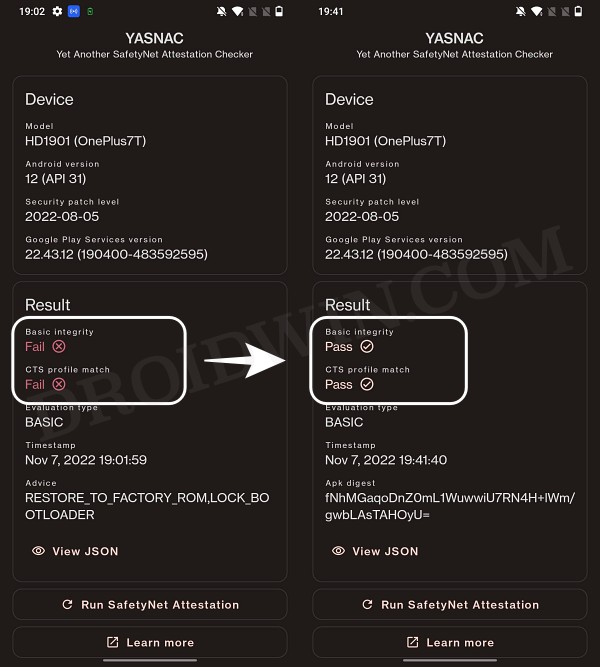
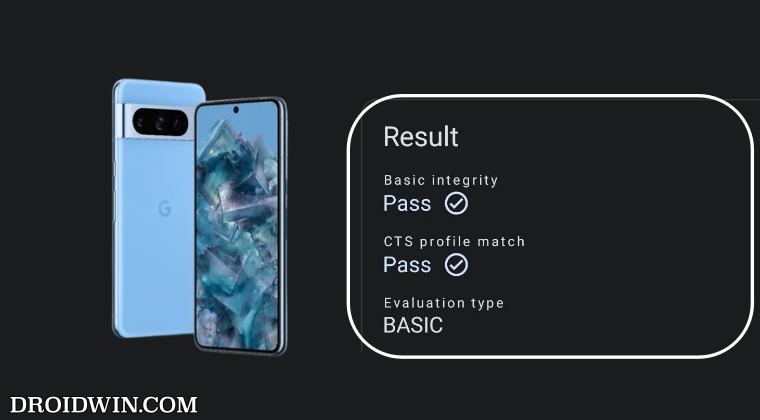
However, we managed to find a workaround that helped us pass this test with ease . Fast forward to this year, Google introduced the Play Integrity Test and has instructed every app to incorporate its API by January 2025. At the time of writing, many banking and payment apps have already shifted over to this test.
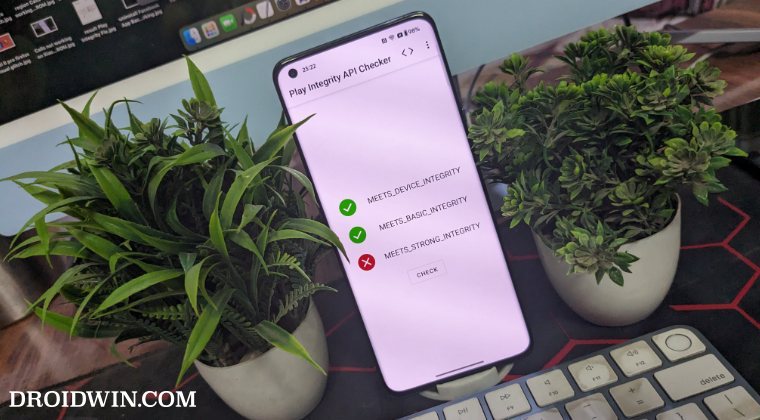
As before, if your device is rooted, then you will fail this test, thereby resulting in your inability to use banking apps. Fortunately, we once again managed to get hold of a method to bypass this test . Google then took a step further and patched our tweak only for us to bypass it once more! Until now. The Silicon Valley giant has finally taken the most extreme step to date which might finally spell the end of root for the tech enthusiasts.
- Google ‘Banning’ Fingerprints for Play Integrity: Is Hiding Root Impossible?
- How to Create and Use a Custom Fingerprint/Build.Prop to Pass Play Integrity One Click Method [Easiest] Create a New Fingerprint JSON File Manually Some Additional Tips on Creating Custom JSON Files Pixel Flasher Tool [Recommended]
- What if the Test Fails? Repeat and Repeat!
- Rooting and Custom ROMs: A Difficult Yet Achievable Journey Ahead!
- UPDATE: List of Fingerprints Build Prop Passing Play Integrity
Google ‘Banning’ Fingerprints for Play Integrity: Is Hiding Root Impossible?
Up until now, we were able to use the XDA Senior Member Chiteroman’s module to easily pass the MEETS_DEVICE_INTEGRITY and MEETS_BASIC_INTEGRITY, which are two prerequisites of the Play Integrity test. In hindsight, the module uses a fingerprint from one of the unpatched devices and the developer then uploads his mod over to GitHub. Since this mod is open source, anyone can easily decode it, including Google! And that is exactly what is happening.
While it might sound hard to digest why would Google end up utilizing a part of its resources towards this project which affects only about 3% of Android users, but trust us, that’s exactly what’s currently going on. The developer has tried out numerous combinations of fingerprints in its modules, including different OEMs, different Android versions, and even different custom ROMs [such as Evolution X].
However, every time a new module is released, Google tends to patch it straightaway, thereby leaving the developer with three options- either keep on playing this trial-and-error method, make the module closed source, or list out the instructions on how a user could create a custom fingerprint file and use it to pass this test.
The first approach was neither the most feasible nor the most viable for him [because he wasn’t earning anything from it and more importantly he has a life out of this modding community too!]. Likewise, making it a closed source might have raised a few eyebrows from some of the users [though judging by his reputation, that shouldn’t happen in the first place]. Henceforth, the third option is our best bet.
How to Create and Use a Custom Fingerprint/Build.Prop to Pass Play Integrity

There exist a couple of methods of getting this job done- the automatic and the manual way. In the automatic method, you would still need to carry out the first step from the manual method, but it will then take care of the rest of the steps. Moreover, please take a backup beforehand, just to be on the safer side. Droidwin and its members wouldn’t be held responsible in case of a thermonuclear war, your alarm doesn’t wake you up, or if anything happens to your device and data by performing the below steps.
One Click Method [Easiest]
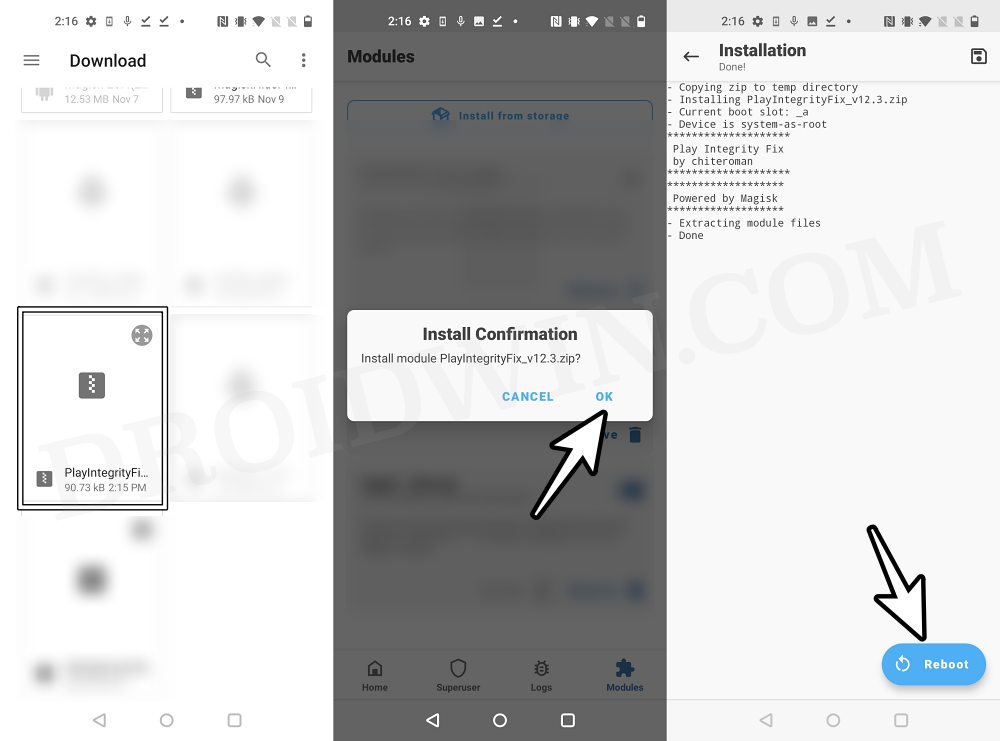
Well, we can’t thank chiteroman enough for this! He has just released a plug-and-play version of this module which would be the easiest and best method to opt for the generic users. All you need to do is get hold of this module v14.2 from GitHub , enable Zygisk, flash it via Magisk, and delete the data of Google Services Framework, Play Store, Play Service, and Play Protect Service [if present]. Here’s a detailed guide on the same , it’s highly recommended you check it out.
Create a New Fingerprint JSON File Manually
XDA Senior Recognized Developer Osmosis took this responsibility on his shoulders and has done quite an excellent job in listing out the steps on how you could create and use a custom.pif.json. Here are the instructions steps for the same:
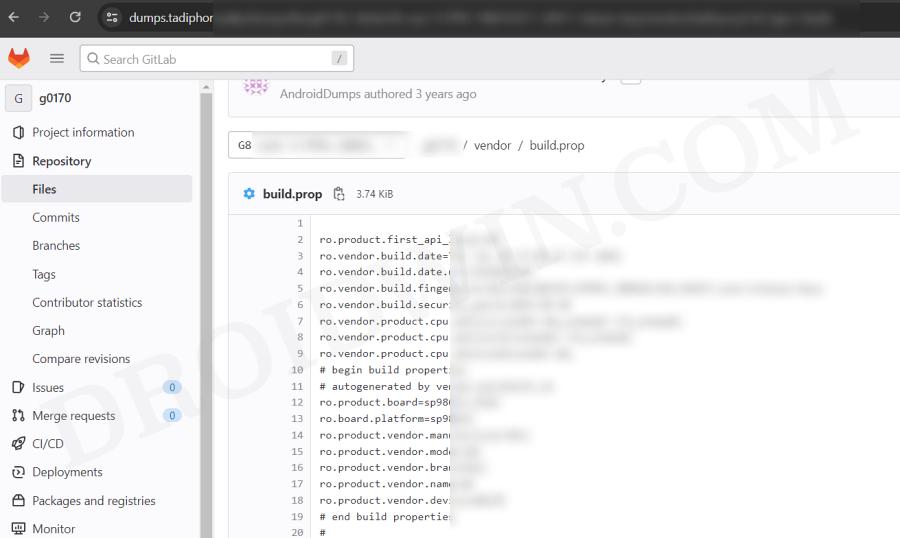
[Check out UPDATE section at the end of this guide!] First and foremost, download the stock ROM for a random device [see below], extract it, and get the system build.prop and/or product build.prop and vendor build.prop files from it. [In some cases, you could simply get hold of the firmware DUMP file directly on websites like Gitlab. So it’s better if you can find the dump because then you wouldn’t have the download the ROM and neither would you have to extract these files].
We cannot share these files/details publicly because Google will get hold of them and mass ban all of them at once [it has just happened with an Asus device. We managed to get an unpatched fingerprint from one of the Asus devices and used it to pass the Play Integrity Test. This worked for a few days before being ultimately patched by Google!]. Regarding “a random device” that we mentioned above, make sure to keep the following points in mind before you download its ROM:
- All older Nexus devices (Nexus 6/shamu and older) appear to be banned.
- Final release ROM builds of all no-longer-supported remaining Nexus and Pixel devices are banned.
- The device must have at least been upgraded to Oreo (Android 8) and should have come with at least an Android 6 or higher version out of the box.
- Devices launching with Pie (Android 9) or later might not work.
- In a nutshell, try to pick a combination of a device and its ROM which you don’t think many people will choose. This is because “The less obvious statistical data Google receives indicating a particular fingerprint is being abused, the fewer fingerprints will get banned”.
- Don’t go for the likes of Pixel, Samsung, Xiaomi, and other popular OEMs as most of their fingerprints have already been used or patched by Google. Instead, go for less-known brands such as Asus, Vivo, Oppo, or other Chinese brands that not many know about. Remember, the less popular a device is, the better your chance of passing the Play Integrity test!
Let’s now talk about the location of build.prop, product, and vendor.prop. In case of build.prop, it could be found at /system/system/build.prop or /system/build.prop. The product can be /product/build.prop and/or /product/etc/build.prop. The vendor is located in /vendor/build.prop or/system/vendor/build.prop.
In general, they’ll be ro.build.fingerprint + ro.product.* (older system build.prop), or, ro.system.build.fingerprint + ro.product.system.* (newer system build.prop) [or, ro.product.build.fingerprint + ro.product.product.* (product build.prop, only needed on devices where system build.prop contains “generic” values)].
From there, you’ll have to copy the following six values: PRODUCT (ro..name), DEVICE (ro..device), MANUFACTURER (ro..manufacturer), BRAND (ro..brand), MODEL (ro..model), and FINGERPRINT (ro..fingerprint). Optionally, also copy SECURITY_PATCH (ro.build.version.security_patch from system build.prop)
Any build prior to March 16, 2018 does not require a matching SECURITY_PATCH field, though adding it wouldn’t be of any harm. Moreover, do note that the date should be from the ro.build.date present in the system build.prop, instead of the AOSP base date in the fingerprint.
Now paste the copied values between the quotes of the corresponding fields in the template custom.pif.json sample shown below [it’s just a sample one that has already been banned by Google. So make sure to replace the values accordingly].
{

  "PRODUCT": "taimen",

  "DEVICE": "taimen",

  "MANUFACTURER": "Google",

  "BRAND": "google",

  "MODEL": "Pixel 2 XL",

  "FINGERPRINT": "google/taimen/taimen:8.1.0/OPM4.171019.021.R1/4833808:user/release-keys",

  "SECURITY_PATCH": "2018-07-05",

  "FIRST_API_LEVEL": "26"

}
Here’s another JSON file with slightly more information:
{

  "MANUFACTURER": "Google",

  "MODEL": "Pixel 2 XL",

  "FINGERPRINT": "google/taimen/taimen:8.1.0/OPM4.171019.021.R1/4833808:user/release-keys",

  "BRAND": "google",

  "PRODUCT": "taimen",

  "DEVICE": "taimen",

  "RELEASE": "8.1.0",

  "ID": "OPM4.171019.021.R1",

  "INCREMENTAL": "4833808",

  "TYPE": "user",

  "TAGS": "release-keys",

  "SECURITY_PATCH": "2018-07-05",

  "DEVICE_INITIAL_SDK_INT": "26"

}
Once you have got the required information, save it in a text file and rename it to custom.pif.json if you are using the fork of the original module [by Osmosis, which we are using] or pif.json [if you are using the original module by Chiteroman]. After that, you’ll now have to transfer the file to your device.
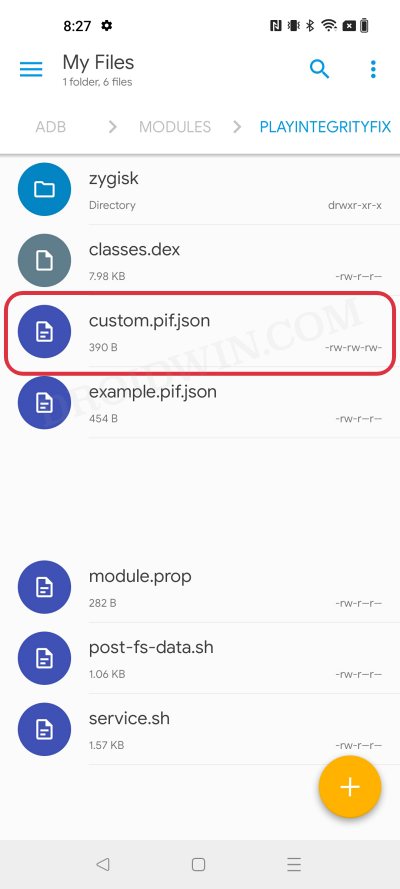
For that, you could either do so via the Pixel Flasher Tool as explained in the next section, or by copying your .json file to /data/adb/modules/playintegrityfix/custom.pif.json [for Osmosis, in our case] or /data/adb/pif.json [for Chiteroman]. Once done, restart your device and then check if it passes the Play Integrity Test using this custom fingerprint/build.prop! If it doesn’t, then you’ll have to pick a different fingerprint and retry this process.
Some Additional Tips on Creating Custom JSON Files
- Let’s say that a device was released with Android 8, and then it received subsequent updates to Android 9 and 10. This way you’ll be able to create three different fingerprint JSON files to test. However, most of the details will be the same in all those files, such as MODEL, BRAND, MANUFACTURER, and even the FIRST API LEVEL because the device was initially launched with Android 8, that fact isn’t going to change irrespective of the current OS.
- Moreover, there needs to be a comma after the end of every line in the JSON file, except the last line [as is evident from our above example.
- If you still have any doubts with regard to your JSON file, then you could use this JSON Validator and it will point out all the errors in your file, if any.
Pixel Flasher Tool [Recommended]
The tool supports two methods- it could either generate a random fingerprint JSON file for you or you could create and upload your own custom fingerprint. If you ask the tool to generate a JSON file for you, then it has a high chance of getting patched by Google as opposed to the one that you have created manually. However, as opposed to the manual creation, it will take a lot [and yes, we really mean a lot] of time and effort. So decide on this trade-off accordingly.
- To begin with, get hold of the build.prop file from the desired firmware version as explained above.
- Then download and extract Android SDK Platform Tools on your PC.
- After that, enable Zygisk via the Magisk’s settings menu and restart your device.
- Now download Pixel Flasher from GitHub and launch it [credits: XDA Recognized Developer badabing2003].
- Then click on Browse > navigate to the platform-tools folder and select it.
- Now click on Scan and select your device from the list.
- Then click Magisk > Install PIF module and select the desired one [we have chosen Osmosis].
- The latest version of the mod will now be installed. Once done, hit OK and click Reboot System.
- Once your device boots up, click on PIF Manager [it will be empty as of now].
- Now, if you want to opt for the Manual Method , then click on Process build.prop(s) , navigate, and select your build.prop files. The order of precedence is as follows: build.prop system-build.prop system.prop product-build.prop product.prop vendor-build.prop vendor.prop Any other prop file
- The tool will now read these files and bring up the output something as shown in the below screenshot.
- On the other hand, for Automatic Method , click on the Get TheFreeman193 Random Pif button. It will populate the output window with the data from a random device.
- Once done, click on the Paste button next to Output and the data will be populated under the Active PIF section.
- At this stage, you should see the red warning next to Active PIF. This just indicates that the contents of the Active PIF window are not the same as the contents on the device.
- So click on Create PIF.json and the file will be transferred to your device. Likewise, the red warning should now turn gey, meaning the content of PIF widow is the same as that on your device.
- Finally, download and install a SafetyNet Checker app out of the four listed there. As of now, we are going ahead with Play Integrity API Checker.
- So click on Play Integrity check. It will launch the Play Integrity API Checker app, perform the test, and display the result in the output window.
- If it passes the device integrity and basic integrity tests, then congrats, you have found the needle in the haystack! But what if the test fails? Let’s find out.
What if the Test Fails? Repeat and Repeat!
- If you have chosen the Manual Method and failed the test, then you’ll have to get hold of a new JSON file from different firmware and repeat the above steps. Do so until you get the right JSON file that passes both these tests.
- If you have chosen the Automatic Method , then in that case, click on the Get TheFreeman193 Random Pif button > click on Paste next to Output. Then click on Update PIF.json > Play Integrity Check. It will perform the check and display the result. Keep on carrying out these processes until you achieve success.
Moreover, as soon as you find the right fingerprint JSON file, make sure to hit the heart icon and save that file. And please don’t share it with others as upon doing so, the chances of it getting into the hands of Google and subsequently nullifying it by the Silicon Valley giant increases tremendously. [So sharing is not caring in this case!].
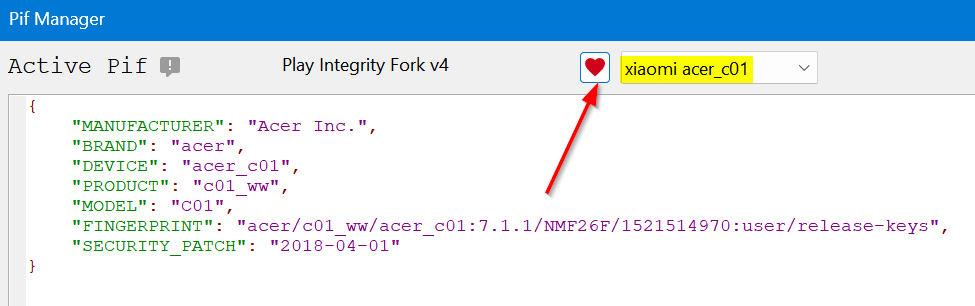
Rooting and Custom ROMs: A Difficult Yet Achievable Journey Ahead!
So this was all from this guide on how to use a custom fingerprint/build.prop and pass the Play Integrity Test. While we always believed in the “sharing is caring” motto, however, for once, let’s not adopt it in this case scenario. If you get hold of a working fingerprint and then end up sharing that with the rest of the users, then it will ultimately be patched by Google. So keep that unique build.prop with yourself and prevent it from getting caught by Google!
NOTE: Some or the other changes are being constantly implemented by Google at an alarming rate. Thankfully, the developers are always one step ahead and are testing out new ways of bypassing the patches enforced by the Silicon Valley giant. But this also means that you will witness changes to the modules at frequent intervals as well, so we will update this guide as and when that happens. Make sure to keep a tab on this post regularly. [Screenshots Credits, unless specified otherwise: XDA Recognized Contributor badabing2003].
UPDATE: List of Fingerprints Build Prop Passing Play Integrity
Well, we decided to do all the dirty work on your behalf by compiling a list of all the custom fingerprints/JSON/build props from the devices that pass the Play Integrity tests. However, make sure you’re the earliest adopter of these builds, or else, it won’t be long before others get their hands on them. With that said, even if these get patched by Google, we will generate a new one at the earliest. So make sure to keep a tab on the below linked guide frequently.
List of custom fingerprints/JSON/build prop that pass Play Integrity
- sonn 2 months ago Reply Send me XML file to pass device integrity
- Shadman 4 months ago Reply Hellloo pleaseee send keybox.xml Email : shadmanahmadixo@gmail.com
- Ameer 11 months ago Reply Send me XML file to pass strong integrity Skye 9 months ago Reply Please give me keybox.xml Thank you
- Milan Čížek 2 years ago Reply Hi, I have extracted all three build.prop (system,product,vendor) from original stock image – extracted all *.img via payload-dumper-go.exe from payload.bin + ext2explore.exe. But I am not able to load the prop to PIF Manager, it always ends with the error. File “pif_manager.py”, line 1051, in process_props AttributeError: ‘PifManager’ object has no attribute ‘first_api’ https://pasteboard.co/UioQok8ehMt9.png What is wrong? ro.product.first_api_level=30 is in vendor-build.prop ro.board.first_api_level=30 too
- Tjw 2 years ago Reply Thanks for this guide. I can finally get a working custom file. I appreciate this simplified explanation and it’s straight forward enough for me to get this working. Well done author!! Thanks
- Jonathan 2 years ago Reply get the system build.prop and/or product build.prop and vendor build.prop files from it. How? Milan Čížek 2 years ago Reply You have to download stock image for your phone and then extract them from system/product/vendor.img files. Swastik Singh 8 months ago Reply Pls XML file or file links to solve the issue of safety internet pass problem . in poco f5 matrixx os
- kryspus 2 years ago Reply hello, I have downloaded 4 differents rom, could you explain how to extract the system to get in to it? Thx
- kryspus 2 years ago Reply Hello i have hiting facing the wall while i wanted to unpack stock rom to see the right files. It’s looks like a quite a challenge, can i expect any advice here? It’s unbelievable how much GB’s i have to download from internet and a bunch of tools to get a few lines of code.
- Jimmy 2 years ago Reply Thank you for this guide. I have just discovered today that many of my apps are refusing to work because of this problem. Cheers
(Cancel Reply)
Δ
Pass Device, Basic, Strong Integrity via Play Integrity Fix
[UPDATE: You can now pass the Strong Integrity Test as well!] In this guide, we will show you the steps to pass the “Meets Device Integrity” and Meets Basic Integrity” tests on your rooted device via the Play Integrity Fix module. Gaining administrative privileges by rooting your device via Magisk opens the floodgates to a plethora of customizations. But on the flip side, it does pave the way for the entry of a few issues as well, the primary among which is the tripping of SafetyNet.
Once that happens, you wouldn’t be able to use banking and payments, and even the likes of Uber and McDonald’s! So to rectify it, we already have got ourselves covered with a comprehensive guide on how you could pass the SafetyNet Test. After carrying out all the steps listed there, you’ll be able to easily use all the aforementioned listed apps. So this then begs an important question- why is there a need to pass the “Meets Device Integrity” and Meets Basic Integrity” tests? Let’s find out.
- What is Play Integrity?
- What is the Difference between Play Integrity and SafetyTest
- How to Pass Basic, Device, and Strong Play Integrity [Legacy and Android 13+][NEW]
- How to Pass Strong Integrity using Revoked/Banned Keybox File
- How to Pass ‘Meets Device and Basic Integrity’ Tests [Not Strong]
- How to Pass Basic and Device Play Integrity [Old]
- Using Custom Fingerprints/Build.Prop JSON File to Pass Play Integrity
- How to Pass Play Integrity on Rooted Android Without PC! Via FP Downloader Via AutoPIF-Next
- Using Custom Fingerprint/Build.prop to Pass SafetyNet
- How to Pass Play Integrity when Rooted via KernelSU
- How to Pass Play Integrity via APatch
- How to Pass Play Integrity via Magisk Kitsune
- How to Check if my Device is passing Play Integrity Test Via Play Store Using Third-Party Apps
- My Device is Failing MEETS_STRONG_INTEGRITY
- My Device is Passing SafetyNet but I Cannot Use Banking Apps
- How to Pass Play Integrity Test on Xiaomi EU ROM
What is Play Integrity?
Play Integrity is an API that is used by numerous applications to determine the device’s compatibility and security state. At the time of writing, many apps still use the SafetyTest, but many apps are ditching this tool and moving towards Play Integrity, with January 2025 being the deadline set by Google.
Once that time frame is reached and apps haven’t yet adopted Play Integrity, then there wouldn’t be any impact on your side [infact you will be the beneficiary as apps wouldn’t be able to check if your device is rooted or not, hence you’ll be able to use banking apps even on a rooted device!].
What is the Difference between Play Integrity and SafetyTest
Most of the underlying aspects of both the Play Integrity and SafetyNet are near about similar, it’s just the responses that have been made a bit simpler in the former. But the major differences arise in the types of tests being conducted and more importantly, the results that you would be obtaining. As far as the SafetyNet tests are concerned, there exists the Basic Integrity and CTS Profile Match, and your device should pass both of these tests.
However, things aren’t the same on the other side of the fence. In Play Integrity, there are three tests performed- MEETS_DEVICE_INTEGRITY, MEETS_BASIC_INTEGRITY, and MEETS_STRONG_INTEGRITY, out of which your device should pass the MEETS_DEVICE_INTEGRITY and MEETS_BASIC_INTEGRITY. But why not the Strong Integrity?
Well, your device will not be able to pass the MEETS_STRONG_INTEGRITY until and unless the device’s bootloader is locked. Since that is not a possibility [because you cannot lock the bootloader on a rooted device], this test will always fail on your rooted device. However, do note that this wouldn’t conflict with your ability to use banking and payment apps on rooted devices as they only require you to pass the “Meets Device Integrity” and Meets Basic Integrity” tests.
How to Pass Basic, Device, and Strong Play Integrity [Legacy and Android 13+][NEW]
Earlier, we could only pass the basic and device integrity. But now, we can even pass the Strong Integrity as well. While most of the banking apps still don’t require you to pass this third test, but there have been a few that do. Moreover, it is only a matter of time before this Strong Integrity becomes a requirement as well. So let’s pass it right away and be on the safer side. For that, do check out our guide on
How to Pass Strong Integrity on an Unlocked Bootloader Rooted Device!
Finally, the victory is ours!
UPDATE: There have been some changes to this rule with the introduction of Android 13+ Play Integrity Checks. Read this guide to know more on the same: What is New A13+ Play Integrity Check and How to Pass It
How to Pass Strong Integrity using Revoked/Banned Keybox File
Yes, that is very much possible. You can easily pass Strong Integrity using a revoked or banned keybox file. Just refer to the steps below and get the job done:
How to Pass Strong Integrity Using Revoked/Banned Keybox File
How to Pass ‘Meets Device and Basic Integrity’ Tests [Not Strong]
NOTE: Not every banking and payment app requires Strong Integrity. So if you are only passing Basic and Device and failing Strong, it might not be a cause of major concern.
Let’s now get started with the most important part of this guide- the steps to pass the “Meets Device Integrity” and Meets Basic Integrity” tests on your rooted device. Before starting, please take a backup of all the data on your device, just to be on the safer side. Droidwin and its members wouldn’t be held responsible in case of a thermonuclear war, your alarm doesn’t wake you up, or if anything happens to your device and data by performing the below steps.
NOTE: Apart from failing in the rooted stock ROM, the Play Integrity might also fail if you are using a non-rooted Custom ROM. In that case, you can either use the built-in keybox uploader and load an unrevoked keybox file or root your custom ROM and then use the keybox file. While rooting might create some additional issues with banking apps, but we will deal with that later on in this guide, let’s first pass the Play Integrity Test. So root your ROM and only then proceed with the below steps.
How to Pass Basic and Device Play Integrity [Old]
The below steps are for those devices that are rooted via Magisk. If your is rooted via KernelSU, then scroll further down the guide and head over to the “Pass Play Integrity when Rooted via KernelSU” section.
- Launch the Magisk App and tap on the settings icon situated at the top right.
- Then tap on Hide the Magisk App > Enable the toggle next to Allow apps from this source.
- Assign a new random name to this Magisk app and hit OK.
- It will now ask for a home-screen shortcut, tap OK [recommended].
- Then enable the toggle next to Enforce Denylist. Now tap on Configure Denylist.
- Then expand the following apps and checkmark all its services Google Play Service Google Play Store Google Service Framework Google Play Protect Service [if present]
- Likewise, do the same for the banking/payment apps of your choice.
- Once done, again go to Magisk’s settings menu and enable Zygisk.
- Now download the “latest version” [extremely important] of the Play Integrity Fix Module from GitHub.
- Then flash the module via Magisk and restart your device.
- Now delete the data of the Google Services Framework, Play Store, Play Service, and Play Protect Service [if present].
- Finally, delete the data of the banking/payment app of your choice.
- Once done, restart your device [compulsory] and then check out the result.
That’s it. Your rooted device should now pass both the “Meets Device Integrity” and Meets Basic Integrity” tests and you may verify the same via the steps given below. If you are still failing the test, then it means that the custom fingerprint that the module is using has been patched by Google. In that case, you should head over to our next section below. [Credits for this module: XDA Senior Member chiteroman].
Using Custom Fingerprints/Build.Prop JSON File to Pass Play Integrity
Google has picked up the pace and is quickly patching the fingerprints for many devices. While the developer is doing his best to update his module with a newer one, but there doesn’t seem to be any end to this cat-and-mouse game the module is also open source, so Google is able to easily view the fingerprint that is being used and it ends up patching it!].
Use Custom Fingerprint/Build.Prop to Pass Play Integrity Test
If you pick up a less popular & old device’s fingerprint and create a custom JSON file, you could then easily pass the Play Integrity test, though it requires a few hit-and-trial approaches, but it will be worthy of an effort. Moreover, if you take this approach, then the chances of Google patching that fingerprint are quite low. So if the aforementioned module isn’t giving out the desired results, then you may try out our above guide and create your own fingerprint.
How to Pass Play Integrity on Rooted Android Without PC!
Thanks to a new fork of the Play Integrity module by Chiteroman, you might be able to pass the Play Integrity Test even without using a PC, just via a single APK file! You just have to launch the app once and it will auto-generate a new fingerprint, implement it onto your device, and delete the data of GMS. Once that happens, you have to restart your device and check if you pass this test [explained in the next section].
If you don’t, then simply relaunch the app- it will again generate a new fingerprint and implement it on your device. You’ll have to keep on doing so until you can pass the test. So with that in mind, here’s how to use this app:
Via FP Downloader
- To begin with, enable Zygisk from the Magisk’s settings menu.
- Then download the playcurl.zip and Play Integrity Fix modules.
- After that, launch Magisk, go to Modules, and tap on Install from Storage.
- Now select the playcurl.zip mod and hit OK in the confirmation prompt.
- The module will be flashed. Now flash the Play Integrity Fix module.
- Once done, restart your device. Now, go to Settings > Apps > See All Apps.
- Then select Fp Downloader > Notifications and enable all the notifications.
- Now launch Fp Downloader and you’ll get a Magisk prompt, tap on Grant.
- Likewise, you’ll also get a notification that the new pif.json is implemented.
- Once that happens, check if your device is passing the Play Integrity or not.
- If it isn’t, then once again open the Fp Downloader and check out the result.
Note: You may also launch the app via a slightly more technical method, i.e. using Terminal. Here’s how:
- Download and install the Termux app from the Play Store.
- Then type in the below command and hit Grant in the SuperUser request. su
- Now just type in the below command to invoke the module. fp
- The module will now run and change the device’s fingerprint.
- Once that happens, check if you are passing the test or not.
- If you’re not, then again type in fp. Do so until you pass the test.
Via AutoPIF-Next
It also works on the same principle as the aforementioned one. When the Fingerprint is banned, you will only need to open the AutoPIF app and then check for Play Integrity Attestation, the app will download the new PIF.json on /data/adb/pif.json.
- To begin with, enable Zygisk from the Magisk’s settings menu.
- Then download the playcurl.zip and Play Integrity Fix modules.
- After that, launch Magisk, go to Modules, and tap on Install from Storage.
- Now select the playcurl.zip mod and hit OK in the confirmation prompt.
- The module will be flashed. Now flash the Play Integrity Fix module.
- Once done, restart your device and install the AutoPIF-Next app .
- Then go to Settings > Apps > All Apps > AutoPIF-Next > Notifications and enable all the notifications.
- Now launch AutoPIF-Next and you’ll get a Magisk prompt, tap on Grant.
- Likewise, you’ll also get a notification that the new pif.json is implemented.
- Once that happens, check if your device is passing the Play Integrity or not.
- If it isn’t, then once again open AutoPIF-Next and check out the result.
Using Custom Fingerprint/Build.prop to Pass SafetyNet
if the aforementioned method didn’t spell out success, then it could be attributed to the fact that Google has patched that fingerprint/build.prop. In such cases, you will have to get hold of the fingerprint/build.prop from a less popular device+firmware version that hasn’t been used by many [a few Chinese phones out there in the market might checkmark this requirement].
Use Custom Fingerprint/Build.Prop to Pass Play Integrity Test
In this regard, there are three different methods of getting this job done- one click, automatic, and manual. Go through each of them once listed in the above guide and then try out the one that is in sync with your requirement.
How to Pass Play Integrity when Rooted via KernelSU
If you have rooted your device via KernelSU instead of Magisk, then passing the Play Integrity Test involves a slightly different approach. This is because enabling Zygisk is one of the paramount prerequisites of the Play Integrity Fix module but since KernelSU doesn’t have it built-in, we will have to take the help of a module to get this job done. Follow along:
- First off, download the Zygisk Next module from its GitHub page.
- Then launch KernelSU, go to Modules, and hit the Install button.
- Select the Zygisk Next module and it will be flashed on your device.
- Now, download the Play Integrity Fix module from its GitHub page .
- Similarly, flash this module as well and after that restart your device.
- Now, delete the data from the following Google Apps [it’s compulsory] Google Play Store Google Play Service Google Play Protect Service Google Services Framework [if present]
- Finally, restart your device once again and then check out the results.
How to Pass Play Integrity via APatch
If you have obtained root via APatch, then the process to pass the Play Integrity test will be somewhat different when compared with Magisk [because as opposed to the latter, the former does not have a built-in Zygisk]. On the flip side, both the KernelSU and APatch follow the same approach to pass this test [as they both have the same kernel approach for rooting and neither of them comes with a built-in Zygisk]
- First off, download the Zygisk Next module from its GitHub page.
- Then launch APatch, go to Modules, and tap on the Load button.
- Select the Zygisk Next module and it will be flashed on your device.
- Now, download the Play Integrity Fix module from its GitHub page .
- Similarly, flash this module as well and then restart your device.
- Now, delete the data from the following Google Apps [it’s compulsory] Google Play Store Google Play Service Google Services Framework Google Play Protect Service [if present]
- Finally, restart your device once again and then check out the results.
How to Pass Play Integrity via Magisk Kitsune
Magisk Kitsune is an unofficial fork that beholds a few additional tweaks when compared with its official counterpart. Some of the noteworthy ones include the likes of MagiskHide, SuList, and the new Zygisk loading mechanism. So if you have obtained root via Kitsune and are looking to pass the Play Integrity/SafetyNet test, then the steps are slightly different from the official Magisk app and hence we have decided to compile it separately. Follow along.
- Launch the Magisk Kitsune App and tap on the settings icon situated at the top right.
- Then tap on Hide the Magisk App > Enable the toggle next to Allow apps from this source.
- Assign a new random name to this Magisk app and hit OK.
- It will now ask for a home-screen shortcut, tap OK [recommended].
- Now enable the toggle next to MagiskHide and go to Configure MagiskHide.
- Then checkmark the following apps [and all their associated services too] Google Play Store Google Play Service Google Play Protect Service Google Services Framework [if present] Banking/Payment Apps of your choice
- Now download the Play Integrity Fix Module from GitHub and flash it via Kitsune.
- Then delete the data of the following apps: Google Play Store Google Play Service Google Play Protect Service Google Services Framework [if present] Banking/Payment Apps of your choice
- Finally, restart your device [compulsory] and then check out the result.
- You should now pass both the Play Integrity as well as SafetyNet tests.
How to Check if my Device is passing Play Integrity Test
There are two different methods of checking if your device is passing the Play Integrity Test or not- via Play Store and using a third-party app. Let’s make you aware of both these approaches:
Via Play Store
- Launch Play Store > tap on your profile at the top right > Settings > About.
- Now tap on Play Store version 8 times. This will enable Developer Options.
- Then go to Settings > General > Developer options > tap on Check integrity.
Using Third-Party Apps
You could also get this job done via third-party apps like Play Integrity API Checker [which only checks for Play Integrity] and TB Checker [which would additionally check for traces of rooted apps present on your device].
My Device is Failing MEETS_STRONG_INTEGRITY
As mentioned before, as long as your device’s bootloader is unlocked, it will fail the MEETS_STRONG_INTEGRITY check. That is not a cause of any concern as you’ll still be able to use the banking apps without any issues. But if for some reason, you wish to pass this test, then your only course of action is to remove all modules, unroot your device, and then relock the bootloader. you’ll have to get this job done using an unrevoked keybox XML file .
My Device is Passing SafetyNet but I Cannot Use Banking Apps
If your device is passing SafetyNet and you still cannot use a banking or payment app, then this is happening because that app has already ditched this test and moved over to Play Integrity. So you’ll now have to pass the Play Integrity test to be able to use the app again.
How to Pass Play Integrity Test on Xiaomi EU ROM
Passing the Play Integrity Test on your Xiaomi EU ROM might be a tad bit different. So do refer to our below-linked guide [with video instructions] to get this job done:
Google Pay not working in Xiaomi EU ROM: Play Integrity Fix
- Pass SafetyNet on Rooted Android 12/13/14
- Fix SafetyNet Device Integrity Failing, Wallet not working
- How to Pass SafetyNet on any Rooted Custom ROM
- How to Pass SafetyNet on Rooted Xiaomi EU ROM [Video]
- Pass Safetynet on Rooted LineageOS ROM [Video]
- James 4 months ago Reply Hello can you send me the xml file? Thank you.
- felipe 4 months ago Reply Could you please send me a keybox?
- KRISHAN 7 months ago Reply Please send me the keybox file.
- MORGON 7 months ago Reply Please send me the keybox file….
- Sam 8 months ago Reply Please send me the keybox file
- greg 9 months ago Reply can i have a unbanned, unrevoked keybox file please
- Seans 9 months ago Reply send me keybox god bless 😊
- Sean 9 months ago Reply send me keybox god bless 😊
- Divyanshu 9 months ago Reply Please share the keybox file
- sajad hussain 11 months ago Reply Hellk sir, please send me that keybox.xml file… Its a request
- khan inayat 11 months ago Reply plz share the keybox
- Sandeep 1 year ago Reply Kindly share keybox file for my Redmi note 8 Lineage OS installed and rooted with magisk canary
- Mukesh 1 year ago Reply I appreciate man this is one of the best site and YouTube also thanks
- Sachin 1 year ago Reply Play integrity fix for ROOT
- SURAJ RAM DAS 1 year ago Reply Please Send me the keybox xml
- Sintu 1 year ago Reply Thanks for strong integrity pass. Share keybox.xml file Saim kaushal 9 months ago Reply Plz send me strong integity pass send keybox. xml file
- Sahil 1 year ago Reply Keybox give me plzzz help sir
- picses 1 year ago Reply Thank you for the guide. Does this method work on LineageOS 21? I am planning to install it on my OnePlus 6T.
- JJ 1 year ago Reply Thanks so much!! As at 16 August 2024 my rooted S22 Ultra suddenly stopped working with Google Pay. I checked with Play Integrity API Checker and it was failing Device Integrity. I simply followed these steps 5-13 and now Play Integrity API Checker is showing a pass for the top two. It’s annoying that it doesn’t pass ‘strong integrity’ but it seems it doesn’t need that for anything I do… How does one get it to pass strong integrity? Sadique Hassan 1 year ago Reply There’s this open source Tricky Store module that will let you pass even the Strong Integrity and spoof the Bootloader as locked. However, it requires an Unrevoked hardware keybox or a leaked one, both of which is proving to be quite difficult to find as of now. But as soon as I get hold of them, I’ll update this post and add a new video on the same as well.
- Aziz çifçi 2 years ago Reply Hello, the bootloader is unlocked on my phone. I want to use the Uberdriver application, but I cannot use it. Can you help me with this? How can I hide the bootloader lock from this application? I am using a fake location program. Can you please help me with the uber driver application?
- Just install PlutoTV instead of peacock. ASFAIK PTV now has the same chans content and VOD streams 2 years ago Reply mmee
- DWP 2 years ago Reply Hello and thanks for this helpful post… I am, however, still a little stuck… This is on a rooted, Android 9 LG V40 – if that makes any difference. I went the the process and the Integrity Checker app now shows it meets basic. But the other two still fail. If I understand the strong should NOT pass due to unlocked boot loader. But the Device should pass. The YASNAC app says it passes both Basic and CTS profile (where previously it pass neither). So I feel I am doing something wrong here but I am not sure what that might be. My basic problem here is not really banking apps. But I have found that, increasingly, Play Store is showing that apps are “not compatible” when trying to install on a rooted device. This, for example, is the case with the Peacock TV app. And I really need to get around this. So any suggestions you might have are greatly appreciated. Thanks again!
(Cancel Reply)
Δ

