Peacock App Crashing and Freezing: How to Fix
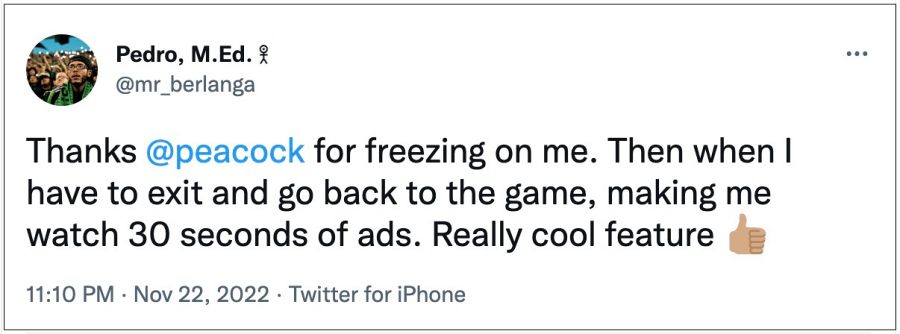
In this guide, we will show you various methods to fix the Peacock app crashing and freezing issue. This over-the-top video streaming service beholds a slew of content from numerous providers. As of now, it is also streaming the ongoing FIFA World Cup, apart from the weekly WWE telecasts. However, it is currently giving out a tough time to many users.
- Fix Peacock App Crashing and Freezing FIX 1: Force Stop App FIX 2: Delete App Cache FIX 3: Update App to the Latest Version FIX 4: Remove Battery Restrictions FIX 5: Reset App Preferences FIX 6: Delete App Data FIX 7: Reinstall App FIX 8: Downgrade App to Earlier Version
Fix Peacock App Crashing and Freezing

It is recommended that you try out each of the below-mentioned workarounds and then see which one spells out success for you. So with that in mind, let’s get started.
FIX 1: Force Stop App
First and foremost, you should force stop and then manually restart the app. Doing so will refresh all its underlying processes and it will give it a fresh instance to work upon. And this in turn might rectify the underlying issue as well. So refer to the below steps to try it out:
- To begin with, head over to the Settings menu on your device.
- Then go to Apps > See All Apps and select the required app from the list.
- Now tap on Force Stop followed by OK in the confirmation dialog box.
- Check if it fixes the Peacock app crashing and freezing issue.
FIX 2: Delete App Cache
Next up, consider deleting the app’s temporary data as well. If a lot of these cache files get accumulated over the due course of time, then it might conflict with the app’s proper functioning and could also slow down its usability. Therefore, let’s put these files in the bin right away and then check out the results.
- To begin with, head over to the Settings menu on your device.
- Then go to Apps > See All Apps and select the desired app from the list.
- After that, go to the Storage section and tap on Clear Cache.
- Now verify if it fixes the Peacock app crashing and freezing issue.
FIX 3: Update App to the Latest Version
Using an old or outdated version could spell out trouble for the entire workability of the app. Moreover, the developers regularly release updates that rectify underlying bugs, bring in performance stability, and enhance its security. Therefore, it is recommended to be on the latest build of the app.
- So head over to the Play Store and search for that app.
- If an update is available, then download and install it right away.
- Check if it fixes the Peacock app crashing and freezing issue.
FIX 4: Remove Battery Restrictions
If you have put any battery restrictive measures in place, then the games and apps might have a tough time working in this restrictive environment. Therefore, you should consider removing all these roadblocks and then check out the results. Here’s how it could be done:
- First off, head over to the Settings > Battery section.
- Then go to Battery Saver and disable it, if it is enabled.
- After that, go to Apps > All Apps and select the desired app from the list.
- Then go to its Battery section and select either Optimized or Unrestricted.
- Check if it fixes the Peacock app crashing and freezing issue.
FIX 5: Reset App Preferences
In some cases, creating and implementing rules for an app might have an adverse impact on other apps installed on your device. So you should consider reverting all the app preferences to their default state. Doing so will reset the rules related to disabled and default apps as well as all the restrictions put in place (it will not wipe any app data) and will give you the stock settings to work upon. So let’s put this fix to the test and check out the results.
- Head over to the Settings > System menu on your device.
- Then go to Reset Options and tap on Reset App Preferences.
- After that, tap on the Reset Apps button in the confirmation dialog box.
- Check if it fixes the Peacock app crashing and freezing issue.
FIX 6: Delete App Data
If the app’s data gets corrupted, then its negative consequences will be felt across the app as a whole. In such cases, you have no choice but to delete that app’s data and then let it repopulate the same from scratch. Here’s how it could be done:
- Head over to the Settings menu on your device.
- Then go to Apps > See All Apps and select the desired app from the list.
- After that, go to the Storage section and tap on Clear Data.
- Then tap OK in the confirmation dialog box that appears. Now launch the app and set it up.
- Verify if it fixes the Peacock app crashing and freezing issue.
FIX 7: Reinstall App
If the app’s configuration and settings file get corrupted, then simply deleting the app’s data and cache might not be enough. In such cases, you will have to completely remove the app from your device and reinstall its fresh build. Here’s how it could be done:
- To begin with, head over to the Settings menu on your device.
- Then go to Apps > See All Apps and select the desired app from the list.
- After that, tap on Uninstall followed by OK in the confirmation dialog box.
- Now go to the app’s official listing page on Play Store and download its latest version.
- Then install the app, launch it and set it up.
- Check if it fixes the Peacock app crashing and freezing issue.
FIX 8: Downgrade App to Earlier Version
In some instances, the developer might roll out a buggy update, which could end up breaking the app’s entire functionality. Though they are usually quick to release a subsequent patch, but that rollout could still take around 3-4 days to arrive. And this is quite a long time frame.
So it’s better to downgrade the app to the earlier table version and remain on that build until the issue has been resolved. Likewise, you should also disable the auto-update feature of that app. Otherwise, Play Store will update the app back to the latest build which would end up nullifying the fix. So refer to the below instructions and implement this fix right away.
- To begin with, head over to the Settings menu on your device.
- Then go to Apps > See All Apps and select the desired app from the list.
- Now scroll to the end and tap on App Details. You will now be taken to that app’s Play Store page.
- So tap on the overflow icon situated at the top right and uncheck Enable Auto-updates.
- Once that is done, go back to Apps > See All Apps and select the desired app from the list.
- Now scroll to the end and note out its version number somewhere.
- After that, tap on Uninstall followed by OK in the confirmation dialog box.
- Once done, head over to a trusted third-party site and download an older version of that app (re-verify it from step 3 above).
- Now just install that APK file (enable Installation from Unknown Sources, if asked). That’s it.
- Jio Cinema FIFA World Cup 2022 Lag: How to Fix
- Plex Live TV streaming not working on Apple TV: How to Fix
- How to Stream or Play Music from a Phone through a PC Speaker
- Fix An error has occurred DP-4040: Fire TV Live Stream

(Cancel Reply)
Δ
