Philips Hue not working with Apple HomeKit: How to Fix
In this guide, we will make you aware of various methods to fix the Philips Hue not working issue with Apple HomeKit. These wireless color-changing LED lamps and white bulbs from Philips have managed to create a niche segment for themselves. Being the first smart bulb in this domain, it made full use of the first-mover advantage.
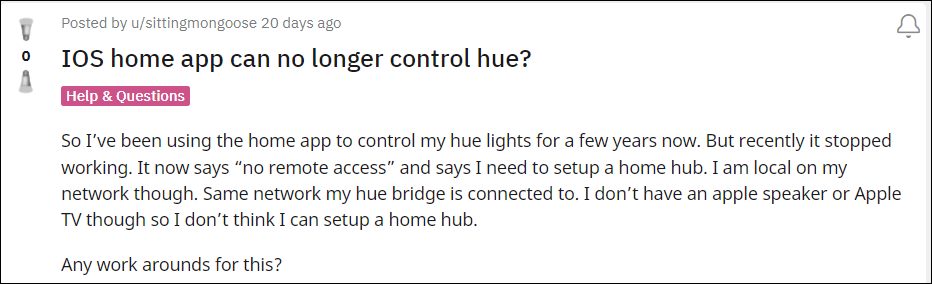
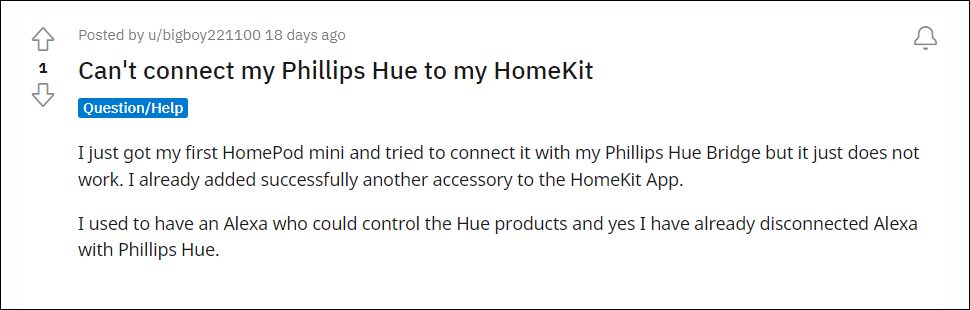
Various users have voiced their concern that the Philips Hue not working issue with Apple HomeKit. Ths inability to control their smart-home appliance using their Apple device is giving a tough time to the end-users. If you are also in the same boat, then this guide will make you aware of a few nifty workarounds that shall help you rectify this issue. Follow along.
- How to Fix Philips Hue not working with Apple HomeKit FIX 1: Network Tweak FIX 2: Toggle Philips Hue FIX 3: Reset HomeKit
How to Fix Philips Hue not working with Apple HomeKit
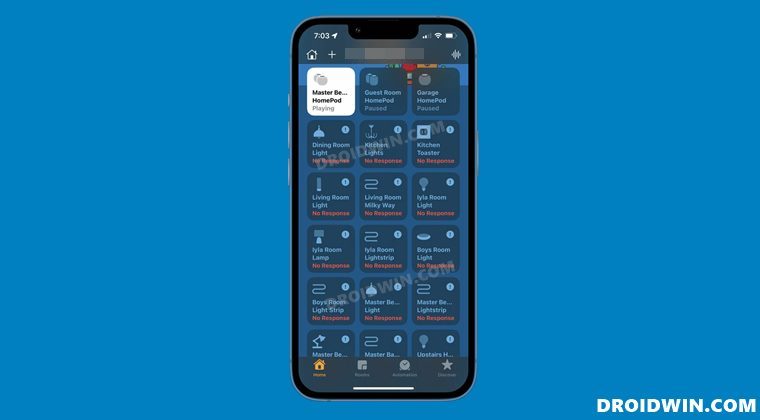
Do note that there’s no universal fix as such. You will have to try out each of the below-mentioned workarounds and see which one works best in your favor. So with that in mind, let’s get started.
FIX 1: Network Tweak
If you have any other smart devices manufactured by Apple, then make sure to connect them all to the same network. One of the affected users did manage to resolve this issue after connecting his HomePod to the same network to which his Hue and the HomeKit were connected. So try out this network tweak and check if it fixes the Philips Hue not working issue with Apple HomeKit.
FIX 2: Toggle Philips Hue
Your next course of action should be to disable and then re-enable the Philips Hue via the HomeKit. Here’s how it could be done:
- To begin with, go to the Settings app under Privacy > HomeKit.
- After that, disable the toggle next to Hue and restart your iPhone.
- Once it boots up, go back to Settings and turn on the toggle next to Hue.
- Check if it fixes the Philips Hue not working issue with Apple HomeKit.
FIX 3: Reset HomeKit
If none of the methods worked out in your favor, then your last course of action should be to reset the HomeKit to its factory default state. Do note that doing so will remove all the settings and customizations that you would have done to date. So sync its data with your account beforehand and then only proceed with the below steps.
- Launch the HomeKit app on your device.
- Then tap on the home icon is situated at the top left.
- Scroll to the bottom and tap on Reset HomeKit.
- Reply in the affirmative in the confirmation dialog box.
- Once done, set up the app from scratch and then test out the results.
- Fix Apple TV app not working on Roku: Video not available error
- Fire TV Stick Stuck on Downloading the latest software [Fixed]
- Samsung SmartThings App Login Issue on iOS: How to Fix
- Netflix not working on LG Smart TV: How to Fix

- Jasper 3 years ago Reply Many thanks for this advice but non of it worked. I use to manage one of the worlds largest hosted archives and think I’m pretty proficient at finding these App bugs, but. It this time. I’ve tried deleting Apps, resetting them, getting a new bridge, but non of it has worked. I’m sure it’s an Apple fault and Since Tim Cock has taken over the place has nose dived and been led by accountants. Shame… second time Steve’s great company has been wrecked by people who have no clue and no passion.
- Andrew McHale 4 years ago Reply None of these fixes my issue. I’ve been in contact with Philips for about 1 week, same answers they gave. Just tried manually adding the bridge to home kit to no avail. Most likely an iOS issue as hue app works fine and google Assistant works fine as well. Oliver 3 years ago Reply There seem to be more restrictions on names in HomeKit than in Hue. If/when HomeKit encounters a name it can’t process it aborts the remainder of the installation resulting in either a partial or empty installation. If the Hue bridge has been used with 3rd party apps that installed objects on the bridge these may also cause the installation to fail during device enumeration. When necessary clean the bridge’s memory. This will be like starting over with a newly purchased bridge. Use short names using letters numbers and spaces, do not use punctuation marks emojis multilingual keyboard characters etc.
(Cancel Reply)
Δ
