Photos not getting deleted, rather saved as .trashed [Fix]
In this guide, we will explain to you the potential cause and then list out the fix for the issue wherein photos are not getting deleted but instead are being saved as .trashed. This issue has been initially reported by numerous Galaxy S23 Ultra users and shortly after the S23 and S23 Plus also joined in the affected party list. Most of the user reports that we went through had one thing in common- most of them were using a Google Camera Port aka GCam.
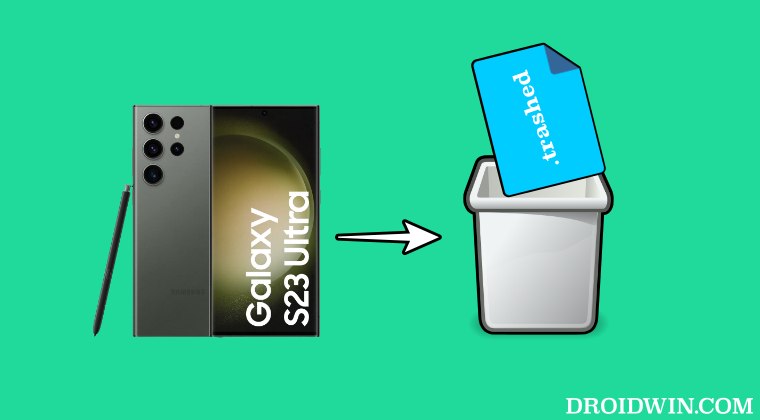
So issues such as these are quite common in GCam ports or their configuration XML files. However, upon further investigation, we found out that the Google Camera was infact not the culprit. To further cement our claim, we came across a few users who were using the stock Samsung camera app and were still getting bugged by this issue. So if you are also currently facing this issue, then this guide will help you rectify it. Follow along.
Fix Photos not getting deleted, but rather saved as .trashed
It might come as a shocker to some of you but the culprit behind this issue is the Google Photos app. If you own a Samsung Galaxy device [especially the newer ones] and delete the photo via it, then instead of actually getting deleted, it gets saved as .trashed. So when it comes to deleting photos, you should ditch the offering from Google and use any other gallery app.
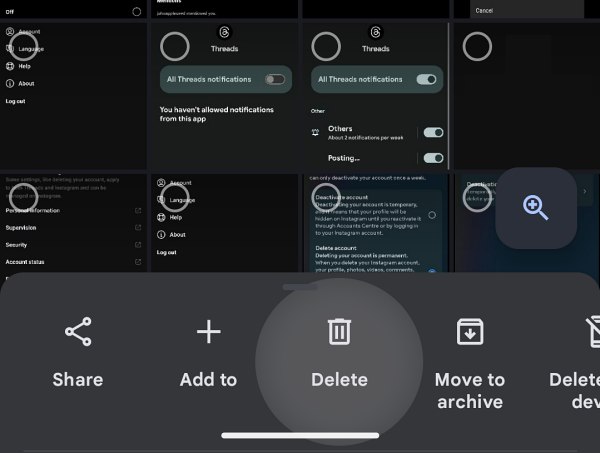
Since most of you might be using Photos as the default gallery app so switching over to another one just for the sake of deleting images might call for unnecessary effort, however, as of now, this is the only way out. This issue is going on for over two years but till now hasn’t been acknowledged by the Silicon Valley giant, so you should expect any rectification measures in the near future. However, as and when [and if] that happens, we will update this post accordingly.
- How to Change CSC to US Carrier on Galaxy S23 Ultra
- Fix Bootloop after Rooting Galaxy S23 Ultra
- Fingerprint Scanner Icon missing from Galaxy S23 Ultra [Fix]
- Hey Google command not working in Galaxy S23 Ultra [Fix]

(Cancel Reply)
Δ
Fingerprint Scanner Icon missing from Galaxy S23 Ultra [Fix]
In this guide, we will show you the steps to fix the issue of the Fingerprint Scanner Icon missing from the Galaxy S23 Ultra. The S series from the South Korean giant have established itself as the flagship flag-bearer in the Android domain. However, with great powers comes great responsibility and Samsung currently isn’t able to checkmark this accountability.
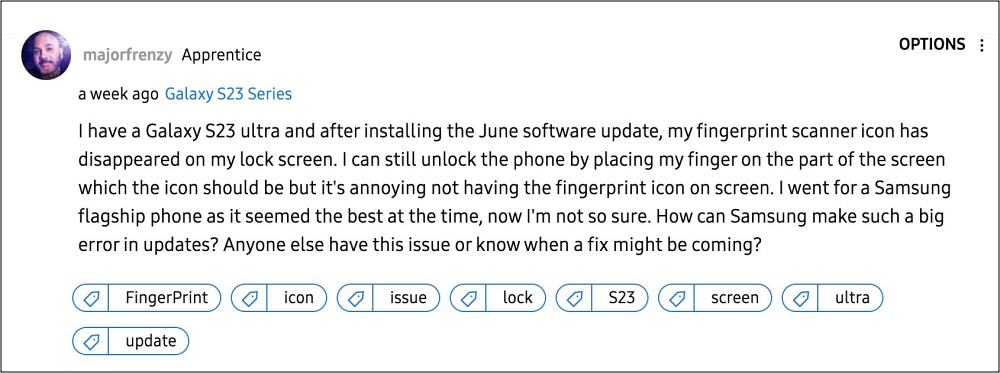
Its June update, on paper, should fix the underlying issues and enhance the overall performance of the OS but that seems to be far from the truth. Numerous users have voiced their concern that right after installing the latest June 2023 security patch, the Fingerprint Scanner Icon is missing from their Galaxy S23 Ultra.
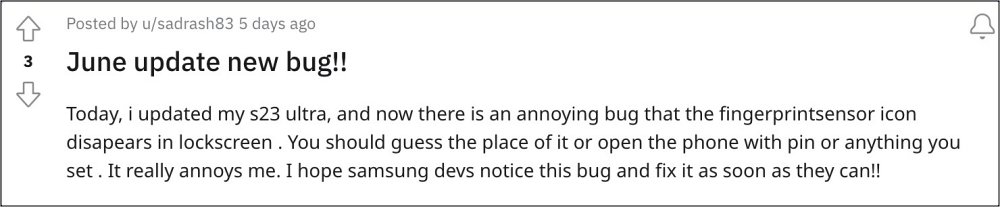
As a result of this, they have to randomly guess the position of the sensor on their screen after a plethora of tries, one of the attempts clicks and their device ultimately gets unlocked. On the other hand, some have bid adieu to this infuriating UI/UX behavior and switched to a different unlocking style altogether. If you don’t want to jump ships over to pattern or PIN, then this guide will help you rectify this fingerprint issue. Follow along.
Fix Fingerprint Scanner Icon missing from Galaxy S23 Ultra
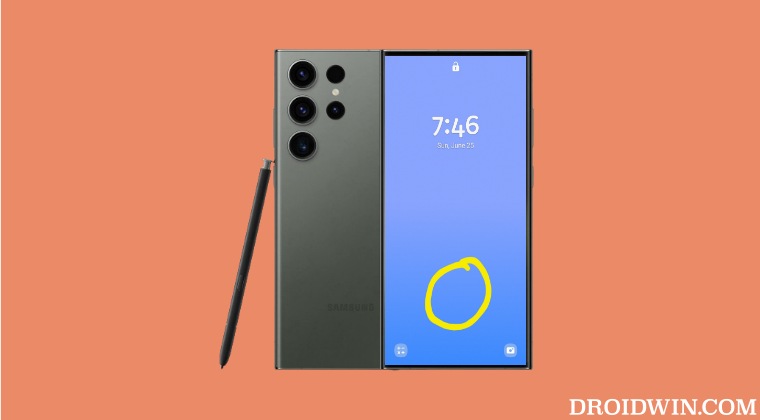
As of now, the only workaround that is spelling out success for the users involves enabling both the “Fingerprint always on” and “Show icon when screen is off” features, then waiting for a few seconds and disabling both these features. This should fix the issue of the Fingerprint Scanner Icon missing from the Galaxy S23 Ultra.
As far as the official stance on this matter is concerned, the developers are yet to acknowledge this issue, let alone give out any ETA for the rollout of a fix. As and when any of these two things happen, we will update this guide accordingly. In the meantime, the aforementioned workarounds are your best bet.
- Hey Google command not working in Galaxy S23 Ultra [Fix]
- How to Disable Camera Sound in Galaxy S23 Ultra
- eSIM not working on Galaxy S23 Ultra: How to Fix
- How to Set Different SIMs for Calls and SMS in Galaxy S23 Ultra
(Cancel Reply)
Δ
