Pin Folder to Quick Access in Windows 11: The Parameter is Incorrect [Fix]
In this guide, we will show you various methods to fix the “The Parameter is Incorrect” error when trying to pin a folder to Quick Access in File Explorer in Windows 11. One of the most handy and useful features of File Explorer is the ability to pin the most frequently accessed folders to its lelt menu bar. This way you will be able to easily access that specific folder in just a single click, rather than having to dig deep in the plethora of files, folders, and directories on your PC.
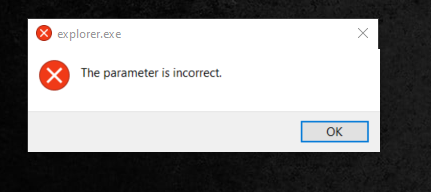
However, this is proving to be easier said than done for some users. They have voiced their concern that wherever they try to pin a folder in File Explorer’s Quick Access in Windows 11, they instead get greeted with the “The Parameter is Incorrect” error. If you are also in the same boat, then this guide shall help you out. Given here are a couple of nifty workarounds that shall help you fix the aforementioned error in no time whatsoever. So without further ado, let’s check them out.
- Cannot Pin Folder to Quick Access in Windows 11: The Parameter is Incorrect [Fix] FIX 1: Using Command Prompt FIX 2: Using File Explorer FIX 3: Unpin and Repin Everything
Cannot Pin Folder to Quick Access in Windows 11: The Parameter is Incorrect [Fix]

It is recommended that you try out each of the below-mentioned workarounds and then see which one spells out success for you. So with that in mind, let’s get started.
FIX 1: Using Command Prompt
One major reason why you are getting bugged with this issue is due to the folder getting corrupted. Therefore, you will have to delete all the files from that folder and let the OS repopulate them from scratch. To do so, launch Command Prompt as an administrator from the Start Menu and then execute the below command:
del /F /Q %APPDATA%\Microsoft\Windows\Recent\AutomaticDestinations
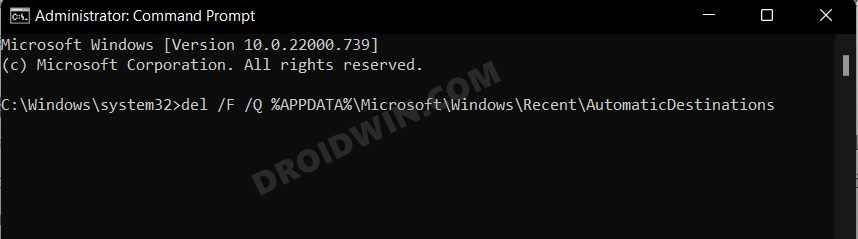
In the above command, the del keyword is for delete, F is force delete, and Q is Quiet Delete [no delete confirmation prompt]. Following it is the location from where we will be deleting the files. So as soon as you execute the above command, restart your PC [optional but recommended]. then check if it fixes the “The Parameter is Incorrect” error when trying to pin a folder to Quick Access in Windows 11.
FIX 2: Using File Explorer
Instead of automating this process via CMD, let’s now manually carry out the said task and check out the result.
- Bring up the Run dialog box via Windows+R shortcut keys.
- Then type in the below location and hit OK. %APPDATA%\Microsoft\Windows\Recent\AutomaticDestinations
- After that, select all the files via Ctrl+A and hit Delete.
- Now, wait for all the files to be deleted. Once done, restart your PC.
- Check if it fixes the “The Parameter is Incorrect” error.
FIX 3: Unpin and Repin Everything
If none of the aforementioned methods managed to spell out success, then your last course of action should be to unpin all the pinned items [including the ones pinned by the system such as Desktop, Downloads, Documents, and Pictures] and then re-pin them back one by one.
- So bring up the File Explorer via Windows+E shortcut.
- Then right-click on the pinned items and select Unpin.
- Do so for all the pinned items and then restart your PC.
- Now try pinning the folders, you wouldn’t face any errors.
- Add Open in New Tab in Windows 11 File Explorer
- Disable Quick Access in File Explorer in Windows 11
- Disable or Delete File Explorer Search History in Windows 11
- How to Backup and Restore Taskbar Pinned Items in Windows 11

- Eka Sanatani 2 years ago Reply Thanks for the help. Fix 1 returned error. Fix 2 solved the problem.
- Jesper Red 3 years ago Reply Thanks a lot. Fix 2 worked for me
- Hamza 3 years ago Reply The 2nd method worked! Thanks alot Mate.
(Cancel Reply)
Δ
