Pinch to Zoom not working on Pixel 4A [Fixed]
In this guide, we will show you various methods to fix the issue of Pinch to Zoom not working on Google Pixel 4A. The devices from the Silicon Valley giant are notoriously infamous for getting bugged with quite a few issues. To make matter worse, some of these issues take months before it gets rectified. However, that has been an issue that was first reported close to three years back and is yet to be addressed.
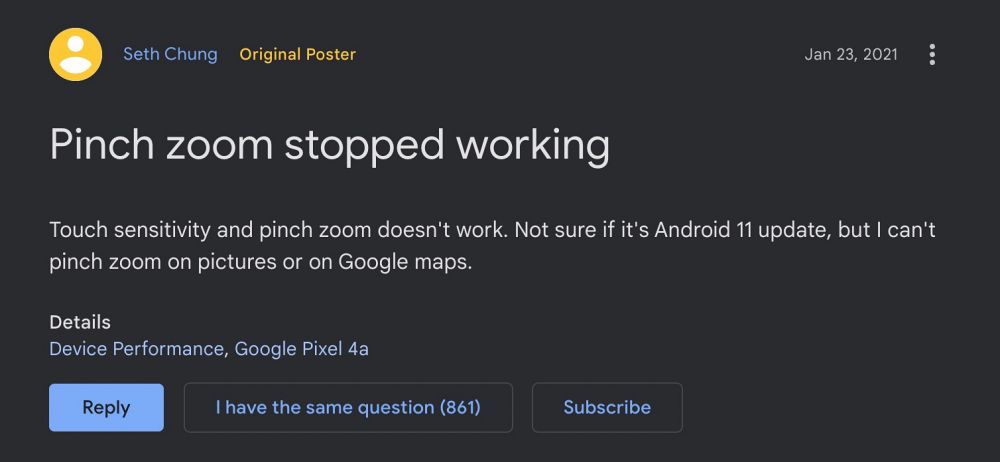
In this regard, users are voicing their concern even to this date that the Pinch to Zoom feature is not working on their Pixel 4A. As a result of this, users are unable to zoom across any content or app- whether it’s photos, text, email, web browsers, Google Maps, or camera. The issue first came to light when the device received the January 2021 security patch update and was running Android 11.
And it is still continuing with the October 2022 patch update when the device is running Android 13! With that said, there does exist a few nifty workarounds that should help you rectify this bug. So without further ado, let’s check them out.
- Fix Pinch to Zoom not working on Pixel 4A FIX 1: Reboot to Safe Mode FIX 2: Toggle Magnification FIX 3: Toggle “Touch and Hold Delay” FIX 4: Toggle “Pinch to zoom conversation text” FIX 5: Switch to Three-Button Navigation FIX 6: Update All Apps FIX 7: Carry out Camera Tweaks FIX 8: Power off Trick FIX 9: Reset your Device FIX 10: Downgrade Pixel 4A to Android 10
Fix Pinch to Zoom not working on Pixel 4A
It is recommended that you try out each of the below-mentioned workarounds and then see which one spells out success for you. So with that in mind, let’s get started.
FIX 1: Reboot to Safe Mode
In some instances, a third-party app or service might conflict with the normal functioning of your device. Therefore, you should consider booting your device to Safe mode so that all the third-party apps get disabled and then carry out the debugging process. here’s how it could be done:
- Long press the power button to bring up the Power menu.
- Then long tap on Restart to bring up the Safe Mode pop-up.
- Now tap OK and your device will boot to Safe Mode.
- Verify if the Pinch to Zoom is working on your Pixel 4A or not.
If the feature is working now, then the culprit is indeed a third-party app. So boot back to normal mode and then uninstall the recently installed apps after which the issue first came to light. This should rectify the bug.
FIX 2: Toggle Magnification
Next up, you should consider enabling and then disabling the Magnification Accessibiiy feature on your device and then check if it does any good. Here’s how:
- Head over to Settings > Accessibility > Magnification.
- Then enable the toggle next to Magnification Shortcut.
- You will now get a pink accessibility shortcut on your screen.
- Tap on it and the magnification will be active.
- Use it for a minute or two and then disable Magnification Shortcut.
- Check if Pinch to Zoom is working on your Pixel 4A or not.
FIX 3: Toggle “Touch and Hold Delay”
Yo should also consider stitching from the Short Touch and hold delay to Long and then reverting to Short. This will refresh its settings and could rectify the underlying issue as well. So refer to the below steps to give it a try:
- Head over to Settings > Accessibility > Timing Control.
- Then go to Touch and hold delay and select Long.
- Use your device for a couple of minutes.
- Then switch back to Short under Touch and hold delay.
- Check if it fixes Pinch to Zoom not working issue on Pixel 4A.
FIX 4:Toggle “Pinch to zoom conversation text”
If the pinch-to-zoom gesture is causing an issue or two with the messaging app, then you should consider disabling and then re-enabling its pinch gesture feature. here’s how it could be done:
- Launch the Messages app and tap on the overflow icon situated at the top right
- Then select Settings and go to General Settings.
- Now disable “Pinch to zoom conversation text”.
- Wait for a few seconds and then re-enable it.
- Check if it fixes Pinch to Zoom not working on Pixel 4A.
FIX 5: Switch to Three-Button Navigation
For some users, switching from gesture navigation to the traditional three-button style did the job for them. So give it a try using the below-given instructions and then check out the results:
- Head over to Settings > System > Gestures.
- Then go to System Navigation and select 3-button navigation.
- Check if it fixes Pinch to Zoom not working issue on Pixel 4A.
FIX 6: Update All Apps
Few users have reported that an older version of some apps was causing stability issues with the latest OS build. Upon updating all the apps to their latest version, the issue was rectified. So let’s give this fix a try and check out the results.
- Launch Play Store, tap on your profile, and select Manage apps and devices.
- Now tap on Update All under Updates Available and wait for the process to complete.
- Once done, check if it fixes Pinch to Zoom not working issue on Pixel 4A.
FIX 7: Carry out Camera Tweaks
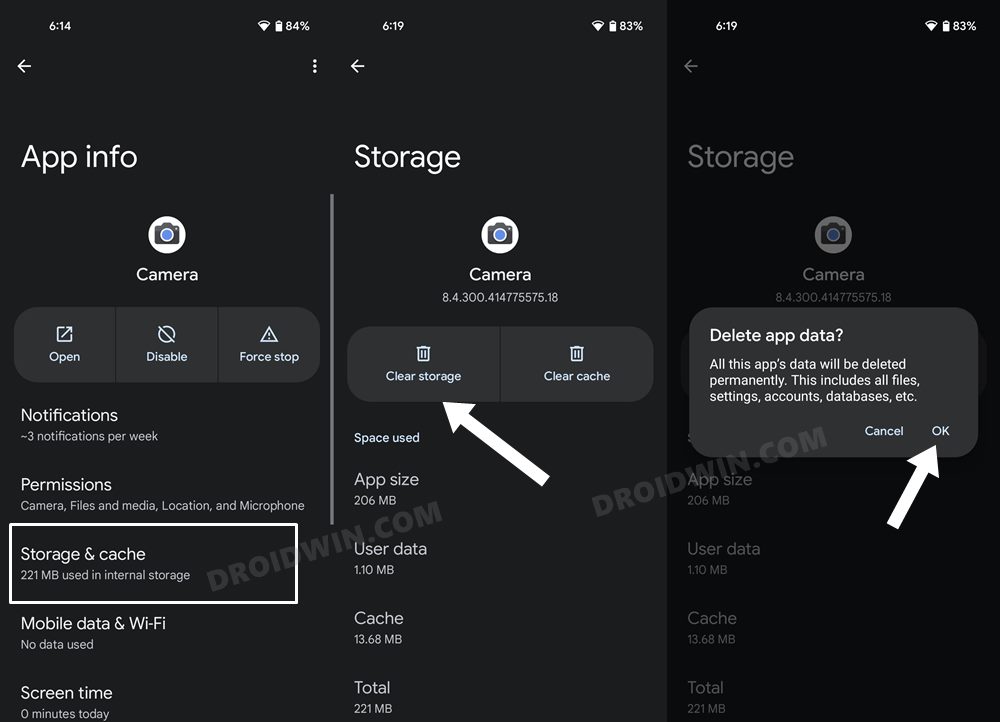
In some cases, the buggy pinch-to-zoom gesture of the camera app ended up affecting the OS’s capability to perform this function. Therefore, you should try out the camera related, including the likes of force-stopping the camera app, disabling and re-enabling it, and deleting its cache and data. All this has been explained in this guide, do check it out: Fix Camera not working on Android 13 [13 Fixes] .
FIX 8: Power off Trick
As strange as it may sound, but a couple of users did manage to fix this issue by performing a gesture when the device was switched off. Here’s how:
- First and foremost, turn off your device [do not plug in the charger either].
- Then zoom in to the edges of the screen and zoom out.
- Now restart your Pixel 4A and check if Pinch to Zoom is now working.
FIX 9: Reset your Device
In some instances, a corrupt data or configuration setting could also result in quite a few issues, including the one that we are currently dealing with. Therefore, you should consider resetting the device to the factory default state and then check out the results [take a data backup beforehand]
- Head over to Settings > System > Reset Options.
- Then tap on Erase All Data > Erase All Data.
- Wait for the reset to complete. Once done, set it up again.
- Now check if it fixes Pinch to Zoom not working issue on Pixel 4A.
FIX 10: Downgrade Pixel 4A to Android 10
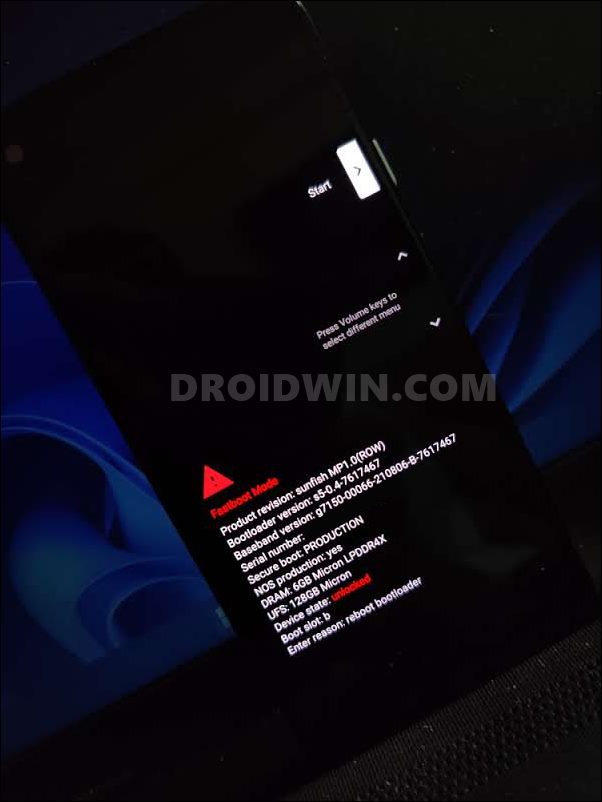
If none of the aforementioned methods spelled out success, then your last course of action shud be to downgrade your device to Android 10 [this was the last build free from this bug]. However, do note that this process requires an unlocked bootloader, which will wipe off all the data from your device and could nullify its warranty as well. If that’s well and good, then do check out our guide on How to Downgrade Pixel Devices via Android Flash Tool OR How to Downgrade Pixel Devices via Fastboot Commands .
That’s it. These were the ten different methods that shall help you fix the issue of Pinch to Zoom not working on Google Pixel 4A. As far as the official stance on this matter is concerned, the developers are aware of this issue, but they haven’t given out any ETA for the rollout of a fix [well, if it hasn’t done anything for the past three years, then don’t expect them to act now either]. As and when that happens, we will update this guide accordingly. In the meantime, the aforementioned workarounds are your best bet.
- SIM card not detected in Pixel 4A 5G after Android 13 update: How to Fix
- Install LineageOS 19 [Android 12] on Pixel 4A 5G [bramble]
- How to Install TWRP Recovery and Root Pixel 4A
- Fix Slow Fingerprint in Pixel 3a/4a/5a

- Shaya 3 years ago Reply BH Thank you so much for this article. Fix number six worked for me. I tried The earlier fixes, but to no avail. I then updated my apps and voila, zoom was back. Thanks again
(Cancel Reply)
Δ
Slow Fingerprint in Pixel 3a/4a/5a after March 2022 update [Fixed]
In this guide, we will show you various methods to fix the slow fingerprint issue in Pixel 3a/4a/5a series after installing the March 2022 update. While the latest flagships from the Silicon Valley giants have taken much of the limelight in recent months, the older ones aren’t left behind either. Pixel devices from the fourth generation onwards are already on the Android 13 bandwagon whereas the third generation has been blessed with its last major OS upgrade with Android 12.
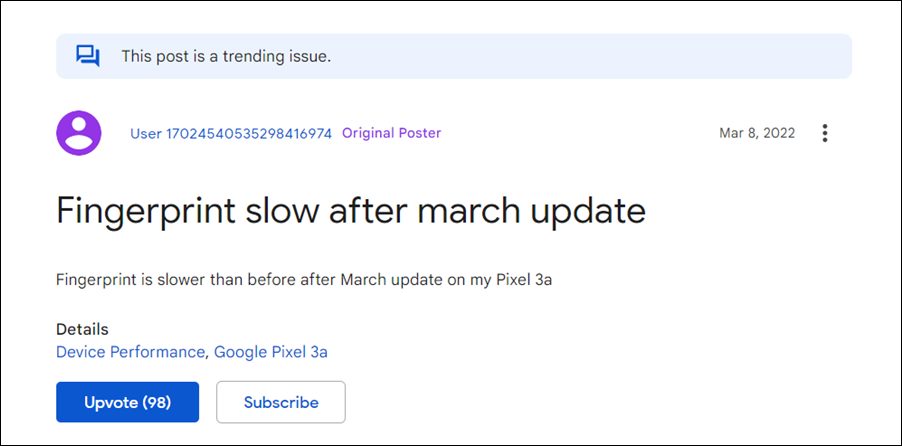
Along with that, these devices would also be getting their regular share of monthly security patches. These are mostly intended to enhance security improve performance and iron out the underlying bugs. However, the latest March update didn’t seem to abide by this rulebook. The likes of the Pixel 3a/4a/5a series recently received the March 2022 update after which many users have voiced their concern that the fingerprint isn’t working along the expected lines.
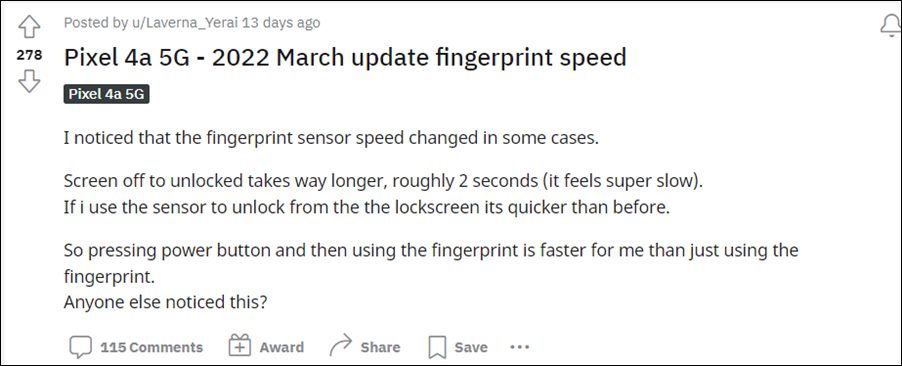
There is now an additional one or two-second delay in unlocking the device via fingerprint. Moreover, this issue seems to be more imminent when the device’s display is turned off. If the display is on and the device is locked, then the issue doesn’t seem to be present for many users. If you are also in the same boat, then fret not. In this guide, we will make you aware of various methods to fix the slow fingerprint issue in Pixel 3a/4a/5a series after installing the March 2022 update.
- Fix Slow Fingerprint issue in Pixel 3a/4a/5a after March 2022 update FIX 1: Enable AOD FIX 2: Re-Add the Same FingerPrint FIX 3: Downgrade to February 2022 Update
Fix Slow Fingerprint issue in Pixel 3a/4a/5a after March 2022 update
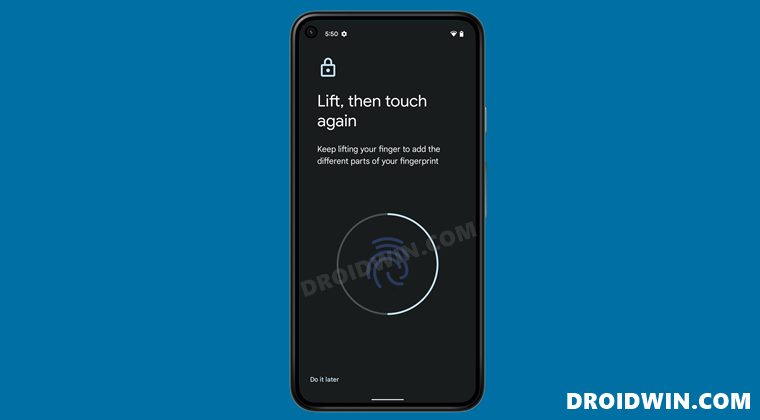
Do note that there’s no universal fix as such. You will have to try out each of the below-mentioned workarounds and see which one works best in your favor. So with that in mind, let’s get started.
FIX 1: Enable AOD
As mentioned before, when the screen is on, then the severity of this bug is at the absolute minimum or even complete null in some cases. So the first workaround would be to keep the display turned on for as long as possible.
And for that, there couldn’t be any better approach than to enable the Always On Display. However, do note that enabling it will also lead to excessive battery drainage. So if you are ready for this trade-off, then let’s get started with the steps:
- Head over to Settings > Display > Lock Screen.
- Now enable the toggle next to Always Show Time and Info.
- Check if it fixes the slow fingerprint issue in Pixel 3a/4a/5a series after installing the March 2022 update.
FIX 2: Re-Add the Same FingerPrint
Taking an old page out of the book, you should consider adding another fingerprint of the same finger that is already added. This will further strengthen the ability of the device to read the fingerprint and could help you in rectifying the underlying issue as well. So proceed with the below instruction steps to try it out:
- Head over to the Settings menu on your device.
- Then go to Security > Pixel Imprint.
- Now tap on Add Fingerprint and register the same finger’s print again.
- Check if it fixes the slow fingerprint issue in Pixel 3a/4a/5a series after installing the March 2022 update.
FIX 3: Downgrade to February 2022 Update
If both the aforementioned methods didn’t spell out success, then you might have to take the nuclear approach of downgrading the security patch to the February 2022 update. While this will surely rectify the issue, but it comes at a cost.
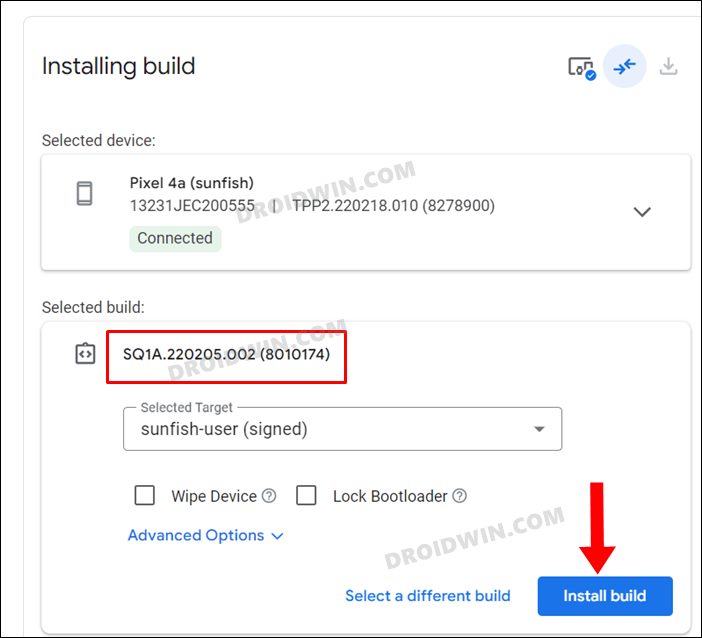
This process requires an unlocked bootloader, which will wipe the data and might nullify the warranty. So if that’s well and good, then refer to our guide on How to Downgrade Pixel using Android Flash Tool (just make sure to select the February 2022 OTA file).
So these were the various methods to fix the slow fingerprint issue in Pixel 3a/4a/5a series after installing the March 2022 update. As far as the official stance on this matter is concerned, the developers are aware of this issue, but they haven’t given out any ETA for the rollout of a fix. As and when that happens, we will update this guide accordingly. In the meantime, the aforementioned workarounds are your best bet.
- No WiFi after February Update on Pixel 6: How to Fix
- Pixel 6 Fingerprint Sensor Not Working: How to Fix
- Google Pixel fingerprint scanner disabled by Family Link [Fixed]
- How to Fix Loss Of Fingerprint Sensor Issue on any OnePlus Device
(Cancel Reply)
Δ
