Pixel 6/Pro Device was locked manually: Enter PIN instead of Fingerprint
The sixth iteration of the Pixel series beholds quite a few nifty features up its sleeves. Right out of the box, you will witness completely redesigned hardware and camera modules. On the software side, you get the latest Android 12 and a ton of Pixel exclusive goodies. Moreover, these devices are the first in the lineup to have an in-display fingerprint scanner, which is itself giving quite a hard time to the end-users.
While the clouds of uncertainty regarding its inefficient optical scanner were about to settle, there has been a new entry in this list. Quite a few Pixel 6/Pro users have voiced their concern that they are getting the Device was locked manually prompt on their device. As a result, they have to use their PIN/Password instead of their fingerprint. Just to get things straight- this prompt appears on nearly every Android device.
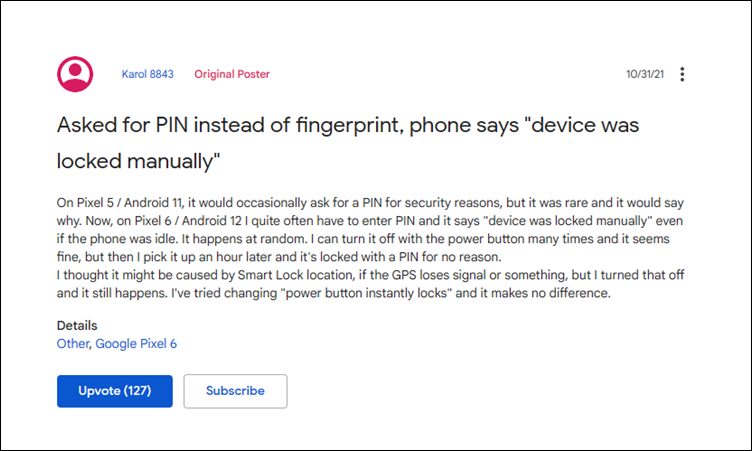
As soon as you restart your device, the OS would prevent the usage of fingerprint and would rather ask you to type in your password or pin. This is done from the security point of view. However, the thing is this only happens the first time your device boots up after a. But that isn’t the case with the latest Pixel series. All the users who are currently facing this issue have reported that they are seeing this prompt randomly after every few hours, even though their device hasn’t undergone a reboot.
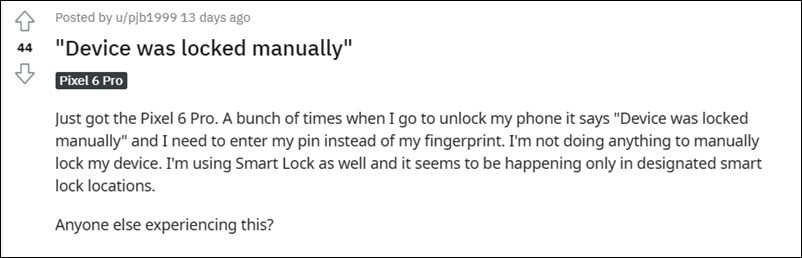
So is there any method to fix the issue of the Pixel 6/Pro “Device was locked manually” wherein you are required to manually type in your PIN/Password instead of using the fingerprint? Unfortunately, the answer is in a negative tone as of now. Though some users have reported that disabling the Smart Lock location did work out in their favor, but the majority of them spelled out a disappointment. Anyways, if you wish to try it out, then proceed ahead with the below-listed steps.
How to Fix Pixel 6/Pro Device was locked manually
- To begin with, head over to the Settings menu on your device.
- Then go to Security and select the Smart Lock option.
- After that, type in your password/pin to verify the credentials.
- Now disable the toggle next to On-body detection, Trusted Places, and Trusted devices.
- Check if it manages to fix the Pixel 6/Pro “Device was locked manually” issue.
Send Feedback to Google from your Pixel 6/Pro
If you are still getting bugged with this issue, then the only way out is to send the feedback to Google, right from your device itself. Here’s how:
- To begin with, head over to the Settings menu.
- Then scroll to the end of the page and go to Tips and Support.
- Now tap on the Send Feedback option situated at the end.
- Explain the issue in detail and then tap on the Send button situated at the top right.
The Silicon Valley giant might take a couple of days to respond to your query. In the meantime, you could also share your queries or just upvote the OP in the first and second Google Support Forums that have been made specifically for this issue.
So with this, we round off this guide on the Pixel 6/Pro “Device was locked manually” issue. As and when there’s further development regarding this issue or any related workaround makes its way, we will update this post accordingly.
- Fix: Google Assistant Quick Phrase not available in Pixel 6/Pro
- Fix: Pixel 6 Screen randomly wakes up even if AOD is Disabled
- How to Install OTA Updates on Unlocked Verizon Pixel 6/6 Pro
- Pixel 6 Fingerprint Sensor Not Working: How to Fix
- How to Use Pixel 6 Magic Eraser on older Pixels Devices

(Cancel Reply)
Δ
Pixel 6 Fingerprint Sensor Not Working: How to Fix
In this guide, we will show you various methods to fix the Pixel 6 fingerprint sensor not working issue. The latest offerings from the Silicon Valley giant have bought in a plethora of new goodies. Right out of the box, you will notice a completely revamped design, which was literally the need of the hour for this series. Then there are quite a few nifty camera tweaks as well which is generally along the expected lines for this lineup.
Apart from that, you will now also be getting three years of OS upgrades and five years of security patches. Moreover, the sixth iteration has welcomed an in-display fingerprint scanner, which is a first for any Pixel device. However, as opposed to other flagships that have straightaway opted for the 3D ultrasonic scanner, Google decided to stick with the old 2D optical scanner. And this isn’t proving to be the right decision.
A slew of complaints are getting accrued where users have voiced their concerns that the under-display fingerprint scanner isn’t working along the expected lines. Considering the money being spent on purchasing these flagships, and the issue gets all the more worrisome. Well, if you are also getting bugged with this issue, then fret not. In this guide, we will make you aware of various methods that shall help you fix the Pixel 6 fingerprint sensor not working issue.
- How to Pixel 6 Fingerprint Sensor Not Working Add the Same Fingerprint Twice Give it An Additonal Second Apply Optimal Pressure Use Dry Hands Clean your Screen Use a compatible screen protector Re-Add Your Fingerprint Install Pending Updates Give AI some time! Contact Google
How to Pixel 6 Fingerprint Sensor Not Working
Do note that there’s no universal fix as such. You will have to try out each of the below-mentioned workarounds and see which one works best in your favor. So keeping that in mind, let’s get started.
Add the Same Fingerprint Twice
An old trick out of the books, adding the fingerprint of the same finger twice or thrice will make the job of the scanner a little bit easier in reading those fine prints. So head over to Settings > Security and fill up two-three slots of fingerprints using the same finger. Then check out if it manages to fix the Pixel 6 fingerprint sensor not working issue.
Give it An Additonal Second
Optical under the hood fingerprints are a tad bit slower than the ultrasonic scanner. So bearing that fact in mind, consider giving an additional second to the scanner so that it is able to efficiently scan your prints.
Apply Optimal Pressure
While it isn’t documented anywhere as such, but these in-display fingerprints (especially the 2-D ones) work best when you apply the pressure in an increasing manner. However, the increase should be done gradually and lightly. So try it out and then see if it is able to fix the Pixel 6 fingerprint sensor not working issue.
Use Dry Hands
It’s no hidden secret that the scanner wouldn’t be able to read the fingerprints if your hands are wet. This is because the moisture would end up creating an additional layer between the scanner and your fingerprints, thereby preventing a successful scan. So make sure to remove such roadblocks before proceeding ahead.
Clean your Screen
Not only your hands but the screen should be cleaned as well, especially the bottom half of the screen where the scanner is located. Even the slightest of dust particles are enough to create hurdles in successful scans. So clean your screen via a cloth or fabric and then verify if the Pixel 6 fingerprint sensor not working issue has been fixed or not.
Use a compatible screen protector
Not all screen protectors are created equally! While they might cause any issues in the normal usage of the device, but they sure could cause conflict with the in-display fingerprint scanner. So if you ever plan to replace your Corning Gorilla Glass Victus protection with a third-party one, make sure to go for a tried and trusted name.
Re-Add Your Fingerprint
Since the optical scanner flashes a bright light underneath to read your fingerprints, it might not have been able to register your fine prints correctly during the setup process. So consider removing the registered fingerprint via Settings > Security and then perform a re-scan to re-add your fingerprints. Check if this gives out any favorable results or not.
Install Pending Updates
While the software upgrades might not necessarily add new features to your device, they surely optimize and improve the overall functioning of the OS as well as your device. Along the same lines, they also iron out all the bugs and issues. So make sure to download and install all pending updates via Settings > System > System Update and then verify if it ends up rectifying the issue or not.
Give AI some time!
Well, Artificial Intelligence does take some time to adapt and adjust, after all. So on continued usage of these scanners, they will ultimately learn and optimize themselves according to the use case scenario. So consider letting go of the initial hiccups for a better journey ahead!
Contact Google
If none of the aforementioned tweaks managed to work out in your favor, then you should consider contacting Google and then chalk out the best route forward. We aren’t still implying that it’s a hardware issue, it’s just that contacting the manufacture will give you a clearer picture.
- Scrolling Screenshot Not Working in Android 12: How to Fix
- How to Change Icon Shapes in Android 12?
- Can we change the Lock Screen Clock Size in Android 12
- Bring Back the WiFi toggle in Quick Settings on Android 12
(Cancel Reply)
Δ
Pixel 6/Pro Device was locked manually: Enter PIN instead of Fingerprint
The sixth iteration of the Pixel series beholds quite a few nifty features up its sleeves. Right out of the box, you will witness completely redesigned hardware and camera modules. On the software side, you get the latest Android 12 and a ton of Pixel exclusive goodies. Moreover, these devices are the first in the lineup to have an in-display fingerprint scanner, which is itself giving quite a hard time to the end-users.
While the clouds of uncertainty regarding its inefficient optical scanner were about to settle, there has been a new entry in this list. Quite a few Pixel 6/Pro users have voiced their concern that they are getting the Device was locked manually prompt on their device. As a result, they have to use their PIN/Password instead of their fingerprint. Just to get things straight- this prompt appears on nearly every Android device.
As soon as you restart your device, the OS would prevent the usage of fingerprint and would rather ask you to type in your password or pin. This is done from the security point of view. However, the thing is this only happens the first time your device boots up after a. But that isn’t the case with the latest Pixel series. All the users who are currently facing this issue have reported that they are seeing this prompt randomly after every few hours, even though their device hasn’t undergone a reboot.
So is there any method to fix the issue of the Pixel 6/Pro “Device was locked manually” wherein you are required to manually type in your PIN/Password instead of using the fingerprint? Unfortunately, the answer is in a negative tone as of now. Though some users have reported that disabling the Smart Lock location did work out in their favor, but the majority of them spelled out a disappointment. Anyways, if you wish to try it out, then proceed ahead with the below-listed steps.
How to Fix Pixel 6/Pro Device was locked manually
- To begin with, head over to the Settings menu on your device.
- Then go to Security and select the Smart Lock option.
- After that, type in your password/pin to verify the credentials.
- Now disable the toggle next to On-body detection, Trusted Places, and Trusted devices.
- Check if it manages to fix the Pixel 6/Pro “Device was locked manually” issue.
Send Feedback to Google from your Pixel 6/Pro
If you are still getting bugged with this issue, then the only way out is to send the feedback to Google, right from your device itself. Here’s how:
- To begin with, head over to the Settings menu.
- Then scroll to the end of the page and go to Tips and Support.
- Now tap on the Send Feedback option situated at the end.
- Explain the issue in detail and then tap on the Send button situated at the top right.
The Silicon Valley giant might take a couple of days to respond to your query. In the meantime, you could also share your queries or just upvote the OP in the first and second Google Support Forums that have been made specifically for this issue.
So with this, we round off this guide on the Pixel 6/Pro “Device was locked manually” issue. As and when there’s further development regarding this issue or any related workaround makes its way, we will update this post accordingly.
- Fix: Google Assistant Quick Phrase not available in Pixel 6/Pro
- Fix: Pixel 6 Screen randomly wakes up even if AOD is Disabled
- How to Install OTA Updates on Unlocked Verizon Pixel 6/6 Pro
- Pixel 6 Fingerprint Sensor Not Working: How to Fix
- How to Use Pixel 6 Magic Eraser on older Pixels Devices
(Cancel Reply)
Δ
