PUBG Basic Training Black Screen in Windows: How to Fix
In this guide, we will show you the steps to fix the PUBG Basic Training black screen issue on your Windows PC. When it comes to online multiplayer battle royale games, there’s no denying the fact that this game is probably the best in this genre. Available across all the major platforms, it also gets blessed with new features at regular intervals. Apart from that, there are quite a few challenges and events happening across the clock that add more brownie points to its already intriguing gameplay.
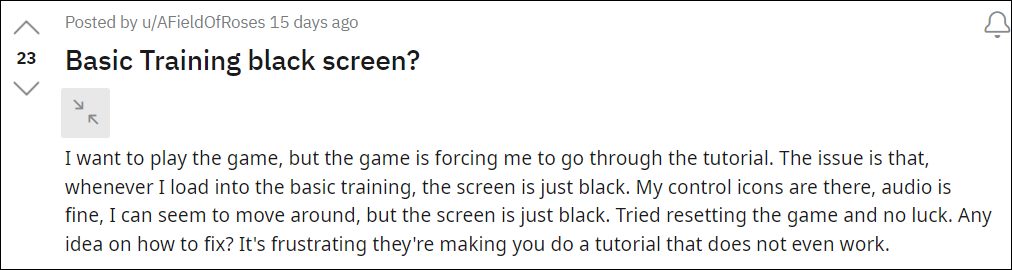
However, in spite of all the goodies attached, it isn’t free from its fair share of issues. As of now, a slew of complaints has lined up across Reddit where users have voiced their concern that they are getting a black screen in the Basic Training section of PUBG. The audio is working well and good in the background, and all the other gameplay elements are also working along the expected lines. But all of this counts for nothing since users are unable to see anything in the front.
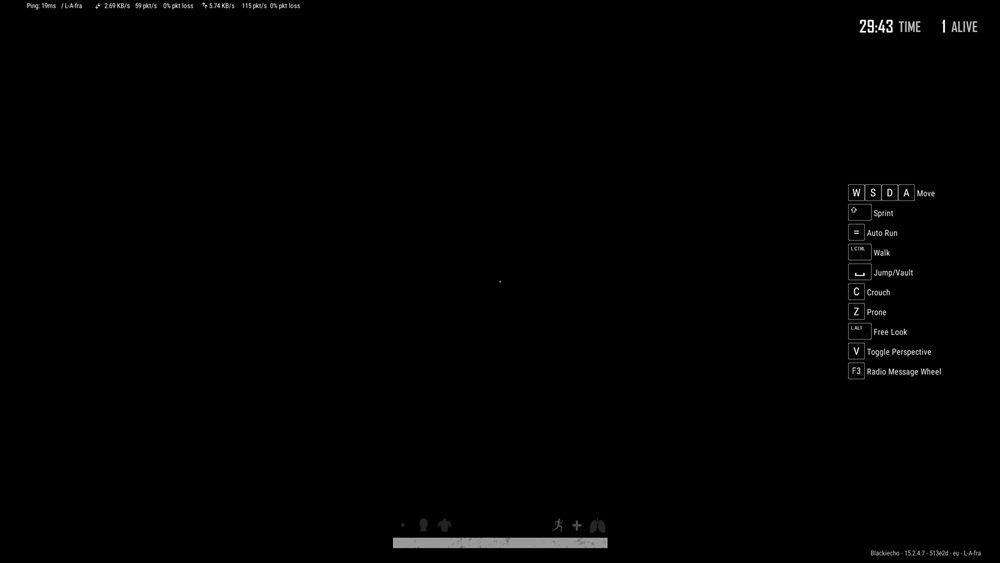
Moreover, this problem is only present on its PC build, all the other platforms are free from this bug. While this issue is no doubt quite concerning and infuriating in equal measures, there does exist a workaround that has been known to spell out success for many users. So without further ado, let’s check out the steps to fix the PUBG Basic Training black screen issue on your Windows PC. Follow along.
How to Fix PUBG Basic Training Black Screen in Windows
The reason for this issue is the missing Media Feature Pack on your PC. So to rectify it, all that you need to do so is download and install it from the Microsoft server. In this regard, there exist two different methods through which you could carry out this- via the Settings menu and from the Powershell window. Here we will be listing out the Settings method, if you want to do so via Powershell, then please check out our guide on How to Install Media Feature Pack in Windows 11 [2 Methods] . On that note, let’s get started.
- To begin with, head over to the Settings menu via Windows+I shortcut keys.
- Then select Apps from the left menu bar and go to the Optional Features section.
- After that, click on the View Features button next to Add an Optional feature.
- Now type in Media Feature Pack in the search box and hit Enter. Then checkmark it and click Next.
- After that, click Install and wait for the process to complete. Once done, restart your PC.
- That’s it. The Media Feature Pack has been successfully installed. And thus, the black screen issue also stands rectified.
- How to Fix PUBG New State Not Working [All Errors Fixed]
- PUBG New State: You have been disconnected from the game [Fixed]
- How to Unpack, Decrypt and Open PUBG PAK files

(Cancel Reply)
Δ
