Razer Synapse stuck on loading screen: How to Fix
In this guide, we will show you a nifty workaround to fix the issue of Razer Synapse being stuck on the loading screen. this software allows you to easily create and store custom settings profiles for all your Razer devices and even create your macros for this task. Thanks to this tool, you could easily manage all your Razer devices under one roof. However, as of now, this is proving to be easier said than done.
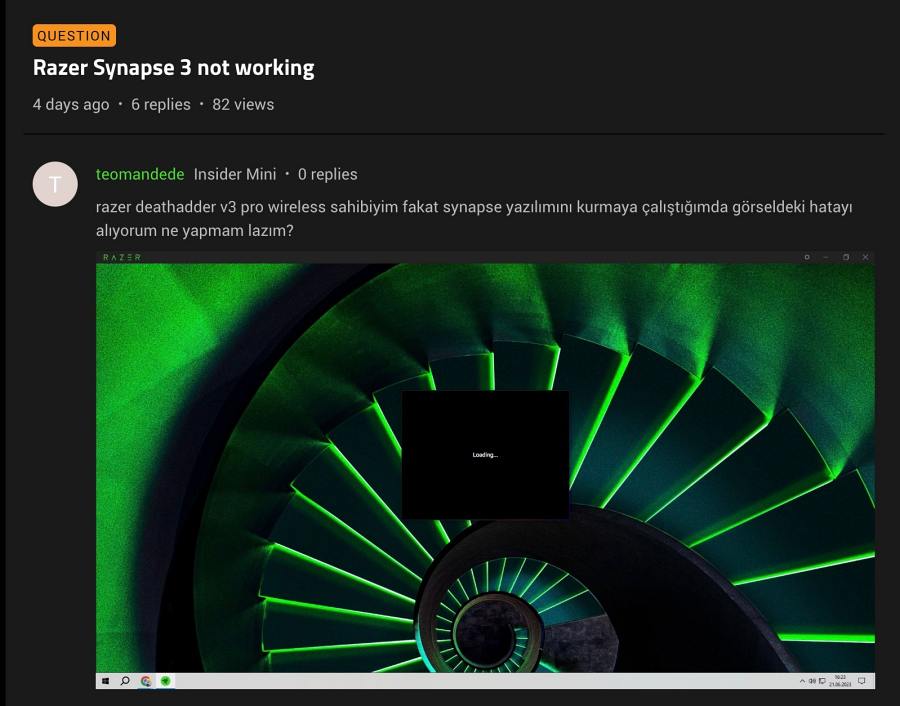
Numerous users have voiced their concern that Razer Synapse is stuck on the loading screen and as a result of this,m they are unable to either load the tool or proceed ahead with the setup [some are stuck at the login screen and are unable to complete the authentication process]. If you are also facing any of these issues, then this guide will help you out. Follow along for the fix.
Fix Razer Synapse stuck on the loading screen
- Launch File Explorer and head over to the below location: C:\Program Files(x86)
- After that, delete all the Razer folders that you see there.
- Then, delete all the Razer folders from the below directory: C:\Program Data
- Now, install the following three Microsoft applications: Microsoft .NET Framework 4.8 Microsoft Visual C++ Redistributable Microsoft DirectX End-User Runtime
- Finally, reinstall Razer Synapse and the issue stands fixed.
- Razer Synapse Cannot Detect Device: How to Fix
- NVIDIA GeForce Now Mouse Delay or Input Lag: How to Fix
- Nvidia GeForce Experience not working in Windows 11 [Fixed]
- Windows Freezing/Crashing to Grey Screen: How to Fix

(Cancel Reply)
Δ
