Remote Desktop not working after Windows 11 22H2 update [Fixed]
In this guide, we will show you the steps to fix the issue of the Remote Desktop not working after the Windows 11 22H2 update. The latest iteration of the OS has just been released by the Redmond giant. And with that, there are a slew of goodies that you are about t welcome. These include the likes of tabs in File Explorer , the search bar in the taskbar , the new Task Manager , revamped dialog box , among others.
But ever since its launch, it seems to be bugging with quite a few issues. We have already documented the likes of SMB file sharing speed , printer drivers are causing quite a few issues, the Remote Desktop Connection is not working, and Nvidia GeForce Experience resulting in stuttering and frame drops . And now there has been another unfortunate entry to this list.

Numerous users have voiced their concern that Remote Desktop is no longer working after the Windows 11 22H2 update. Either it will not connect at all, connect and suddenly disconnect, or freeze the entire PC while it is running. If you are also getting bugged with any of these issues, then this guide shall help you out. Follow along.
- Fix Remote Desktop not working after Windows 11 22H2 update FIX 1: Disable UDP Network Protocol FIX 2: Disable the “Turn Off UDP On Client” Policy FIX 3: Downgrade to Windows 11 21H2
Fix Remote Desktop not working after Windows 11 22H2 update

It is recommended that you try out each of the below-mentioned workarounds and then see which one spells out success for you. So with that in mind, let’s get started.
FIX 1:Disable UDP Network Protocol
Your first course of action should be to d isable the UDP network protocol using the Registry Editor. So take a backup of the registry beforehand and then refer to the below steps:
- Launch Registry Editor from the Start Menu and head over to the below location HKLM\SOFTWARE\Policies\Microsoft\Windows NT\Terminal Services\Client
- Then right-click on Client and select New > DWORD (32-bit) Value. Name it fClientDisableUD.
- Now open fClientDisableUD, change its Value Data to 1, and hit OK to save it. Then, restart your PC.
- This should fix the issue of Remote Desktop not working after the Windows 11 22H2 update.
FIX 2: Disable the “Turn Off UDP On Client” Policy
Next up, consider disabling the “ Turn Off UDP On Client” Policy using the Group Policy Editor and then check out the results. Here’s how it could be done:
- Open Run via the Windows+R shortcut, type in gpedit.msc, and hit Enter.
- This will launch Group Policy Editor. Now go to the below location: Computer Configuration > Administration Templates > Windows Components > Remote Desktop Services > Remote Desktop Connection Client
- Then go to the right-hand side and double-click to open the “ Turn Off UDP On Client” policy.
- Finally, select Disabled from the top left and hit Apply > OK to save it. Then, restart your PC.
- Check if it fixes the issue of Remote Desktop not working after the Windows 11 22H2 update.
FIX 3:Downgrade to Windows 1121H2
If both the above-listed approaches aren’t in sync with your requirement, then your last course of action should be to downgrade to the earlier Windows 11 21H2 update. To do so, please check out our guide on How to Uninstall Windows 11 22H2 Update: Downgrade to 21H2 .
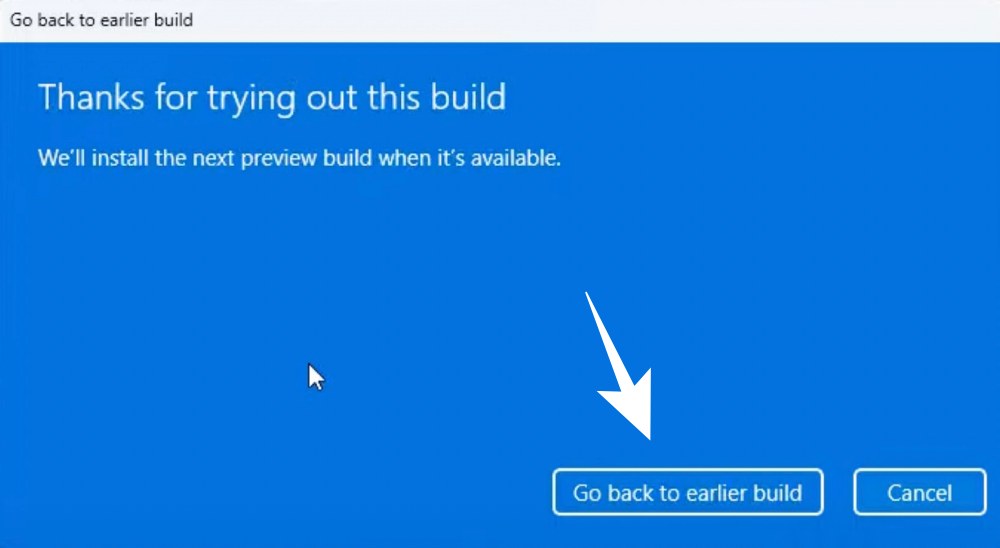
That’s it. These were the three different methods that shall help you fix the issue of the Remote Desktop not working after the Windows 11 22H2 update. As far as the official stance on this matter is concerned, the developers are aware of this issue, but they haven’t given out any ETA for the rollout of a fix. As and when that happens, we will update this guide accordingly. In the meantime, the aforementioned workarounds are your best bet.
- How to Stop Windows 11 22H2 Update from Installing (Opens in a new browser tab)
- NVIDIA graphics card low FPS after Windows 11 22H2 update [Fixed]
- Slow SMB File Transfer in Windows 11 22H2 Update [Fixed]
- Windows 11 Version 22H2 KB5017321: Download error 0x800f0806 [Fixed]

- R Wareh 3 years ago Reply Step 4 from Fix 2 should be “ENABLED” not Disabled. I did fix 1 and fix 2 (as above) and it didn’t work; once I changed Fix 2 step 4 to “enabled” it worked. Best, Rashad
- Christine A Guinn 3 years ago Reply Not only did they break RDP, they turn OFF the firewall rules for it, and deleted my custom scopes within the rule, (which would have opened my system up to hacking attempts if I had not noticed it.)
- Yogi 3 years ago Reply Pöease change the title from fixed to workarround 😁
- Lénárd László 3 years ago Reply why “fClientDisableUD” and why not “fClientDisableUDP” ?? not work for me..
- Harald 3 years ago Reply Thank you very much for the proposed fixes, because they solved our issue! But please note (and correkt if possible) those two errors: In Fix 1: The name of the DWORD-key must be: fClientDisableUDP In Fix 2: The policy “Turn Off UDP On Client” must be ENABLED.
(Cancel Reply)
Δ
