Remove Briefcase Icon in Microsoft Edge for Business
In this guide, we will show you the steps to remove the briefcase icon from Microsoft Edge for Business browser. Apart from its user build, the Redmond giant also has a standalone business version of its browser which is used in numerous organizations, offices, and schools. It beholds a slew of additional goodies that what the normal browser has to offer. Moreover, to distinguish its Business version from the user build, it has made a small tweak in the former.
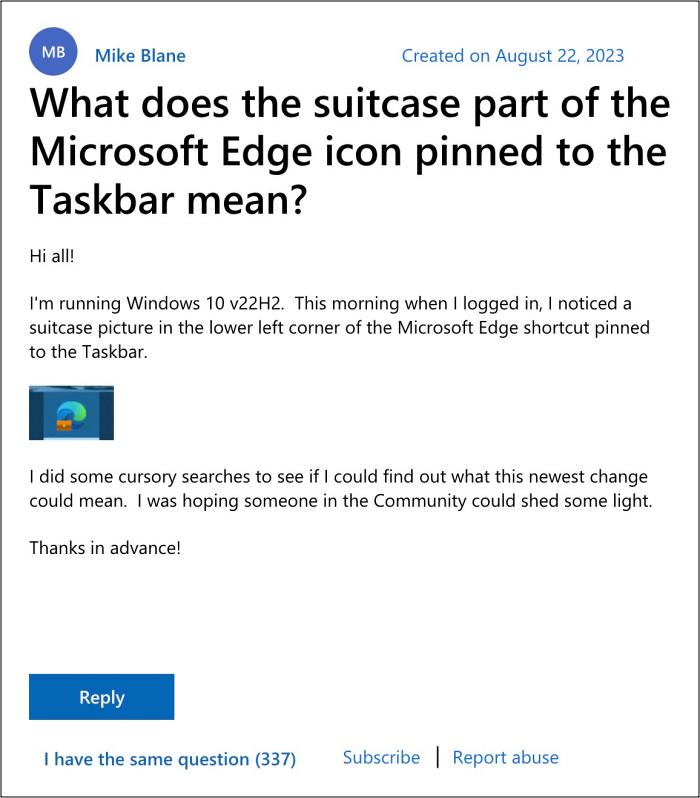
However, not many seem to be a fan of this change. For the unaware, Microsoft has added a small briefcase icon in the Edge for Business browser, which for many is an unwanted tweak . Fortunately, as opposed to other changes, this option could be gradually controlled from over ends. In other words, you could easily remove this icon and revert to the old glory of Microsoft. Here’s how.
Remove Briefcase Icon in Microsoft Edge for Business Browser

- Launch Microsoft Edge for Business and head over to the below location edge://settings/appearance
- Then disable the toggle next to “Show Briefcase Icon on Work Profile”.
- Finally, restart the browser for the changes to take place.
- Remove rounded borders around webpages in Microsoft Edge
- Microsoft Edge Rounded Tab Corners Missing: How to Fix
- How to Enable Split Screen in Microsoft Edge
- How to Set Microsoft Edge as Default PDF Viewer in Windows 11

- Jeroen 2 years ago Reply The URL should read: edge://settings/appearance Sadique Hassan 2 years ago Reply Thanks mate for letting us know. We have updated this guide.
(Cancel Reply)
Δ
