Remove Google Messages is doing work in the background prompt
In this guide, we will show you various methods to remove the “Google Messages is doing work in the background” prompt. When it comes to messaging apps, then users are generally content with the built-in offering from Google. Not that there aren’t any better apps, but the risks of sharing your inbox with other third-party SMS apps might prove to be a risky bet. Moreover, this default app does manage to check off most of the prerequisites with ease.
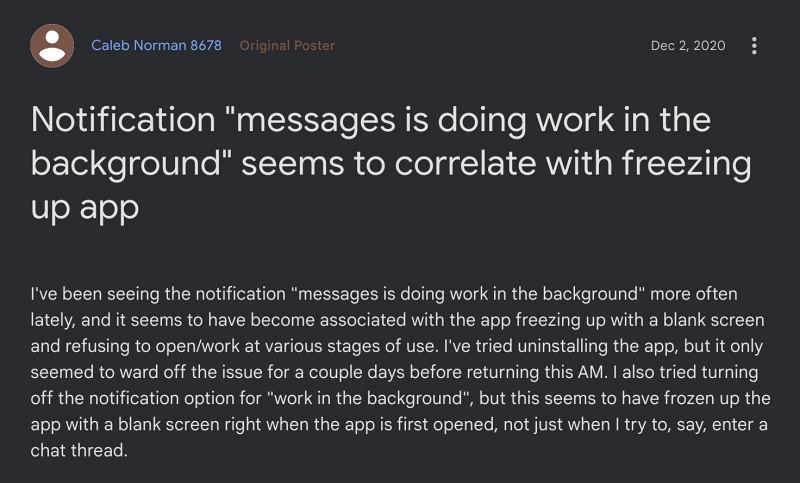
With that said, the app isn’t free from its fair share of issues either. As of now, many users have echoed their concern that they are unable to remove the “Google Messages is doing work in the background” prompt. Moroever, some have even found a correlation that till the time this notification stays, it tends to have a negative impact on the app functionality [such as freeze and random crashes]. If you are also getting bugged by this issue, then this guide will help you rectify it.
- Remove Google Messages is doing work in the background prompt FIX 1: Force Stop Messages App FIX 2: Disable Background Task Notification FIX 3: Turn off RCS FIX 4: Uninstall Updates
Remove Google Messages is doing work in the background prompt

It is recommended that you try out each of the below-mentioned workarounds and then see which one spells out success. So with that in mind, let’s get started.
FIX 1: Force Stop Messages App
While it’s the quickest and easiest fix, however, it will only give you respite for a few hours. So if you are short on time, then you could definitely give this tweak a try, as shown below:
- Head over to Settings > Apps > Messages.
- Then tap on Force Stop > OK in the prompt.
- Now check if you are able to remove the alert.
FIX 2:Disable Background Task Notification
You could also remove the “Google Messages is doing work in the background” prompt from your device by disabling the app’s Background Task Notification. Here’s how it could be done:
- Head over to Settings > Apps > Messages > Notifications
- Now disable the toggle next to Background Tasks.
- Check if removes the notification from your device or not.
FIX 3: Turn off RCS
If you don’t use Rich Communication Services much then you could consider disabling it as it has helped a few users to remove the “Google Messages is doing work in the background” prompt. So give it a try using the below-listed steps and check out the results.
- Launch Message, tap on your profile, and select Manage Settings.
- Then go to RCS Chats and disable the toggle next to Turn on RCS chats.
- Check if removes the annoying Message prompt from your device.
FIX 4: Uninstall Updates
In some instances, the developers might roll out a buggy update which could end up breaking the normal functioning of the app. Therefore, you should downgrade the app to an earlier version build and then check out the results. Here’s how:
- Head over to Settings > Apps > Messages.
- Then tap on the overflow icon at the top-right.
- Select Uninstall Updates > OK in the prompt.
- Now launch Play Store and search Messages.
- Then tap on the overflow icon at the top-right.
- Uncheck Enable Auto Updates and check the results.
- Slack Plus + button for Direct Message is removed & it makes no sense
- How to Remove Unread Message in Notification Badge on Mac
- iOS 16 Message: User has notifications silenced bug
- Google Message not working on Xiaomi EU ROM [Fix]

(Cancel Reply)
Δ
