Remove Red Notification Update from System Settings on Mac
In this guide, we will show you a couple of methods to remove the red notification update from System Settings on Mac. Many users prefer to keep the automatic update installation disabled on their Mac. They first go through the general feedback and reviews of the latest update and if everything is well and good, then only they proceed ahead with the installation. But during this time frame, there is one UI element that might keep them distracted.
There will be a red notification dot [along with a number inside it] on the System Settings icon in the Dock that will remind you of the pending update. Even if you open System Settings and head over to the software update section, the notification will not go away. So is there any way to remove this small nuisance from the screen? Well, there does exist a couple of nifty workarounds that should help you bid adieu to this prompt. So without further ado, let’s check them out.
- How to Remove Red Notification Update from System Settings on Mac FIX 1: Using Finder FIX 2: Using Terminal
How to Remove Red Notification Update from System Settings on Mac
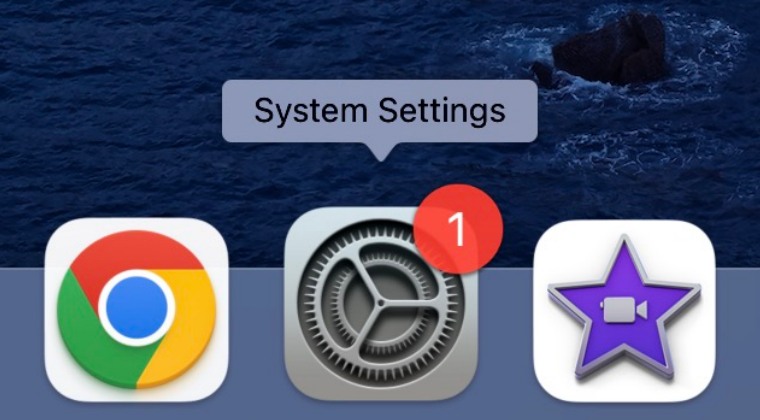
It is recommended that you try out each of the below-mentioned workarounds and then see which one spells out success. So with that in mind, let’s get started.
FIX 1: Using Finder
- Launch Finder and press Shift+Command+G to open Go to Folder.
- Then copy-paste the below location and hit Enter: ~/Library/Preferences/com.apple.preferences.softwareupdate.plist
- Now rename this com.apple.preferences.softwareupdate.plist file to something else.
- Finally, restart your Mac and the red notification update will be removed from System Settings.
FIX 2: Using Terminal
- Launch Finder and go to Application > Utilities and open Terminal.
- Then execute the below command [it will restart the Dock as well] defaults write com .apple.systempreferences AttentionPrefBundleIDs 0 && killall Dock
- Finally, restart your Mac and it should remove the red notification dot from System Settings.
- How to Clear and Rebuild Icon Cache on Mac
- Dock not working in Mac: How to Fix [6 Methods]
- Wrong Icons for Aliases in Dock folder on Ventura: How to Fix
- Stage Manager Missing in macOS Ventura: How to Fix

- Zack 2 years ago Reply this was a good effort at a solution but the red dot didn’t go away with either method. and on closer inspection it seems the computer automatically generated a new plist upon opening settings weather it was deleted or renamed.
(Cancel Reply)
Δ
