Remove System Events Background Items Added in macOS Sonoma
In this guide, we will show you a couple of methods to remove the System Events Background Items Added notification in macOS Sonoma. The fourteenth iteration of the OS has just been released by the Cupertino giant. And with that, there are a slew of intriguing features to make their way. Some of the noteworthy ones include the likes of desktop widgets, FaceTime and iMessage enhancements, a new Lock Screen, web app support, and a new tool for editing PDFs.
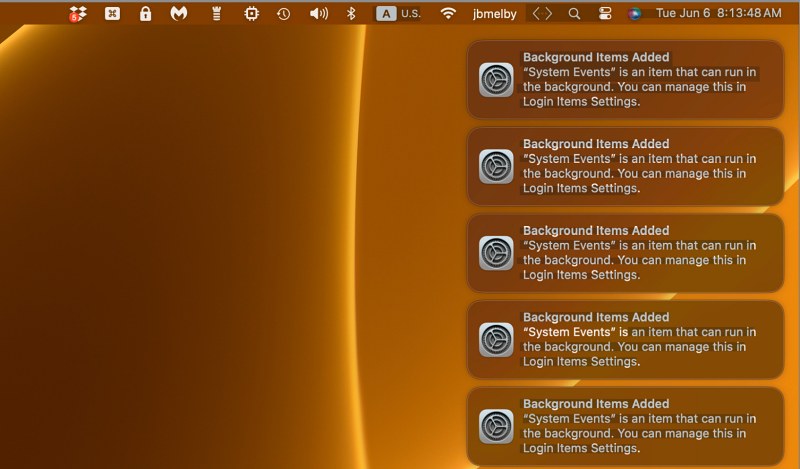
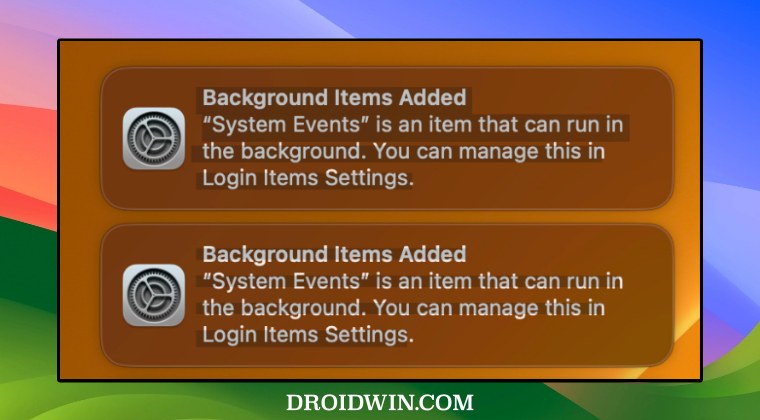
However, at the time of writing, the update is still in the beta stage, so a few bugs and issues are along the expected lines. And that is exactly what is the case. Numerous users have voiced their concern that they are constantly getting bugged by the System Events Background Items Added notification in macOS Sonoma. If you are also in the same boat, then this guide will help you put an end to these annoying prompts. Follow along.
- Remove System Events Background Items Added in macOS Sonoma Via Terminal Command Via Finder
Remove System Events Background Items Added in macOS Sonoma
It is recommended that you try out each of the below-mentioned workarounds and then see which one spells out success. So with that in mind, let’s get started.
Via Terminal Command
- Open Launchpad, go to Others, and launch Terminal.
- Then execute the below command in the Terminal: sfltool resetbtm
- Finally, restart your Mac and check out the results.
Via Finder
According to a few affected users, the culprit is the PopChar.app. Therefore, you should delete the preferences files corresponding to that app as explained below:
- Open Finder, click on Go at the top menu bar, and select Go to Folder.
- Then paste the below location and hit Enter. ~/Library/LaunchAgents
- Now delete the plist files corresponding to the apps that you wish to remove from the login items screen.
- Once that is done, go to the below location and delete the required plist files. /Library/LaunchAgents
- Finally, go to the following location and delete the required plist files: /Library/LaunchDaemons
- Now restart your Mac and check out the results.
- Cannot Install macOS Sonoma in External Disk: How to Fix
- How to Download & Install macOS Sonoma on your Mac right away
- macOS Ventura 13.4 H264 codec 120FPS not working [Fix]
- iOS 17/iPadOS 17 Installation Failed: How to Fix

(Cancel Reply)
Δ
