Require password after screen saver begins greyed out [Fix]
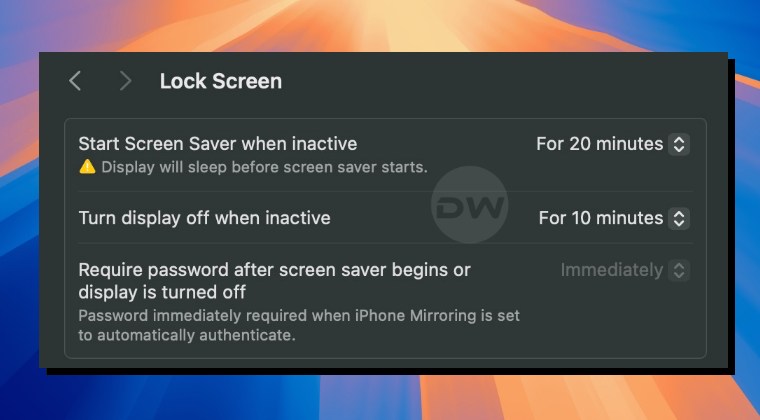
In this guide, we will show you the steps to fix the issue of “Require password after screen saver begins or display is turned off” being greyed out on macOS Sequoia. The Cupertino giant has recently rolled out the fifteenth iteration of the OS build with a slew of intriguing goodies to the fore. On the flip side though, it has been plagued with a plethora of bugs as well.
While we have already covered many of them , including the likes of Safari not being able to download files to External SSD , issues with MS Word and Excel File , and iPhone Mirroring not working , some new ones are being added at frequent intervals. The latest entry to this list is the issue wherein users have to type in their password to wake up their Mac from sleep or from the screen-saver mode.
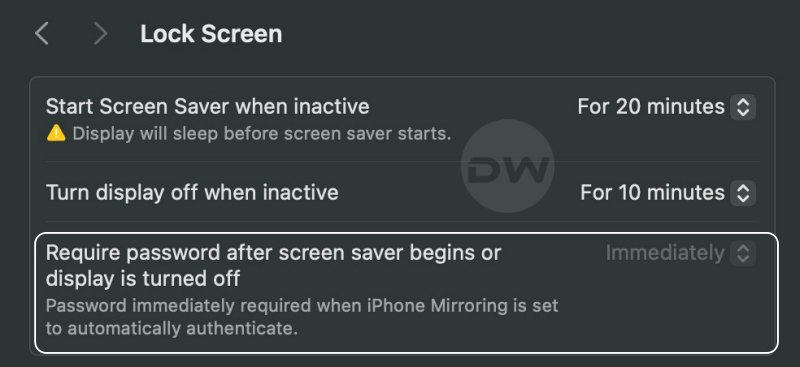
In this regard, there does exist an option to disable the said behavior of the OS wherein you wouldn’t need to input passwords during the aforementioned scenarios. However, as of now, this feature is not working. Titled “Require password after the screen saver begins or display is turned off”, this option is currently greyed out on macOS Sequoia.
Moreover, the default value is set to Immediately and you cannot change it to Never. [this is the reason why you have to input the password as soon as your Mac goes to sleep]. So this there a way out? well, there does exist a method that should help you rectify this issue. So without further ado, let’s check it out.
Fix “Require password after screen saver begins” greyed out on Sequoia

The culprit behind this issue is the automatic authentication feature of iPhone Mirroring. So to rectify it, you just need to turn off this feature, as shown below:
- To begin with, open iPhone Mirroring from Launchpad.
- Then click on iPhone Mirroring from the top menu bar.
- Next up, select Settings and then choose Ask Everytime.
- Now launch System Settings and select Lock Screen.
- The “Require password” option will now be ungreyed.
- Now select the desired time limit from the drop-down.
- Safari Cannot Download Files to External SSD in Sequoia
- How to Enable Sunrise Dynamic Wallpaper in macOS Sequoia
- Wallpaper Flickering in macOS Sequoia: How to Fix
- macOS Sequoia Update Missing from my Mac: How to Fix

- marc 4 months ago Reply Thank you! I’m getting closer and closer to switching to Windows. You delayed that decision. Apple should pay you!
- ian 7 months ago Reply 1. To begin with, open iPhone Mirroring from Launchpad. 2. Then click on iPhone Mirroring from the top menu bar. 3. Next up, select Settings and then choose Ask Everytime. Re the above, I’ve opened iPhone Mirroring. I don’t understand point 2: where’s iPhone Mirroring in the top menu bar – do you mean the top menu bar on my mac ? I don’t see iPhone Mirroring there. Please help – I’m being driven mad! Sadique Hassan 4 months ago Reply Sorry mate, just saw your comments. You’ll have to click on iPhone Mirroring present at the top left of your screen, just next to the Apple Logo. If it isn’t shown there, then any other app might be currently selected. Make sure to choose iPhone Mirroring and then you should see the said option there.
- Lee Hunt 11 months ago Reply Thank you. This was driving me crazy. Your instructions are very clear.
- Stephen Hsu 1 year ago Reply Excellent. thanks! Kinda sad apple has declined so much as we have moved forward. One shouldn’t have to dig through the internet for this, annoying squared. Their quality isn’t what it used to be…
- Anne 1 year ago Reply Thank you so much. Your directions were perfect and solved my issue completely. Good job; I’m grateful you took the time.
- Rose 1 year ago Reply Thank you so much! This was driving me crazy.
- michael 1 year ago Reply Thank you for having the directions all the other websites just told me why Sadique Hassan 1 year ago Reply You’re welcome mate.
(Cancel Reply)
Δ
