Restore OnePlus Nord N100 to Stock via Fastboot Commands
In this guide, we will show you the steps to restore OnePlus Nord N100 to stock by flashing the firmware via Fastboot Commands. OnePlus isn’t having the best of times from the past couple of years, and it has no one to blame but itself. Ruining its software upgrades schedules, introducing bugs with each new OTA, and lately, ditching its in-house OxygenOS in favor of the ColorOS are just some of the reasons why it is slowly going into oblivion.
However, there is still one saving grace in all of this- it is still quite an active player in custom development. Be it for flashing custom ROMs/GSIs, installing a custom recovery like TWRP, or gaining administrative access by rooting your device via Magisk, well the possibilities are literally endless. But this is just one side of the coin. Flashing these binaries could prove to be risky and there’s every chance of things going south.
Even the slightest of an error, and a bootloop or soft-bricked device are on the cards. Fortunately, you could easily rectify these issues and bring your device back to life. All that you need to do is flash the stock firmware onto your OnePlus Nord N100 via Fastboot Commands. And in this guide, we will show you how to do just that. Follow along.
- Restore OnePlus Nord N100 to Stock via Fastboot Commands STEP 1: Install Android SDK STEP 2: Download OnePlus Nord N100 Firmware STEP 3: Extract OnePlus Nord N100 Payload.bin STEP 4: Boot Bricked OnePlus Nord N100 to Fastboot Mode STEP 5: Format Device via Fastboot STEP 6: Flash OnePlus Nord N100 Stock Firmware via Fastboot
Restore OnePlus Nord N100 to Stock via Fastboot Commands
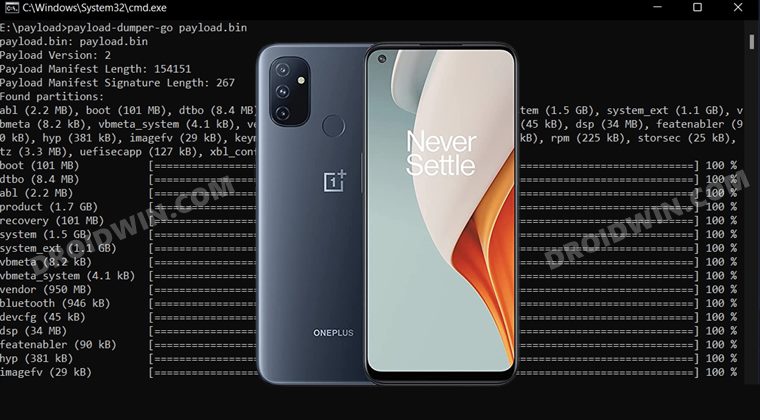
The below instructions are listed under separate sections for ease of understanding. Make sure to follow in the same sequence as mentioned. Droidwin and its members wouldn’t be held responsible in case of a thermonuclear war, your alarm doesn’t wake you up, or if anything happens to your device and data by performing the below steps.
STEP 1: Install Android SDK

First and foremost, you will have to install the Android SDK Platform Tools on your PC. This is the official ADB and Fastboot binary provided by Google and is the only recommended one. So download it and then extract it to any convenient location on your PC. Doing so will give you the platform-tools folder, which will be used throughout this guide.
STEP 2: Download OnePlus Nord N100 Firmware
Next up, you will have to download the stock firmware for your OnePlus 9RT device. You could either get it from the OnePlus official site or the XDA repository . Once downloaded, extract it to any convenient location on your PC. You will now get a couple of files, including the payload.bin, which will subsequently be used to restore the OnePlus Nord N100 to stock by flashing the firmware via Fastboot Commands.
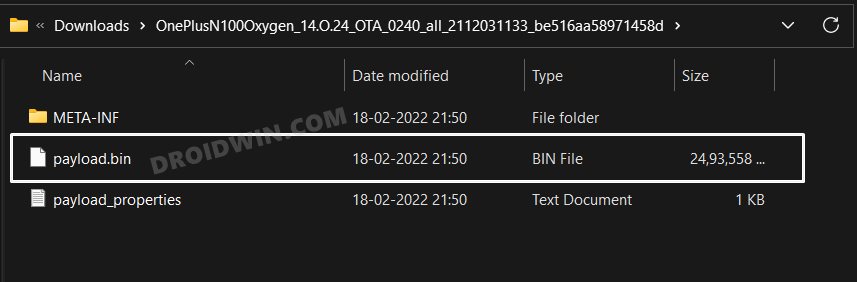
STEP 3: Extract OnePlus Nord N100 Payload.bin
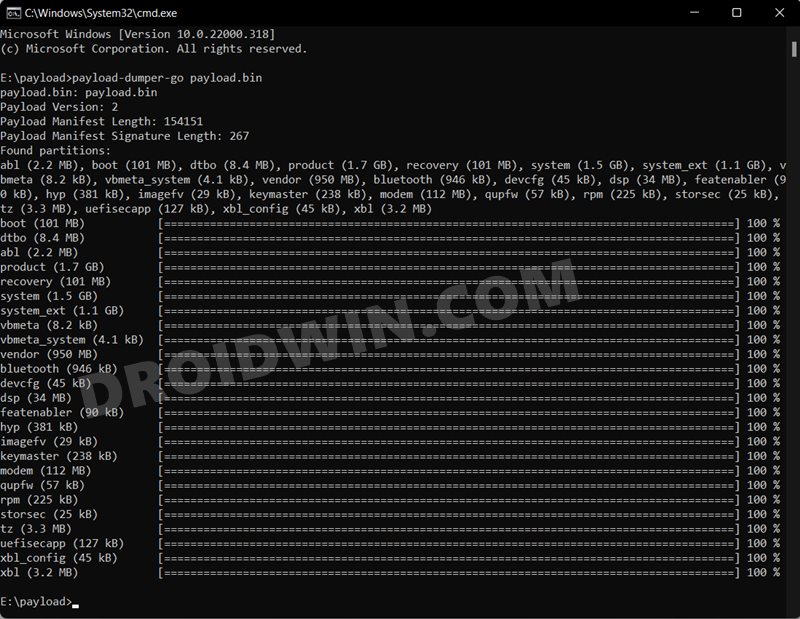
OnePlus packs its partition files inside the payload.bin package. So you will have to extract it to get all the firmware IMG files. For that, you may refer to our detailed guide on How to Extract the OnePlus payload.bin file . Once extracted, you will get the required partition files, transfer all of them to the platform-tools folder.
STEP 4: Boot Bricked OnePlus Nord N100 to Fastboot Mode
In most cases, a soft-bricked or boot looped device might already be in the Fastboot Mode. However, if you are stuck in a bootloop, then long-press the Power key to turn it off. Then press and hold the Power and Volume Down keys (or Power and Volume Up in some devices) together to boot your device to Fastboot Mode.
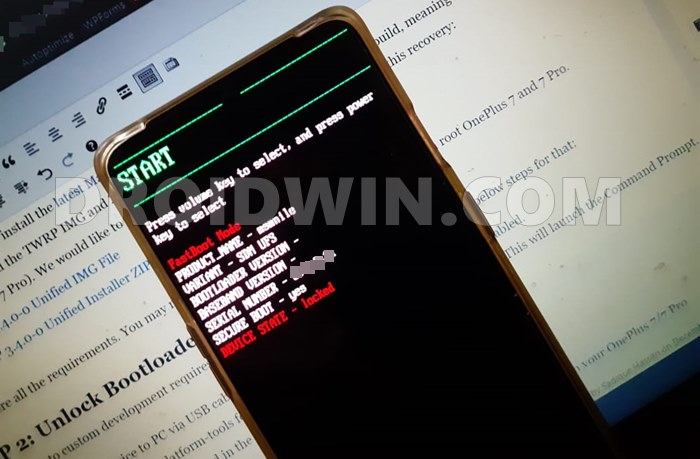
However, if you are unable to power off the device, then let its battery drain out. Once that happens, connect it to the charger. Then as soon as it is about to boot up, use the Power and Volume Up/Down keys and it will straightaway boot to Fastboot Mode.
STEP 5: Format Device via Fastboot
- Head over to the platform-tools folder where the extracted ROM is present.
- Then go to its address bar, type in CMD in its address and hit Enter. This will launch the CMD window.
- Now execute the below command to perform a factory reset (optional but recommended) fastboot -w
STEP 6: Flash OnePlus Nord N100 Stock Firmware via Fastboot
Now just execute each of the below commands in the CMD window that you have opened inside the platform-tools folder. Make sure to execute one command at a time. Furthermore, your device will also boot to FastbootD Mode during the process, this is completely normal.
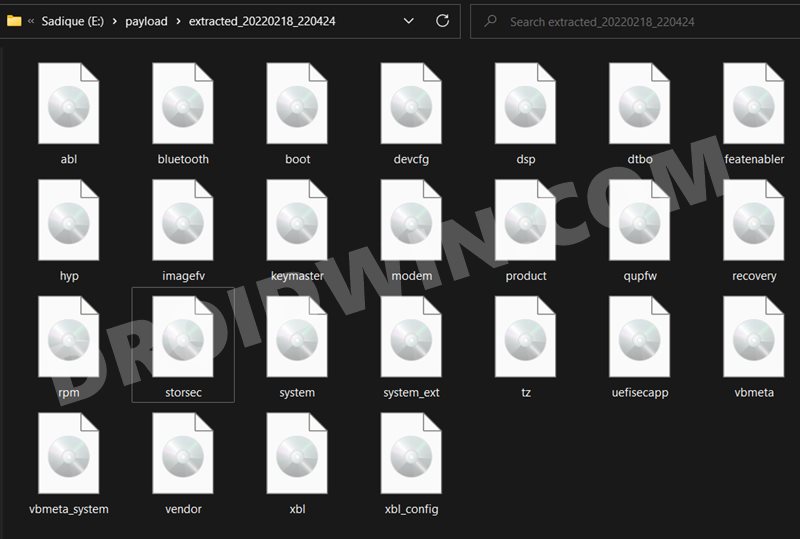
fastboot reboot fastboot

fastboot flash boot boot.img

fastboot flash dtbo dtbo.img

fastboot reboot fastboot

fastboot flash --slot=all boot boot.img

fastboot flash --slot=all dtbo dtbo.img

fastboot flash --slot=all abl abl.img

fastboot flash --slot=all bluetooth bluetooth.img

fastboot flash --slot=all devcfg devcfg.img

fastboot flash --slot=all dsp dsp.img

fastboot flash --slot=all featenabler featenabler.img

fastboot flash --slot=all hyp hyp.img

fastboot flash --slot=all imagefv imagefv.img

fastboot flash --slot=all keymaster keymaster.img

fastboot flash --slot=all logo logo.img

fastboot flash --slot=all modem modem.img

fastboot flash --slot=all qupfw qupfw.img

fastboot flash --slot=all recovery recovery.img

fastboot flash --slot=all rpm rpm.img

fastboot flash --slot=all tz tz.img

fastboot flash --slot=all uefisecapp uefisecapp.img

fastboot flash --slot=all xbl_config xbl_config.img

fastboot flash --slot=all xbl xbl.img

fastboot flash system system.img

fastboot flash system_ext system_ext.img

fastboot flash product product.img

fastboot flash vendor vendor.img

fastboot flash --slot=all vbmeta vbmeta.img

fastboot flash --slot=all vbmeta_system vbmeta_system.img

fastboot reboot
- How to Unlock Bootloader on OnePlus Nord N100
- Root OnePlus Nord N100 via Magisk Patched Boot.img
- How to Enable Factory Mode in any OnePlus Device
- How to Enable VoLTE and VoWiFi on any OnePlus Device

- uriel 4 years ago Reply it’s almost works. I tryed 3 time (2 time with EU ROM, and 1 time with global ROM) and I get always the same Error: – logo.img is not present in payload.bin – fastboot flash system system.img Invalid sparse file format at header magic but try to flash 6/6 section – fastboot flash system_ext system_ext.img Invalid sparse file format at header magic Sending sparse ‘system_ext’ 1/5 (262108 KB) OKAY [ 6.315s] Writing ‘system_ext’ FAILED (remote: ‘No such file or directory’) fastboot: error: Command failed
(Cancel Reply)
Δ
