S23 Ultra unlock opens a random app on One UI 6 [Fixes]
In this guide, we will show you various workarounds that should help you fix the issue of Galaxy S23 Ultra opening a random app upon unlocking on One UI 6. The newest OS release from the South Korean giant is based on the fourteenth iteration of the OS and brings a slew of intriguing goodies to the fore. The likes of Quick panel, Lock screen, Home screen, Multitasking, DeX, Camera, Gallery, and Browser have all benefited from this update.
On the flip side though, it isn’t free from its fair share of issues either. In this regard, many users are having to deal with a rather strange bug on One UI 6 wherein as soon as they unlock their Galaxy S23 Ultra, it tends to launch a random app. For some, it launches the Messages, for others it’s the Phone, Google Discovery, or even YouTube. If you are also facing this issue, then this guide will make you aware of numerous workarounds to rectify it. Follow along.
- Fix S23 Ultra opens a random app upon unlock on One UI 6 FIX 1: Reboot to Safe Mode FIX 2: Delete Cache FIX 3: Reset App Preference
Fix S23 Ultra opens a random app upon unlock on One UI 6
It is recommended that you try out each of the below-mentioned workarounds and then see which one spells out success. So with that in mind, let’s get started.
FIX 1: Reboot to Safe Mode
In some cases, a third-party app or service might conflict with the proper functioning of the system. Therefore, you should consider booting your device to Safe Mode and then check if things are working well land good or not. If it is, then the third-party app was causing the issue and it needs to be removed at the earliest. Here’s how all of this could be carried out.
- Press and hold the Power key until the Power off icon appears.
- Then press and hold the power off icon to boot your device to Safe Mode.
- Now lock/unlock your device a couple of times and see if you are facing any issues.
- If you aren’t, then reboot your device back to normal mode
- Now uninstall recently installed apps, one at a time, until the issue no longer appears.
FIX 2: Delete Cache
If a lot of temporary data gets accrued over the due course of time then not only will it slow down your device, but it could well have an adverse impact on the overall functionality of your device, including the issue of Galaxy S23 Ultra opening random apps upon unlocking on One UI 6. Therefore, you should consider deleting these cached data, which could be done as follows:
- To begin with, power off your device.
- Then plug one end of the USB cable into your PC but do not plug the other end into your device.
- Instead, press the Power + Volume up together.
- While pressing both these keys, insert the other end of the USB Cable into your phone.
- Your device will now boot to the recovery mode and you may now release the pressed keys.
- Now use the Volume keys to highlight Wipe Cache Partition and press the Power key to confirm.
- Once done, select Reboot System Now and then check out the results.
FIX 3: Reset App Preference
If the app’s preferences, settings, and configurations get corrupted, then you might get bugged with these issues such as the Galaxy S23 Ultra opening random apps upon unlocking on One UI 6. Therefore, you should consider resetting the app’s preference using the below-listed steps and then check out the results.
- To begin with, head over to Settings > Apps.
- Then tap on the overflow icon at the top right.
- Now select Reset App Preference > Reset.
- GPS Satellite not working on Galaxy S23 Ultra: How to Fix
- Galaxy S23/Plus/Ultra Battery Drain: How to Fix
- Fix Lock Screen Notifications not working on Galaxy S23 Ultra
- Fingerprint Scanner Icon missing from Galaxy S23 Ultra [Fix]

(Cancel Reply)
Δ
Fingerprint Scanner Icon missing from Galaxy S23 Ultra [Fix]
In this guide, we will show you the steps to fix the issue of the Fingerprint Scanner Icon missing from the Galaxy S23 Ultra. The S series from the South Korean giant have established itself as the flagship flag-bearer in the Android domain. However, with great powers comes great responsibility and Samsung currently isn’t able to checkmark this accountability.
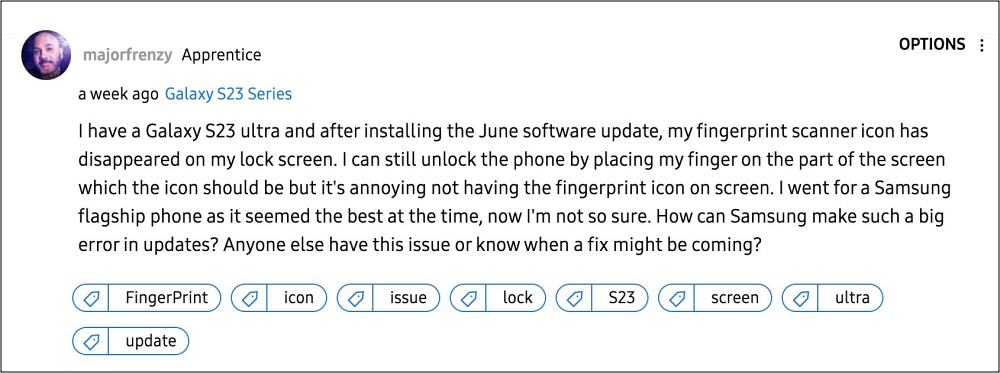
Its June update, on paper, should fix the underlying issues and enhance the overall performance of the OS but that seems to be far from the truth. Numerous users have voiced their concern that right after installing the latest June 2023 security patch, the Fingerprint Scanner Icon is missing from their Galaxy S23 Ultra.
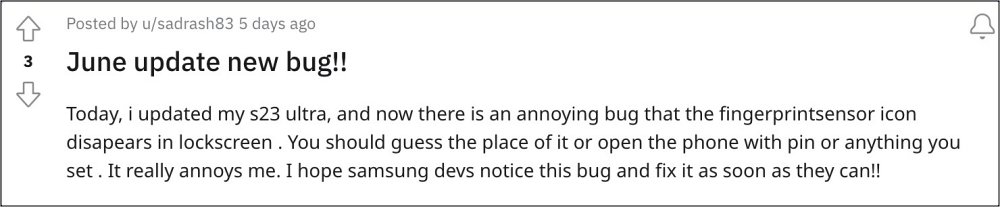
As a result of this, they have to randomly guess the position of the sensor on their screen after a plethora of tries, one of the attempts clicks and their device ultimately gets unlocked. On the other hand, some have bid adieu to this infuriating UI/UX behavior and switched to a different unlocking style altogether. If you don’t want to jump ships over to pattern or PIN, then this guide will help you rectify this fingerprint issue. Follow along.
Fix Fingerprint Scanner Icon missing from Galaxy S23 Ultra
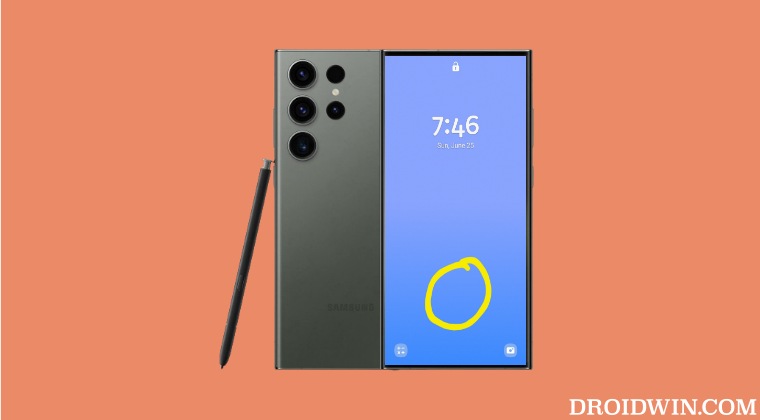
As of now, the only workaround that is spelling out success for the users involves enabling both the “Fingerprint always on” and “Show icon when screen is off” features, then waiting for a few seconds and disabling both these features. This should fix the issue of the Fingerprint Scanner Icon missing from the Galaxy S23 Ultra.
As far as the official stance on this matter is concerned, the developers are yet to acknowledge this issue, let alone give out any ETA for the rollout of a fix. As and when any of these two things happen, we will update this guide accordingly. In the meantime, the aforementioned workarounds are your best bet.
- Hey Google command not working in Galaxy S23 Ultra [Fix]
- How to Disable Camera Sound in Galaxy S23 Ultra
- eSIM not working on Galaxy S23 Ultra: How to Fix
- How to Set Different SIMs for Calls and SMS in Galaxy S23 Ultra
(Cancel Reply)
Δ
