Samsung stuck in SS RDX Watchdog Reset Mode: How to Fix
In this guide, we will show you various methods to fix the issue of the Samsung device being stuck in the SS RDX Watchdog Reset Mode. An Android device beholds quite a few modes, each designed for some specific purposes. First, you have the Fastboot Mode which is used for flashing files. Then there is the recovery mode that comes in handy while factory resetting the device or sideloading a firmware. Likewise, newer devices that have a unified Bootloader and Recovery mode come with an additional FastbootD Mode.
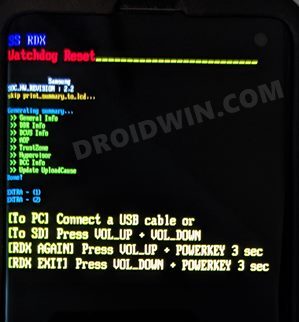
However, when it comes to the South Korean giants, then the partition style is slightly different. Instead of the Fastboot or Bootloader Mode, there is the Download Mode. This is used to flash firmware files via third-party tools like Odin. However, recently we came across a few users’ concerns that their Samsung devices and tablets were stuck in the SS RDX Watchdog Reset Mode. If you are also in the same boat, then this guide will make you aware of a nifty workaround that should help you exit this mode. Follow along.
- How to Fix Samsung stuck in SS RDX Watchdog Reset Mode FIX 1: Exit SS RDX Watchdog Reset Mode FIX 2: Factory Reset via Recovery FIX 3: Flash Firmware via Download Mode
How to Fix Samsung stuck in SS RDX Watchdog Reset Mode
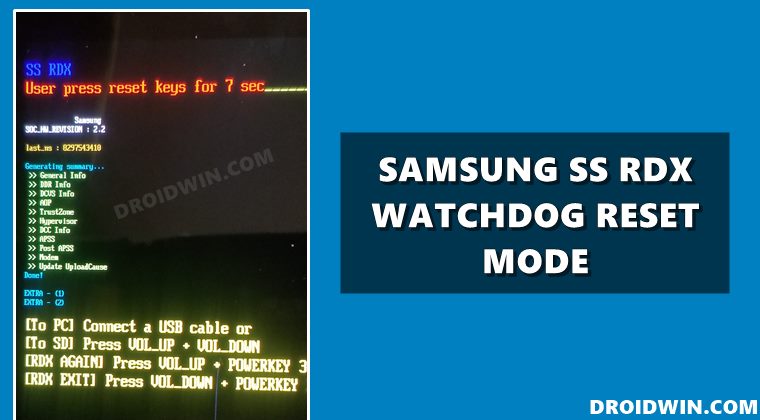
It is recommended that you try out each of the below-mentioned workarounds and then see which one spells out success for you. So with that in mind, let’s get started. Droidwin and its members wouldn’t be held responsible in case of a thermonuclear war, your alarm doesn’t wake you up, or if anything happens to your device and data by performing the below steps.
FIX 1: Exit SS RDX Watchdog Reset Mode
In some instances, the issue might not even be that concerning and could easily be rectified via a nifty workaround. All that you need to do is simply exit this mode via the appropriate hardware key combinations. So what are the required key combinations? Well, it could be either of the two, namely-
- Press and hold Power and Volume Down for 7-10 seconds.
- Press and hold Power, Volume Down, and Volume Up for 7-10 seconds.
So try out both these methods and then check if it manages to fix the issue of the Samsung device being stuck in the SS RDX Watchdog Reset Mode.
FIX 2: Factory Reset via Recovery
Your next course of action should be to factory reset the device from the recovery screen. But how could you boot from the current SS RDX mode to the recovery mode? Here’s how
- To begin with, power off your device. If you aren’t able to do so, then let the battery completely drain out. Then connect it to the charger so that it at least gains 1-2 percent battery,
- Once the device has been turned off, power it on. Then power on the phone and press and hold the key combinations to boot your device to stock recovery. In most devices, it is the Power + Volume Up + Bixby buttons.
- Once booted to recovery, use the Volume keys to highlight the Wipe Data/Factory Reset option and then hit the Power key to confirm it. Once the reset is done, use the Volume keys to highlight Reboot System Now and then hit the Power key to confirm it.
- Your device will now boot to the OS and it should fix the issue of the Samsung device being stuck in the SS RDX Watchdog Reset Mode.
FIX 3: Flash Firmware via Download Mode
If none of the methods worked out in your favor, then your last course of action should be to flash the firmware using Odin. But how to boot the device to Download Mode from the current SS DDX screen.
- To do so, you will first have to power off your device and then press the device-specific hardware key combinations to boot to Download Mode. You may also refer to our guide on How to Boot any Samsung Device to Download Mode .
- Once booted to Download Mode, you could then download the firmware via Frija or a third-party website of your choice.
- After that, download and install Odin on your PC. Then refer to the instructions to Flash Stock Firmware via Odin . Once the flashing is complete, your device will boot to the OS, and the underlying issue would stand resolved.
- How to Understand Samsung Firmware Version Number
- Extract PIT File from Samsung Firmware: Unbrick Guide
- How to Change CSC Codes in Samsung Devices
- How to Uninstall Samsung Internet Browser from Samsung

- Fortnite Apk 6 months ago Reply Thanks for the detailed guide! I was really worried when my Samsung device got stuck in the SS RDX Watchdog Reset Mode. Your step-by-step instructions were easy to follow and helped me resolve the issue quickly. I appreciate you sharing this information!
- 90CLUB 6 months ago Reply Thank you for this detailed guide! I was really struggling with my Samsung device stuck in the SS RDX Watchdog Reset Mode, and your step-by-step instructions made the process much easier. I appreciate the clear explanations and troubleshooting tips. Definitely saved me some time and frustration!
- 51 Club Login 10 months ago Reply Thank you for the detailed guide! I’ve been struggling with my Samsung device being stuck in the SS RDX Watchdog Reset Mode for days. Your step-by-step instructions were clear and easy to follow, and I finally managed to get it back to normal. I really appreciate your help!
- YOUTUBE PREMIUM APK 1 year ago Reply Thanks for the guide! I was really frustrated with my Samsung device stuck in the SS RDX Watchdog Reset Mode. Following your steps helped me resolve the issue quickly. Appreciate the clear instructions!
(Cancel Reply)
Δ
