sideActions not working on Samsung Android 13/One UI 5 [Fix]
In this guide, we will show you the steps to fix the issue of sideActions not working on Samsung Android 13/One UI 5. By default, when you press and hold the power menu on your Samsung device, then it would invoke Bixby. If that is not in sync with your requirement, then at the very most, you could instruct your device to bring up the power menu instead of the virtual assistant. But that’s just about it. This is where sideActions come into the frame.
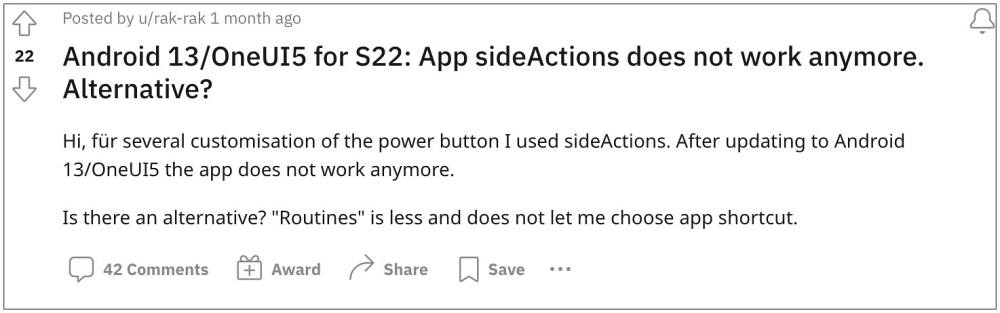
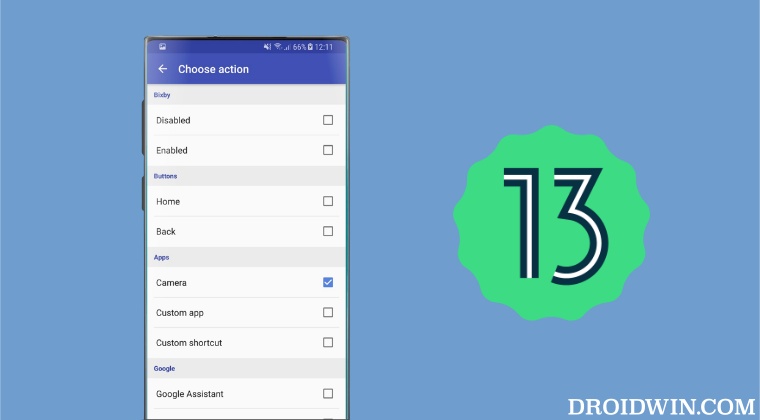
It allows you to remap the power button to literally perform any action of your choice- from turning on flashing to invoking Google Assistant or launching any app of your choice, it beholds all these functionalities under its domain. But with the thirteenth iteration of the OS, the app is no longer working along the expected lines. Why is that so and more importantly how could you fix this issue? Let’s check it out.
- Why is sideActions not working on Samsung Android 13/One UI 5?
- How to Fix sideActions not working on Samsung Android 13/One UI 5 FIX 1: Force Stop Tweak FIX 2: Using Accessibility Service Tweak
Why is sideActions not working on Samsung Android 13/One UI 5?
Starting with Android 13, Google has put a slew of restrictions on the method by which third-party apps used to access system-level APIs. When it comes to sideActions [or any button remapper app for that matter], it uses the logcat generated by system logs API and the READ_LOGS permission.
However, this API has been heavily guarded by the OS to prevent it from being abused by third-party apps. As a result of which, sideActions is not working along the expected lines on your Samsung device after the Android 13/One UI 5 update. So is there a way to bypass this restriction? Let’s check it out.
How to Fix sideActions not working on Samsung Android 13/One UI 5
There does exist a few methods that will allow you to bypass this limitation and make the app up and running again. Go through each one of them and then try out the one that is in sync with your requirement.
FIX 1: Force Stop Tweak
- To begin with, Force Stop the sideActions app.
- Then launch the app and accept the logging permissions.
- Finally, enable the power button mapping.
FIX 2: Using Accessibility Service Tweak
- Remove the file access from the sideActions app.
- Then disable the app’s accessibility service as well.
- Now relaunch the app and toggle on the side button key.
- You will now get the required prompt, allow/grant it.
- Smart View not working on rooted Samsung: How to Fix
- One UI 5 Android 13 app icon not showing in the notification panel [Fix]
- Galaxy S22 Volume Bug on Android 13 One UI 5 [Fix]
- Intune Company Portal: Samsung Face Unlock not working [Fix]

(Cancel Reply)
Δ
