Sideload APK/Install Apps via ADB in Samsung Galaxy Watch [3 Methods]
In this guide, we will show you two different methods to sideload APKs/install apps via ADB on your Samsung Galaxy Watch. Now that Samsung has adopted the Wear OS as the underlying OS for its smartwatches, there’s the possibility to welcome a plethora of Android apps onto your watch. However, you might not be able to get some of the apps from Play Store.
This is either due to region restrictions or due to Samsung’s belief that the concerned app wouldn’t be able to run efficiently on your watch [such as the non-provision of ECG and BP features which you could enable by installing a modded version of the Health app]. Whatever be the case, all this leaves users in a restricted environment with only a few apps to choose from. Or is that really the case?
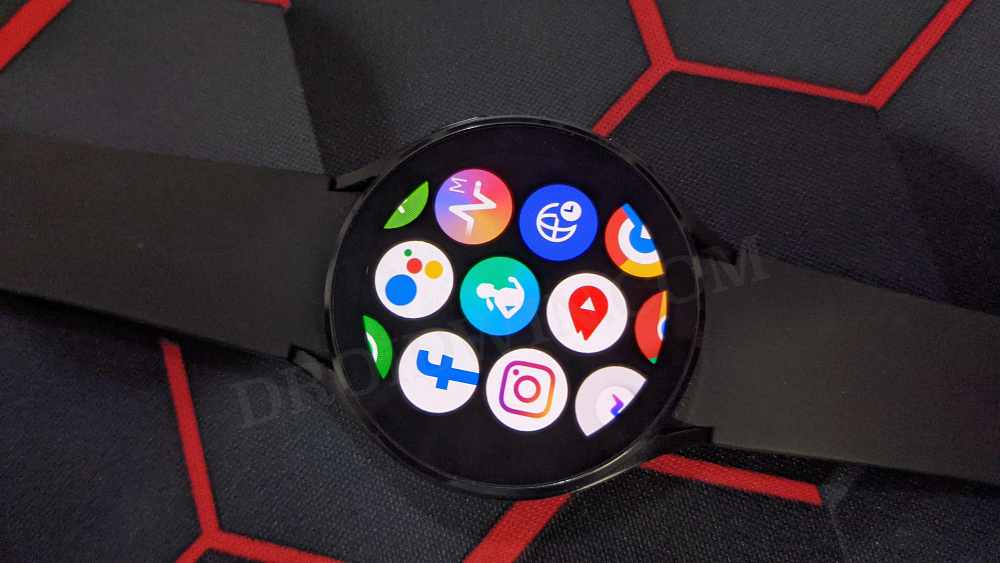
Well, there does exist a road less traveled, which, if you are willing to take, will allow you to sideload APKs/install apps on your Galaxy Watch via ADB from any source of your choice. This route is further segragated into two directions- one takes you to the ADB Commands whereas will take you to a third-party app. We have listed both these methods below, along with their perks and drawbacks. So without further ado, let’s embark on this intriguing journey.
- Sideload APK via ADB Commands in Samsung Galaxy Watch STEP 1: Install Android SDK STEP 2: Enable ADB Debugging in Galaxy Watch 5/Pro STEP 3: Connect Galaxy Watch 5/Pro to PC via ADB Command STEP 4: Install Apps via ADB Commands in Samsung Galaxy Watch
- How to Install Apps via Third-Party App in Samsung Galaxy Watch Via Bugjaeger App [NEW] Wear Installer 2 [NEW] Via Easy Fire Tools [OLD]
Sideload APK via ADB Commands in Samsung Galaxy Watch
The benefit of this method is that it doesn’t require any third-party app. However, its drawback is the requirement of a PC.
STEP 1: Install Android SDK
First and foremost, you will have to install the Android SDK Platform Tools on your PC. This is the official ADB and Fastboot binary provided by Google and is the only recommended one. So download it and then extract it to any convenient location on your PC. Doing so will give you the platform-tools folder, which will be used throughout this guide.

STEP 2: Enable ADB Debugging in Galaxy Watch 5/Pro
- Head over to Settings > About Watch > Software and tap Software Version 7 times.
- Then go to Developer Options and enable the toggle next to ADB Debugging.
- After that, scroll down a little bit and enable the toggle next to Debug over WiFi.
- It will now bring up the IP Address, note it down somewhere [do not include the port number, i.e. values after the colon].
- For example, if the entire value is 192.168.1.3:5555, then your IP will be 192.168.1.3.
STEP 3: Connect Galaxy Watch 5/Pro to PC via ADB Command
- Head over to the platform-tools folder, type in CMD in its address bar, and hit Enter. This will launch Command Prompt.
- Now type in the below command in this CMD window [make sure to replace IP accordingly]. adb connect IP
- You will now get a prompt on your watch, tap OK or Always Allow from this computer.
- Finally, execute the below command to verify the ADB Connection between your watch and PC adb devices
- You will now get your IP Address and port number, followed by the ‘device’ keyword. This signifies that the connection has been successfully established.
STEP 4: Install Apps via ADB Commands in Samsung Galaxy Watch
- To begin with, transfer the desired APK file to the platform-tools folder on your PC.
- Then open CMD inside this platform-tools folder and execute the below command [make sure to replace IP and app-name accordingly]. adb -s IP install app-name.apk
- For example, if we are installing an app named WhatsApp on the watch with IP 192.168.1.3:5555, then the above command will transform to- adb -s 192.168.1.3:5555 install WhatsApp.apk
- WhatsApp will now be installed on your watch which you could access from the app drawer.
- That’s it. These were the steps to sideload APK/install apps on your Galaxy Watch 5/Pro via ADB Commands.
How to Install Apps via Third-Party App in Samsung Galaxy Watch
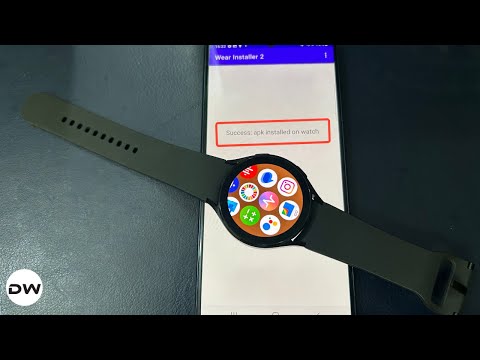
The benefit of this method is the fact that it doesn’t require a PC. On the other hand, the requirement for the installation of a third-party app could be counted as a drawback. So with that in mind, let’s get started.
NOTE: Since the Debug over WiFi feature has now been removed, we will be using a new method, involving ‘Pair via Pairing Code, IP Address, and Port number’ to establish a connection between your device and watch in order to install an APK file. For this, you may either refer to the Bugjaeger app or Wear Installer 2 method.
Via Bugjaeger App [NEW]
- To begin with, download the desired WatchFace APK from above onto your device.
- Now, download and install the Bugjaeger app on your device.
- Then launch it and tap on the New Connection icon at the top right. Keep this window open.
- After that, head over to Settings > About Watch > Software and tap Software Version 7 times.
- Then go to Developer Options and enable the toggle next to ADB Debugging.
- Next, go to Wireless Debugging and enable it. Then scroll down and tap on ‘Pair New Device’.
- You’ll get the pairing code, IP Address, and Port. So type in the IP Address and Port in the Bugjaeger app and hit Pair.
- Then type in the IP Address, Port, and WiFi Pairing Code in the app and hit Pair.
- Finally, type in the IP Address and Port number and hit Connect. NOTE: The Port number should be from the ‘IP Address and Port’ section of the watch [not from the Pair with Device section]. Your watch should now be connected to your device via Bugjaeger.
- Now, go to the third tab of Bugjaeger and hit the Plus icon at the bottom right.
- Now choose Select APK file, select the desired APK, and it will be installed.
- For example, we have installed the Dynamic Digits One UI 8 watch face on our Galaxy Watch 4.
Wear Installer 2 [NEW]
- First off, download and install the Wear Installer 2 app from the Play Store. Then launch it and keep it open.
- Next, head over to Settings > About Watch > Software and tap Software Version 7 times.
- Then go to Developer Options and enable the toggle next to ADB Debugging.
- Next, go to Wireless Debugging and enable it. Then scroll down and tap on ‘Pair New Device’.
- Then launch it, note down the IP Address, and type it in the Wear Installer 2 app.
- Now, tap on the overflow icon and select Pair with Watch.
- Then tap Enable. Now type in the pairing code and pairing port in the app, which is shown on the watch.
- You’ll now be taken to the app’s main page. Over there, type in the pairing code which is shown in the watch’s IP Address and Port section [and not the one which was shown in the Pair New Device section].
- Finally, hit Install. The app will now be installed on your watch [this might take some time, depending on the file’s size]. Once done, hit Finish.
- That’s it. You may now launch the app from your watch and close ADB Debugging as well [optional, but recommended as it will save your watch’s battery].
- Now that the pairing is done, from the next time onwards, whenever you want to install any APK on your watch, then just enter the port number from the IP Address and Port section of the watch, see below, [and not the Pair New Device section of the watch] in the app and hit Done. Use the IP Address and Port from here for subsequent times
Via Easy Fire Tools [OLD]
This is the old method when the ‘Debug over WiFi’ feature was still in place.
- Head over to Settings > About Watch > Software and tap Software Version 7 times.
- Then go to Developer Options and enable the toggle next to ADB Debugging.
- After that, scroll down a little bit and enable the toggle next to Debug over WiFi.
- It will now bring up the IP Address, note it down somewhere [do not include the port number, i.e. values after the colon].
- For example, if the entire value is 192.168.1.3:5555, then your IP will be 192.168.1.3.
- Moving on, now download the desired app and transfer the APK file to your device.
- Then download and install the Easy Fire Tools app from the Play Store.
- Now launch the app, tap on the overflow icon situated at the top left, and select Settings.
- After that, select IP Address and type in your watch’s IP Address without the port number [in our case it is 192.168.1.3].
- Now go back to the app’s home page and tap on the plug icon situated at the top right.
- You will get an Allow Debugging prompt on your watch, tap OK.
- After that go to the Custom APK File tab and tap on Select file.
- Now navigate to the downloaded APK file and select it. Then tap on Install YES.
- The app will now be installed on your watch which you could access from its app drawer.
- Install Google Assistant in Galaxy Watch 5/Pro [Unsupported Countries]
- Galaxy Watch 5/Pro Excessive Battery Drain: How to Fix
- Cannot Pair Galaxy Watch 5/Pro with Xiaomi/Redmi: How to Fix
- Install Google Pay/Wallet in Galaxy Watch 5/Pro in an Unsupported Country

(Cancel Reply)
Δ
